Guides › Onboarding and offboarding
Onboarding and offboarding
How to give a new colleague a good welcome and say a proper goodbye to someone who is leaving – with templates, tasks for the right people and a welcome page.
What the module does
Onboarding and offboarding – Onboarding in the menu – gathers everything that needs to happen when a new employee starts or a colleague leaves. Each process has tasks for HR, IT, the manager, the mentor and the person themselves, with deadlines based on the first or last day. The tasks are linked to Equipment, Read and understood, Courses and certificates and GDPR.
The welcome page
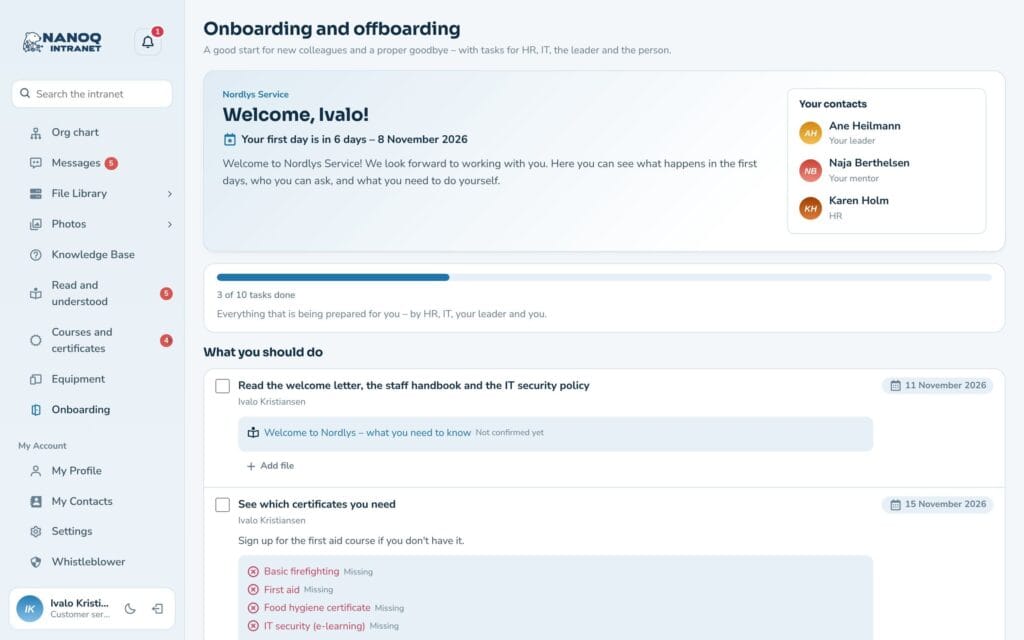
The new employee can log in before the first day and sees a welcome page: “Welcome, Maliina!” with a countdown to the first day, the welcome text, Your contacts (your manager, your mentor and HR), the progress of the whole process and What you should do – for example reading the staff handbook or seeing which certificates are required.
On the phone
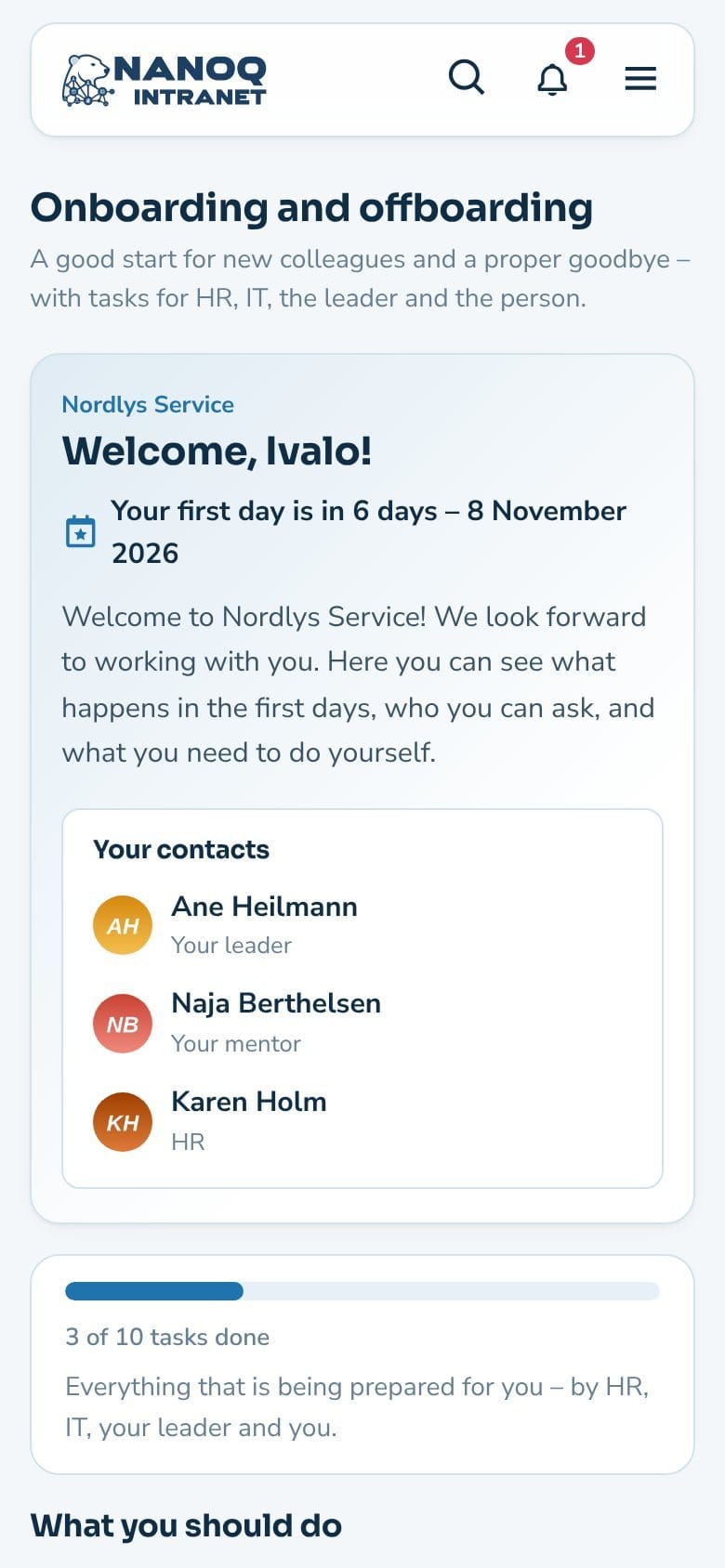
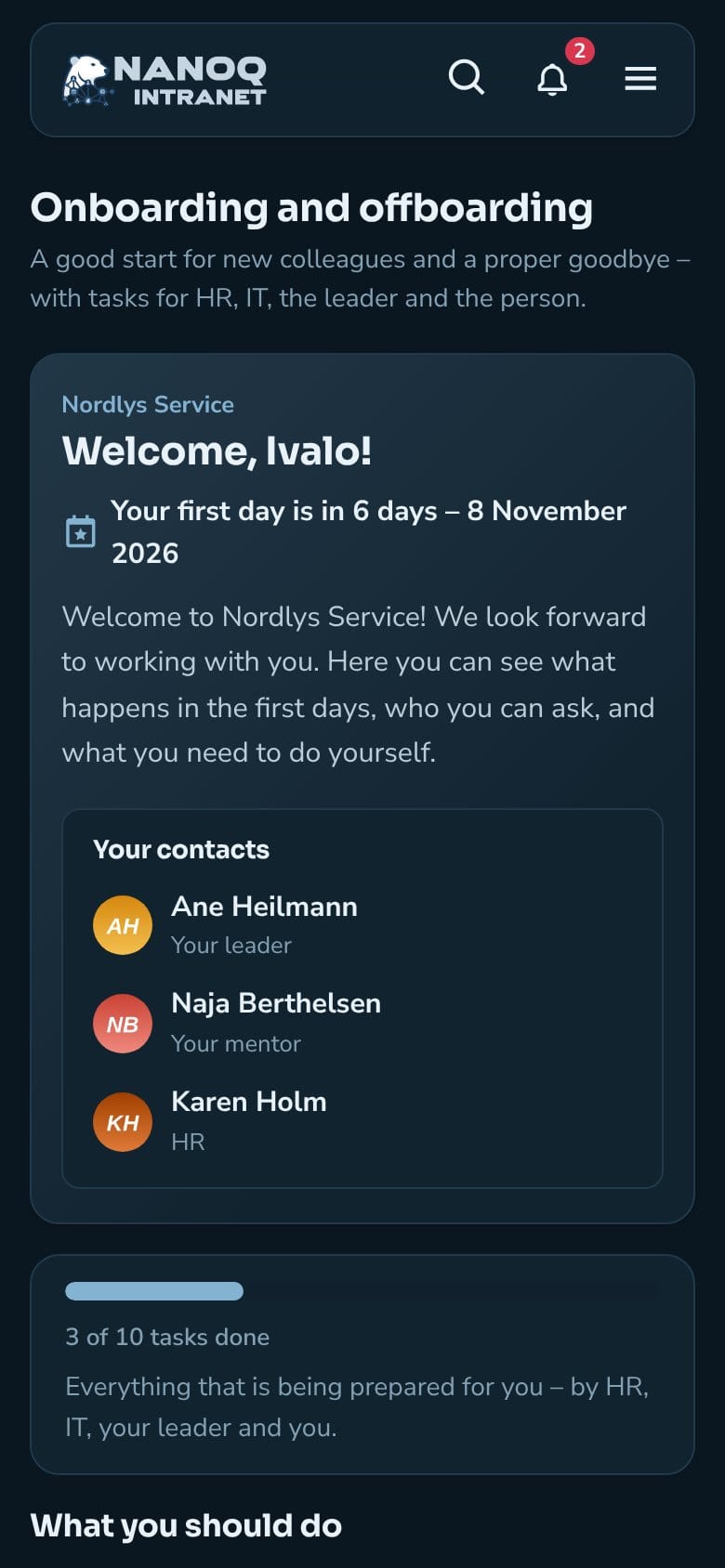
The welcome page and the tasks work on the phone too – also in dark mode.
Your last days
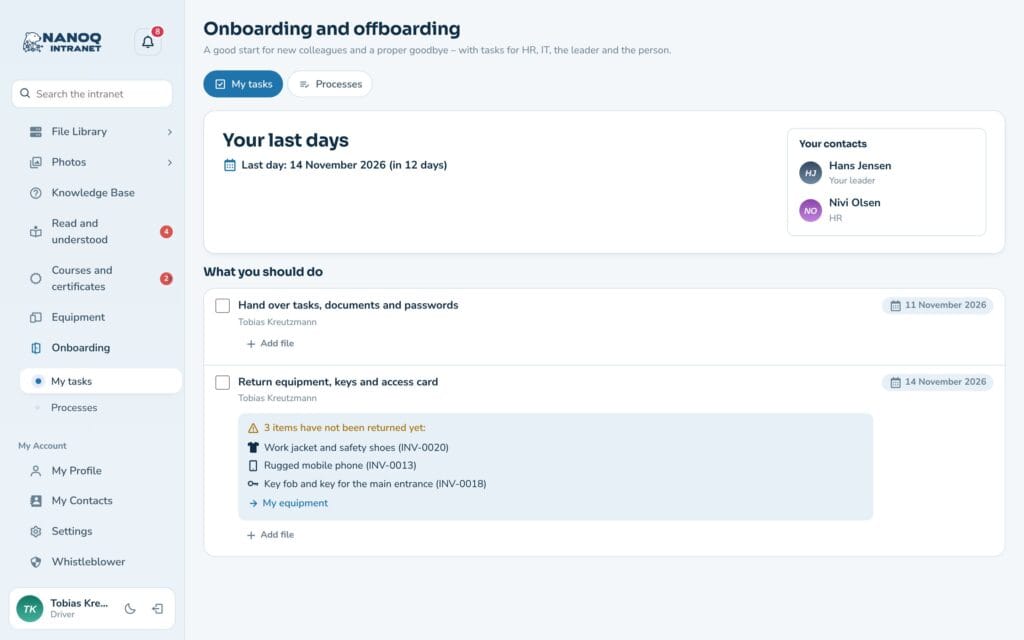
The person who is leaving sees Your last days with the last day, the contacts, their own tasks and the equipment that must be returned.
Tasks for you
If you have a task in someone else’s process – as manager, mentor, IT or HR – it is shown under My tasks with the deadline and the person it concerns. The number next to the menu item shows tasks due within 7 days. Tick the task when it is done.
Start a process
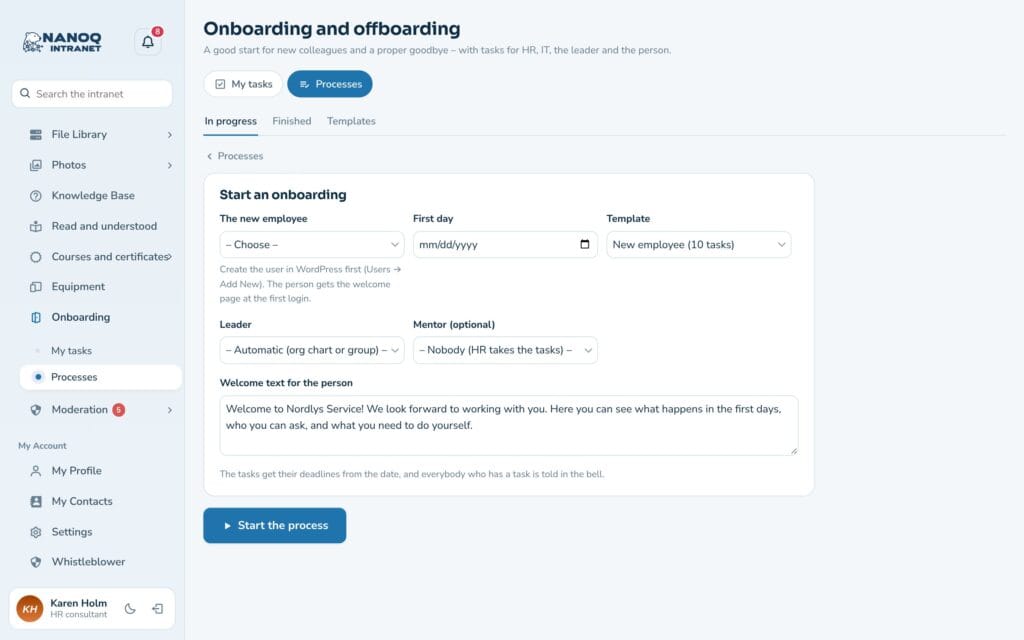
- HR chooses Onboarding → Processes and clicks Start an onboarding (or Start an offboarding).
- Choose The new employee (or The person who leaves) and the First day (or Last day). If the person isn’t a user yet, you can invite them directly – see Invite the new employee.
- Choose the Template, the manager (automatic from the org chart or the group) and optionally a Mentor (optional).
- Edit the welcome text and click Start the process.
The tasks get their deadlines from the date, and everyone who has a task is notified under the bell.
Invite the new employee
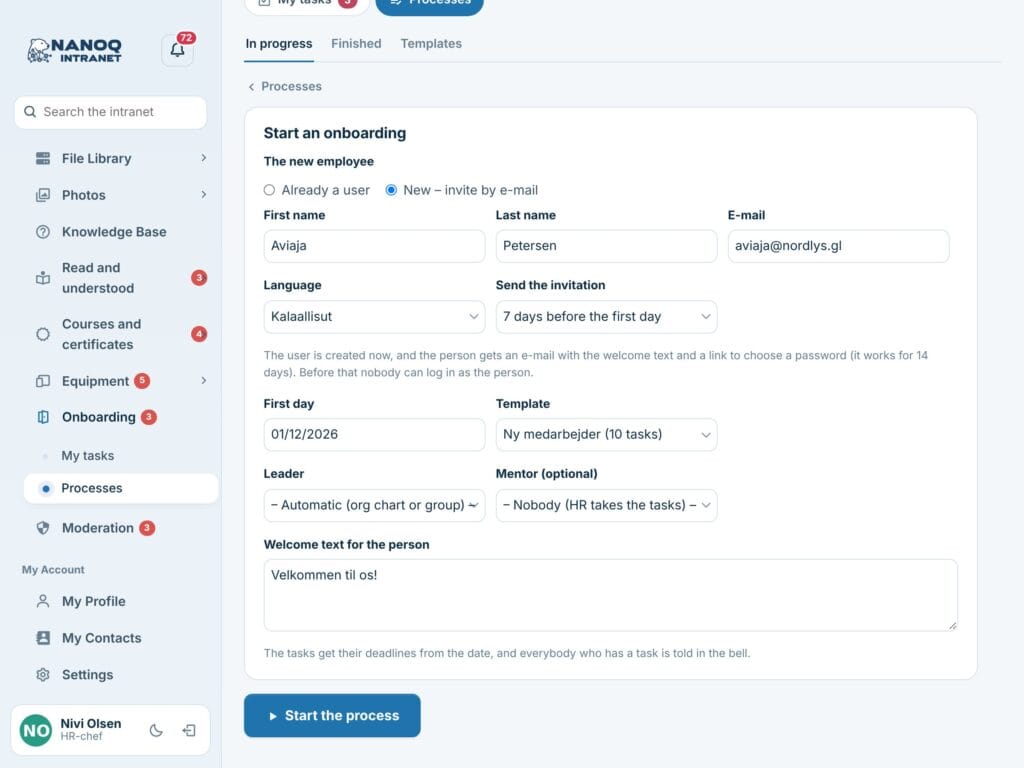
If the new employee isn’t a user yet, choose New – invite by e-mail under The new employee:
- Write the first name, last name, email and language.
- Under Send the invitation choose whether it is sent now or 3, 7, 14 or 30 days before the first day.
- Click Start the process.
The user is created straight away, and the person gets an email in their own language with the welcome text, the first day and a link to choose a password. The link works for 14 days. On the process HR sees whether the person has logged in and can click Send the invitation again.
Follow a process
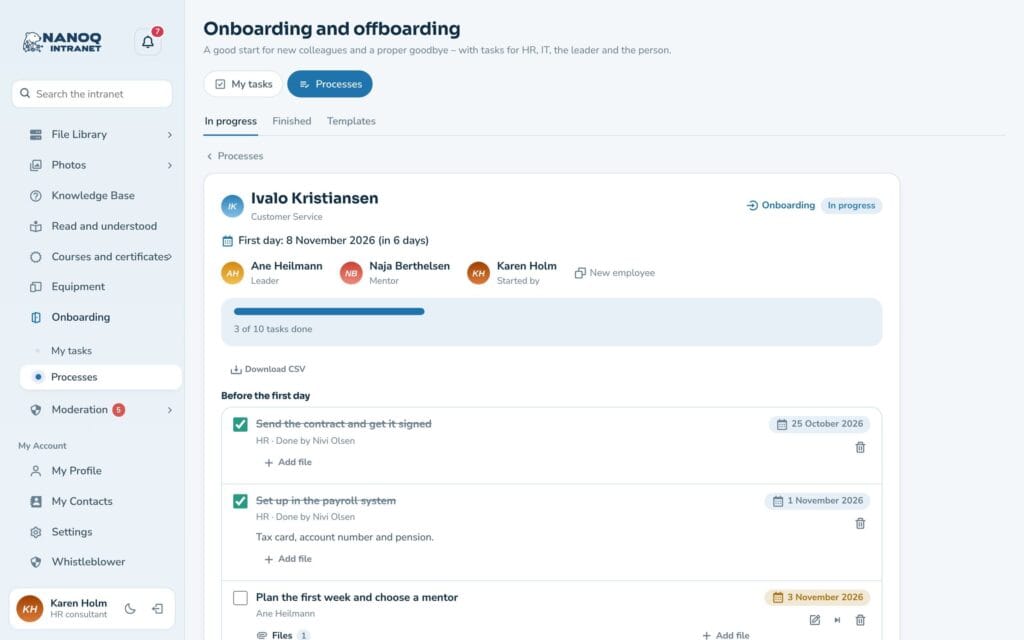
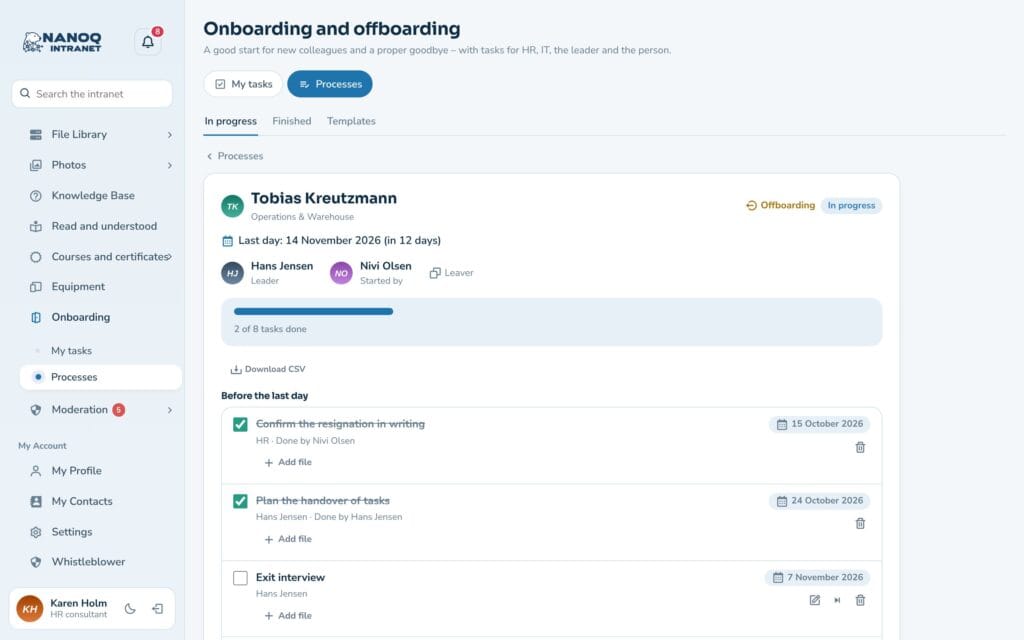
Under In progress are the processes with their progress – for example “4 of 10 tasks done”. Click a process: the tasks are in groups (before, on and after the day) with the person responsible and the deadline. For the linked tasks, the equipment handed out (with Hand out equipment), the documents that have been confirmed and the status of the certificates are shown.
- Add a task – the manager of the process can too.
- Change the process – the deadlines of the open tasks move with the date.
- Edit an open task – title, person responsible or deadline – and attach files, such as the contract.
- Download the process as CSV.
- Skip, Finish the process, Cancel the process.
When the last task is done, the process is finished.
Templates
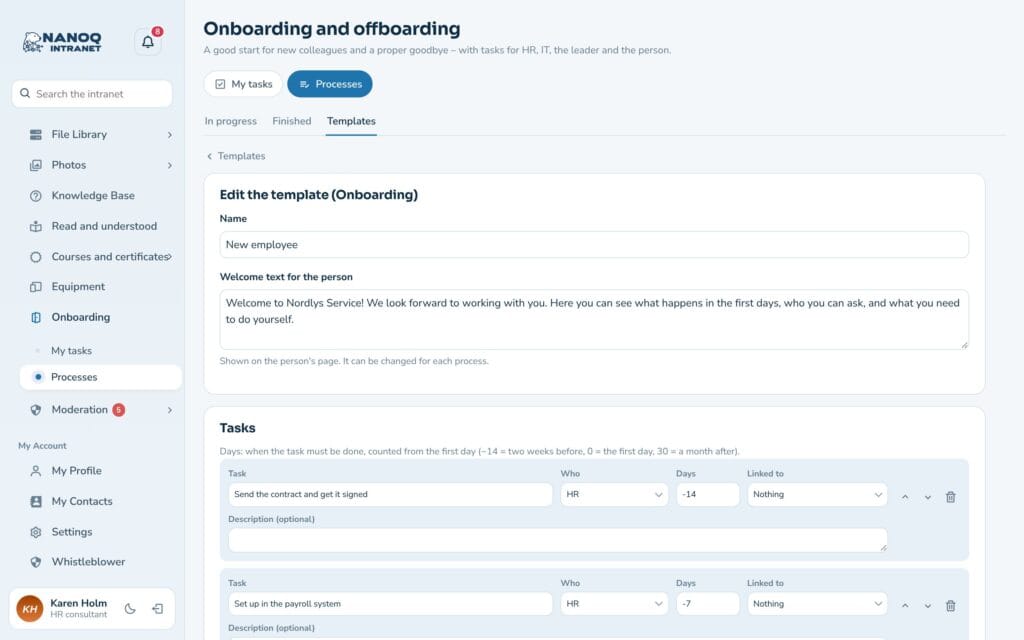
Under Templates click Use the ready-made template to get “New employee” (10 tasks) and “Leaving the workplace” (8 tasks). Adjust them, or make your own: each task has a title, who (HR, IT, manager, mentor or the person), days before or after the day (−14 = two weeks before), a link (Equipment, Read and understood, Certificates or GDPR) and a description. Under In other languages each task can have its title and description in the other languages of the intranet – then everybody sees the tasks in their own language, also in the reminders. Changes to a template don’t change processes that have already started.
Reminders
- The day before the deadline and when the deadline has passed – to the person responsible, once per task.
- The new employee’s own tasks are only reminded about after the first day.
- On Mondays HR gets the number of tasks past their deadline.
For administrators
Under Nanoq → Onboarding and offboarding in wp-admin you turn the module on and choose HR people and roles, the IT people (if none are chosen, HR takes the IT tasks), whether department leaders follow their members, and which roles are not included. The module is off until you turn it on. The shortcode [nanoq_onboarding] shows the user’s tasks on an ordinary page.
Good to know
- The person themselves only sees their welcome page with their own tasks – not the whole process.
- At offboarding, the “Return equipment” task requires an extra confirmation if something hasn’t been returned.
- The last task when someone leaves is the anonymisation in the GDPR module – it also deletes the process.