Guides › Communication
Events
A shared calendar for meetings, courses, staff events and parties – with location, image and description.
What the module does
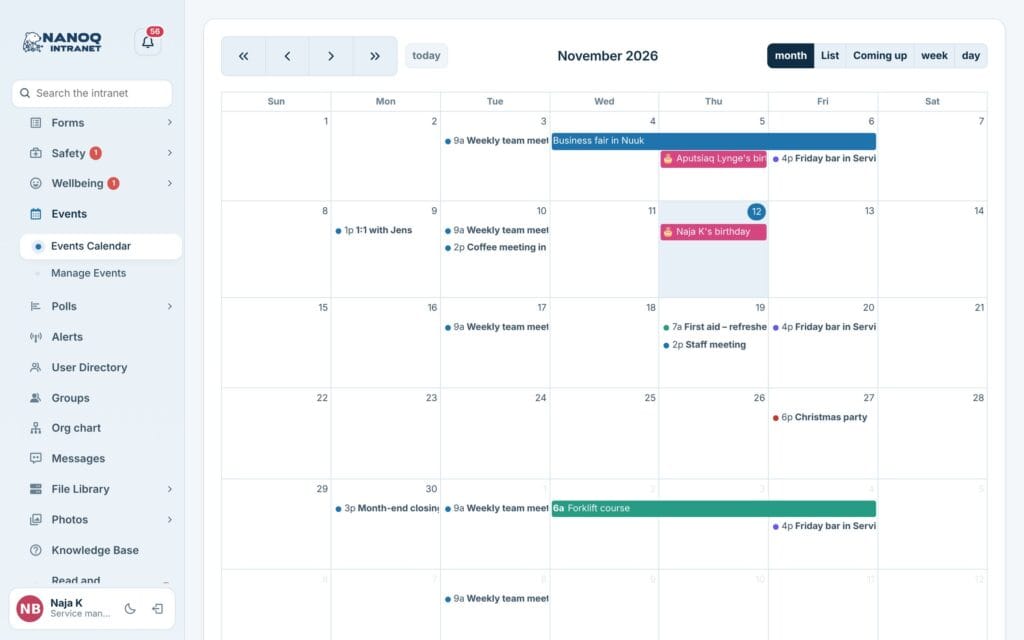
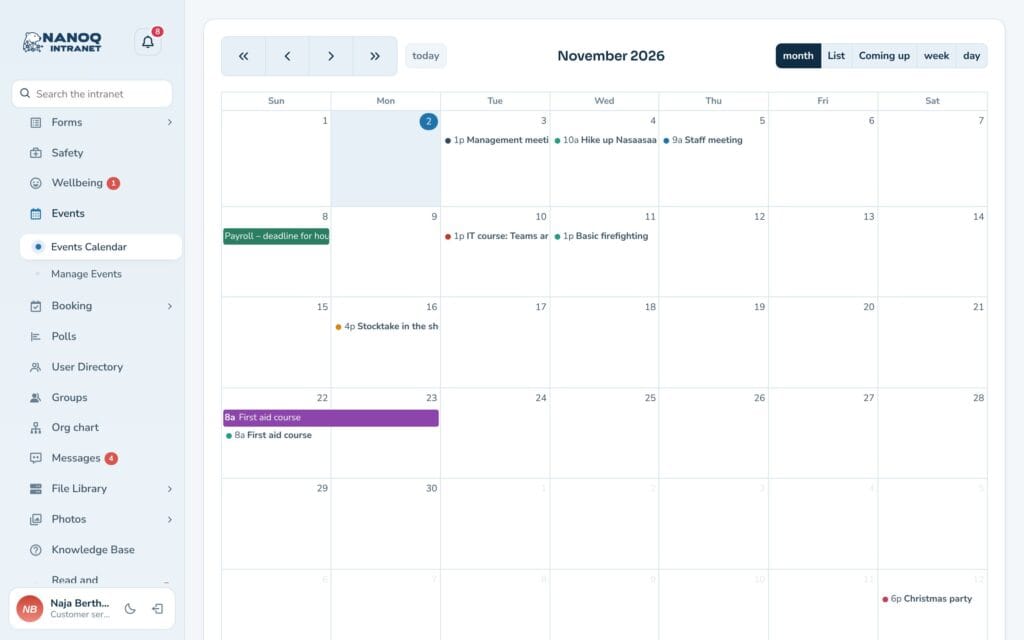
Events is the company’s shared calendar. It shows what’s happening – from the staff meeting to the Christmas party.
- The Month, List, Coming up, Week and Day views.
- Each event has a time, location, colour, image and description.
- An event can repeat – every day, every week, every 2 or 3 weeks or every month.
- It can be for everybody, for chosen groups or private (you and the people you choose).
- Reminders before the event – for everybody or just for yourself.
- Birthdays are shown in the calendar for colleagues who let everybody see their date of birth.
- The location field suggests fixed places and places used before.
- Upcoming events are shown on the dashboard and on the wall.
- Courses from Courses and certificates can also be shown in the calendar.
For employees
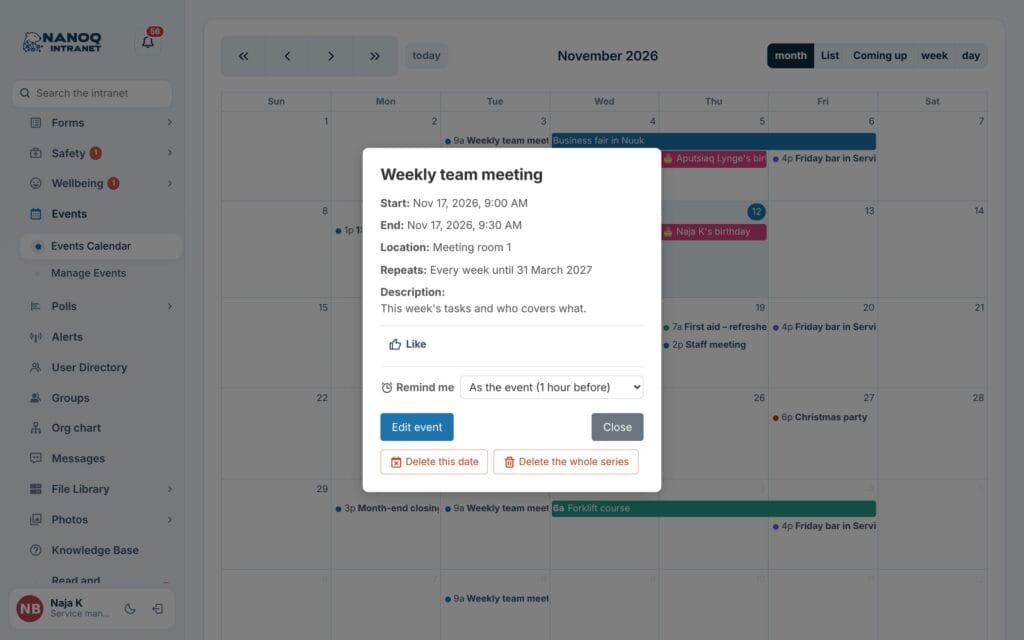
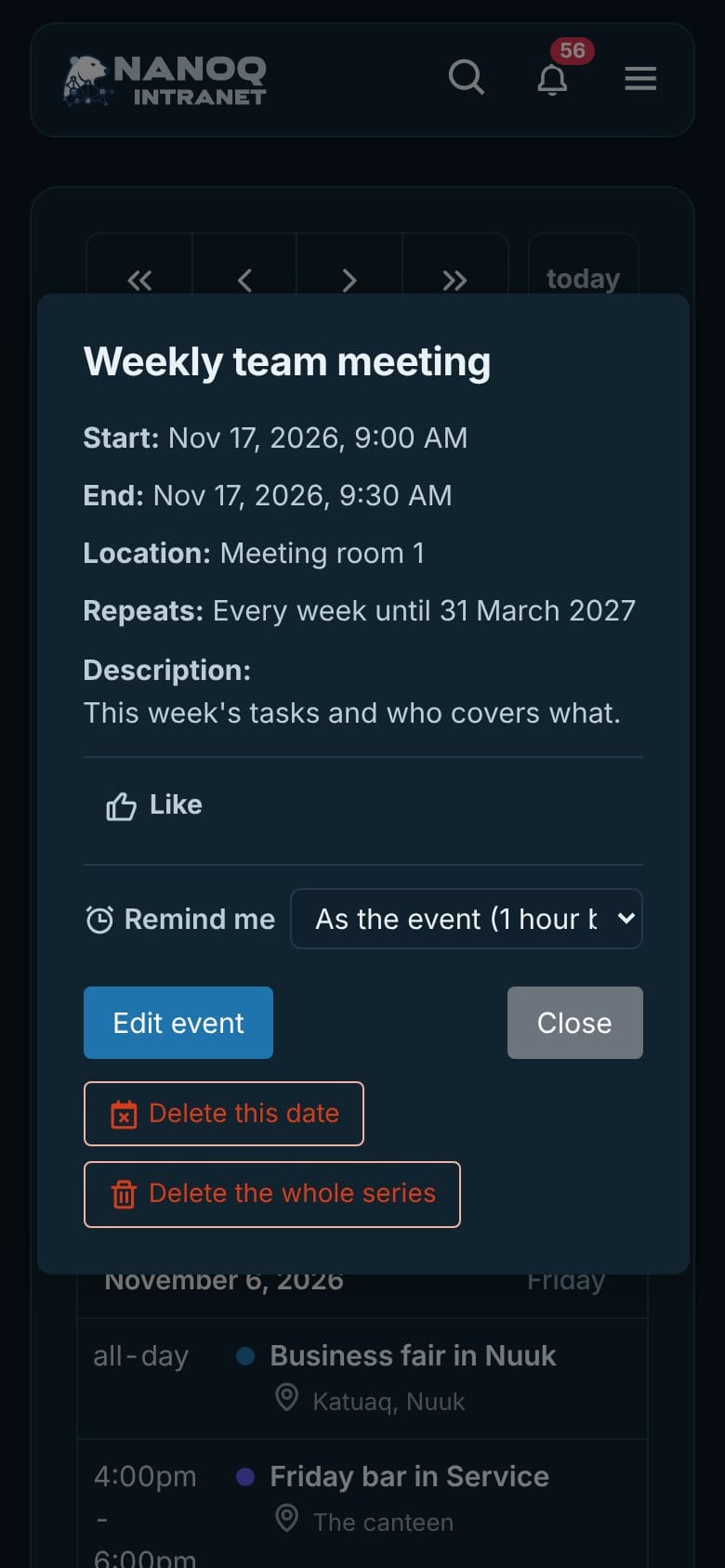
Click Events → Events Calendar. Click an event to see the time, location and description. If the Likes module is turned on, you can also like the event in the pop-up.
- Remind me: choose in the pop-up when you want to be reminded of the event (15 minutes to a week before) – or No reminder. If it says As the event, you follow the reminder the creator chose. The reminder comes under the bell, and by e-mail if you have chosen that under Reminders before events in your notifications.
- A repeating event shows Repeats – for example “Every week until 31 March 2027”.
- Birthdays are marked with 🎂, and a click takes you to the person’s profile.
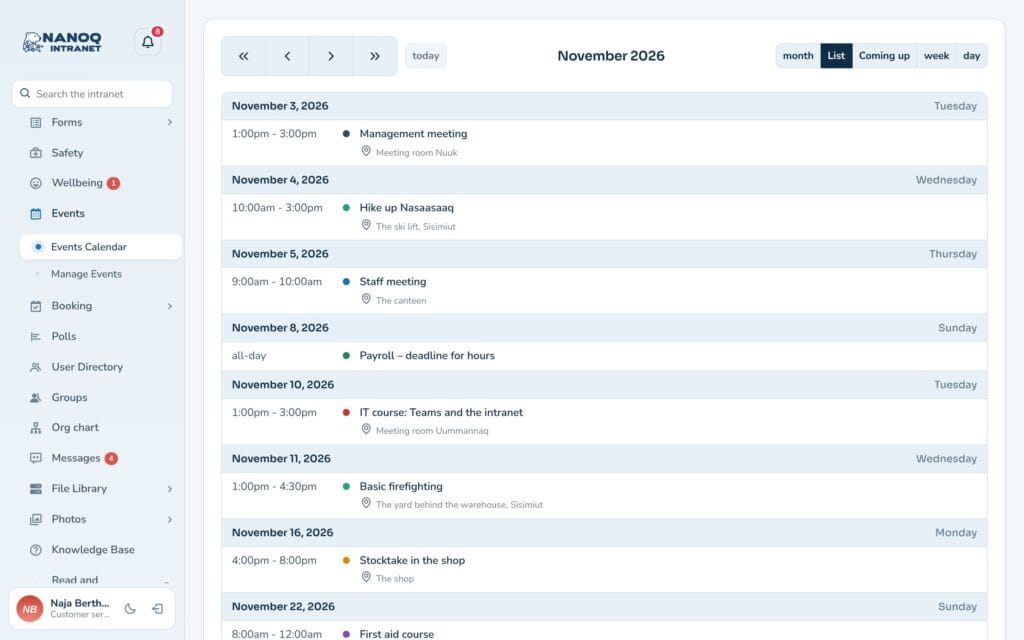
As a list
At the top of the calendar you choose the view: Month · List · Coming up · Week · Day.
- List shows the month as a list – use the arrows to change month.
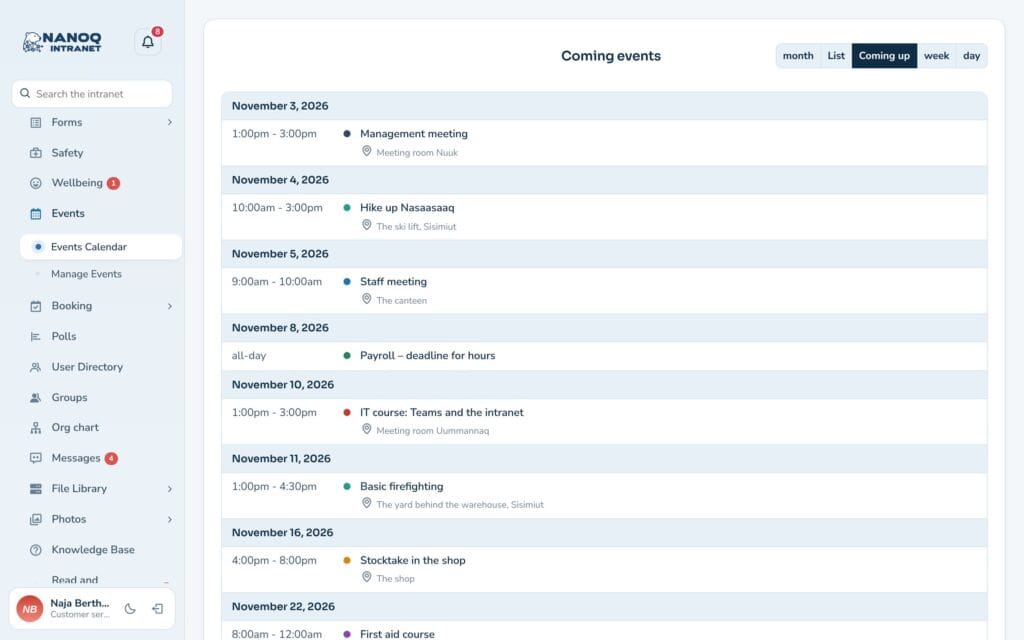
- Coming up shows all upcoming events in one list.
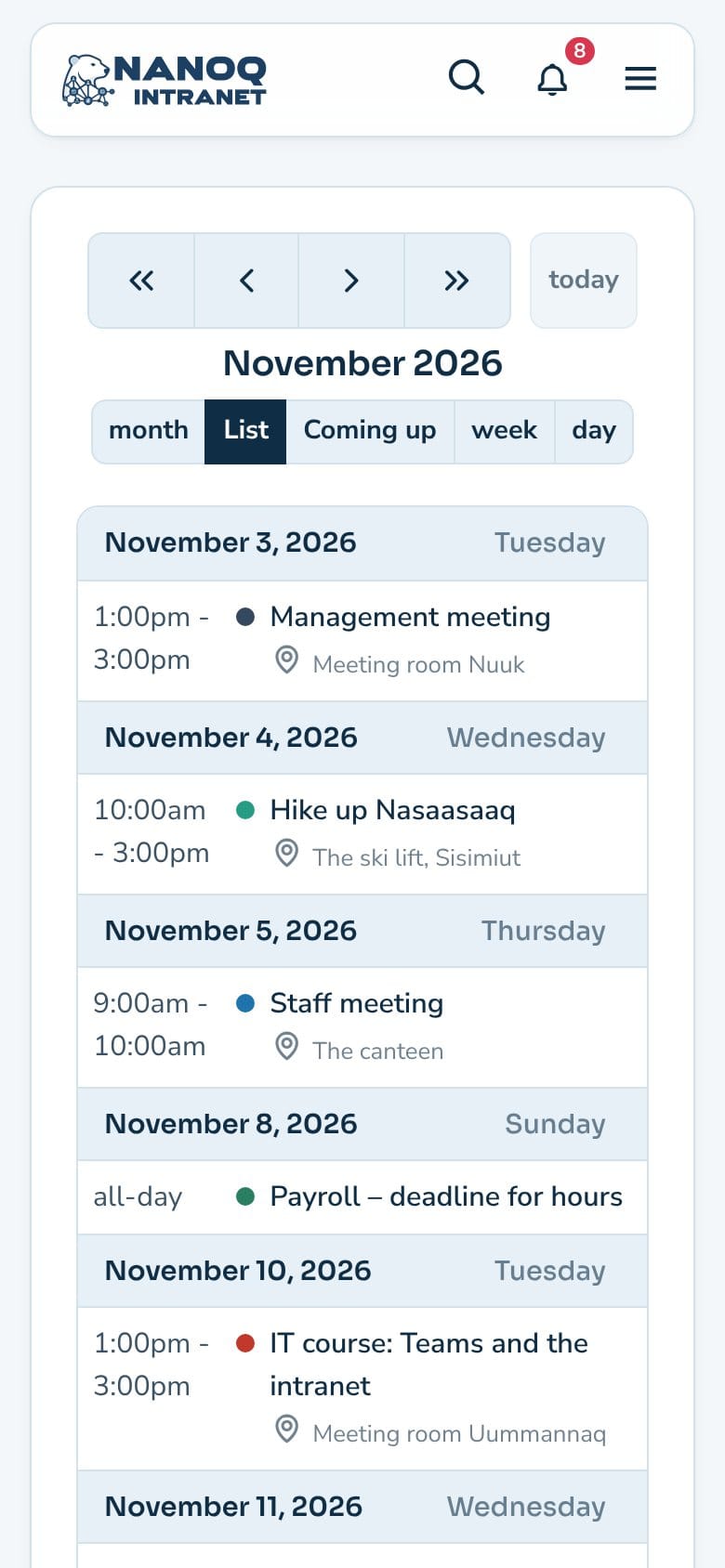
- The location is shown under the title, and a click opens the event.
- Your choice is remembered. On the phone, the list is the default.
Create an event
If your role is allowed to, you’ll find Manage Events under Events.
- Create a new event and give it a title.
- Choose start and end – or an all-day event. An event can run over several days.
- Write the location. The field suggests rooms and addresses as you type, but you can also write freely.
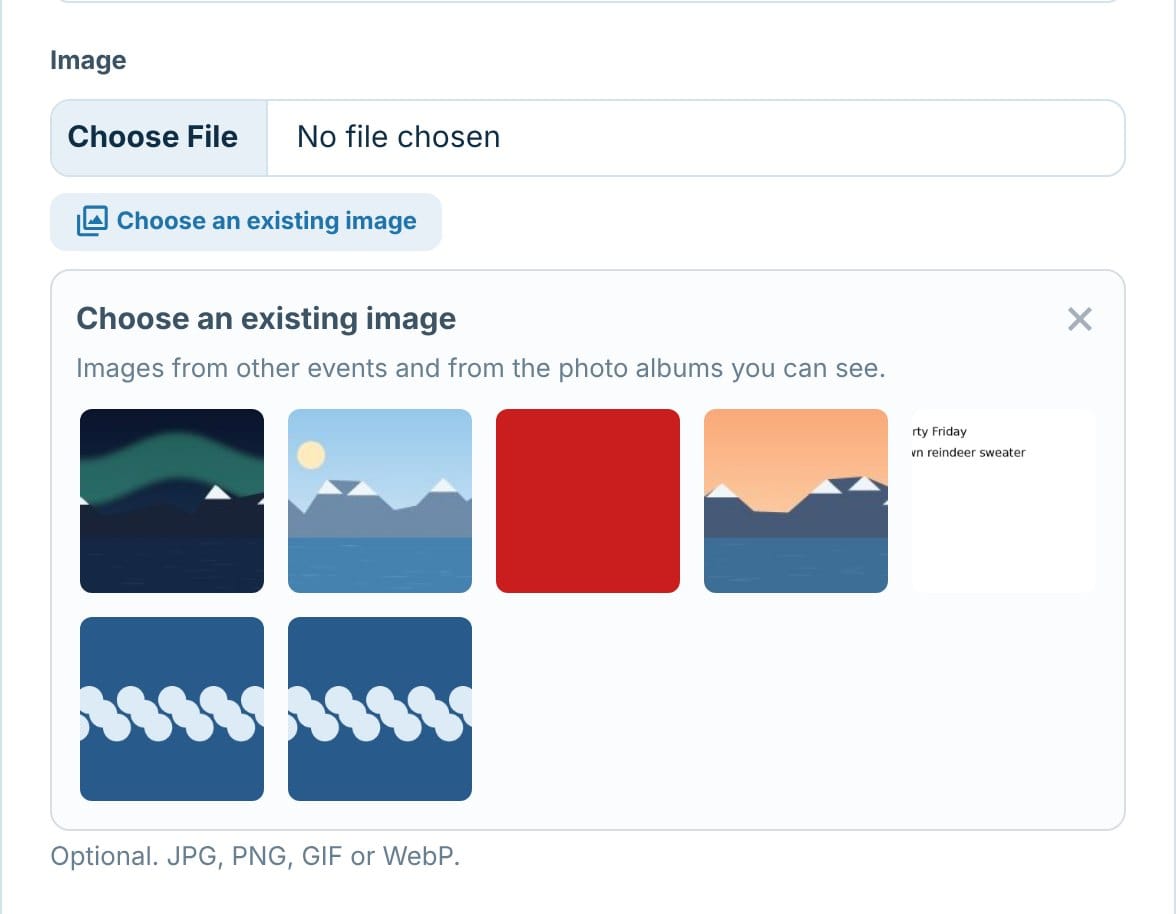
- Choose a colour, and optionally add an image, a link and a description. With Choose an existing image you reuse an image from another event or from an album you can see – so the same image is not stored many times.
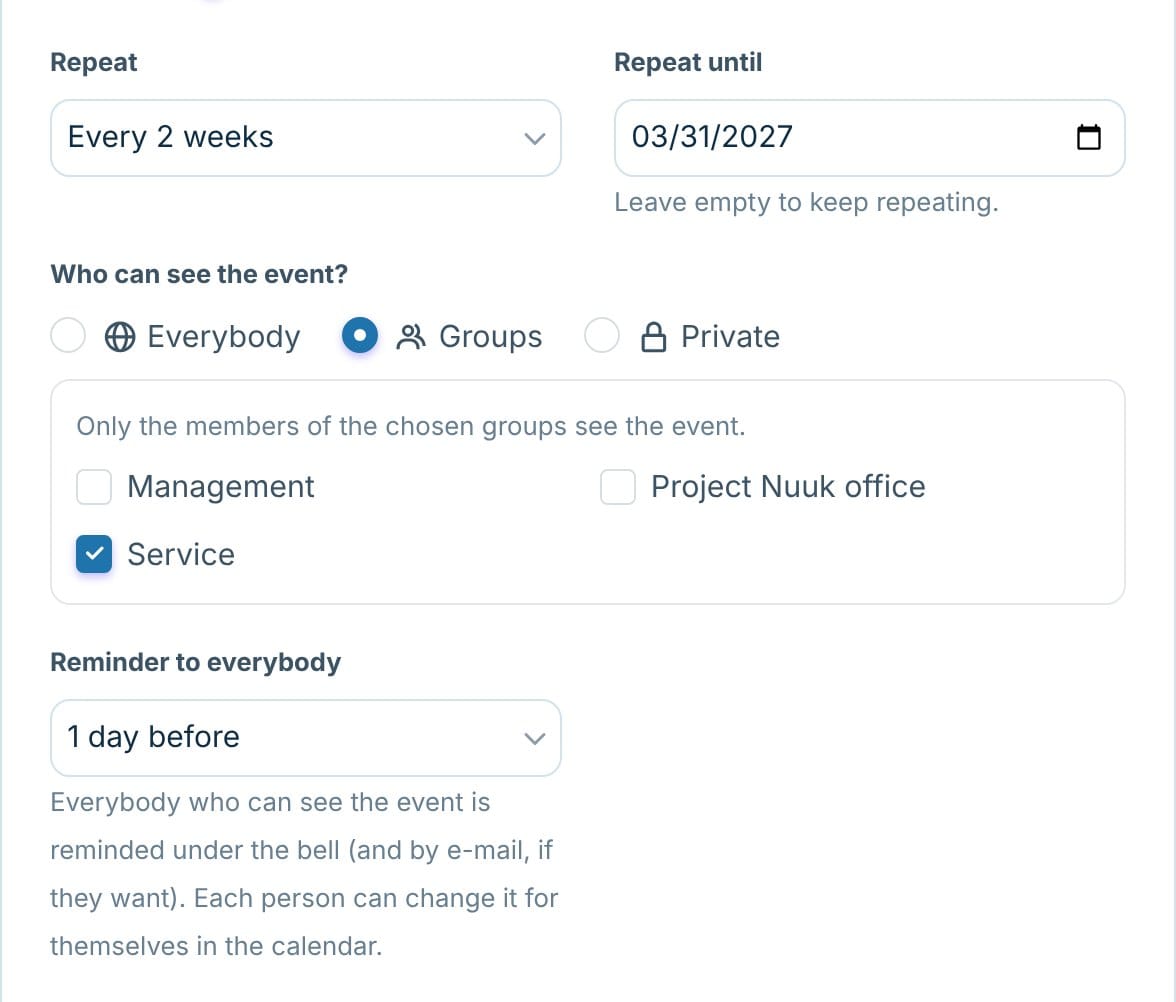
- Choose the repeat, who can see the event and a reminder (see below).
- Save.
Use the colours consistently, for example one colour for meetings and one for social events. That makes the calendar easy to read.
Repeat, visibility and reminders
Repeat: Does not repeat · Every day · Every week · Every 2 weeks · Every 3 weeks · Every month. With Repeat until the series stops on a date – leave the field empty to keep repeating. If it repeats on the 31st, it falls on the last day of the month in short months.
Who can see the event?
- Everybody – everyone with access to Events.
- Groups – only the members of the groups you choose.
- Private – only you and the people you choose (use Find a person). Administrators do not see private events either.
Only those who can see the event are told about the new event.
Reminder to everybody: everybody who can see the event gets a reminder under the bell (and by e-mail, if they want). Each person can change it for themselves with Remind me in the calendar.
Delete: click the date in the calendar and choose Delete this date (the rest of the series stays) or Delete the whole series.
For administrators
Under Nanoq → Events:
- Turn the module on/off.
- Restrict Access and Add Event: roles that may not see or create.
- Default colour and the calendar’s language.
- Location options: a list of fixed rooms and addresses that are always suggested first.
- Birthdays in the calendar: shows the birthdays of the people who let everybody see their date of birth (without the year). On by default.
Good to know
- Events can be shown on an ordinary page with
[nanoq_events]. See Shortcodes. On a public page, only events for everybody are shown. - A repeating event is one event: if you edit it, the change applies to the whole series. Single dates can be deleted, but not edited one by one.
- If a room is booked for a repeating event, it is only booked for the first date.
- Reminders are sent by WordPress’ scheduled tasks (WP-Cron) – on an intranet with very little traffic they can come a little later.
- Search also finds events, and a click opens the event directly in the calendar.