Guides › Time and HR
Shift planning
Plan the week’s shifts, share open shifts, swap with colleagues – and get your shifts in your phone’s calendar.
What the module does
Shift planning is for workplaces with changing working hours: shops, care, service, warehouses.
- A weekly plan per department with shift types (day, evening, night or your own).
- Drafts that are only sent out when the plan is ready.
- Warnings about absence, “can’t work” days, overlaps and too little rest time.
- Open shifts that employees can take.
- Swap: offer your shift to your colleagues.
- A calendar subscription for the phone.
For employees
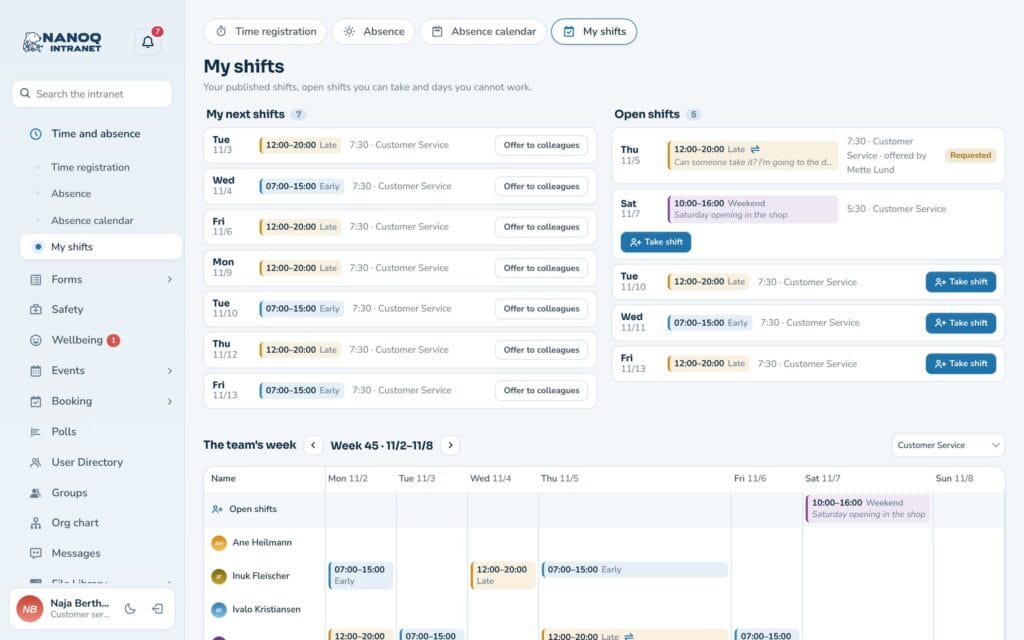
Time and absence → My shifts shows:
- your next shifts,
- the team’s week,
- open shifts in your groups – click Take shift,
- Days I cannot work – mark days when you can’t work, so the planner can see it.
Swap a shift: Click Offer to colleagues on your shift. When a colleague wants to take it, the planner approves the swap.
In your phone’s calendar: Copy the link to the calendar subscription and add it in Google Calendar, Outlook or on your iPhone. Your shifts and approved vacation are included automatically. The link can be renewed if it has got out.
The My Next Shifts widget can be added to the dashboard.
Plan shifts
Planners are group leaders (for their own groups) as well as HR managers and administrators (all groups and the “All employees” plan).
- Go to Time and absence → Plan shifts and choose the plan and week.
- Click in the grid to create a shift: employee (or open), start, end, break, type and note. Use Also add on the weekdays to make five at once.
- Use Copy last week to start from last week’s plan.
- Keep an eye on the warnings and the hours per employee compared with the norm time.
- Click Publish. Each employee gets an email with their shifts, and open shifts are sent to everyone in the plan.
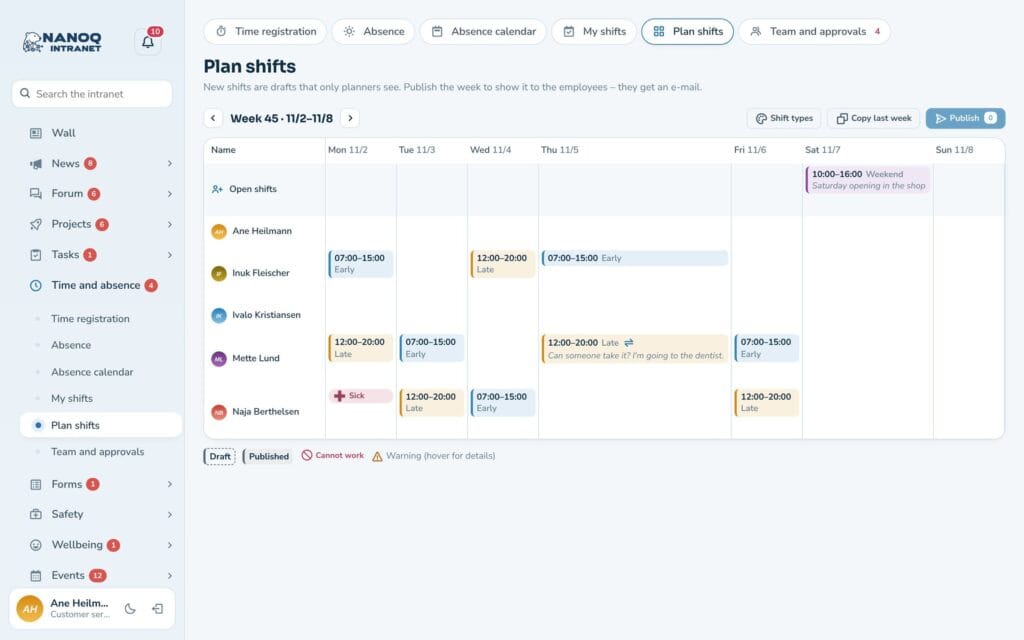
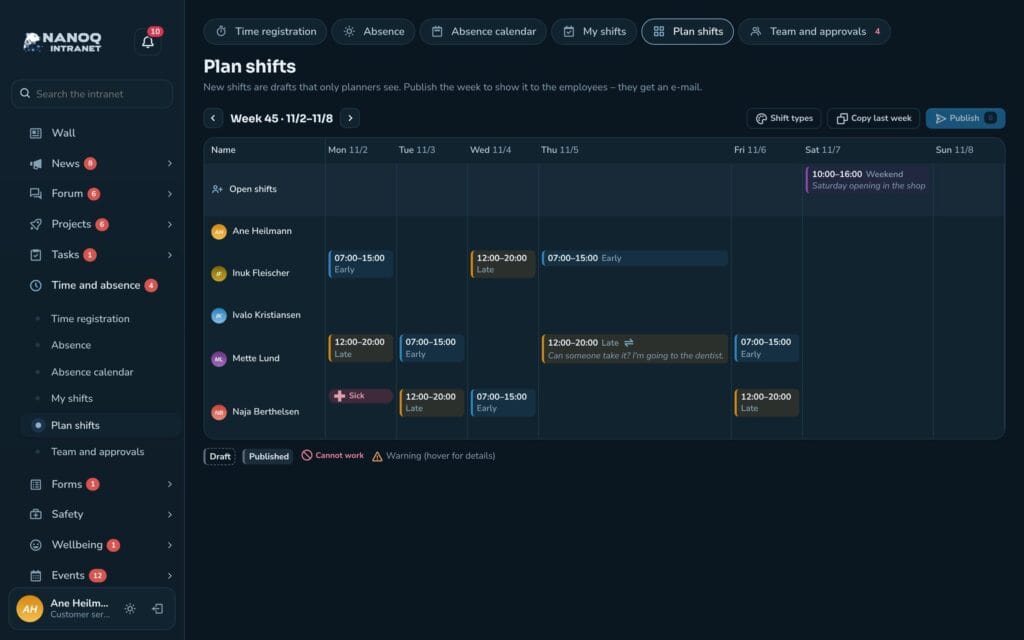
New shifts are drafts that employees can’t see. If you change or delete a published shift, the employee gets an email.
Requests to take or swap shifts are under Team and approvals → Approvals.
For administrators
Under Nanoq → Time and absence:
- Turn shift planning on/off.
- Rest time between shifts (default 11 hours, as in the EU rules).
- Whether open shifts are assigned straight away when an employee takes them, or must be approved.
The shift types (name, colour, times) can be renamed and extended.
Good to know
- Shifts don’t count automatically as working time – the employee clocks in or registers time themselves.
- The calendar subscription shows shifts from 30 days back to half a year ahead.