Guides › Time and HR
Absence and leave
Vacation, sickness, courses and time off in lieu with approval, vacation balance and a shared absence calendar.
What the module does
Absence and leave replaces paper slips and emails about vacation.
- Apply for vacation, time off in lieu, courses, leave and other absence – whole or half days.
- Sickness and a child’s first sick day are reported and approved automatically.
- The manager approves or declines with a comment.
- Vacation balance per vacation year.
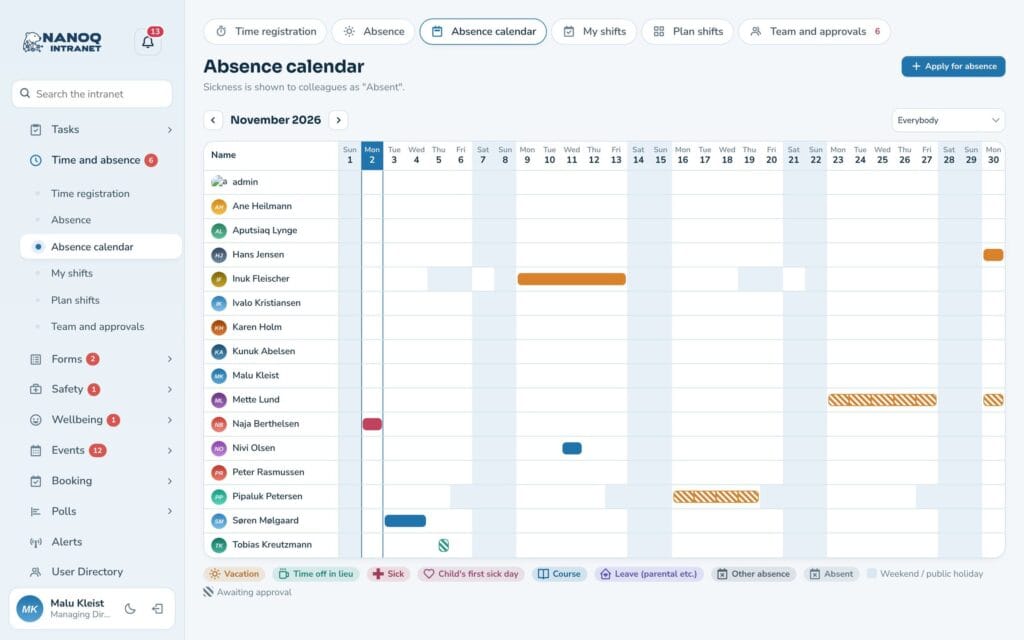
- An absence calendar that shows who is away – without revealing why.
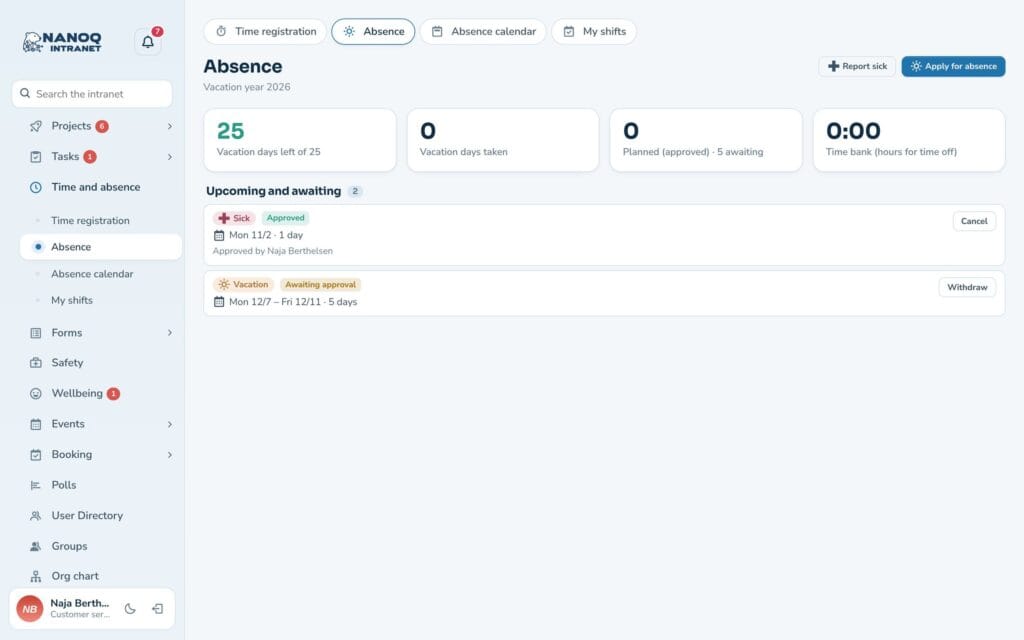
Apply for vacation
- Go to Time and absence → Absence.
- Choose the type, first and last day, and optionally morning or afternoon.
- You see straight away how many working days it is. Weekends and public holidays don’t count.
- Optionally write a comment, and send.
The request is shown as waiting until the manager has answered. You get an email with the answer. You can cancel a request that hasn’t been taken yet.
Report sick
Choose Sickness or Child’s first sick day. It is approved automatically. Your colleagues only see that you are Absent – never that you are sick.
Vacation balance
At the top you see your balance for the vacation year: allocated days + carried-over days − taken − planned. Pending requests are shown separately.
With the setting Vacation days with part time, the vacation days are converted according to your work schedule – for example 25 × 4/5 = 20 with four working days a week. And if vacation is earned month by month (Vacation is earned), it also shows how many days you have earned so far and how many you can use now.
Absence calendar
The Absence calendar shows who is away. The Who Is Away Today widget can be added to the dashboard.
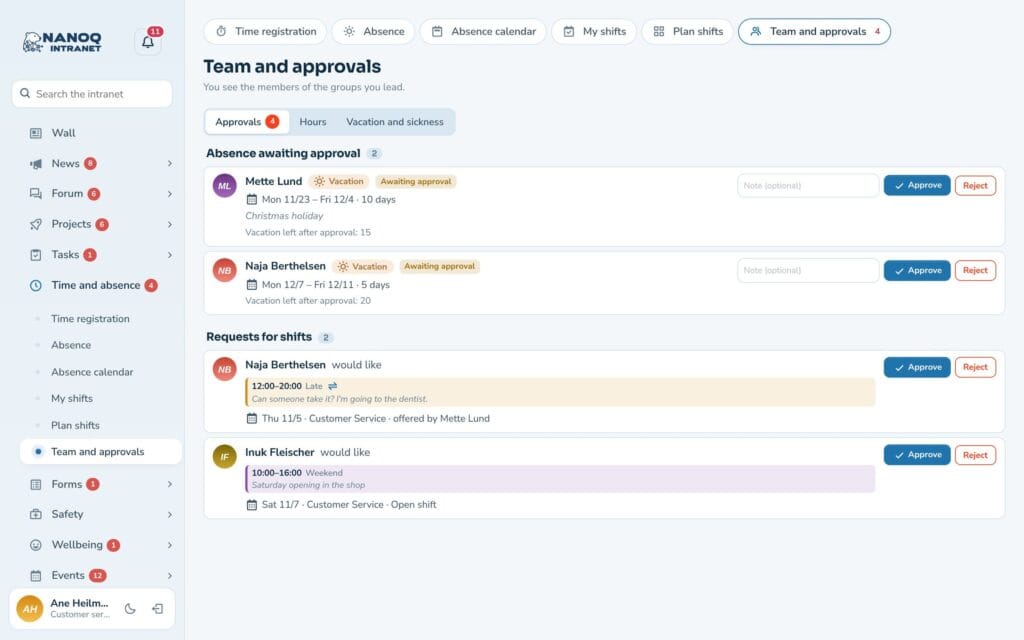
Approve as a manager
Requests from your team are under Team and approvals → Approvals, and the number is shown next to Time and absence in the menu.
For each request you see who in the same groups – and in your own team – is also away in the period, and what the employee’s balance will be. Approve or decline – preferably with a comment.
Who approves? The leaders of the employee’s department – groups that are not departments (e.g. project groups) do not count (see Groups and access). If the employee has no department with a leader, HR managers and administrators approve.
If a manager registers absence for an employee, it is approved straight away.
Under Team and approvals → Vacation and sickness you see all balances, sick days and child’s sick days, and the year can be downloaded as CSV. HR managers can change hours per week, vacation days and carried-over days here.
For administrators
Under Nanoq → Time and absence:
- Turn the absence module on/off, and whether absence requires approval.
- Vacation days per year (default 25) and when the vacation year starts (January or September).
- Public holidays and your own days off.
- What colleagues can see: the type (vacation, course …) or only “away”.
- Who can see the absence calendar: everyone or only managers.
Good to know
- Christmas Eve and New Year’s Eve are days off. The public holidays for Greenland and Denmark are calculated automatically, including Easter.
- Vacation is not earned month by month – there is a fixed number of days per vacation year plus carried-over days.
- Absence is not written to the activity log, because it can be health information.