Guides › Foundation
Registration and membership
Let new users apply for access or sign up with an invitation. Administrators and moderators approve, and users can download their own data and delete their account.
What the module does
With Sign-up the intranet gets a page where new users can create an account – and a Not a member yet? link under the login form. The module is off until an administrator turns it on; until then only administrators create users.
Three ways (Who can become a member):
- Anyone can become a member after confirming their email address.
- Anyone can apply. An administrator or a moderator approves.
- Only people who have been invited can become members.
Sign up
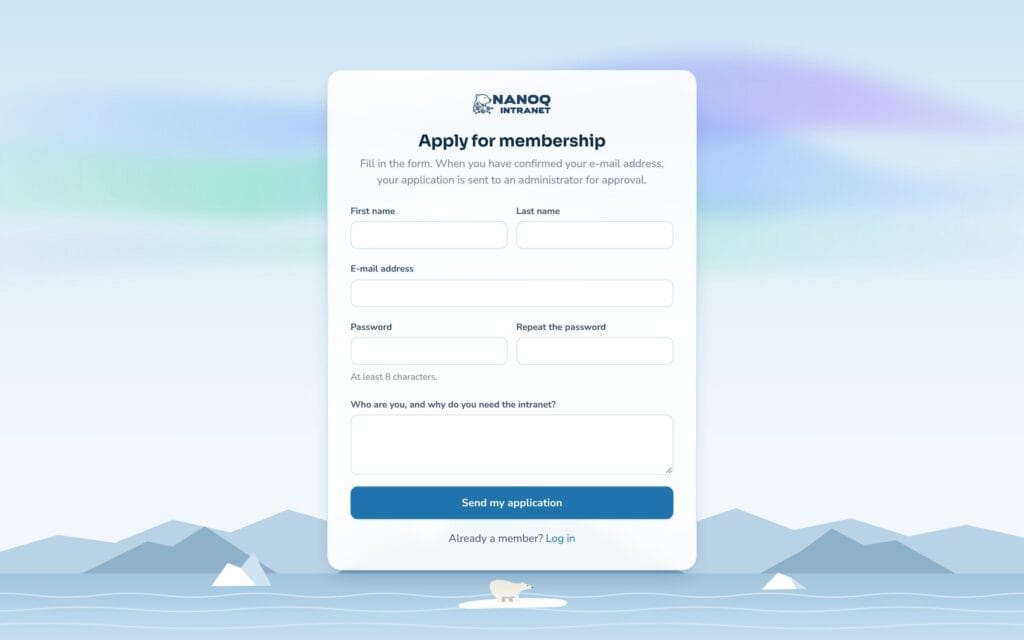
- Click the link under the login form (Become a member or Apply for membership).
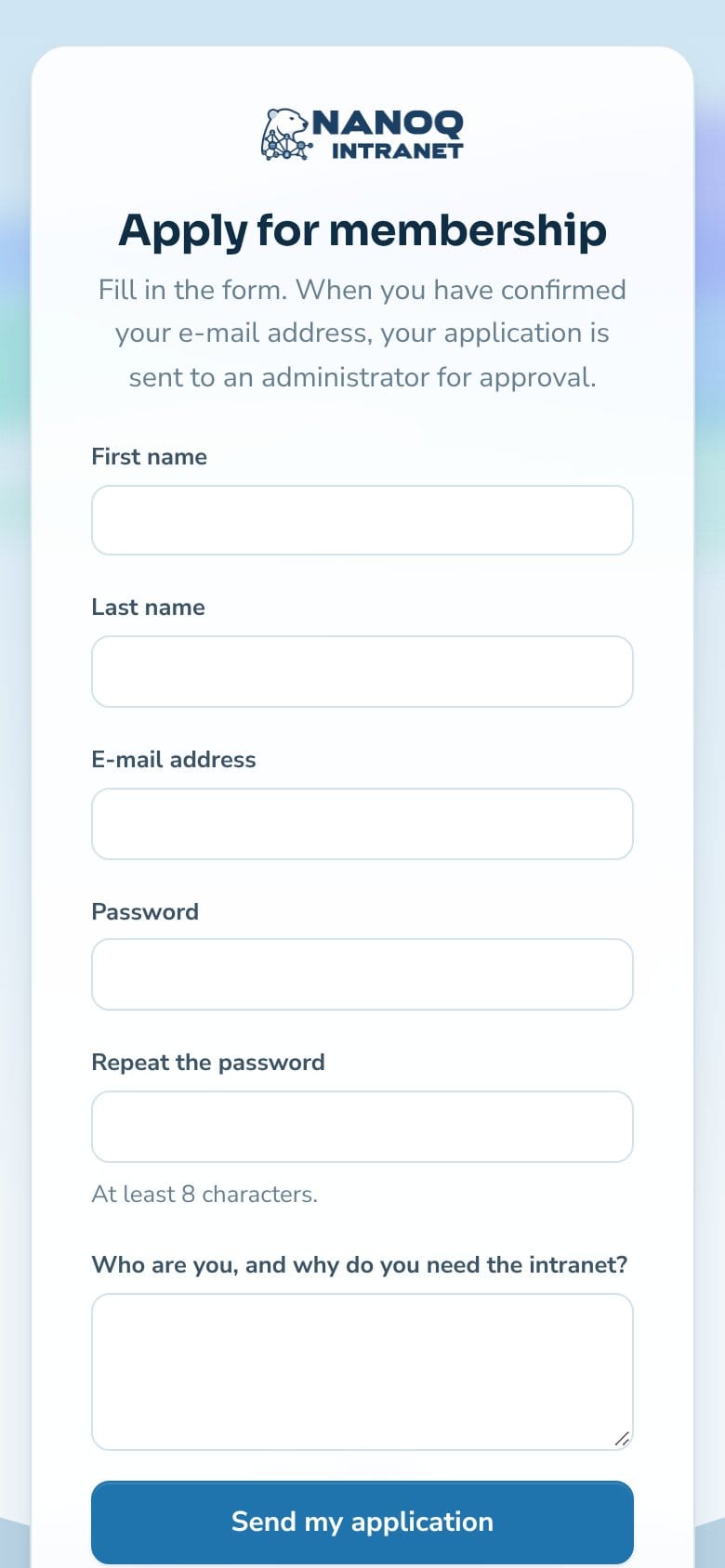
- Fill in first name, last name, email address and password (at least 8 characters), and answer the question if there is one.
- Accept the terms, if there are any, and send the form.
- Click the link in the email to confirm your address (the link works for 48 hours).
If you need to be approved, you can log in once an administrator or moderator has approved you – you get an email. If you were invited, your address is already confirmed.
Approve new members
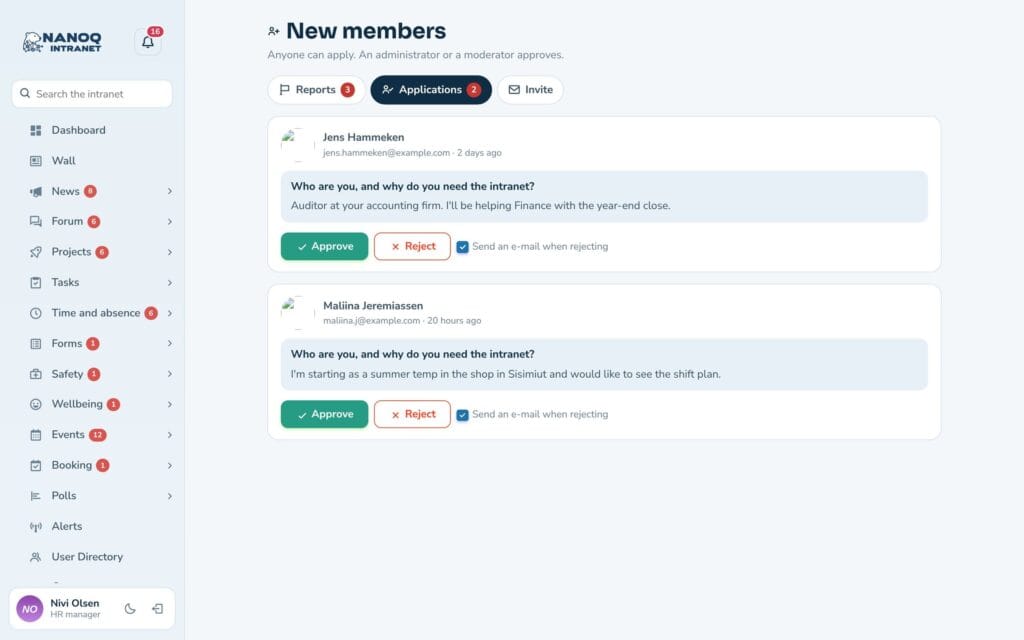
Administrators and moderators are notified about new applications and find them under New members → Applications with the answer to the question. Click Approve or Decline (declining deletes the account – with a tick in Send an e-mail when rejecting the applicant is told).
Invite
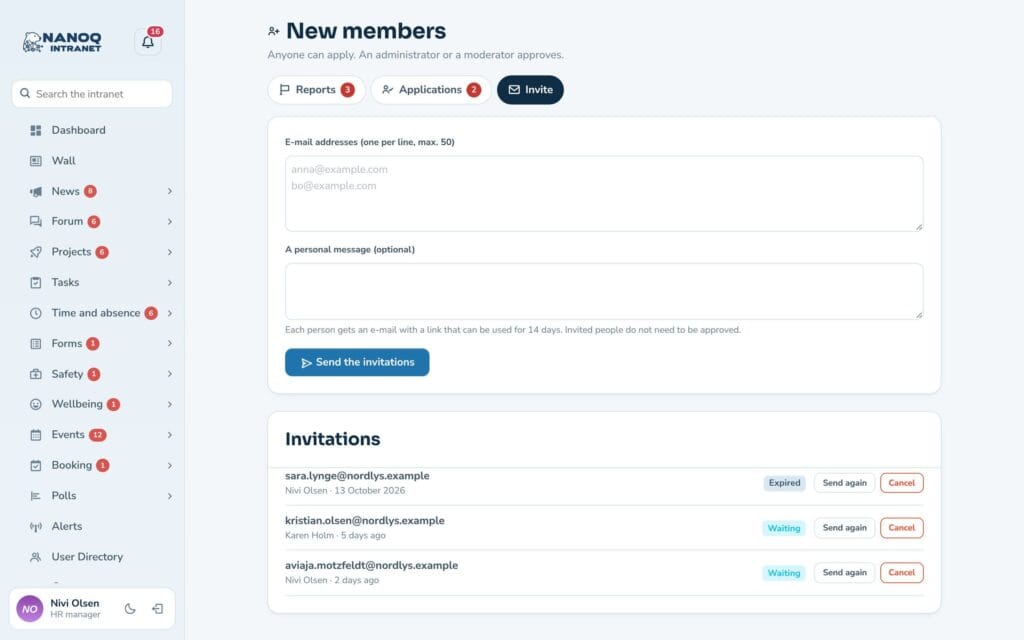
Under New members → Invite you write up to 50 email addresses (one per line) and optionally a personal message, and click Send the invitations. Each person gets a link that can be used for 14 days; invited people don’t need approval. The Invitations list shows whether they have been used, are waiting or have expired – with Send again and Cancel.
Your data and your account
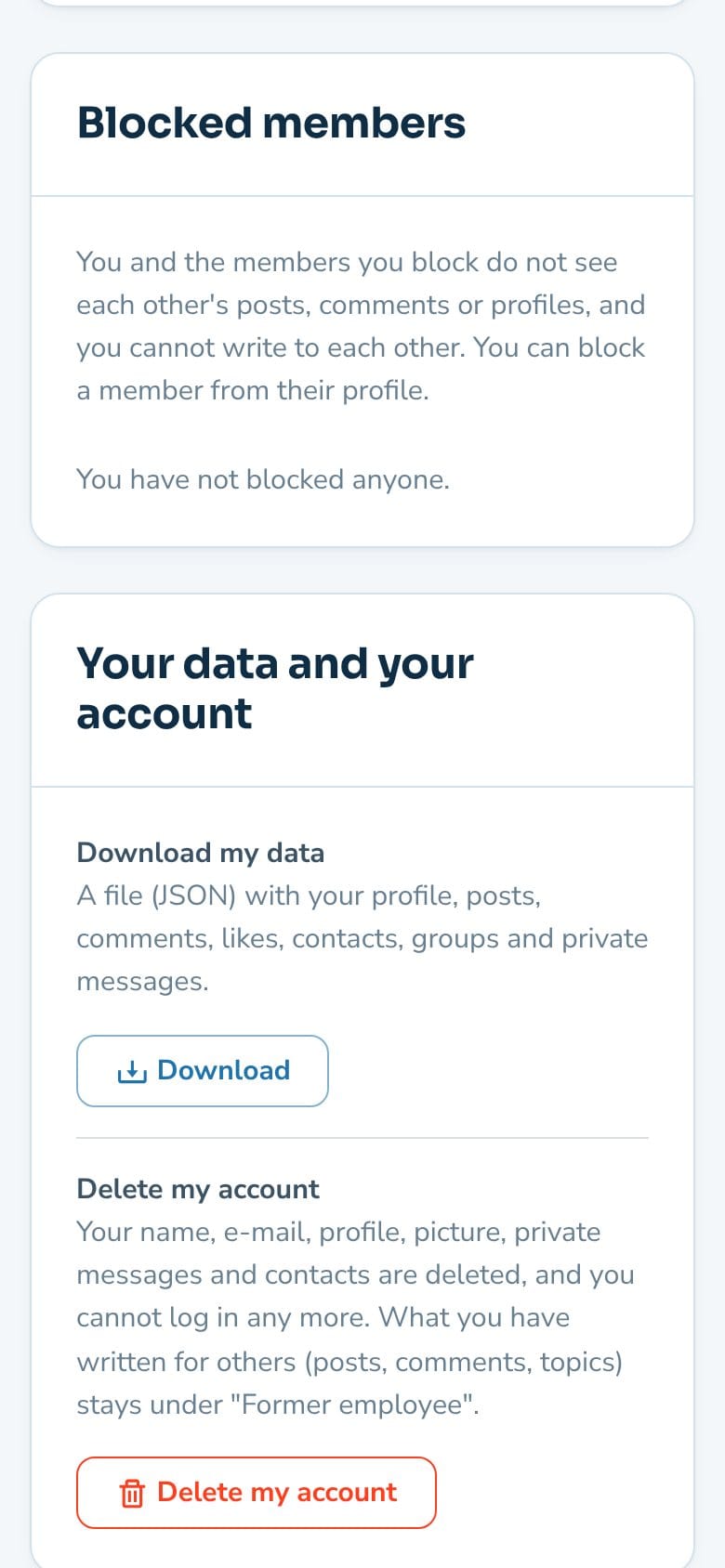
If the administrator has turned on Members manage their own account, the Your data and your account card is shown under Settings:
- Download my data – a file (JSON) with your profile, your posts, comments, likes, contacts, groups and private messages.
- Delete my account – enter your password and confirm. Your name, email, profile, picture, private messages and contacts are deleted; what you have written to others remains anonymously. Administrators can’t delete their own account here.
For administrators
Under Nanoq → Membership:
| Setting | What it does |
|---|---|
| Sign-up | Turns the sign-up page on and off (default: off) |
| Who can become a member | Open, application with approval (default) or invitation only |
| Role of new members | Default: Subscriber – never an administrator role |
| Terms | A page with the rules or the privacy policy, which must be accepted |
| Question to the applicant | Optional, when members are approved |
| Profile fields in the form | Ask for the profile fields at sign-up (optional) |
| Members manage their own account | Data download and account deletion under Settings (default: off) |
- With the shortcode
[nanoq_join]a button for the sign-up can be shown on the website – see Shortcodes.
Good to know
- Spam protection: a hidden field, a timestamp and at most 5 sign-ups per hour per network – but no CAPTCHA. If there is a lot of spam, “invitation only” can be used.
- If an address that already has an account is used, the page answers the same as usual, and the owner gets an email – so it isn’t revealed who is a user.
- Unconfirmed accounts are deleted after 7 days.
- WordPress’ own registration (wp-login.php?action=register) is independent of the module and should be turned off.