Guides › Communication
Wall
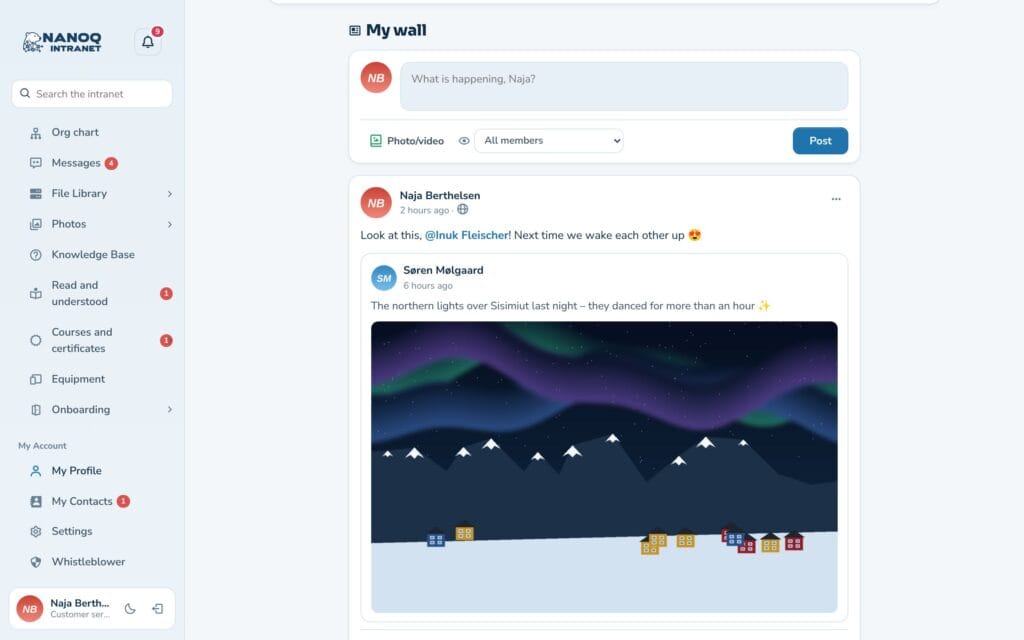
The wall is the intranet’s social feed. Write a post with photos or video, comment, mention colleagues with @, and share – and choose who sees it.
What the module does
On the wall, employees write posts – the things that aren’t news from management: photos from everyday work, a good tip, a question or a greeting to the department.
- Posts with text, up to 10 photos or one video.
- Comments with replies, @mentions and links.
- Visibility per post: all members, your contacts, a group, only you – and optionally public.
- Pinned posts at the top, sharing and walls on groups and profiles.
The module is off until an administrator turns it on. The wall can be the intranet’s front page or a Wall menu item next to the dashboard.
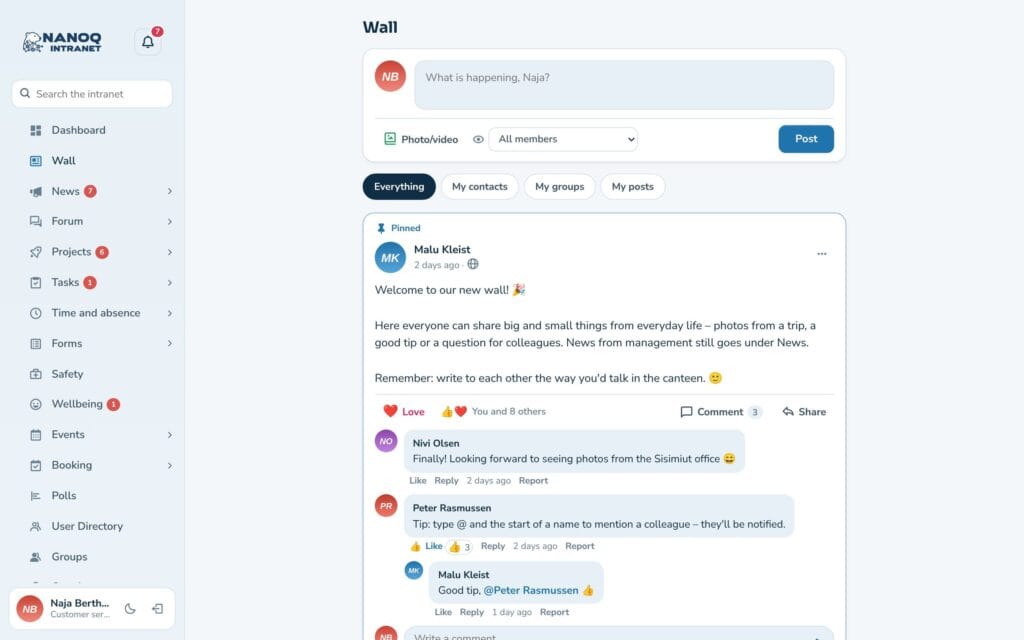
Write a post
- Write in the What is happening? field at the top of the wall.
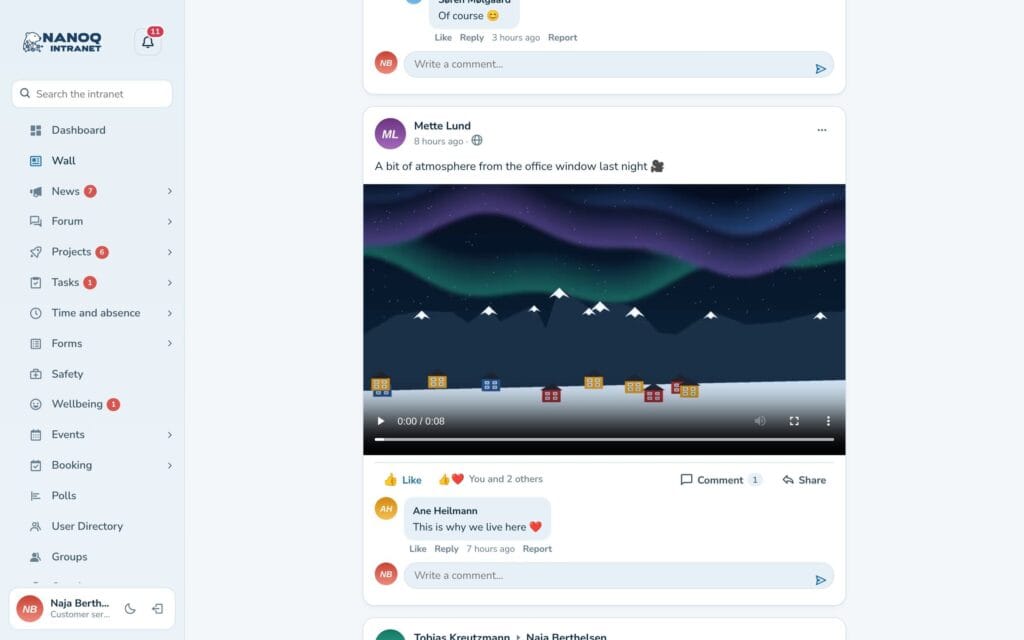
- Click Photo/video to add up to 10 photos or one video (MP4 or WebM).
- Under Who can see it, choose: All members, My Contacts, one of your groups, Only me – or Public – also on the website, if the administrator has turned it on.
- Click Publish.
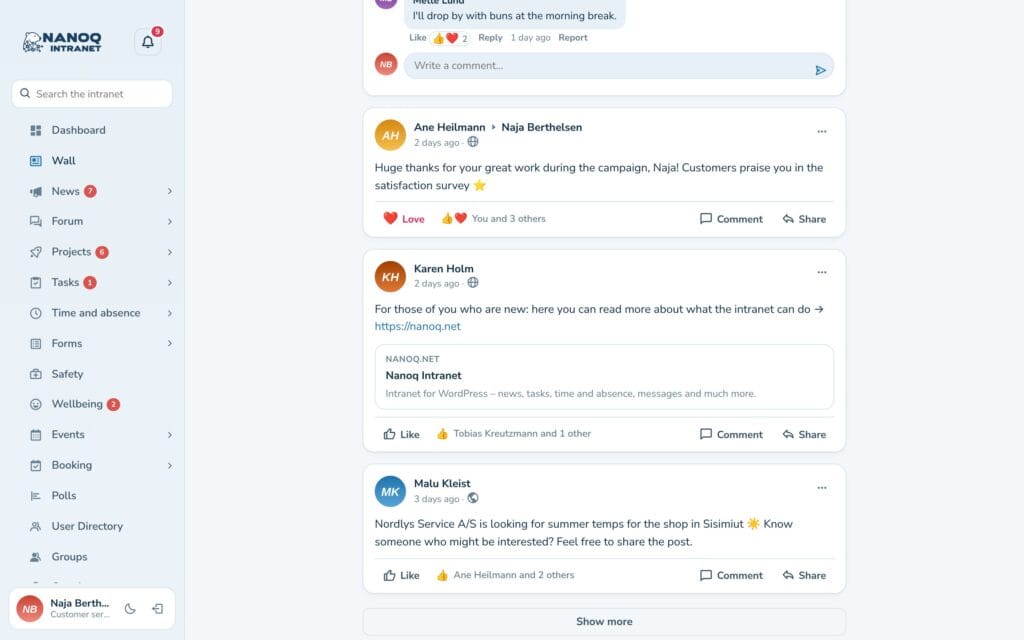
If you paste a link, the post shows a card with the page’s title, text and image. A link to YouTube or Vimeo becomes a player – nothing is loaded from YouTube or Vimeo until you press play.
Comments and mentions
Write in Write a comment … under a post, and click Reply to answer a comment. Type @ and the start of a name to mention a colleague – they are notified. You can edit or delete your own posts and comments in the menu (…).
Filters and new posts
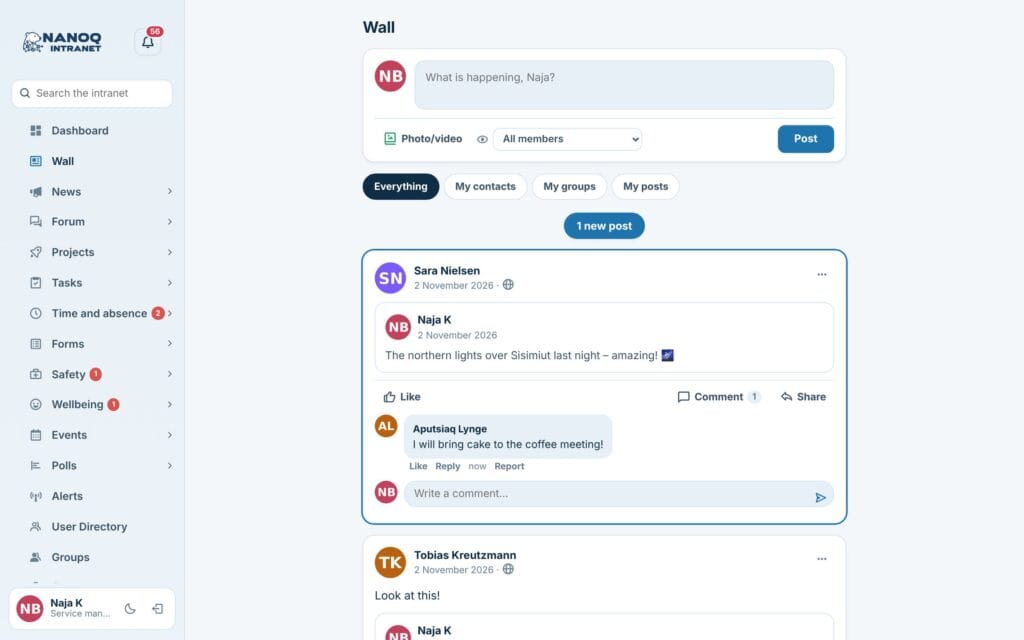
Above the feed you choose Everything, My Contacts, My groups or My posts.
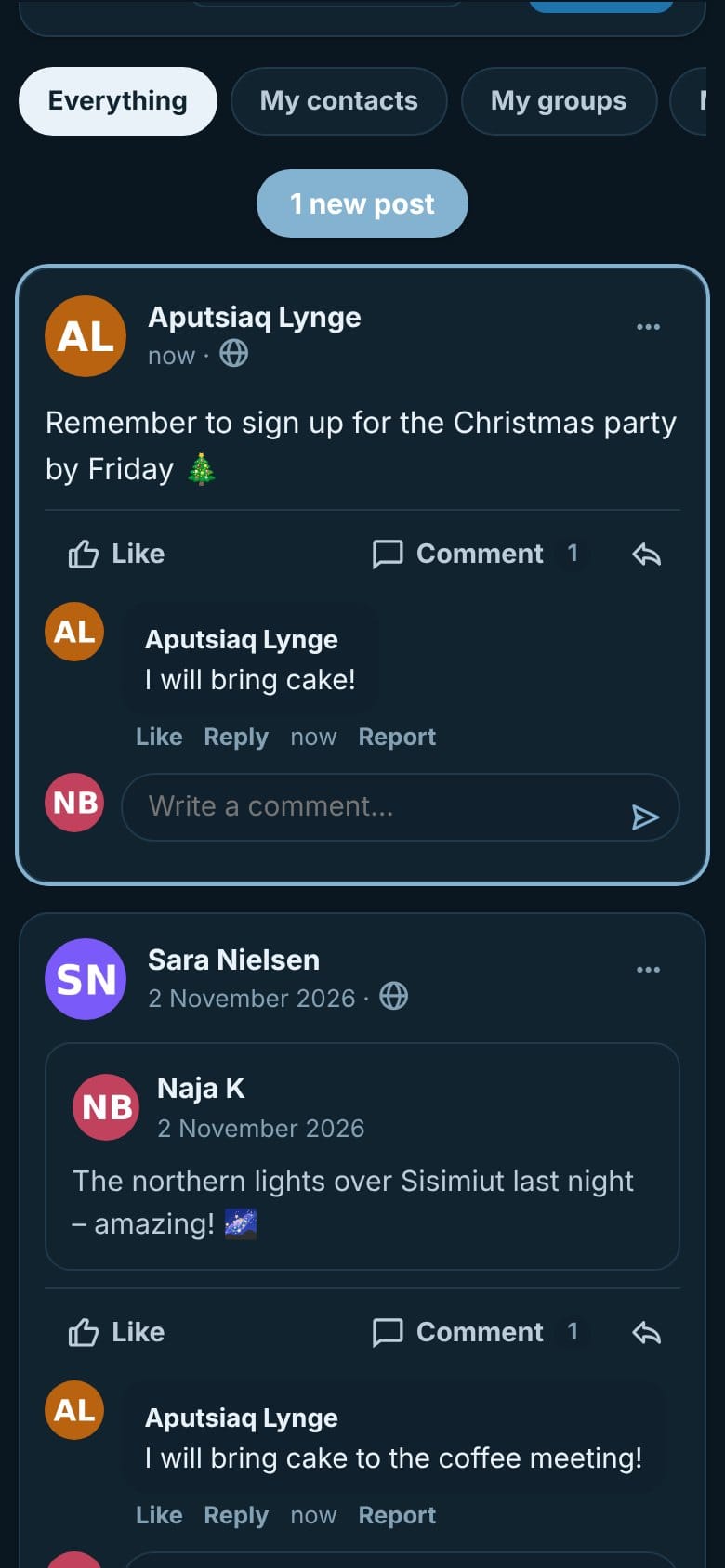
The wall keeps itself up to date while it is open: if new posts arrive, a button with the number appears at the top (for example 1 new post) – click it to see them. This also works on group walls, profiles and in the filters. New comments appear by themselves under the post and are briefly highlighted – but not while you are writing a comment yourself.
At the side, Coming events also shows events over several days while they are on.
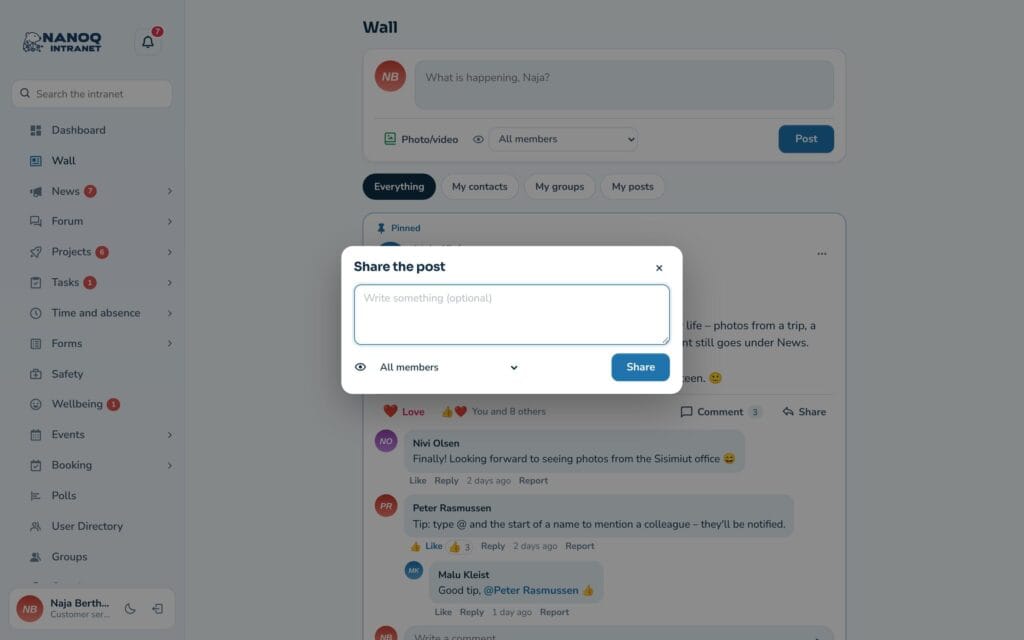
Share a post
Click Share under a post, optionally write your own text, and choose who sees the share. The original is shown as a card in your post. Only posts for all members (or public posts) can be shared – and a post for members can never become public by being shared. Under the post you can see how many have shared it – click to see who.
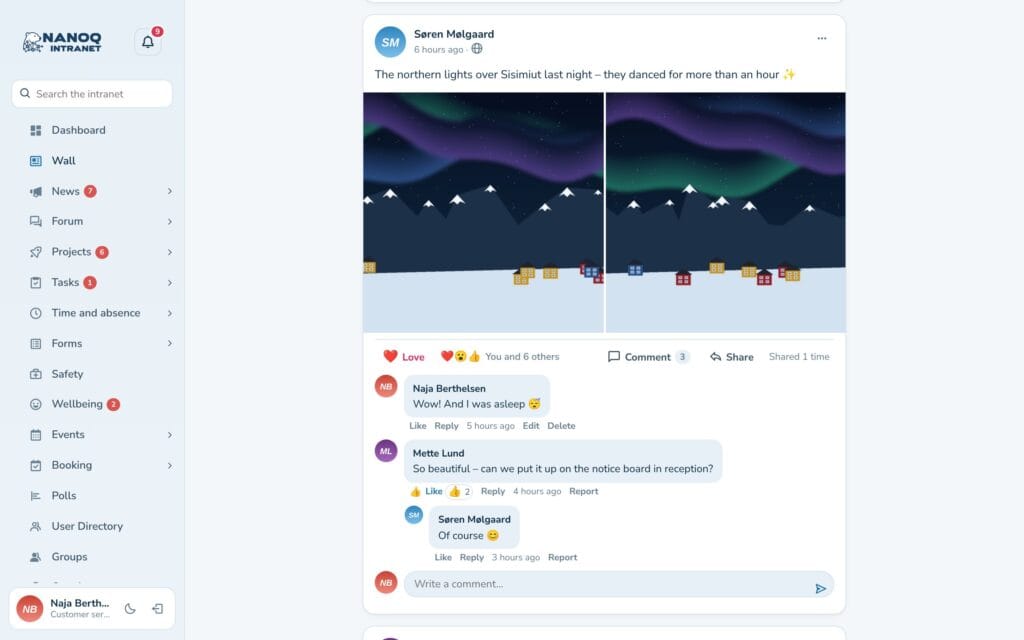
Walls on groups and profiles
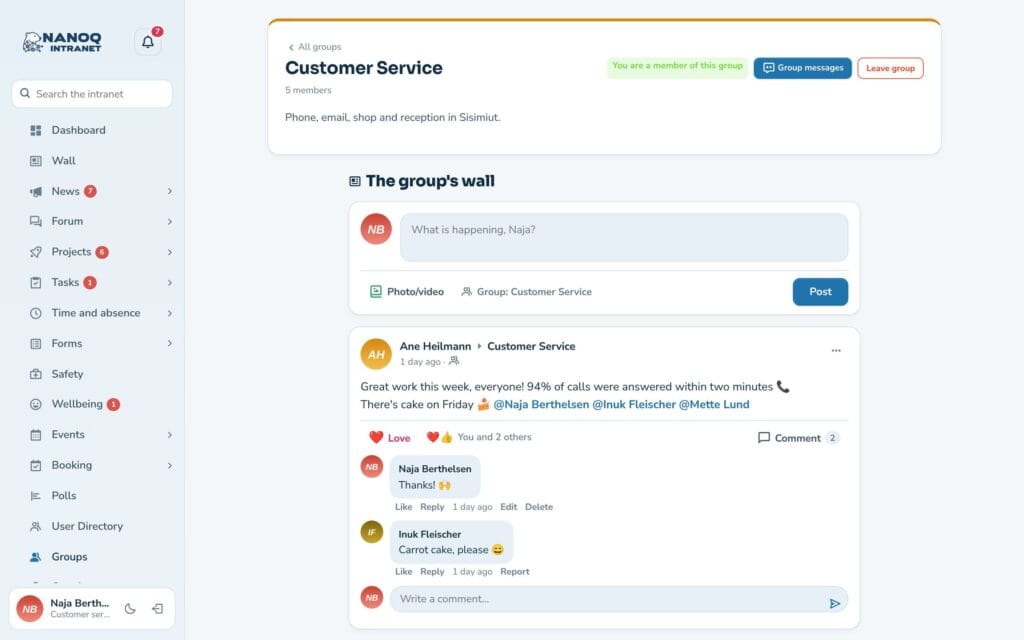
The group page has The group’s wall, where members write directly to the group. The profile shows Posts by … – the posts you may see – and on your own profile you can write a post.
You can also write on a colleague’s profile. The post appears on their wall, and you choose whether all members or only the two of you can see it. Under Settings → My wall each employee chooses who may write on their profile: All members, Only my contacts or None. You can always delete posts on your profile.
On the phone
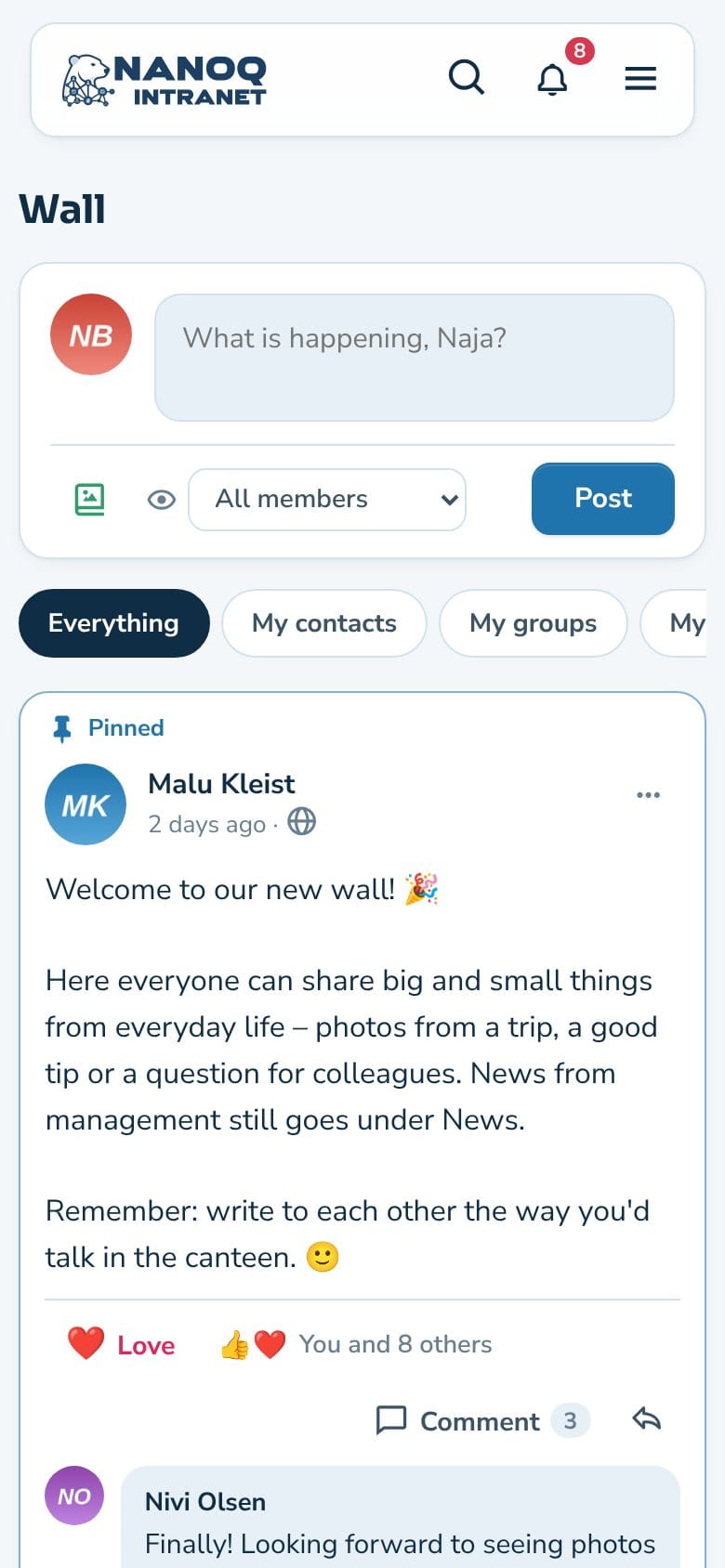
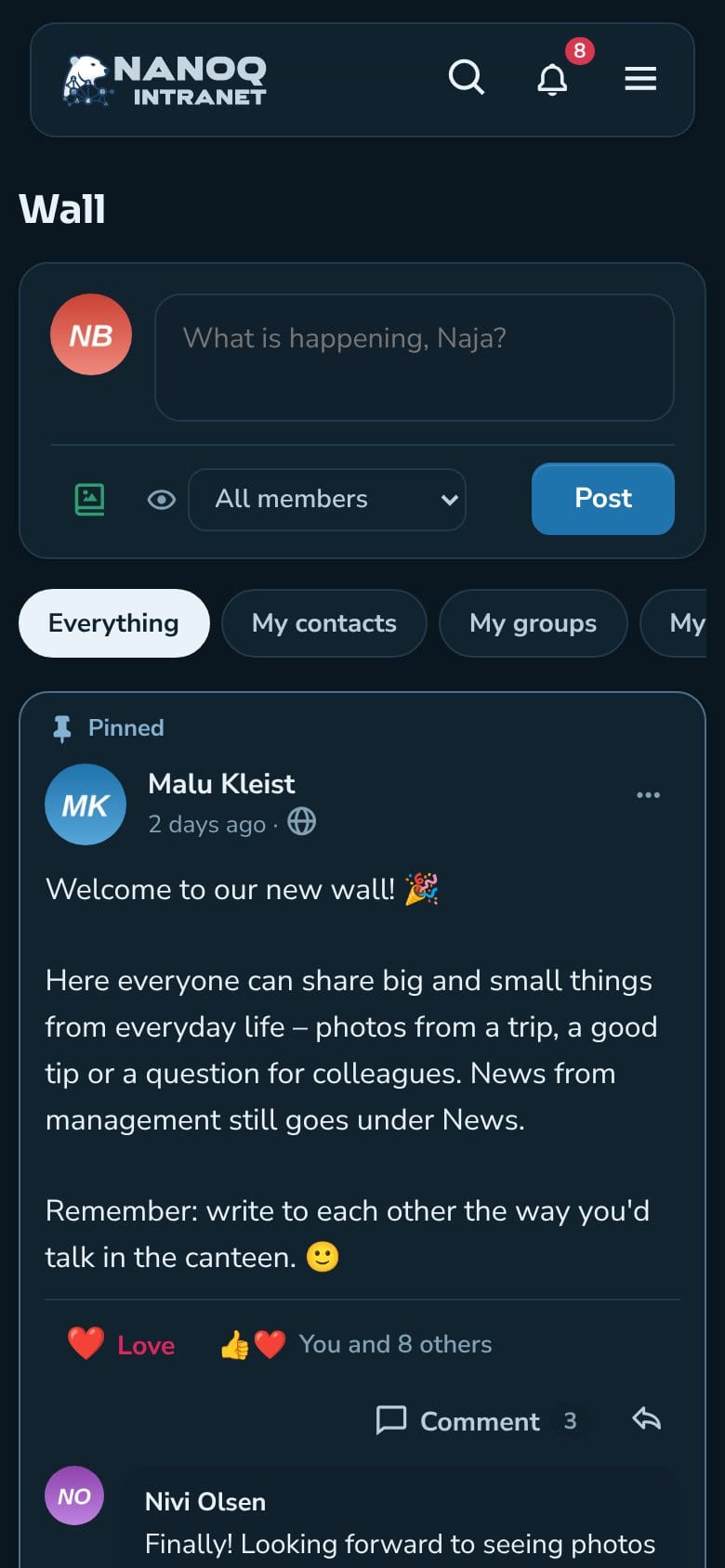
The wall works on the phone in light and dark mode – take a photo and share it straight away.
For administrators
Under Nanoq → Wall:
| Setting | What it does |
|---|---|
| Wall | Turns the module on and off (default: off) |
| Home | The wall as the front page with new members, events, groups and photos at the side – or Widgets (the dashboard as before and a Wall menu item) |
| Who sees a new post | Preselected when you write – can be changed on each post |
| Roles that can only read | Can read and like, but not write |
| Max. size of a photo / a video (MB) | Default 10 and 50 MB (the web host’s limit also applies) |
| Videos, YouTube and Vimeo, Link previews, Walls on groups and profiles | Can be turned off one by one (default: on) |
| Public posts | Employees can choose “Public – also on the website” (default: off) |
- Administrators and editors can pin and delete posts.
- With the shortcode
[nanoq_wall]the wall can be shown on an ordinary page – see Shortcodes.
Good to know
- Photos are made smaller (max. 1600 px), and information about location and camera is removed. Videos are stored as they are – an iPhone video in .mov must be saved as MP4 first.
- Photos and videos are stored in a protected folder and are only shown to those who may see the post.
- Search also finds posts.
- With Moderation, posts and comments can be reported.