Guides › Security and compliance
Two-factor login
A code from an app or by email when logging in – so a stolen password is not enough.
What the module does
With two-factor login you also have to enter a code after the password. The code comes from an app on the phone or by email. Even if someone has stolen the password, they can’t log in.
- Authenticator app: Microsoft Authenticator, Google Authenticator, 1Password and similar.
- Or a one-time code by email.
- 10 recovery codes in case the phone goes missing.
- “Remember this device”, so you don’t have to enter a code every time.
- Can be required for certain roles.
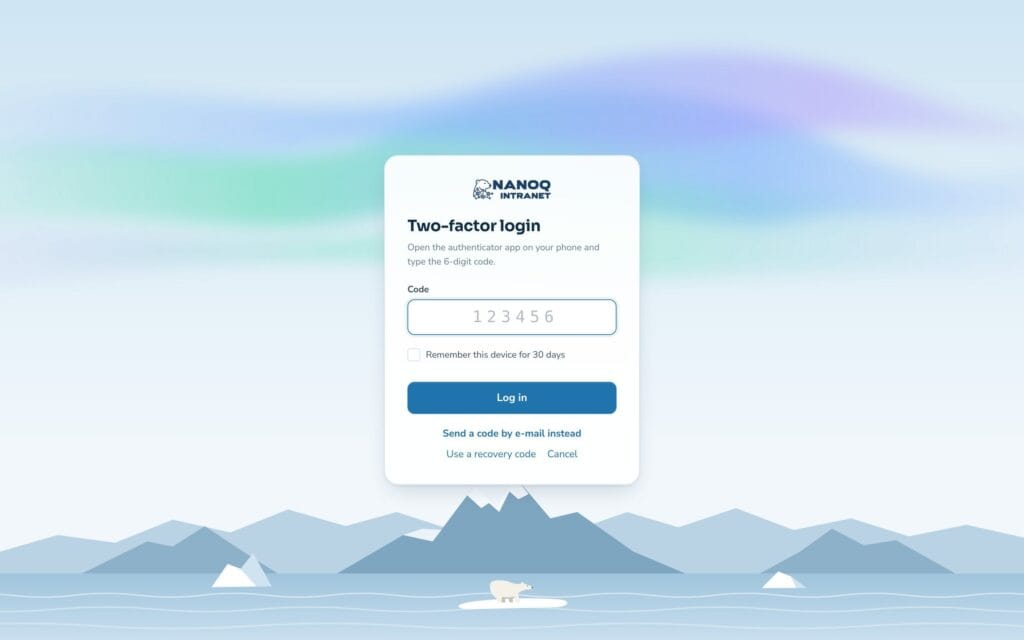
Turn it on for yourself
- Go to Settings in the app and find the Two-factor login card.
- Choose app or email.
- With an app: scan the QR code with your authenticator app (or type in the key), and enter the code from the app to confirm.
- Keep your recovery codes somewhere safe. They are only shown once.
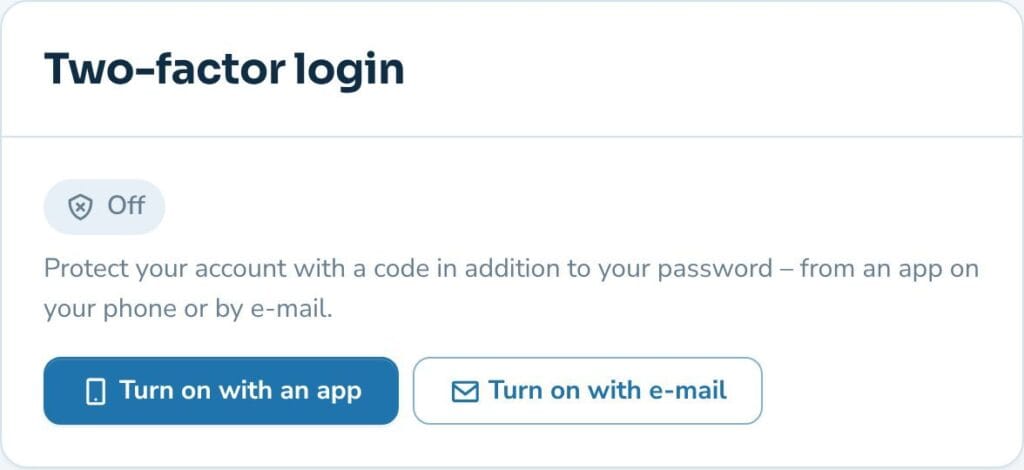
Log in
After the password comes the code page. Enter the code from the app (it changes every 30 seconds) or from the email (valid for 10 minutes). Tick Remember this device if it is your own computer or phone.
If you have lost your phone, use a recovery code. Each code only works once.
Change or turn off
Under Settings you can switch method, make new recovery codes, forget the remembered devices and turn two-factor login off – unless your role requires it.
For administrators
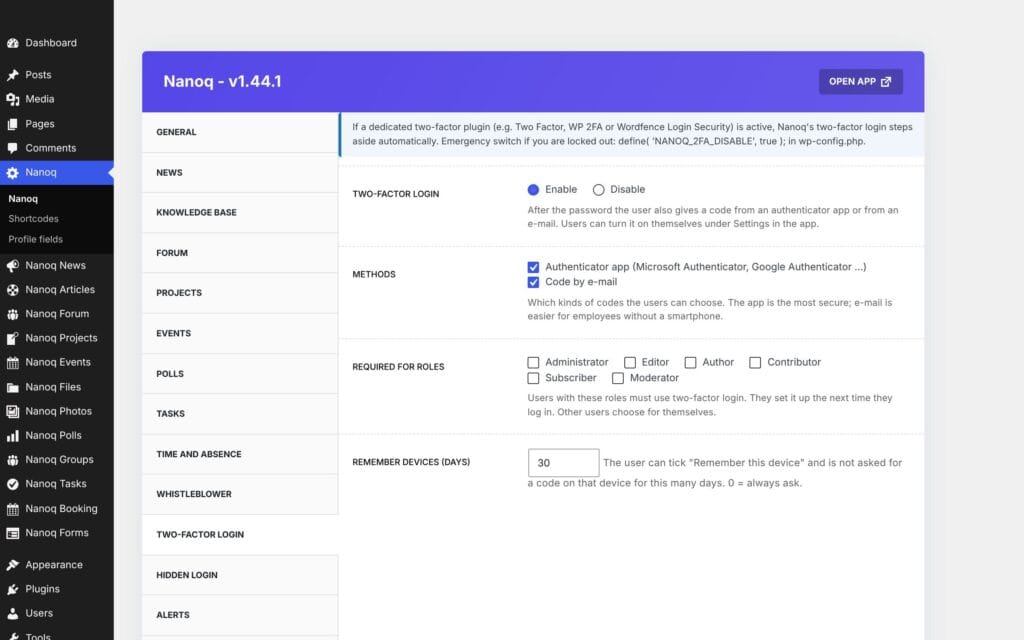
Under Nanoq → Two-factor login:
- Turn the module on (it is off by default).
- Allowed methods: app and/or email.
- Required for roles – users with these roles must set it up at their next login before they can use the intranet.
- How many days a device is remembered (default 30, 0 = always ask).
Lost phone: Reset the user’s two-factor login on the user’s profile in WordPress.
If all administrators are locked out, the module can be turned off with this line in wp-config.php:
define( 'NANOQ_2FA_DISABLE', true );Good to know
- After 10 wrong codes in a row, the account is locked for 15 minutes.
- Wrong passwords are limited too – on the intranet’s login, wp-login.php and XML-RPC: after 5 tries for the same user name from the same address, or 30 tries from the same address, you have to wait a quarter of an hour (from version 1.56).
- If a user has already turned on two-factor login, the method can only be changed by turning it off first – and that needs a code (from version 1.56).
- A new email address needs the user’s password and is only used when the link in the email to the new address has been clicked. The old address is told (from version 1.56).
- Two-factor login, hidden login and the limit on wrong passwords also work if the licence expires.
- Email codes are only as safe as the email account. Use the app for administrators.
- If the site already uses another two-factor plugin (e.g. Wordfence or WP 2FA), Nanoq’s module steps aside automatically.
- Events (turned on, turned off, reset, wrong code) are written to the activity log.