Guides › Collaboration
Booking
Book meeting rooms, company cars, boats, equipment and overnight stays in one calendar. Each resource has its own rules – and double bookings can never happen.
What the module does
Booking gathers everything you share in one calendar: meeting rooms, vehicles, boats, equipment and accommodation.
- The Day, Week and Month views – and a list on the phone.
- Only free and Find free show what is available when you need it.
- Rules per resource: opening hours, shortest and longest booking, a break between bookings and more.
- Approval where it makes sense – such as the car, the boat or the cabin.
- Recurring bookings every week or every other week.
- Handover with mileage or engine hours.
- A room for events, reminders and bookings in your phone’s calendar.
The module is off until an administrator turns it on. At the top of all the booking pages are the tabs Book, My bookings, Approvals (for approvers) and Resources.
Book a resource
- Click Booking in the menu – the Book tab opens.
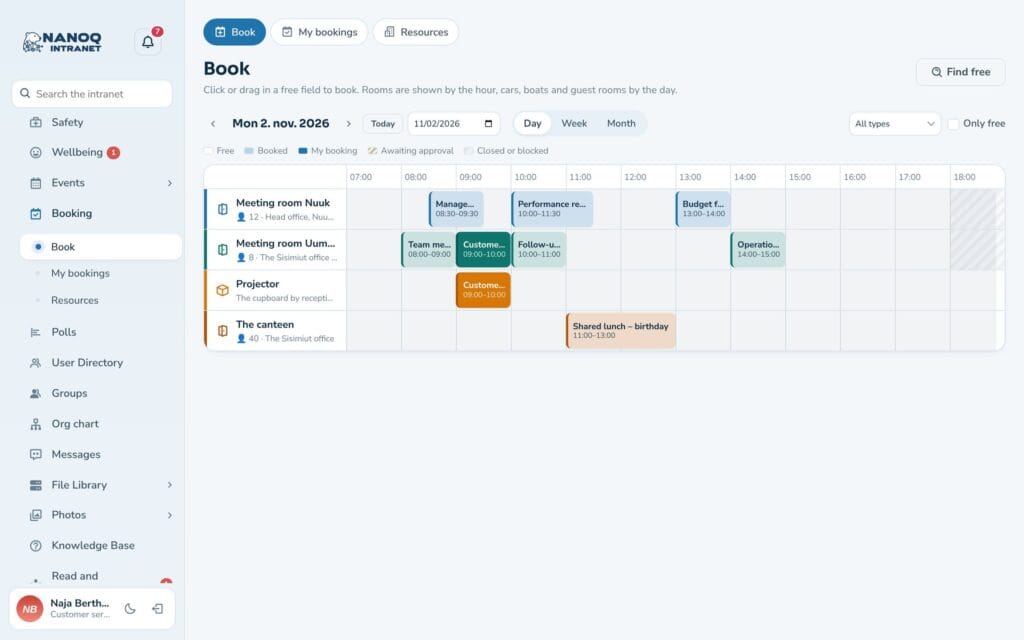
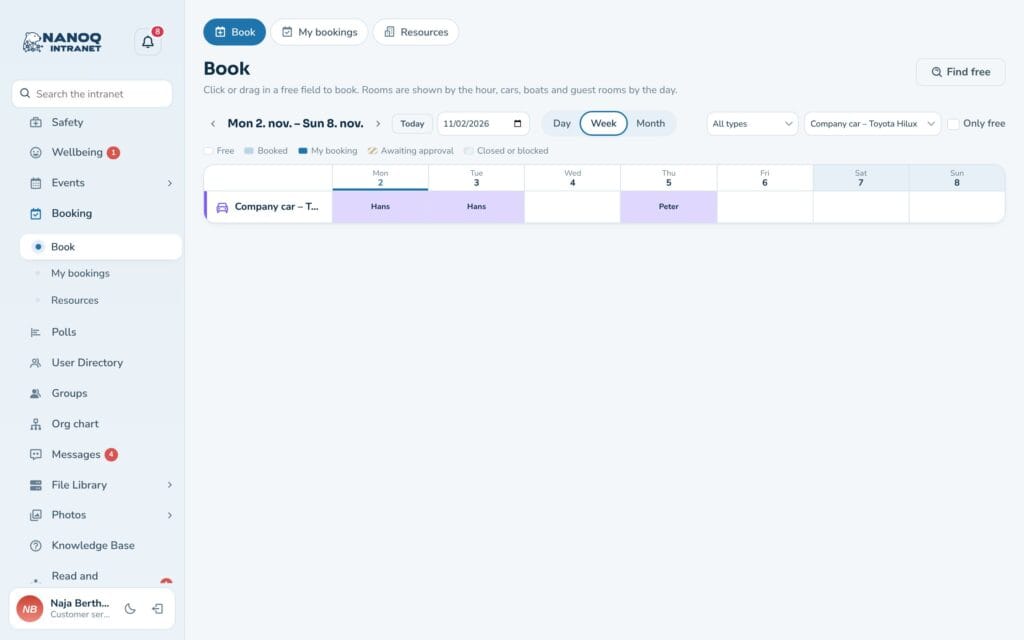
- Choose Day, Week or Month, and find the day with the arrows, Today or the date field. With All types you can choose to see only meeting rooms, for example.
- Click or drag across the time you need.
- Write a purpose if the resource requires it, and save.
Meeting rooms and equipment are booked by the hour; cars, boats and accommodation by whole days. In the day view all resources are listed below each other; in the week view you choose one resource and see the whole week. Drag the edge of a booking to extend it.
Find free
Turn on Only free to hide what is taken. The Find free button finds the resources that are free at the time you need – for example a meeting room for 8 people tomorrow from 10 to 11.
On the phone
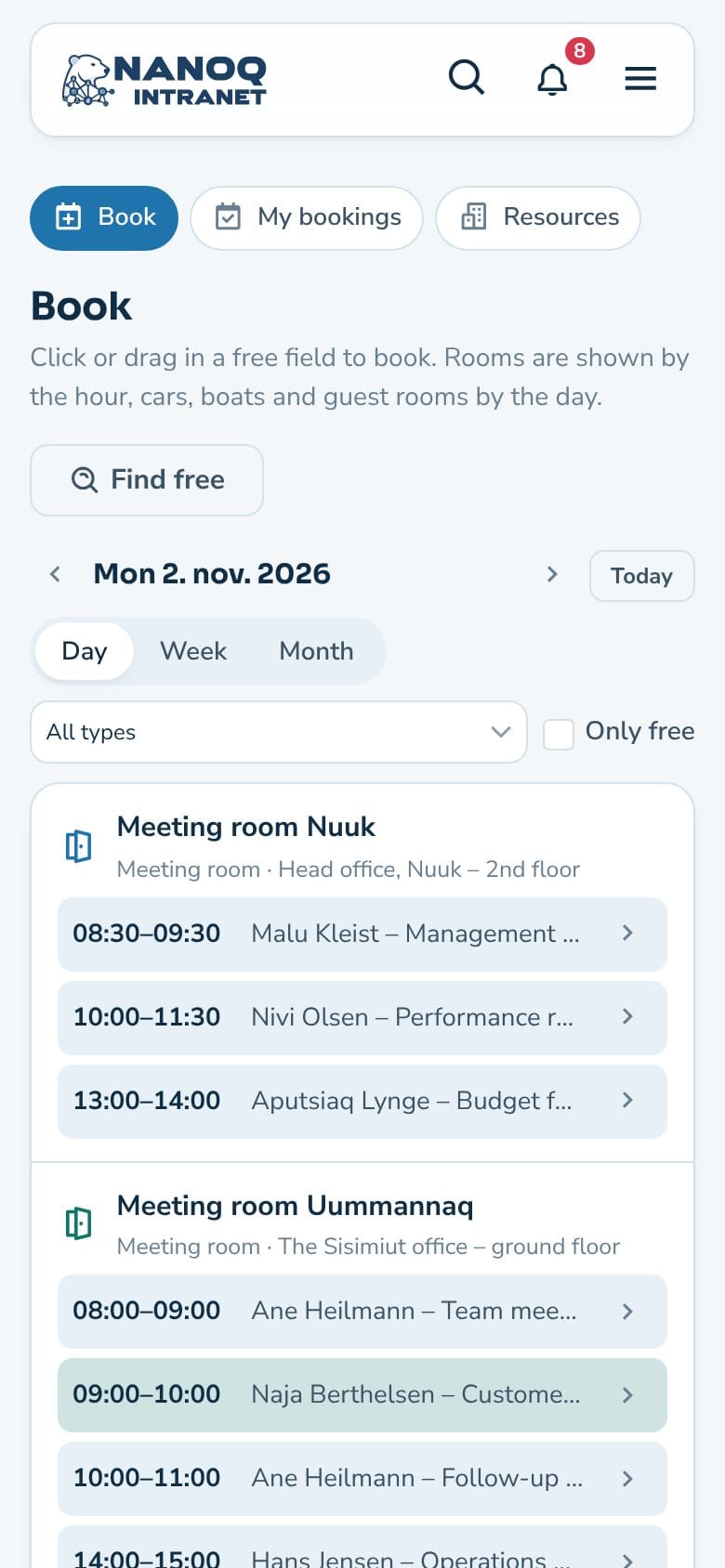
On the phone the day is shown as a list per resource with the bookings and the free times. Tap Book next to a free time.
Recurring bookings
If you need the same room regularly, choose under Repeat that the booking repeats Every week or Every other week. Nanoq checks all the dates first and shows which are taken – Create the free ones books the rest.
When you cancel a booking in a series, you can choose just this one or Cancel this and the following.
My bookings
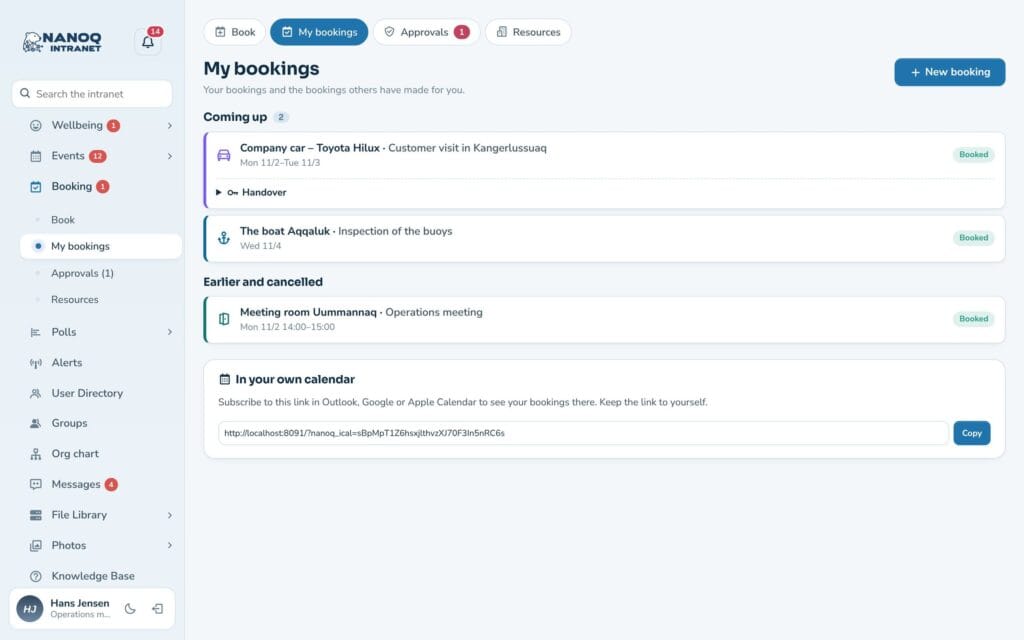
Under My bookings you see your upcoming bookings and those others have made for you, as well as past and cancelled ones. From here you can also make a New booking.
- Handover: If the resource requires it, you note the mileage or engine hours when you collect and return it – and a comment if something is broken.
- In your own calendar: Copy the link at the bottom of the page and subscribe to it in Outlook, Google or Apple Calendar. If Shift planning is turned on, the bookings are in the same calendar subscription as the shifts.
- You get a reminder shortly before your booking starts.
- You can cancel yourself up to the time the administrator has chosen.
Approval
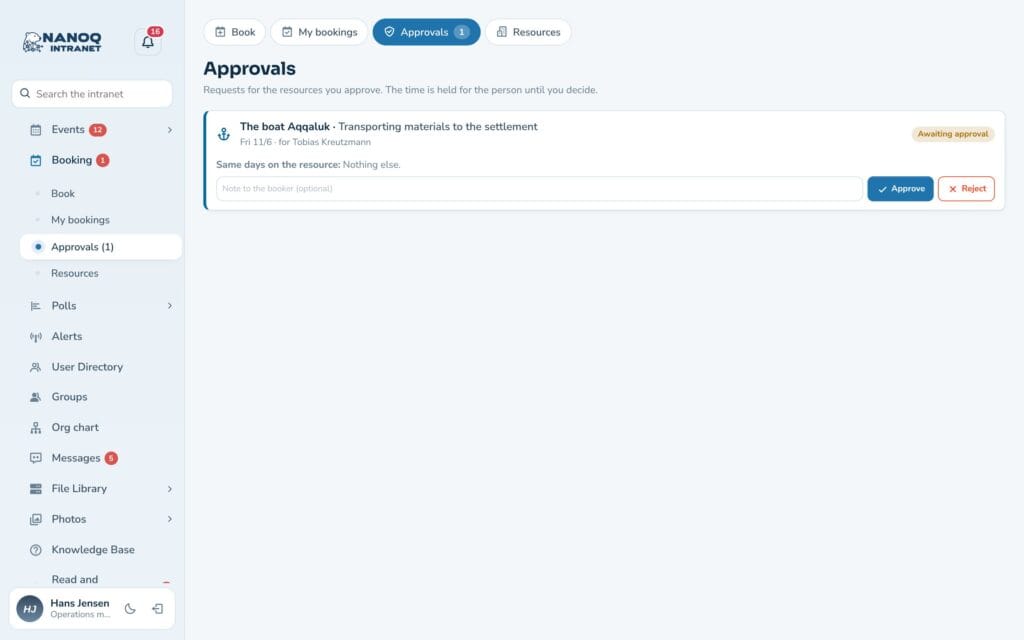
Some resources require approval. Your booking is then shown as Awaiting approval, but the time is held for you, so nobody else can take it in the meantime.
Who approves: the approvers chosen on the resource – otherwise the leaders of your groups – otherwise the administrators. Under the Approvals tab the approver sees the requests and what is already booked on the same days, can write a comment and press Approve or Decline. You are told the answer.
Book for others
- Group leaders can book for the members of their own groups.
- Resource managers (administrators, editors and the roles the administrator chooses) can book for everyone.
Choose Book for somebody else in the booking window. The person who is booked for is notified and sees the booking under My bookings.
A room for an event
When you create an event, you can choose Book a room in the form. The location is filled in automatically, and if the event is moved or deleted, the booking follows.
A room can only be booked for an event on a single day. If the room is taken at the new time when the event is moved, the old booking is kept and a warning is shown – then you need to find another room yourself.
Resources and rules
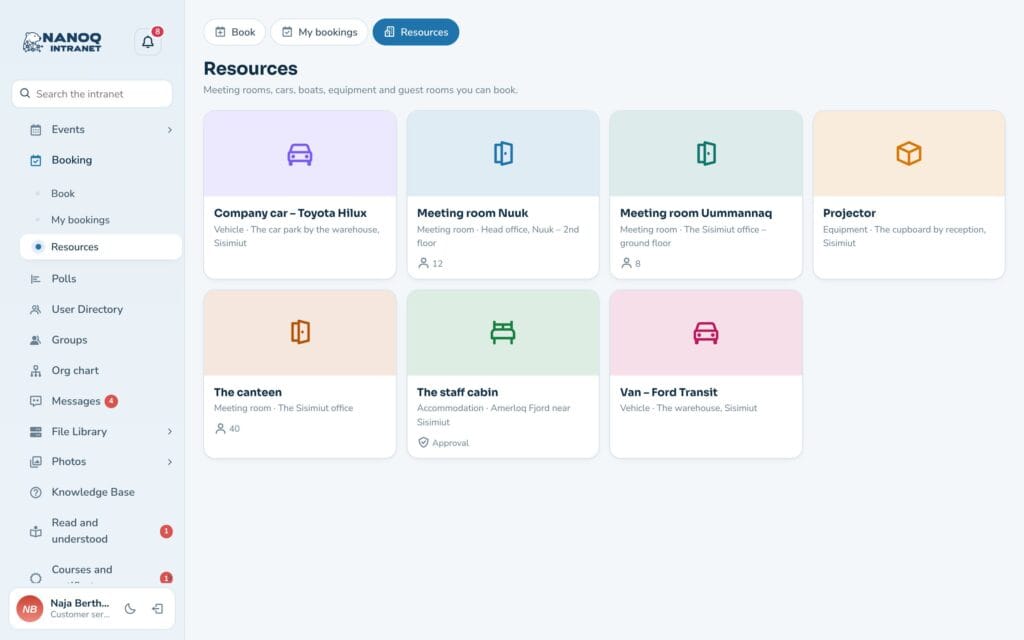
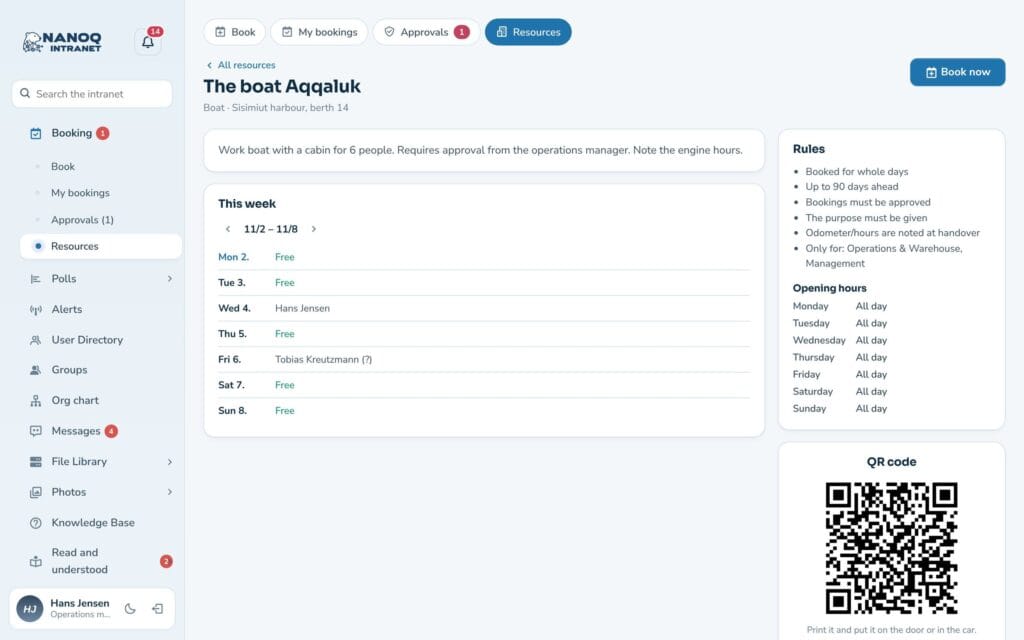
The Resources tab shows everything that can be booked. Click a resource to see its description, rules, opening hours and the week’s bookings – and Book now. Administrators and resource managers create new ones with New resource. Each resource has its own rules:
| Rule | What it means |
|---|---|
| Hours or whole days | Booked per hour (e.g. meeting rooms) or in whole days (e.g. cars and accommodation) |
| Steps | How precisely the time can be chosen, e.g. every quarter of an hour |
| Shortest and longest | How short and how long a booking may be |
| Days ahead | How far into the future bookings can be made |
| Buffer | A break between two bookings, e.g. for cleaning |
| Number of units | Several identical items are booked as one resource, e.g. three projectors |
| Opening hours and closed days | When the resource can be booked, per weekday |
| Purpose | Whether the booker must write what the resource will be used for |
| Handover | Mileage or engine hours and a comment at collection and return |
| Access | Whether the resource can only be booked by certain groups |
| Approval | Whether bookings must be approved, and by whom |
QR code and blocks
Each resource has its own QR code. Print it and put it on the door or in the car – when it is scanned, the resource opens with Book now.
If a resource needs servicing, it can be blocked under Blocks: choose from and to, write a reason, and press Block. Bookings in the period are cancelled, and those who had booked are notified.
For administrators
Under Nanoq → Booking:
| Setting | What it does |
|---|---|
| Booking | Turns the module on and off (default: off) |
| Roles without access | Users with these roles cannot see or book resources |
| Resource managers | Roles that, in addition to administrators and editors, may create and edit resources, block them and book for others |
| Reminder before a booking (minutes) | How long before the start the user gets a reminder (0 = none) |
| Own cancellation until (hours before) | How late users may cancel themselves (0 = always) |
| First day of the week | Which day the week view starts with |
- The resource types – meeting room, vehicle, boat, equipment and accommodation – can be renamed, and more can be created.
- The bookings for a resource can be downloaded as CSV for Excel.
- With the shortcode
[nanoq_booking]an overview of free times can be shown on an ordinary WordPress page (only for logged-in users) – see Shortcodes. - The intranet search also finds the resources.
Good to know
- Two people can’t book the same time – not even if they press at the same moment.
- The welcome banner has the Book shortcut and shows your next booking. The Free now widget shows what is free right now – if you have customised your dashboard before, you add it under Customize.
- The calendar uses local time, just like shift planning.
- When an employee is anonymised (GDPR), their upcoming bookings are cancelled.