Guides › Security and compliance
Moderation
Report posts, comments and other users. The moderators handle the reports, can warn and suspend, and everything is logged.
What the module does
Moderation gives you rules and a place to handle what crosses the line on the wall. Employees can report and block; the moderators decide. The module is off until an administrator turns it on.
Moderators are administrators, users with the Moderator role and the roles chosen in the settings. Only administrators can take action against a moderator.
Report something
- Click Report under a comment, in the menu (…) on a post or on a profile. You can also report topics and replies in the forum, news and their comments, photos in Photos, messages and group messages, and projects and their comments.
- Choose Why are you reporting this?: Spam or advertising, Harassment or bullying, Hateful or offensive, Nudity, violence or other inappropriate content, or Something else.
- Optionally write Anything the moderators should know, and optionally tick Also block this member.
- Click Send report.
You are notified when the report has been handled. When three different people have reported the same thing (can be changed), it is hidden until a moderator has decided.
Handle reports
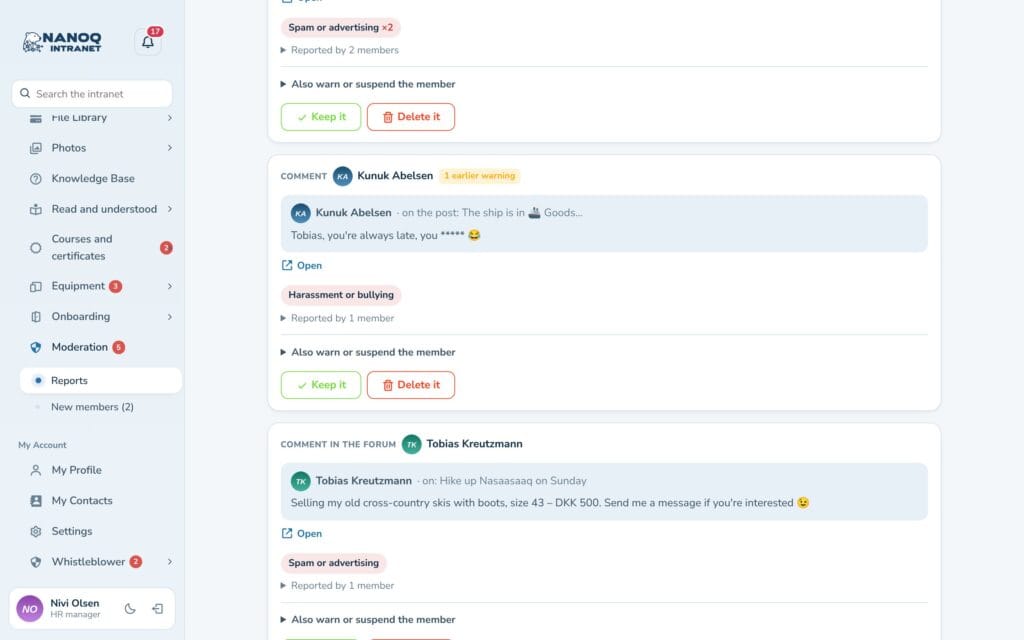
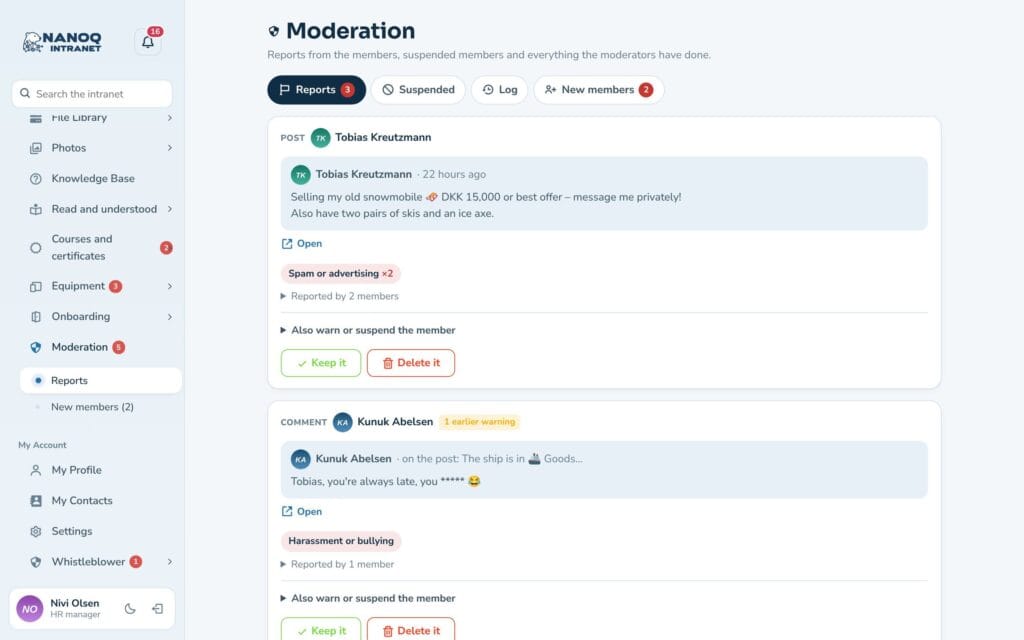
Moderators find the reports under Moderation → Reports with the content, the reason and how many have reported it. An earlier warning is shown next to the name.
- Keep it or Delete it.
- Under Also warn or suspend the member: write a Message to the member (warning) – it arrives by email and in the notifications – and/or choose Suspend the member for 1, 3, 7 or 30 days or Permanently. A suspended user is logged out and can’t log in.
The Suspended tab shows who is suspended (and Lift the suspension), and Log shows all decisions. Moderators can also click Moderate on a profile.
Reminders for moderators
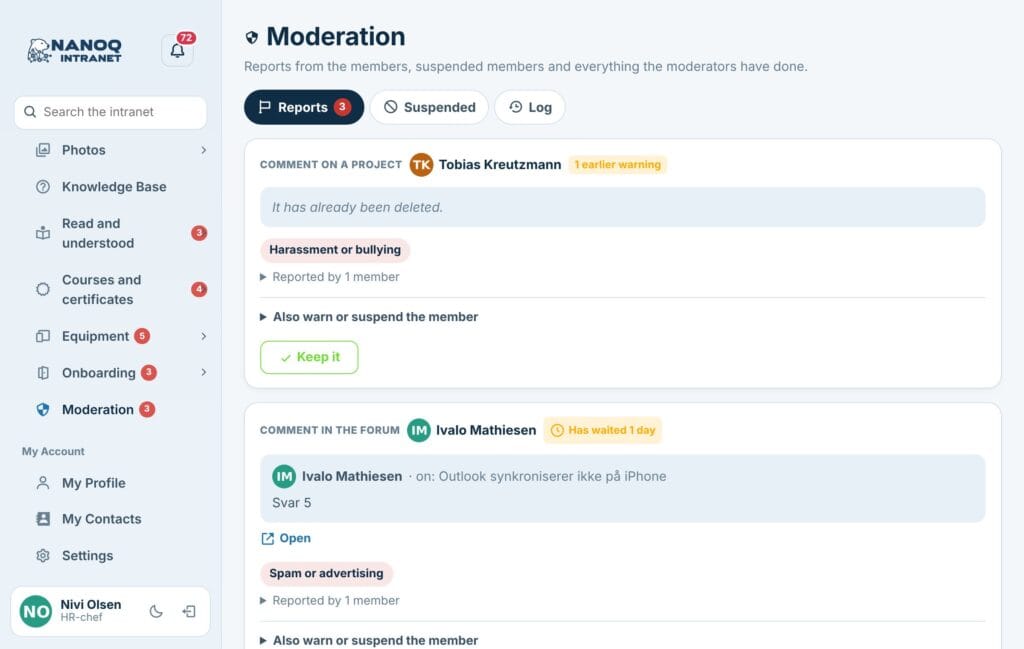
If a report is left untouched, it is marked Has waited …, and the moderators get a reminder under the bell and by email – after 24 hours by default, and again after the same time while reports are waiting. Reminders are only sent in the daytime.
The time is set under Nanoq → Moderation → Remind the moderators after (0 = no reminders).
Block a member
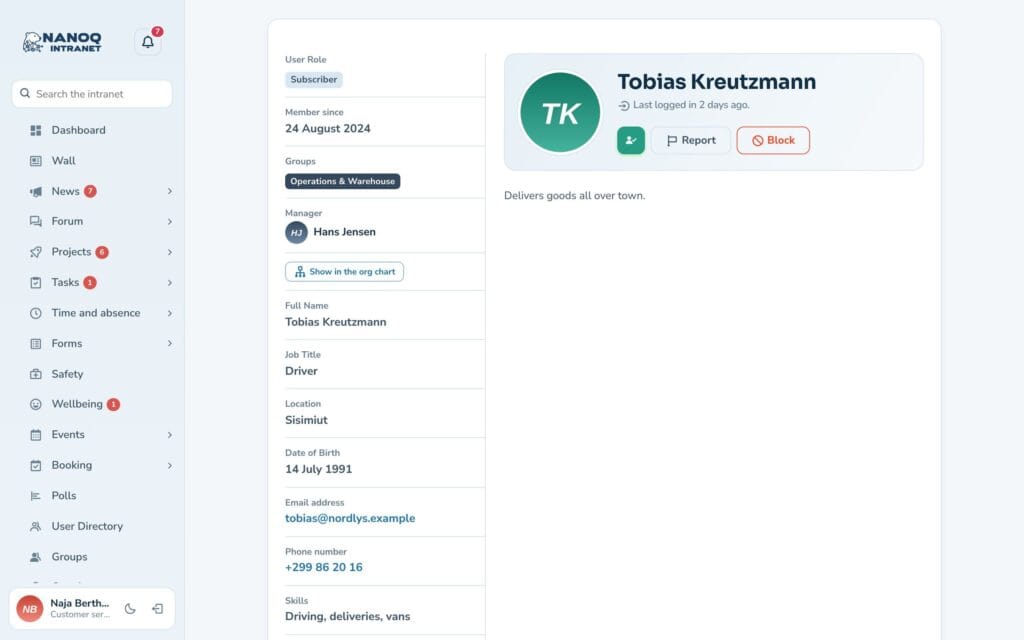
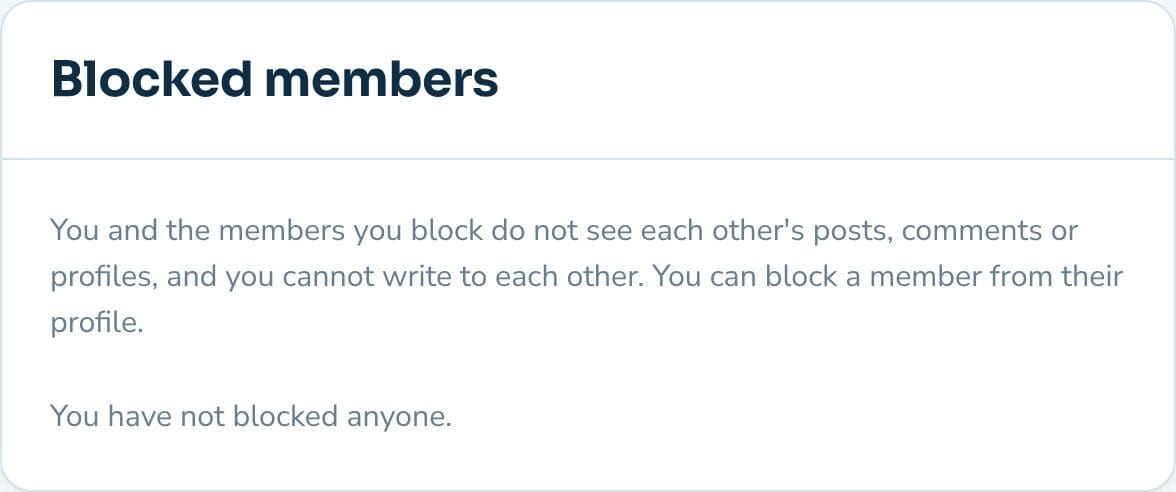
Click Block on a profile or in the menu on a post. Then you don’t see each other’s posts, comments and profiles, you can’t write private messages or send contact requests to each other, and you get no notifications from each other. Contacts and open requests are removed. Under Settings → Blocked members you can remove a block. Moderators and administrators can neither block nor be blocked.
For administrators
Under Nanoq → Moderation:
| Setting | What it does |
|---|---|
| Moderation | Turns the module on and off (default: off) |
| Moderators | Roles that, in addition to administrators and the Moderator role, are also moderators (e.g. Editor) |
| Members can block each other | Default: on |
| Hide after reports | Number of different reporters before something is hidden automatically (default 3, 0 = never) |
| Word filter | One word per line; an asterisk at the end catches longer words (e.g. idiot*). Applies to the wall |
| Words in the filter | Replace them with *** or reject the text |
Good to know
- What can be reported is the wall’s posts and comments, topics and replies in the forum, news and their comments, photos, messages, group messages, projects and project comments, and other users.
- Blocking doesn’t hide content in the forum, news, photos and group messages.
- Serious matters belong in the whistleblower scheme or incident reporting.