Guides › Collaboration
People
Member directory, profiles, profile pictures, profile fields, contacts and “Last active” – so it is easy to find the right colleague.
What the module does
People is the company’s phone book – with pictures.
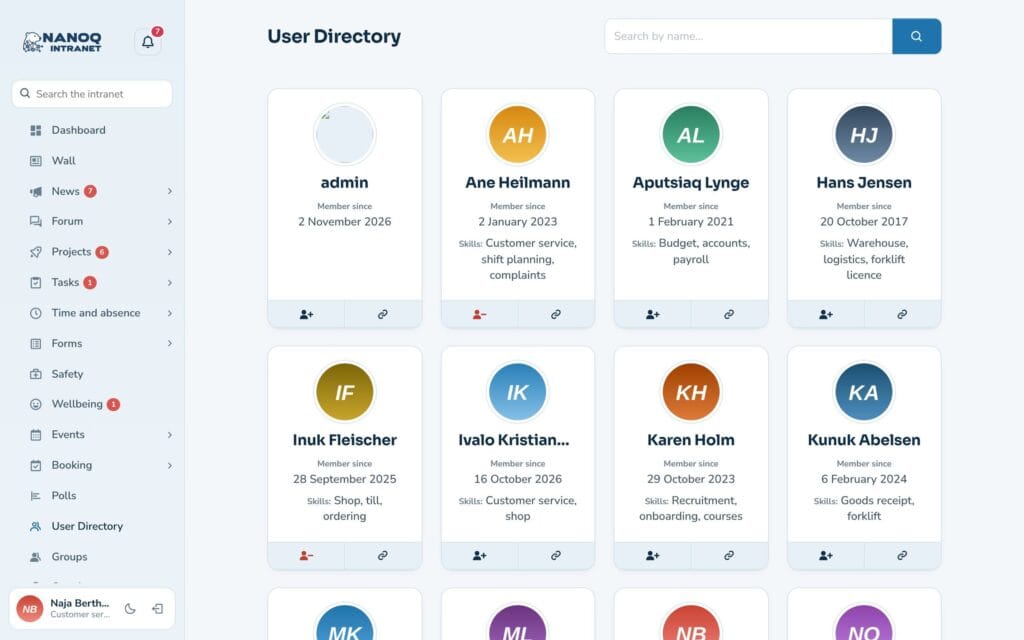
- The User Directory with all employees, search and filters.
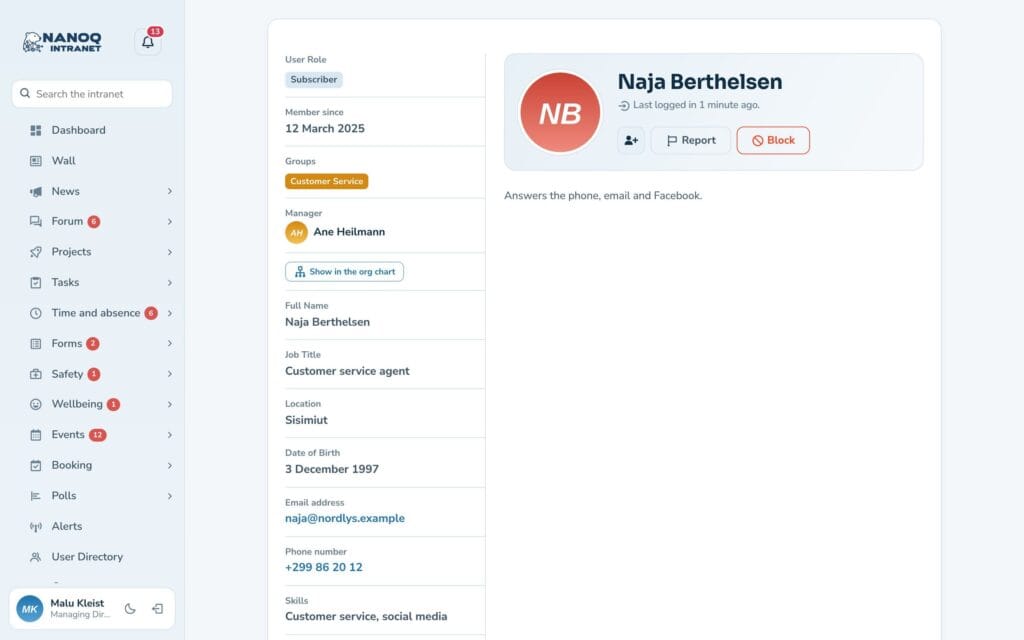
- Profiles with picture, job title, contact details and your own fields such as skills and languages.
- Last active – when a colleague last used the intranet (by default only for administrators and HR).
- Contacts with requests that must be accepted.
- Each person decides who can see each piece of information.
Find a colleague
Click User Directory in the menu. Search by name, job title, location or, for example, a skill. Click the card to see the profile.
Fill in your profile
Go to Settings (or click your name at the bottom of the menu):
- Upload a profile picture – it is cropped to a square automatically.
- Fill in job title, phone and location.
- Choose whether phone and email are Visible to everyone.
- Next to Date of Birth, choose who can see it (all members, your groups, your contacts or only you), and tick Show only the day and month if the year should not be shown (from version 1.59). If all members may see it, your birthday is also shown in the events calendar – without the year (from version 1.60).
- Fill in Additional Information (the fields the administrator has created).
- Save.
Next to each field under Additional Information is the Who can see it? button with five levels:
| Level | Who sees the field |
|---|---|
| Public | Everyone – including on the company website if it shows employees |
| All members | Everyone who is logged in |
| My groups | Colleagues you share a group with |
| My Contacts | Your contacts |
| Only me | Only you and administrators |
Contacts
Click the contact button on a colleague’s card or profile to send a contact request. The button shows where you are:
- Grey – add.
- Yellow – request sent (click to cancel).
- Green – your colleague has asked you (click to accept).
- Red – you are contacts (click to remove).
Requests to you are shown at the top under My Contacts and with a counter in the menu.
If a colleague declines your request, you can’t send a new one to the same person for 30 days (the administrator can change this), and there is a limit to how many requests you can send per day.
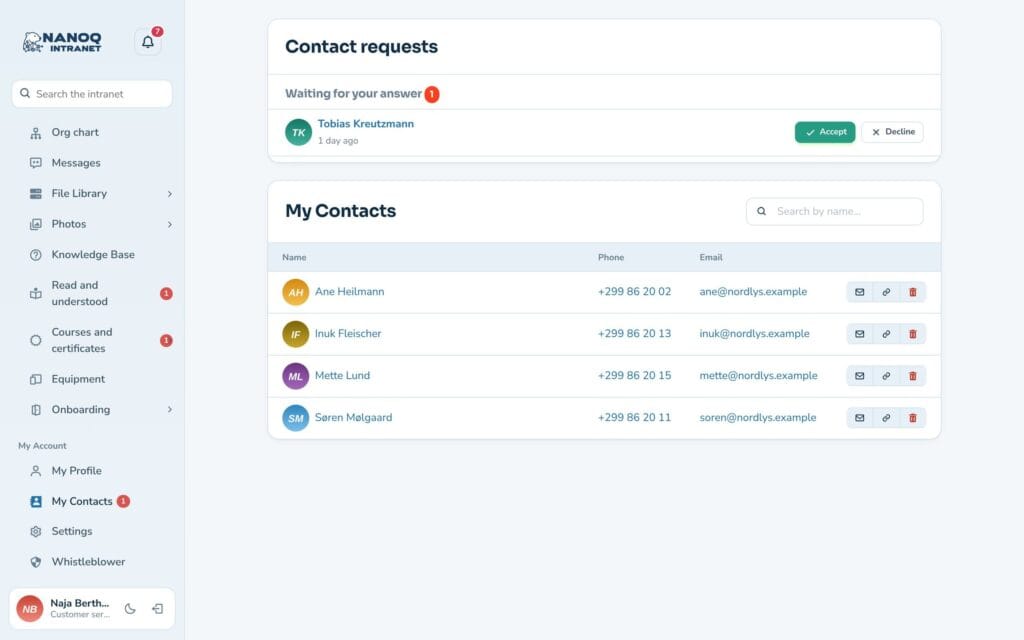
If you don’t want to receive requests, you can turn them off under Settings.
Last active
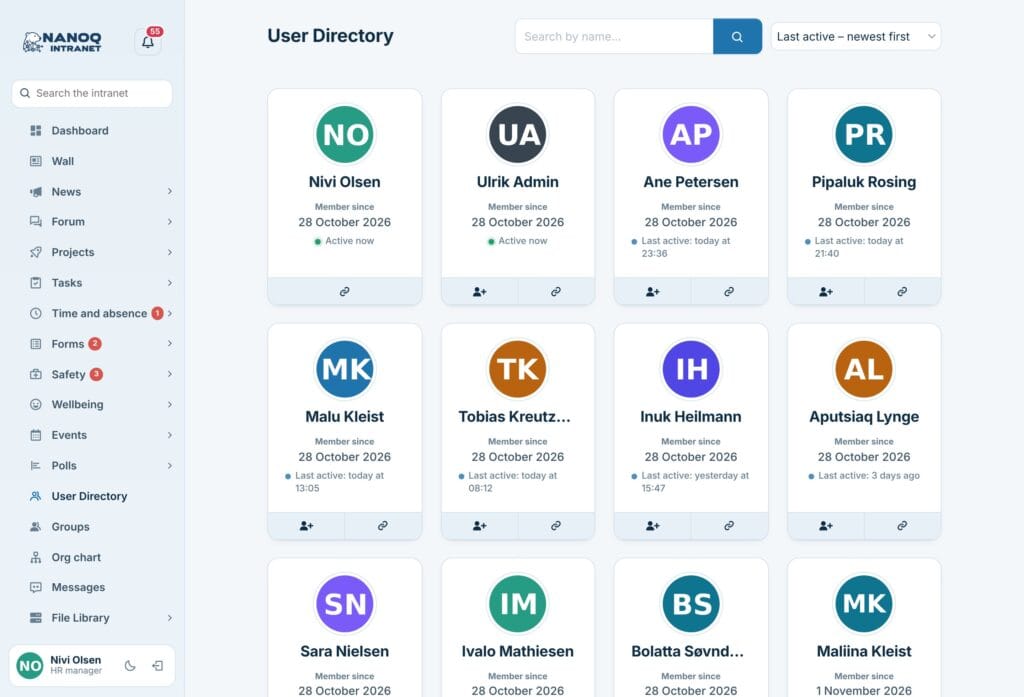
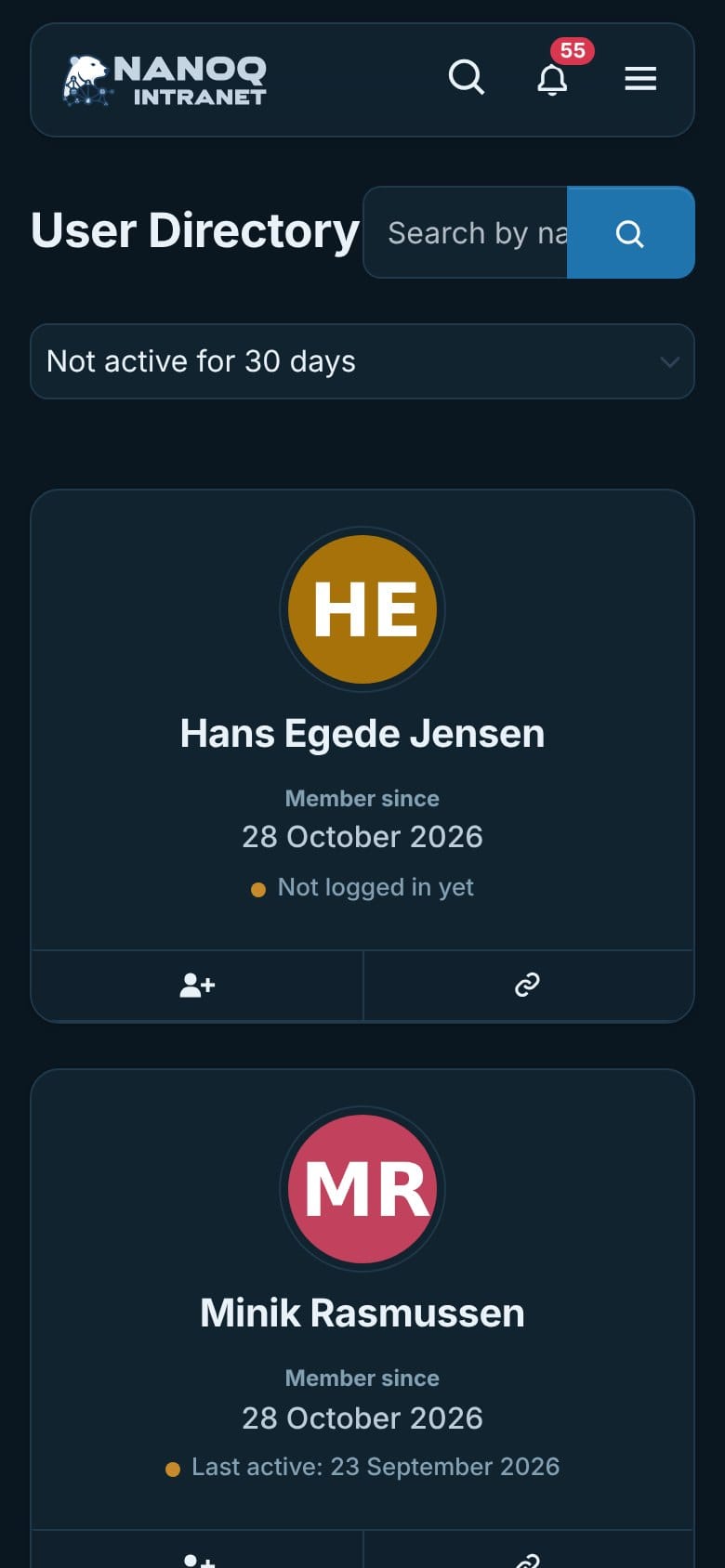
Nanoq shows when a colleague was last logged in or used the intranet – on the profile, on the cards in the user directory and on projects:
- Active now (green dot) – within the last 10 minutes.
- Last active: today at 09:14, yesterday at 16:02 or 3 days ago (blue dot).
- A date when it is more than a week ago – with an orange dot after 30 days.
- Not logged in yet – the person has never logged in.
Hover over the line to see the last login.
By default only administrators and HR (users marked as HR manager) see it for other people. Everybody always sees their own. The administrator can open it to everybody or turn it off.
Sort the user directory: Administrators and HR have a list next to the search field with Standard order, Last active – newest first, Last active – oldest first and Not active for 30 days. The last one also shows people who have never logged in – useful when cleaning up accounts, or when a new colleague hasn’t got started.
For administrators
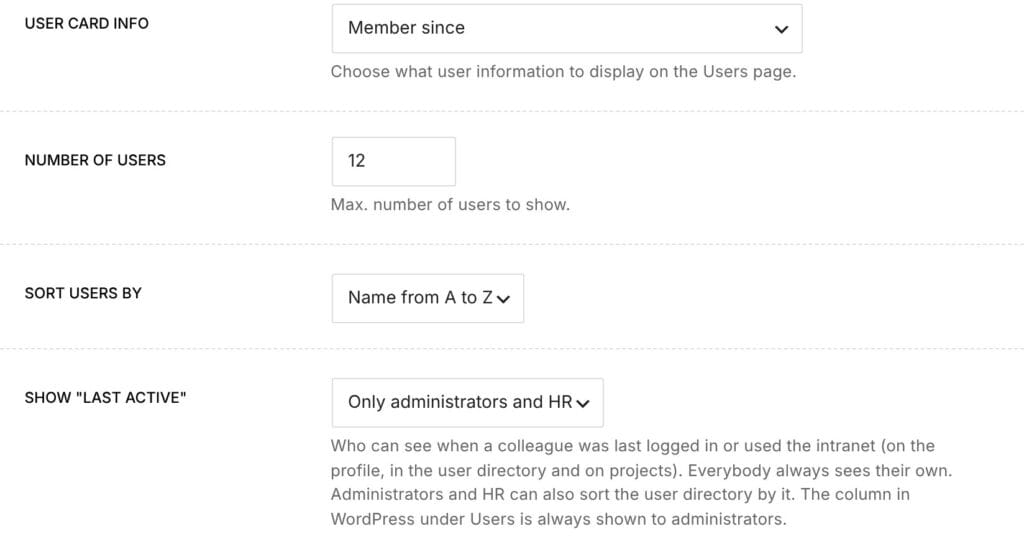
Under Nanoq → Users: turn the user directory and contacts on/off, roles without access, roles to exclude from search, whether employees may upload their own profile picture, and what is shown on the cards.
Show “Last active” (last under Nanoq → Users): Only administrators and HR (default), Everybody or Nobody. In WordPress under Users there is also a Last active column that can be sorted – it is always shown to administrators.
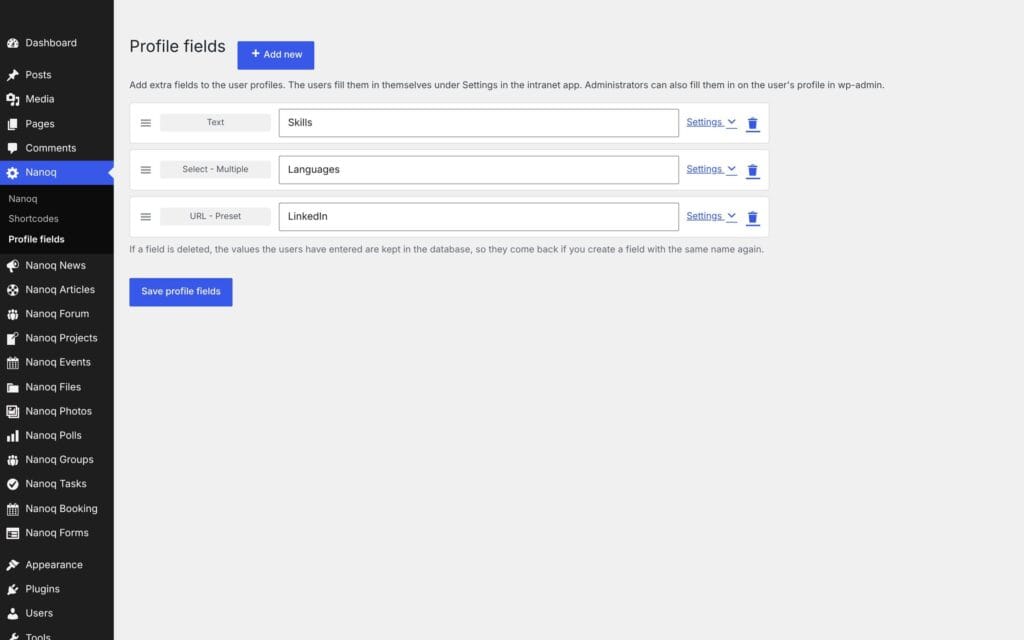
Profile fields are created under Nanoq → Profile fields. Drag the fields into the order they should be shown. For each field you choose the type (text, drop-down, yes/no, multiple choice, date, place, country, email, link …), default visibility, whether users may change the visibility themselves, whether the field is shown on the card in the user directory, and whether it can be searched.
Hide an account: In WordPress under Users → Edit an account can be hidden completely from the user directory with Hide from the intranet – for example an IT account. Administrators can also change other people’s profile pictures and profile fields.
Good to know
- Employees can be shown on an ordinary page with
[nanoq_users]. See Shortcodes. - A hidden user’s name is still shown as the author of the content they created.
- “Last active” is updated when the person opens a page in the intranet or WordPress – at most every 5 minutes. If the intranet is just left open in a tab, the time does not change.
- Before version 1.45 everybody could see colleagues’ last login on the profile. Now it is only administrators and HR by default.