Guides › Communication
Polls
Ask your colleagues – with or without names – and see the result straight away.
What the module does
Polls are a quick way to get everyone’s opinion: where should the summer party be held, which day suits the course, how did the onboarding go?
- One or more questions per poll.
- One answer or several answers per question, optionally with a maximum.
- An “Other” option with free text.
- Anonymous or named polls.
- Start and end date, and optionally only for certain groups.
- Results as percentages and as CSV for Excel.
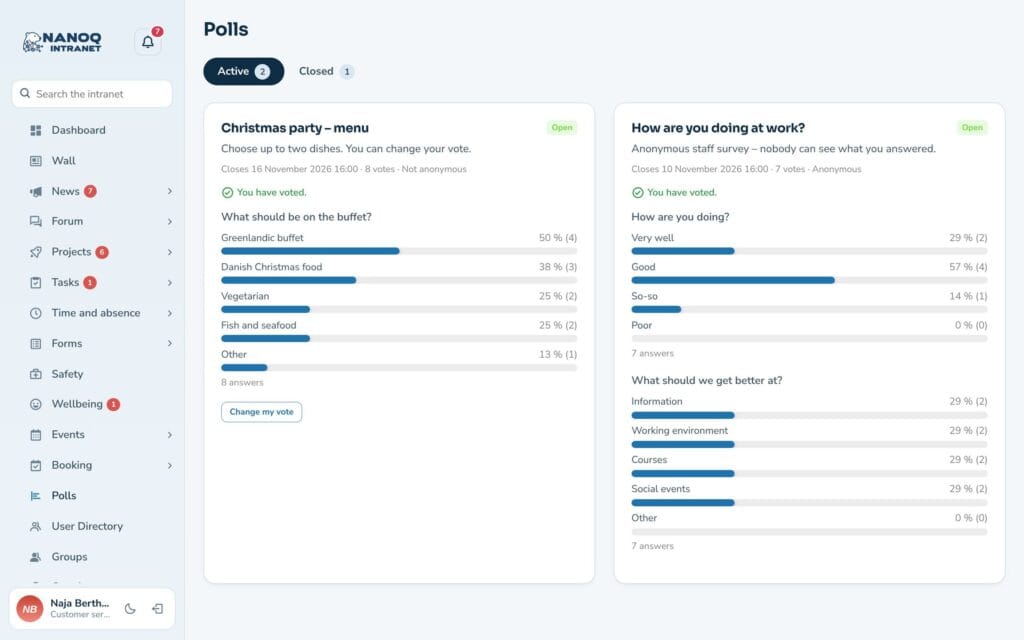
Vote
- Click Polls in the menu. The Active tab shows the polls you can vote in.
- Choose your answers and send.
- Once you have voted, you see the result – if the creator has chosen that it may be shown.
If it’s allowed, you can change your vote as long as the poll is open. In anonymous polls the vote can’t be changed, because it can’t be linked to you.
Create a poll
- Click the button to create a poll.
- Write a title and optionally a description.
- Add questions and answer options. For each question, choose whether people may pick one or several answers, and whether “Other” should be included.
- Choose start and end, whether it is anonymous, when the result is shown, and whether people may change their vote.
- Optionally choose groups if only some departments should vote.
- Save.
An anonymous poll can’t be made named afterwards once votes have come in. Decide before you publish.
As the creator you always see the result and can download it as a CSV file that opens directly in Excel. Names are only included in named polls.
The tabs
- Active – open polls.
- Scheduled – polls that start later.
- Closed – finished polls with results.
For administrators
Under Nanoq → Polls:
- Turn the module on/off.
- Roles that may not vote, and roles that may not create polls (default: subscriber and contributor).
The creator can get an email about new votes if email notifications are turned on.
Good to know
- The Active Polls widget can be added to the dashboard.
- A poll can be shown on an ordinary page with
[nanoq_poll id="…"]. See Shortcodes. - The percentage is calculated from the number who answered the question.