Guides › Knowledge and files
Search
One search field for the whole intranet – news, articles, files, people and much more. Including the text inside documents.
What the module does
Search finds everything from one field at the top of the menu. You only see what you have access to.
It searches:
- News, knowledge base and forum (including replies).
- Events, projects, tasks and polls.
- Files – title, description, file name and the text inside the document.
- Photos – title, caption and album name.
- People – name, job title, location and profile fields.
- Groups.
How to search
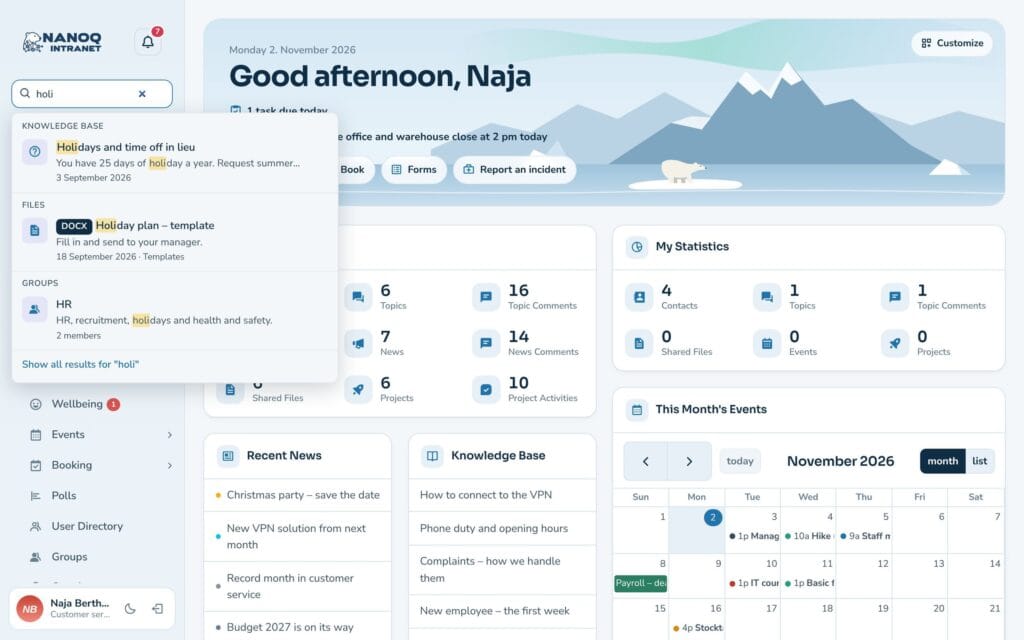
- Click in the search field at the top of the menu – or press / on the keyboard.
- Start typing. Suggestions are shown grouped by type as you type.
- Use the arrow keys and Enter, or click a suggestion.
- Press Enter to see all results.
On the phone, search is behind the magnifying glass at the top.
Search tips
- All words must be found. “holiday rules” only finds content where both words appear.
- Use quotation marks for an exact phrase: “summer party”.
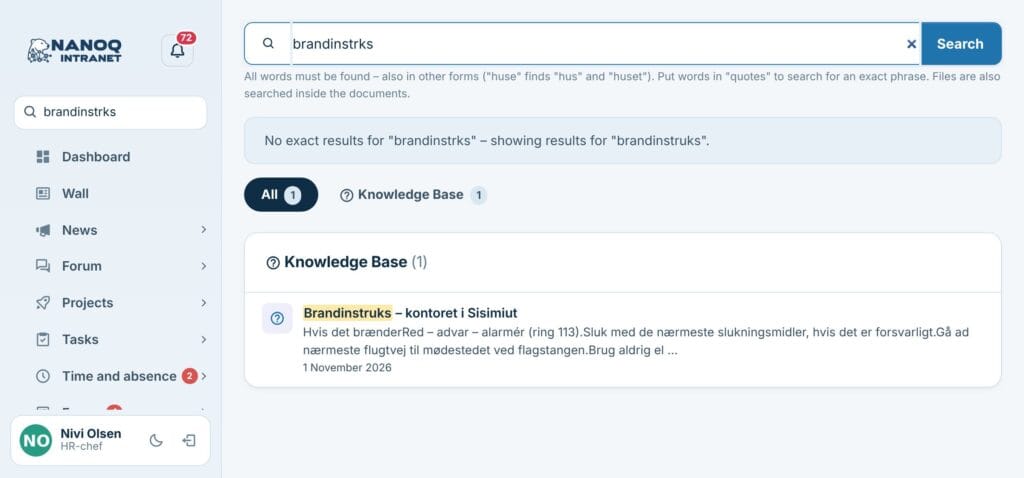
- Word forms and typos: a word also finds its other forms – in Danish “huse” finds “hus”, “huset” and “husene”, and in English the plural – also inside compound words. If a word is nowhere on the intranet, the closest word is searched for, and it says No exact results for … – showing results for ….
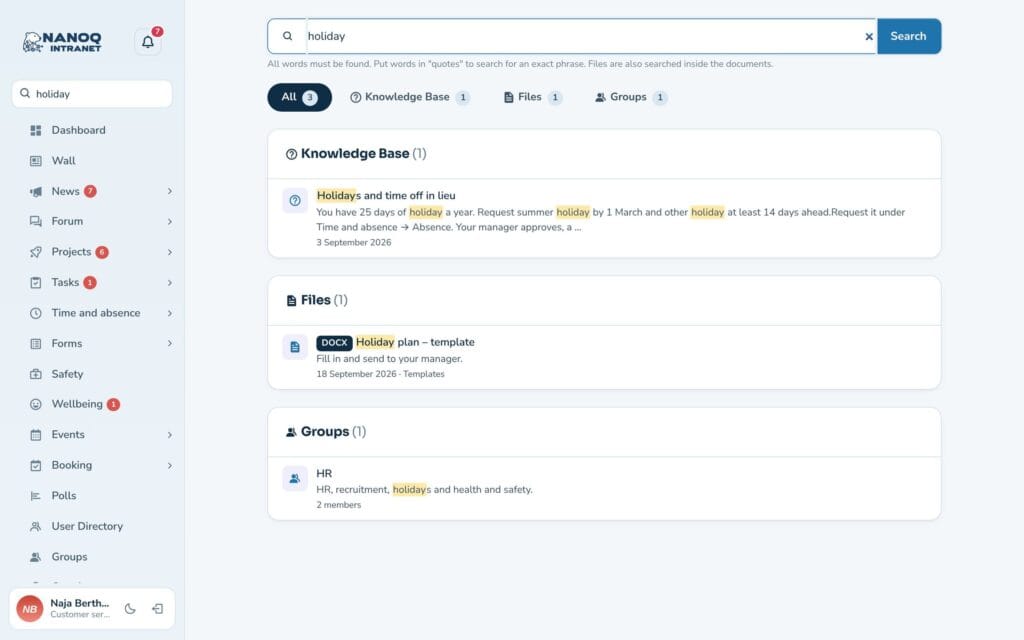
- The results page has a tab per type with the count. Under Everything the top five of each type are shown.
- Words found inside a document are marked with Found in the document.
What you won’t find
Search uses the same rules as the modules. You won’t find:
- content in groups you are not a member of,
- private files, photos and projects you haven’t been added to,
- profile fields the person has made invisible to you,
- hidden users.
For administrators
- Search is turned on and off under Nanoq → General.
- Reading the documents’ text is turned on and off in the same place.
- Nanoq Files → Search index shows which files have been read and has the Read all files now button. New files are read automatically on upload, and a scheduled task reads 15 files every hour.
- If the
pdftotextprogram is installed on the server, it is used automatically for PDFs.
Good to know
- Scanned PDFs and photos are read with OCR (from version 1.41) – on the server when it has Tesseract, otherwise in the browser of the person who uploaded the file. It can take up to 10 minutes before the text can be found.
- Search also finds files on tasks, equipment, courses and onboarding, form answers and comments on news – but only what you may see yourself.
- A search word of at least 3 letters is also found inside longer words (“plan” finds “planning”).
- Alerts can be found: the ones you have received (also ended ones), and for senders the ones they manage. They open under My alerts.
- Old .doc and .xls files are not read – save them as .docx and .xlsx.