Guides › Collaboration
Projects
Projects on boards with members, checklist, deadline, comments and activity.
What the module does
Projects gather everything about an initiative in one place: who is involved, what needs doing, when it must be finished and what has happened.
- Projects with description, deadline and status.
- Members – individuals or whole groups.
- A checklist with items that can be assigned to a person.
- Comments and activity.
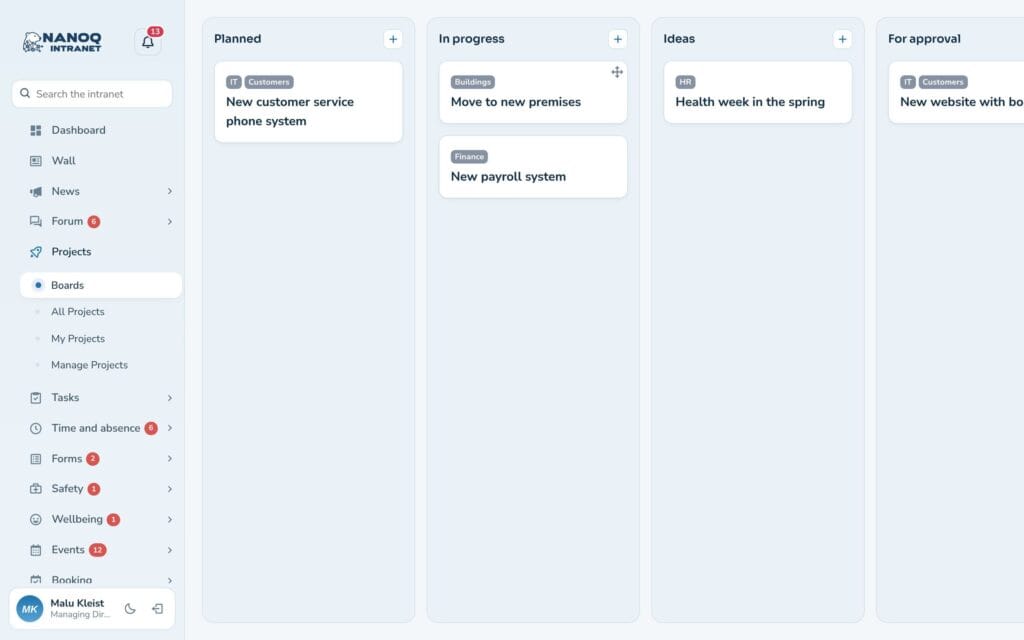
- Boards (kanban), where projects are moved between columns.
For employees
Under Projects you’ll find:
- Boards – the projects in columns.
- All Projects – the list of projects you can see.
- My Projects – projects you are a member of.
Open a project to see the description, checklist, members and activity. Only members can comment. If you are not a member, you can click Join if the project is open.
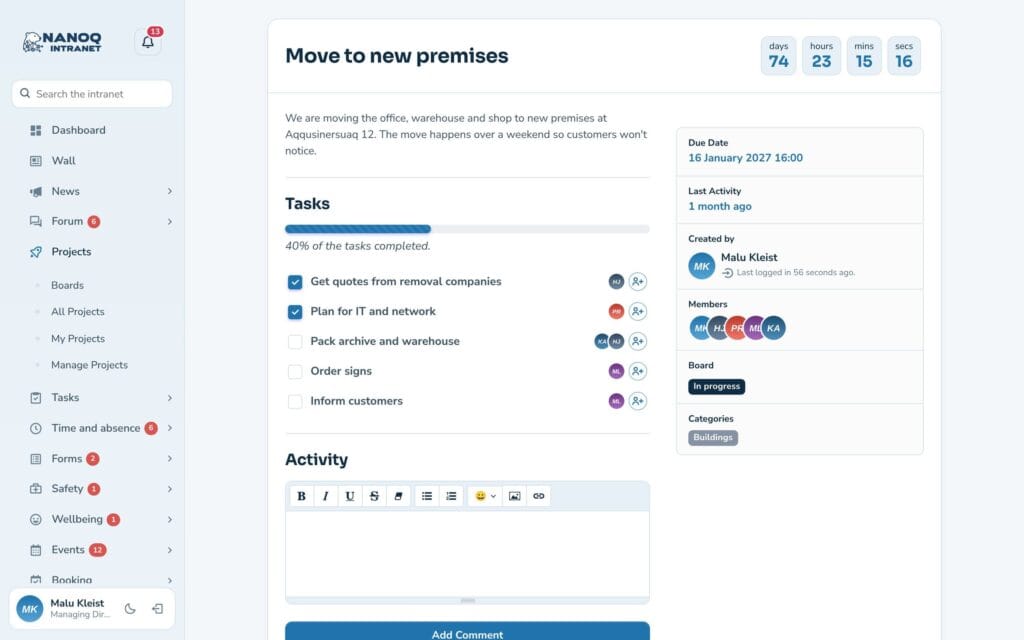
Checklist items assigned to you are also shown under Tasks → My tasks, where you can tick them off.
Create a project
- Go to Projects → Manage Projects and create a new one.
- Write a name, description and deadline.
- Add members – individuals or groups. Everyone in a chosen group becomes a member.
- Choose a board/category.
- Add items to the checklist and assign them.
For administrators
Under Nanoq → Projects:
- Turn the module on/off, and turn Boards on/off.
- Restrict Access and Add Project: roles that may not see or create.
- Private Projects: projects are only seen by their members.
- Number and order of projects.
The boards (columns) are created in WordPress under Nanoq Projects → Boards by users who may manage categories.
Projects or tasks?
- Projects are for larger initiatives with several participants, a description and an end date.
- Tasks are for the daily to-do list – personal or for the department.
Good to know
- Projects can be shown on an ordinary page with
[nanoq_projects]. See Shortcodes.