Guides › Read and understood
Read and understood
How to read and confirm rules and policies – and how to ask others to do it, follow who is missing, and publish a new version.
What the module does
With Read and understood, management or HR asks employees to read something important – such as the staff handbook, the IT security policy or the emergency plan – and confirm that they have read and understood it. The content can be a text written directly in the module, a news post, a knowledge base article or a file from the file library.
The confirmations are stored with name, date and version, so you can document to the auditors that everyone knows the rules.
To read
- Choose Read and understood in the menu (just above My Account). The number next to the menu item shows how much is waiting.
- Under Waiting for you is what you need to read, with the deadline – for example “Please confirm by 10 November 2026.” If the deadline has passed, it says “Overdue”.
- At the bottom is what you have already confirmed.
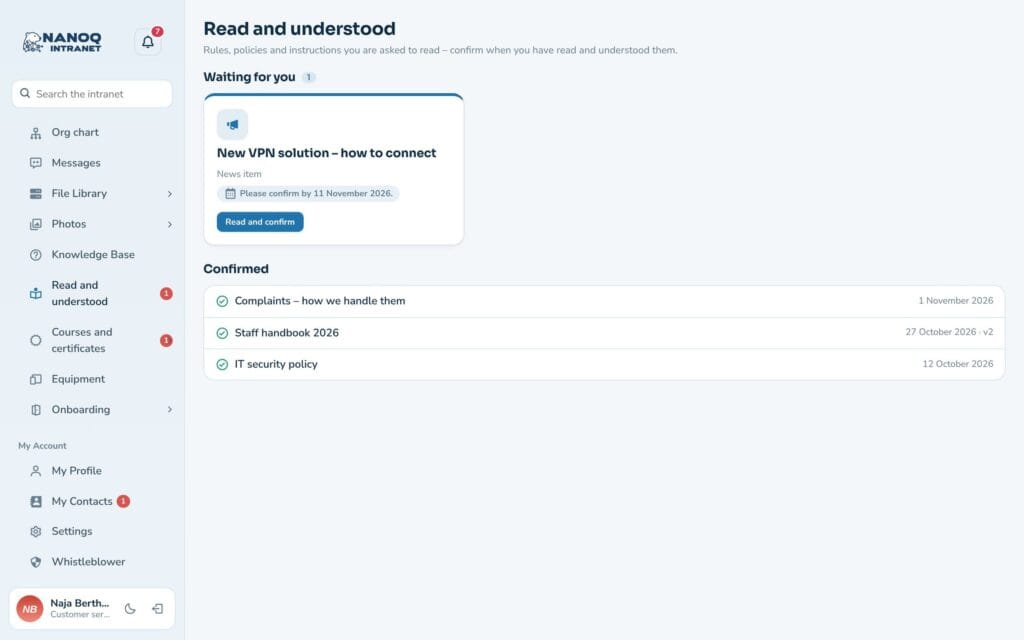
Read and confirm
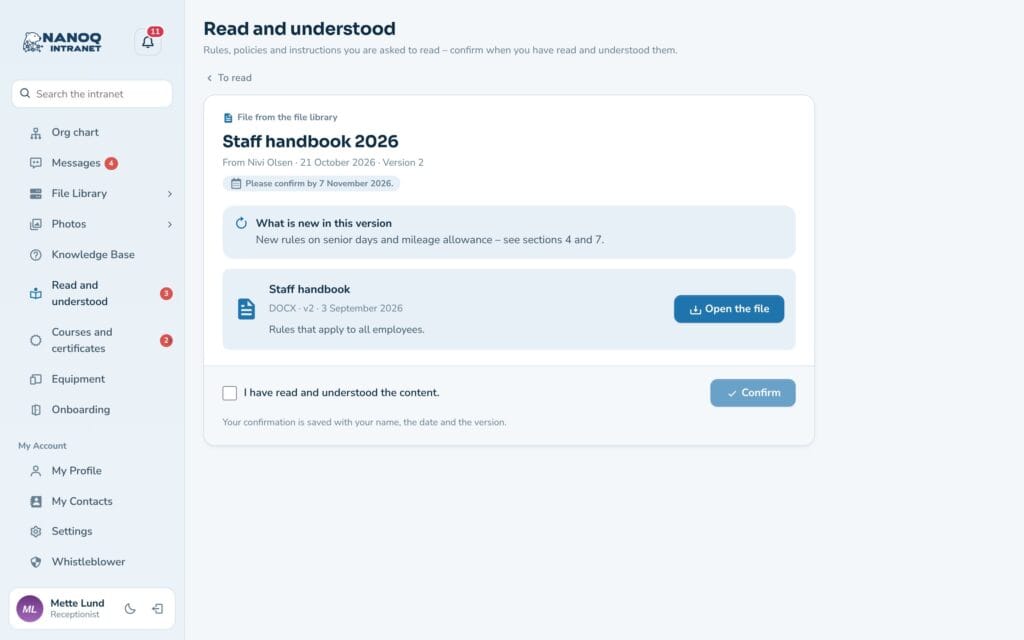
- Click Read and confirm.
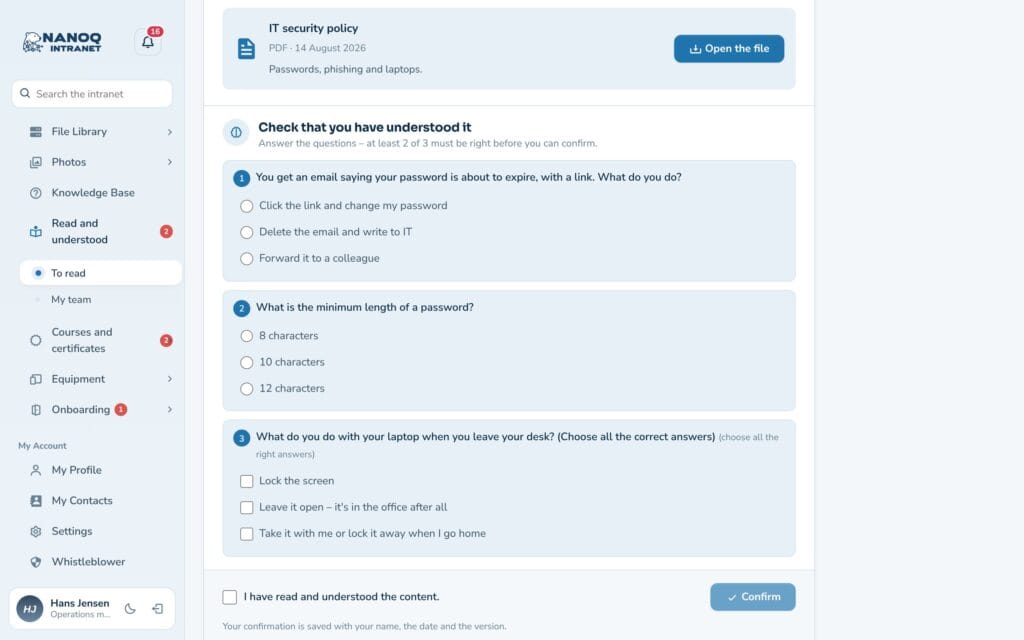
- Read the text. If it is a news post or an article, it is shown directly on the page. If it is a file, click Open the file.
- Tick I have read and understood the content. – the button only works once the box is ticked.
- Click Confirm. It now says “Confirmed” with the date and time.
Your confirmation is stored with your name, the date and the version.
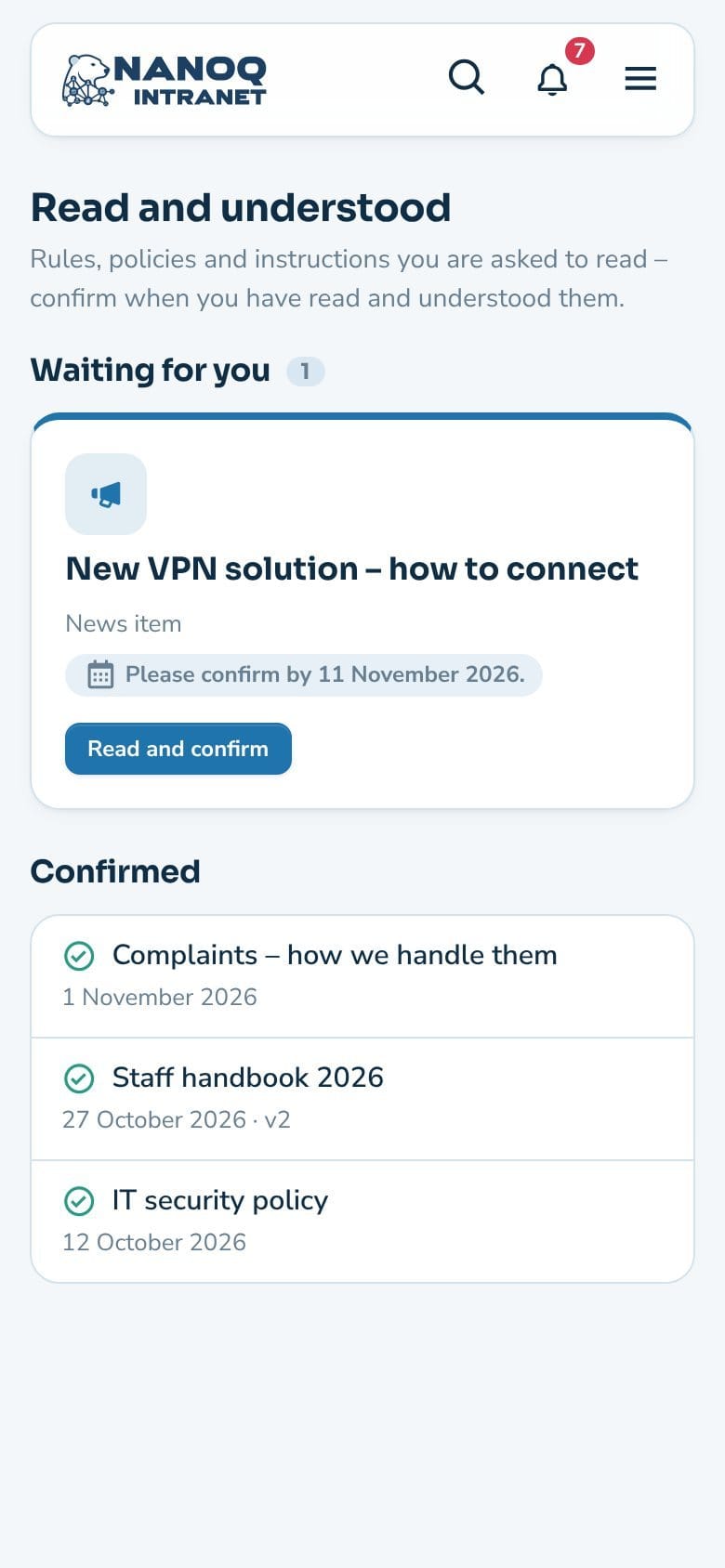
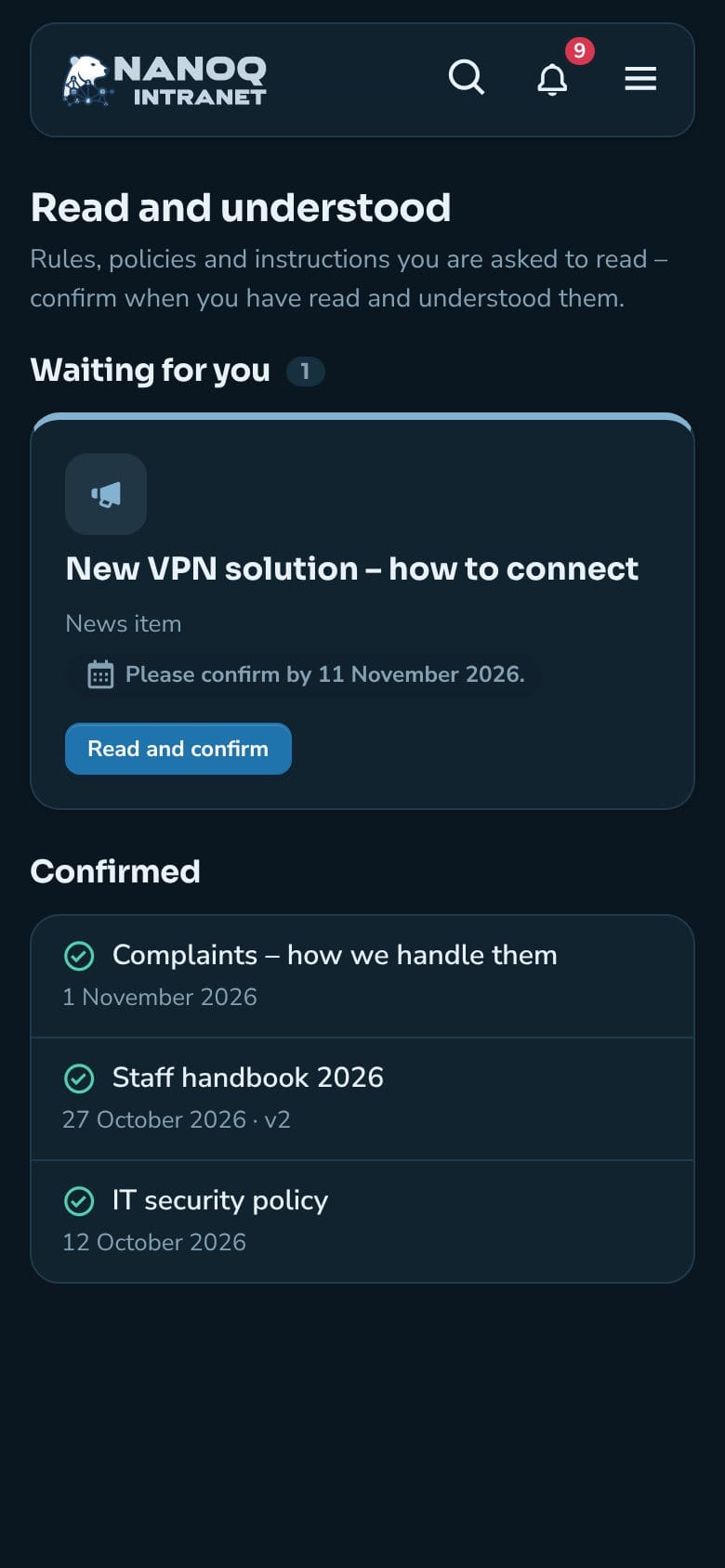
On the phone
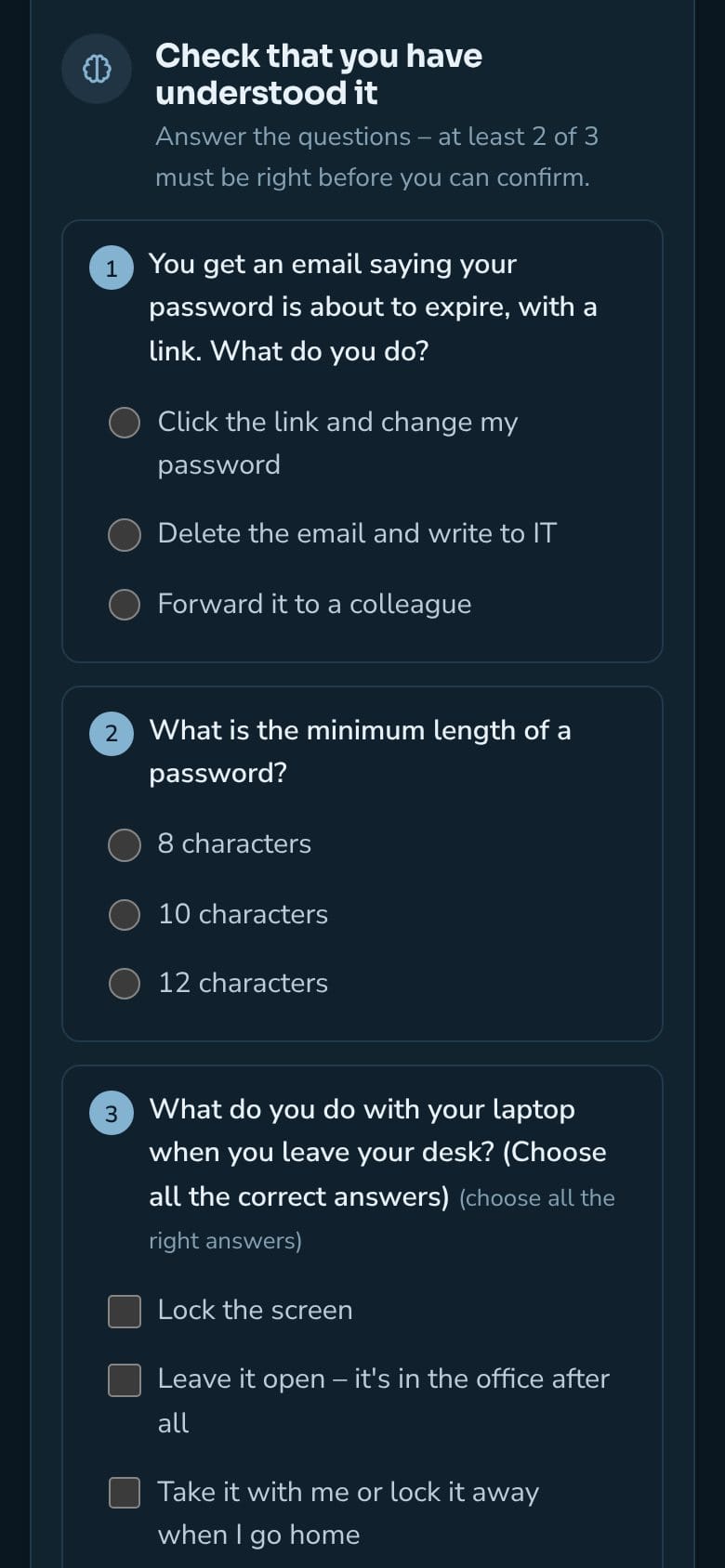
It all works on the phone too – also in dark mode. You get a notification under the bell (and as email and push if you have chosen that) when you are asked to read something, and when a reminder comes.
Send a request
Requests are made by administrators, HR managers and the roles chosen in the settings.
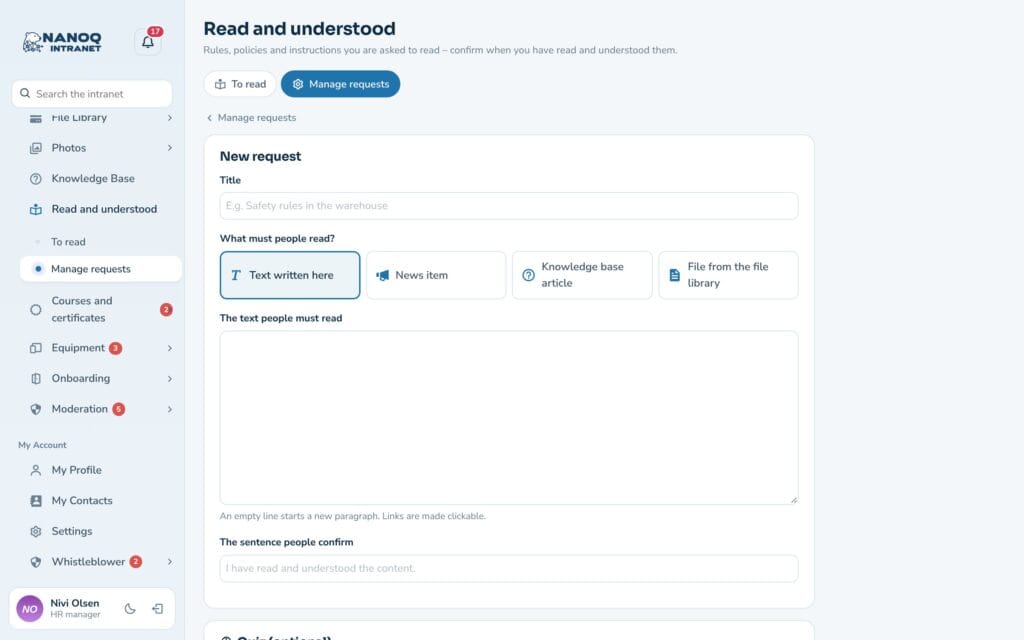
- Choose Read and understood → Manage requests and click New request.
- Write a Title, for example “Safety rules in the warehouse”.
- Under What must people read? choose: Text written here, News item, Knowledge base article or File from the file library. For a news item, article or file you can write an Introduction (optional).
- Optionally edit The sentence people confirm.
- Under Who and when choose: Everyone, Only these groups or Only these people – and optionally a Deadline (optional).
- Leave Remind those who have not confirmed turned on, and click Publish the request.
New employees and new members of the groups are included automatically.
Follow the status
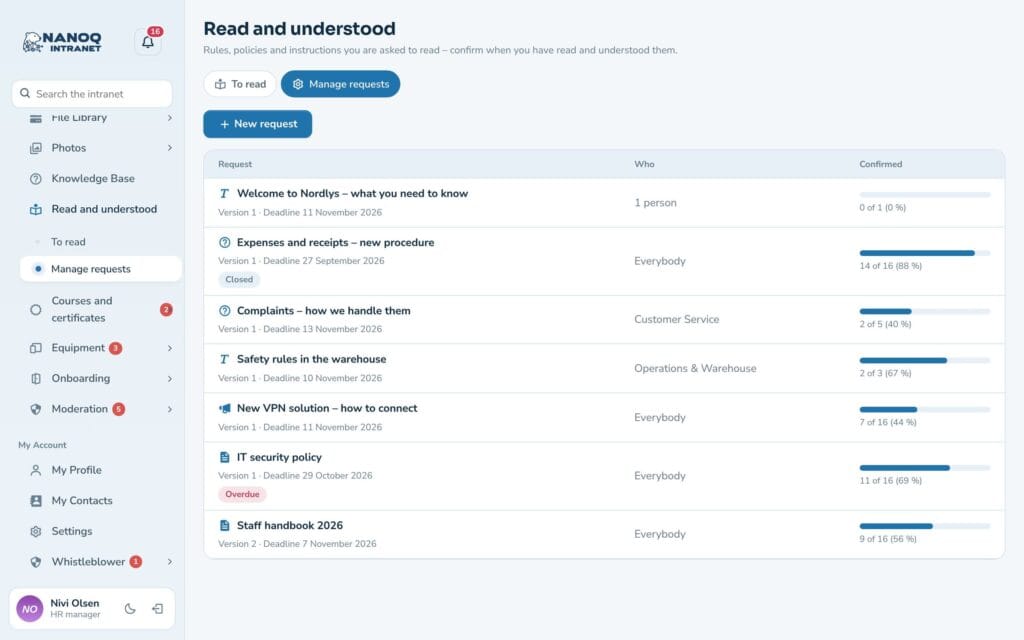
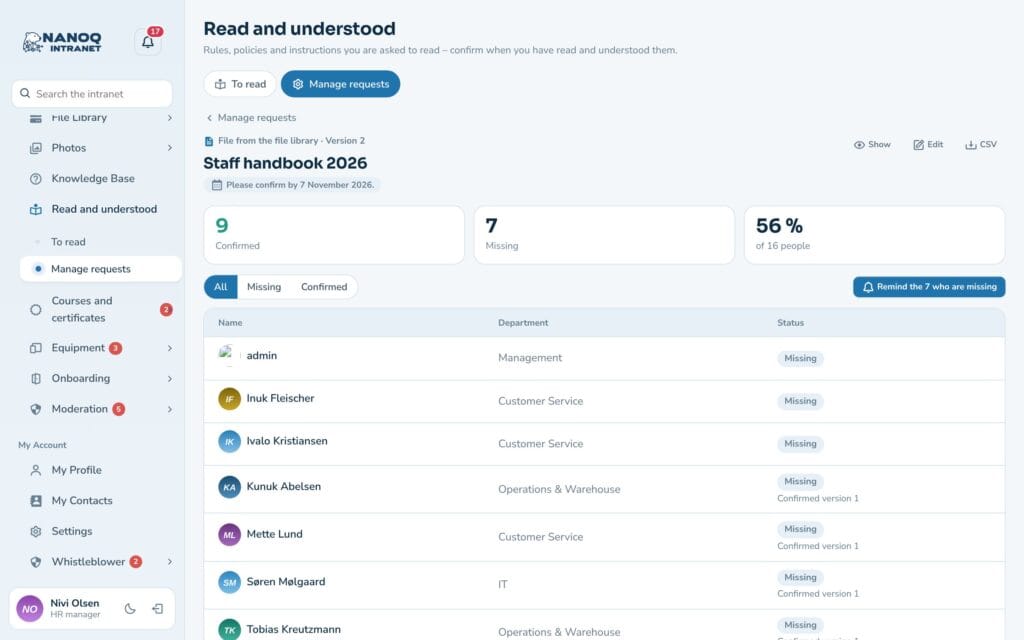
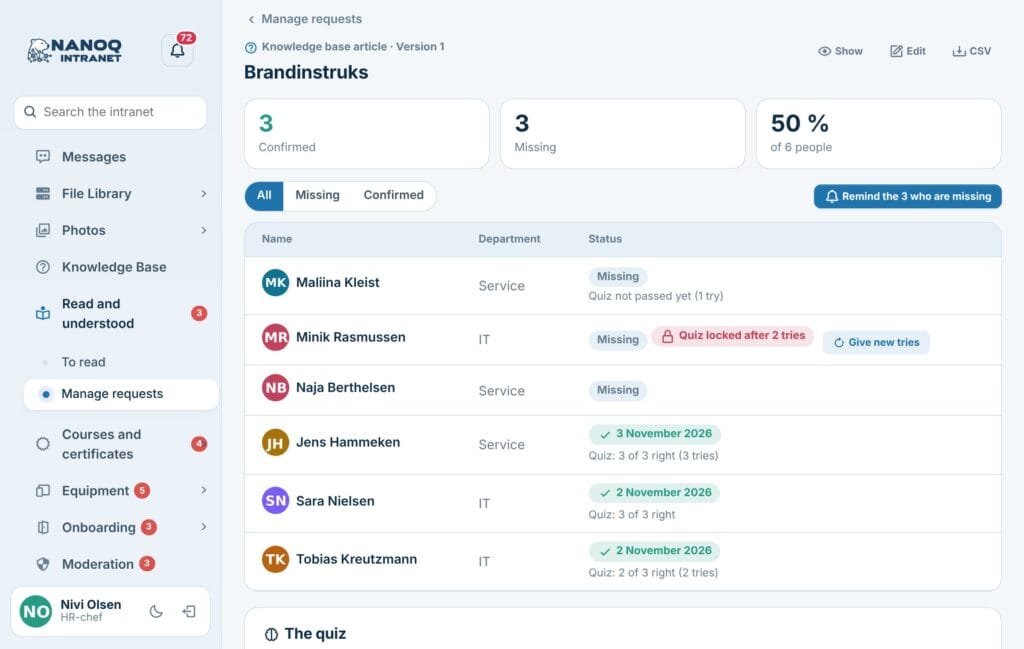
Under Manage requests each request shows how many have confirmed – for example “11 of 16 (69%)”. Click a request to see the status per person:
- The key figures Confirmed, Missing and percentage.
- The filters All, Missing and Confirmed – with name, department and date.
- Remind the N who are missing sends a reminder straight away (at most once an hour).
- CSV downloads the list for Excel.
If a person can’t open the content (for example a file in a folder for other groups), it says “No access to the content” – then they can’t confirm either.
New version
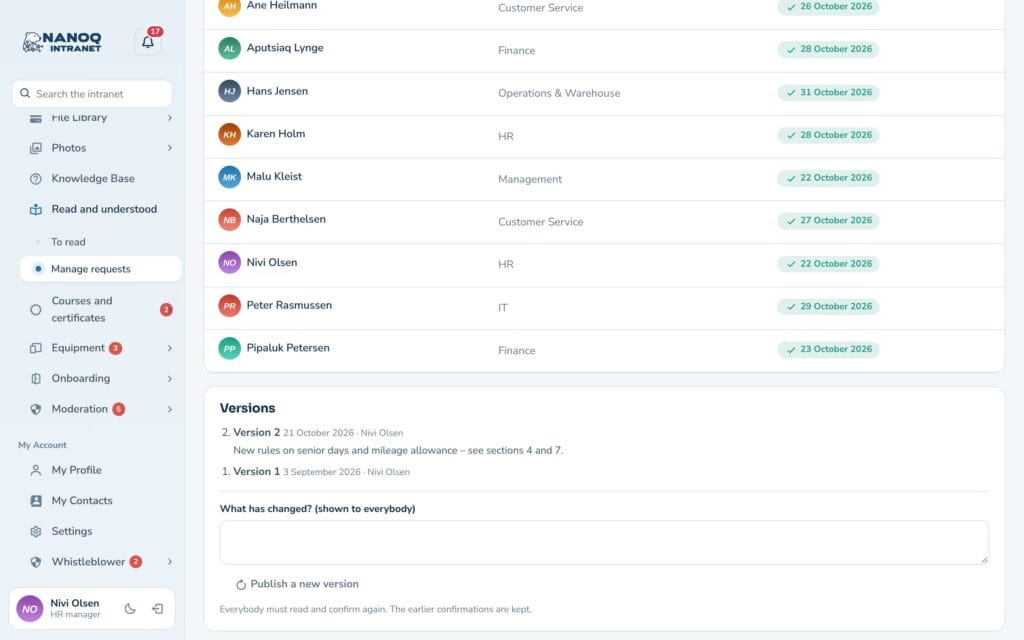
Has the policy changed so everyone needs to read it again? Under Versions on the status page, fill in What has changed? (shown to everybody) and click Publish a new version. Everyone must now confirm again, and the earlier confirmations are kept (“Confirmed version 1”).
If a news post, article or file has changed since the request was published, it says “Content changed” – so you know it may be time for a new version. Ordinary editing of the request doesn’t ask people to confirm again.
Quiz
If you want to be sure the content is understood – not just read – a request can have a quiz.
- Under Quiz (optional), when you create or edit a request, write the questions, at least two answers for each, and mark the right one.
- Under Needed to pass choose how many must be right – for example All right.
- The employee sees the questions under Check that you have understood it and can only confirm once enough are right. You can try again – unless there is a limit on the tries – and the right answers are never shown.
The status page shows each person’s result and number of attempts, and under The quiz you can see how many answered each question correctly the first time. A low share can mean that the content or the question is unclear.
If you change the quiz, those who have already confirmed don’t need to take it again – publish a new version if they should.

A limit on the tries
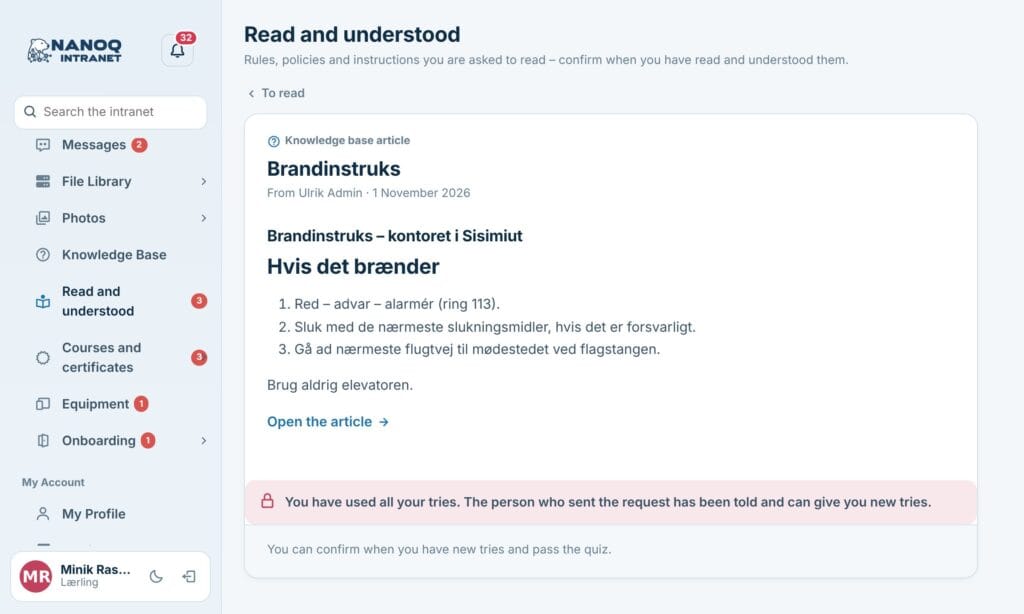
Under Tries in the quiz you choose how many tries people have: no limit or 1, 2, 3, 5 or 10. The employee sees how many tries are left. After the last wrong try the quiz is locked, and the sender and the leaders of the person’s department are notified.
On the status page the person is marked Quiz locked after … tries – click Give new tries when you have talked about it.
For managers
If you are the leader of a Nanoq group (and it is turned on), you get the My team tab: status for the members of the departments you lead, reminders to those who are missing, and CSV – only for your own team.
Reminders
- With a deadline: 3 days before, on the day and once a week afterwards (for up to 4 weeks).
- Without a deadline: after 7 and 21 days.
- Never on the same day the request was published, and at most once a day.
For administrators
Under Nanoq → Read and understood in wp-admin you turn the module on and choose which roles may make requests, whether department leaders follow their members, and which roles are not included. The module is off until you turn it on. The dashboard has the Read and understood widget, and the shortcode [nanoq_ack] shows what the user is missing on an ordinary page.
Good to know
- No IP addresses are stored – only name, date and version.
- When an employee is anonymised (GDPR), the confirmations are kept as documentation without a name.
- A closed request can no longer be confirmed, but the confirmations are kept.
- Use Read and understood in onboarding: new employees can get the staff handbook as a task.