Guides › Security and compliance
Microsoft and Google
Log in with the work account from Microsoft 365 or Google Workspace, control the Nanoq groups from Microsoft and Google, and close accounts automatically when they are deleted there.
What it does
Employees log in to the intranet with their work account from Microsoft 365 (Entra ID) or Google Workspace – the same account they use for mail and documents. There is no extra password to remember, and Microsoft or Google take care of the extra security (e.g. approval in Authenticator).
- The buttons Log in with Microsoft and Log in with Google are on the intranet’s login page and on the WordPress login.
- Only your own organisation can log in: your Microsoft organisation (tenant) or your Google Workspace domains.
- Groups at Microsoft and Google can decide who is in which Nanoq groups.
- With the synchronisation, accounts deleted or switched off at Microsoft or Google are closed in the intranet too.
It is included in the price and off until an administrator switches it on.
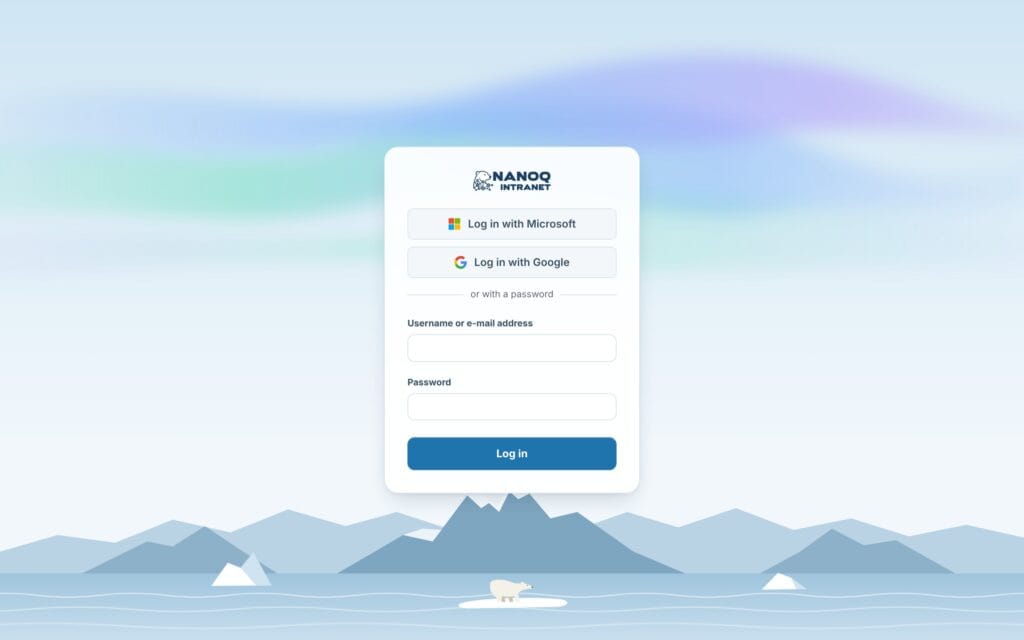
Log in with your work account
- Go to the intranet’s login page, and tap Log in with Microsoft (or Log in with Google).
- Choose your work account, and log in as you usually do at Microsoft or Google.
- You come back to the intranet – logged in.
If you already have a user on the intranet with the same e-mail address, it is used. If you are new, you get a user at the first login if the administrator has switched that on – otherwise an administrator must create you first (with the same e-mail address).
If it says This account is not from your organisation, you chose a private account. Log in with the work account.
Two-factor and passwords
Microsoft and Google ask for the extra step themselves (code, app or key) when your organisation requires it. So the intranet skips its own two-factor code after a login with Microsoft or Google – the administrator can turn that off.
The administrator can also choose that only administrators may use a password. Then everybody else logs in with Microsoft or Google – also on the WordPress login – and cannot reset a password. The login page shows “or with a password (administrators)”.
In the app
In the Nanoq app the button Log in with Microsoft is on the login page, and the phone is connected after the login as usual. Google does not allow its login inside an app – use the QR code or the password if you use Google.
Groups from Microsoft and Google
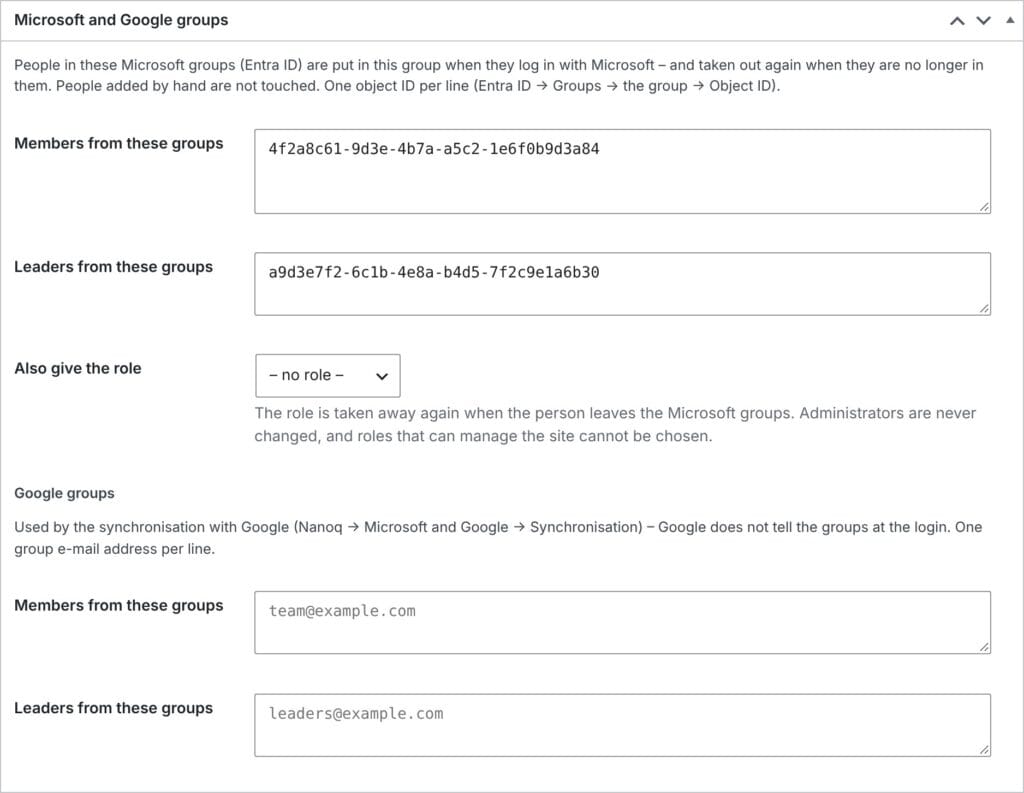
Each Nanoq group can be linked to groups at Microsoft or Google. In wp-admin under Nanoq Groups → the group there is the box Microsoft and Google groups:
- Members from these groups and Leaders from these groups – Microsoft groups by their object ID (Entra ID → Groups → the group → Object ID), one per line.
- Google groups by their e-mail address (e.g. team@company.com), one per line.
- Also give the role – a WordPress role that people in the groups get. Roles that can manage the site cannot be chosen.
People are put in the group when they are in one of the linked groups, and taken out again when they are not any more. People added to the group by hand are not touched, and administrators are never changed. Microsoft groups are followed at every login; Google groups and everybody who does not log in are followed by the synchronisation.
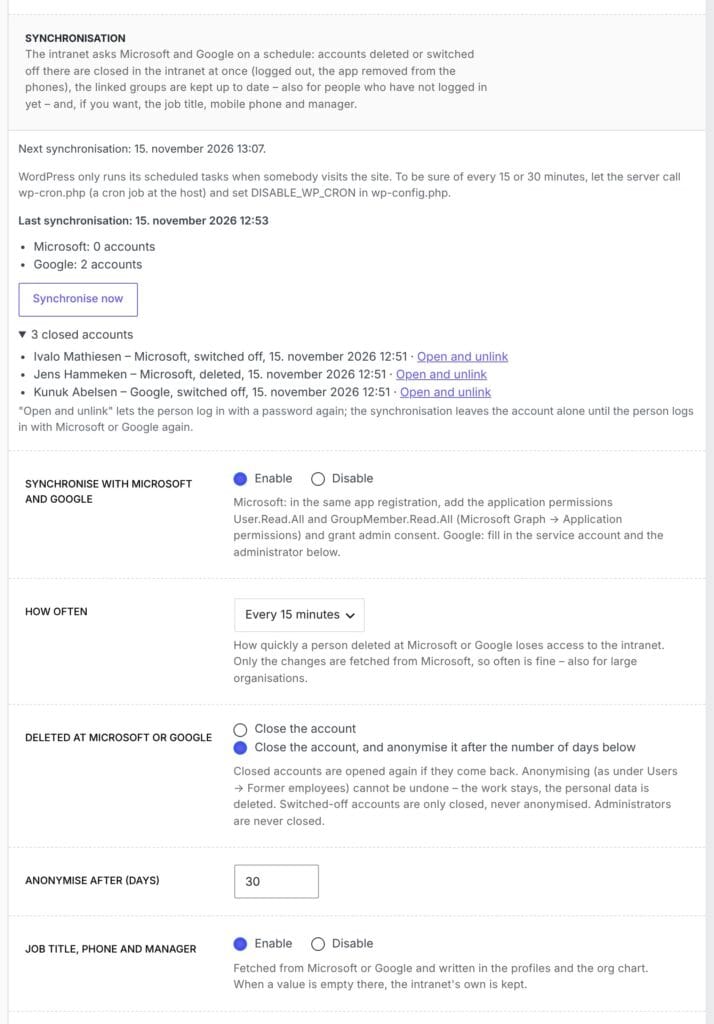
Synchronisation
With the synchronisation, the intranet asks Microsoft and Google itself on a fixed schedule – also about those who have not logged in yet. The administrator chooses under How often: every 15 minutes, every 30 minutes, every hour, every 3, 6 or 12 hours or at midnight.
From Microsoft only what has changed since last time is fetched, so even every 15 minutes is light – also for large organisations. Once a day everything is fetched.
WordPress only runs its scheduled tasks when somebody visits the site. If it must happen exactly every 15 or 30 minutes, ask your host for a cron job that calls wp-cron.php.
Closed accounts
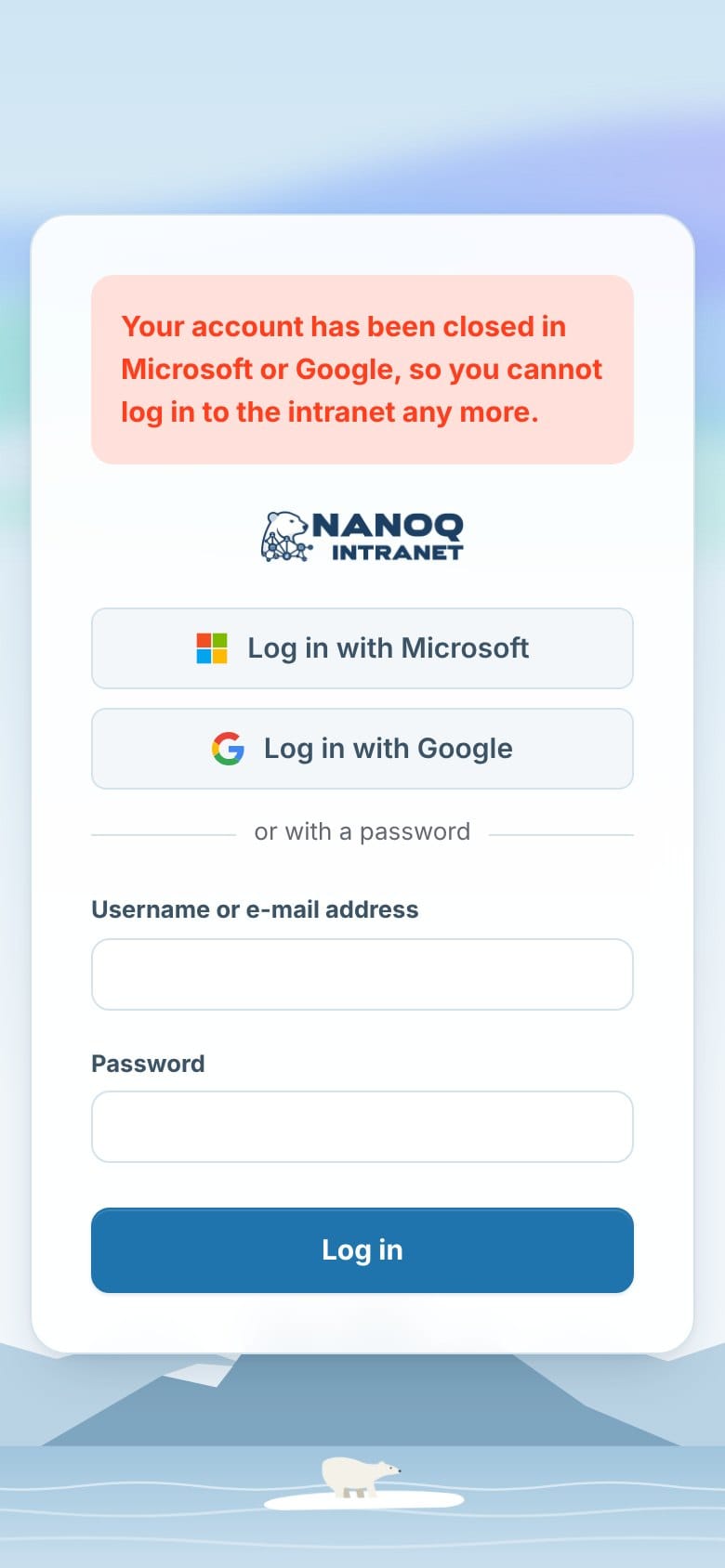
When an account is deleted or switched off at Microsoft or Google, it is closed in the intranet at the next synchronisation:
- the person is logged out everywhere, and the app is removed from the phones,
- nobody can log in with it – not with a password either,
- the login page says that the account has been closed in Microsoft or Google.
If the account comes back, it is opened again. The administrator can choose that deleted accounts are also anonymised after a number of days (as under Users → Former employees) – accounts that are only switched off (e.g. leave) are never anonymised.
Administrators are never closed – they are named in the tab instead. And if more than a quarter of the linked users are missing at once, nobody is closed: that looks like a mistake in the setup, and the tab shows the button Close them anyway.
Under closed accounts in the tab each closed account has Open and unlink, so the person can log in with a password again.
Job title, phone and manager
If the administrator switches on Job title, phone and manager, the job title, mobile number and line manager are fetched from Microsoft or Google and written in the profiles and the org chart. If a field is empty at Microsoft or Google, what is in the intranet is kept.
Together with Uppik CRM
Nanoq Intranet and Uppik CRM each have their own login with Microsoft or Google. Only one of them is used per site: if Uppik’s is set up, the intranet uses Uppik’s, and the intranet’s own steps aside.
If you are setting it up from the start on a site with both Nanoq and Uppik, use the intranet’s own login (Nanoq → Settings → Microsoft and Google), and leave Uppik’s login with Microsoft or Google switched off. It covers both the intranet and the CRM – it is the same WordPress user.
Why the intranet’s own:
- All employees use the intranet, but only some use the CRM. New colleagues get the intranet’s role and groups – Uppik gives new users a CRM role.
- The address registered at Microsoft and Google is the intranet’s own (
/sso/) and does not change if the secret login address is changed. - Groups, role, synchronisation, closing of accounts and the app are set up in one place.
- One app registration at Microsoft (and one OAuth client at Google) is enough.
Two-factor in Uppik: if Uppik requires two-factor login for the CRM staff, use Uppik CRM 1.30.2 or newer and Nanoq 1.69.1 or newer. Then a login with Microsoft or Google through the intranet also counts as two-factor in Uppik when Uppik’s setting for it is switched on – otherwise Uppik asks for its own code after the login.
If you already have Uppik’s login set up, you can simply keep it: the intranet’s login page shows Uppik’s buttons, and the Microsoft groups are followed at login with Uppik CRM 1.30.1 or newer. To use the synchronisation, fill in the same app registration under Microsoft 365 in the intranet’s tab – the synchronisation uses the intranet’s own fields.
Setup: Microsoft 365
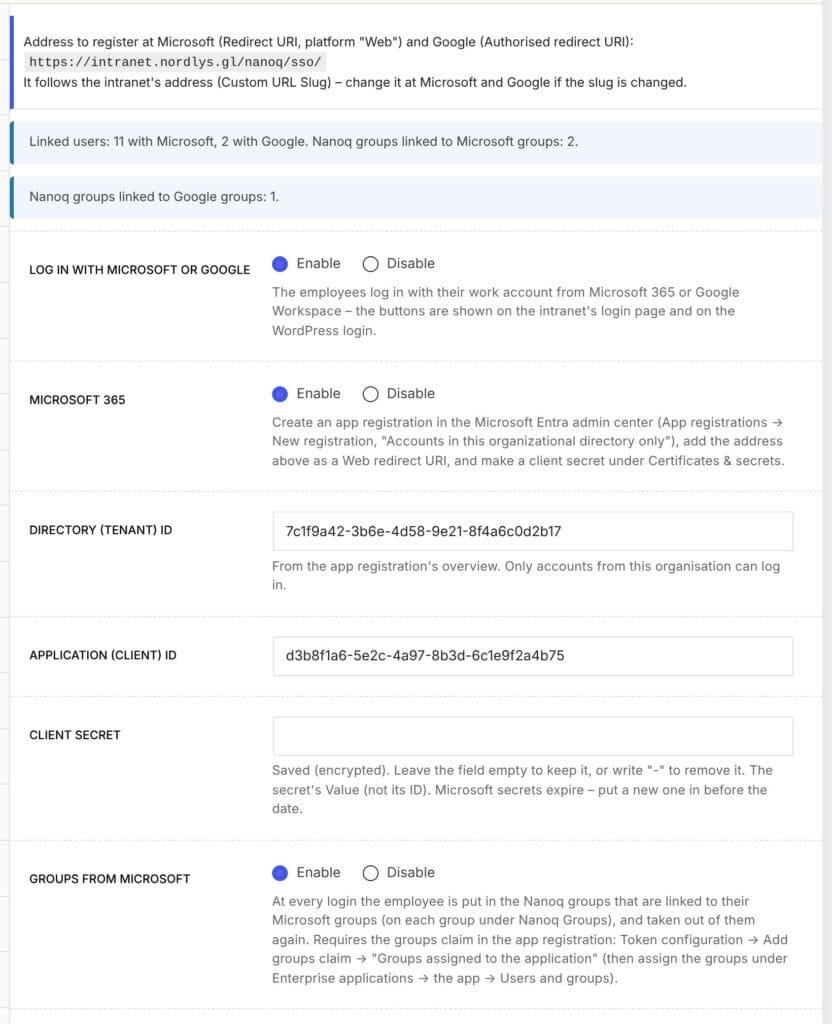
- In the Microsoft Entra admin center: App registrations → New registration, “Accounts in this organizational directory only”.
- Under Redirect URI choose the platform Web, and paste the address from the tab (it ends in
/sso/). - Under Certificates & secrets create a client secret.
- To use the groups at login: Token configuration → Add groups claim – preferably “Groups assigned to the application”.
- For the synchronisation: API permissions → Microsoft Graph → Application permissions:
User.Read.AllandGroupMember.Read.All, and press Grant admin consent. - On the intranet: Nanoq → Settings → the tab Microsoft and Google. Switch on Log in with Microsoft or Google and Microsoft 365, and fill in Directory (tenant) ID, Application (client) ID and Client secret.
Setup: Google Workspace
- In Google Cloud Console: APIs & Services → Credentials → Create credentials → OAuth client ID, type “Web application”. Set the consent screen to “Internal”.
- Under Authorised redirect URIs paste the address from the tab.
- On the intranet fill in Your Google Workspace domains, Client ID and Client secret.
- For the synchronisation: create a service account (IAM & Admin → Service accounts) with a JSON key, turn on the Admin SDK API, and give the service account domain-wide delegation in the Google Admin console (Security → API controls → Domain-wide delegation) with the two read-only scopes shown in the tab. Paste the JSON key and a Workspace administrator’s e-mail address in the tab.
Good to know
- Microsoft and Google only send people back to an https address, so the intranet must run on https.
- The address registered at Microsoft and Google follows the intranet’s address. If it is changed, change it at Microsoft and Google too.
- The secrets are stored encrypted and never shown again. Leave the field empty to keep them, or write “-” to remove them.
- Logins, closed accounts and new users are in the activity log under Login.
- The button Synchronise now in the tab runs the synchronisation at once and shows the result.