Guides › Collaboration
Tasks
Personal and shared task lists with quick add in plain language, board, repeats and an overview for the manager.
What the module does
Tasks is the intranet’s to-do list – for the individual and for the department.
- Personal tasks and shared lists for a department, chosen people or only yourself.
- Assignees, followers, a deadline with a time, priority and categories.
- Subtasks, comments and history.
- Repeats: every day, every Monday, the last Friday of the month …
- List or board view with drag and drop.
- An overview for the manager and a daily reminder by email.
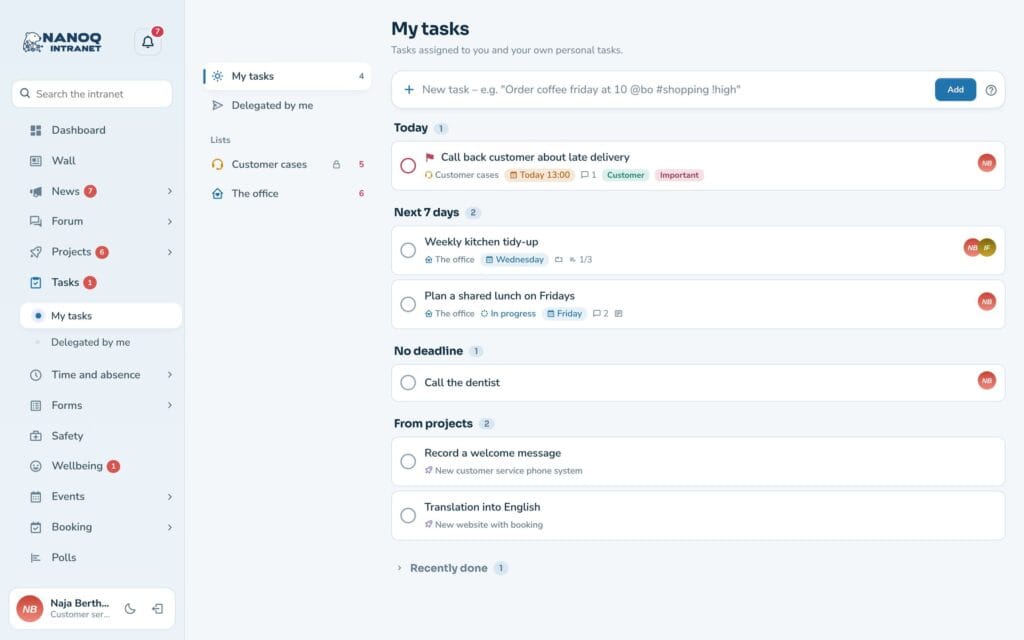
My tasks
Tasks → My tasks shows everything you are responsible for, sorted into Overdue, Today, Next 7 days, Later and No deadline. Checklist items from projects are shown under From projects.
Click the circle to mark a task as done. Click the title to open the task panel, where you can change everything.
Quick add
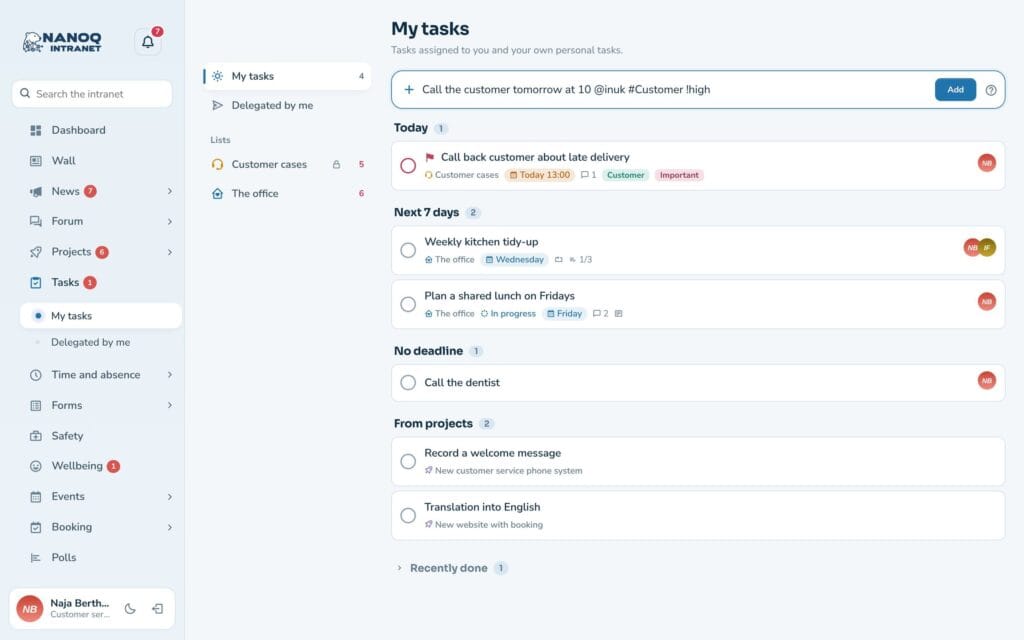
Write the task in one line, and Nanoq understands the rest:
Call the customer @malu tomorrow at 10 #customers !high| Write | Means |
|---|---|
| @name | Assignee (username or first name) |
| #category | Category – created if it doesn’t exist |
| !high, !!, !low | Priority |
| today, tomorrow, day after tomorrow, next week, friday | Deadline |
| 30/10, 30.10., 2026-10-30 | Specific date |
| at 10, 14:30 | Time |
| every day, every weekday, every monday, every other week, every month, every first tuesday, every last friday, every year | Repeat |
After you have added it, Nanoq shows what it understood – and what it didn’t recognise. The English words always work, and Danish and Greenlandic words work when the intranet is in those languages.
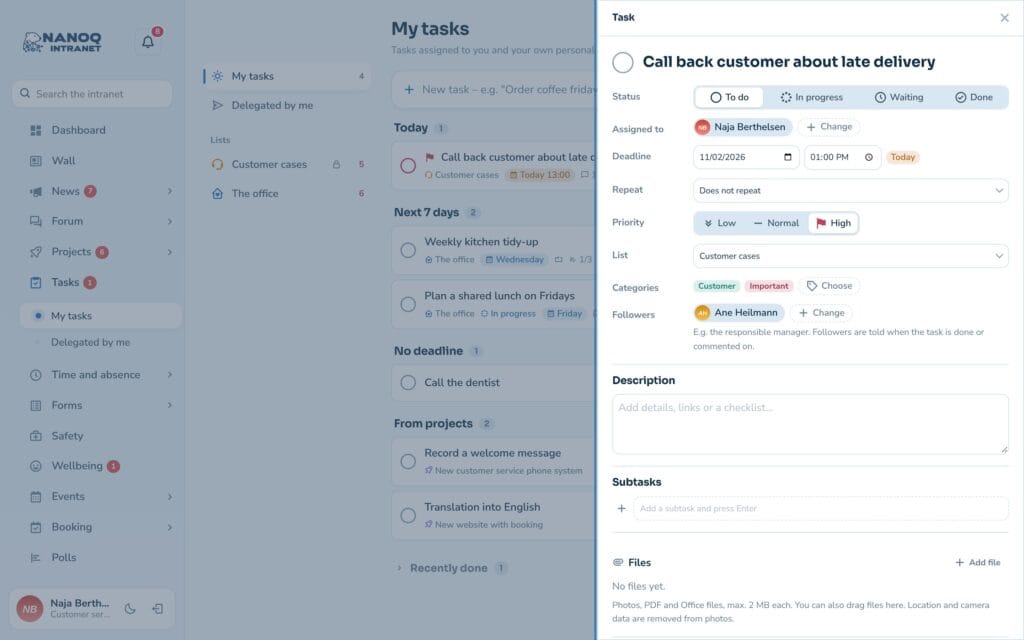
The task panel
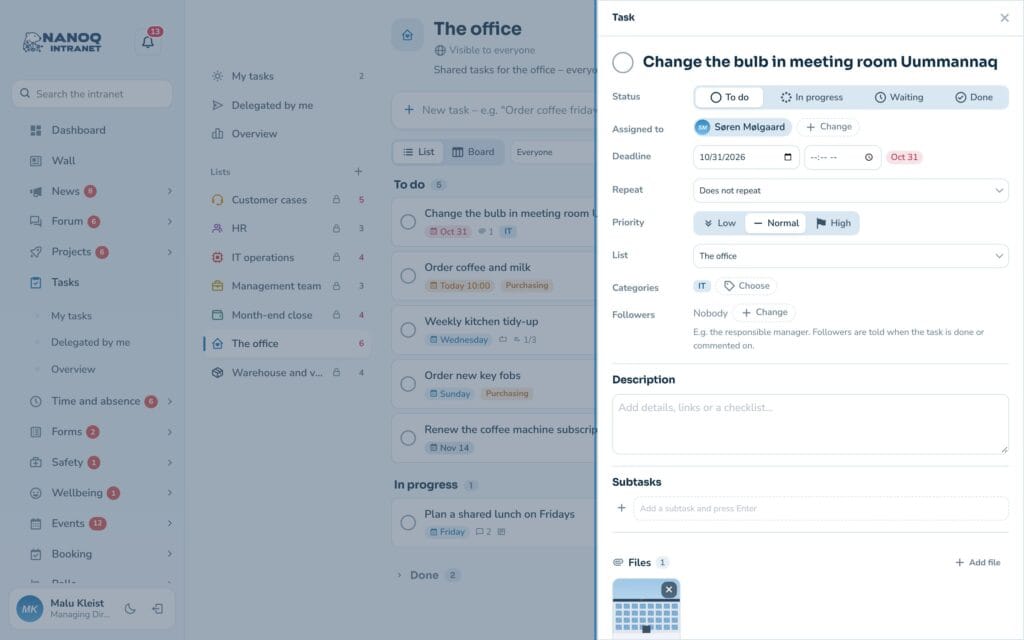
In the panel you can change the status (open, in progress, waiting, done), assignees, followers, deadline, repeat, priority, category and description. Subtasks and comments are here too. Everyone with access to the list can comment and click Take the task.
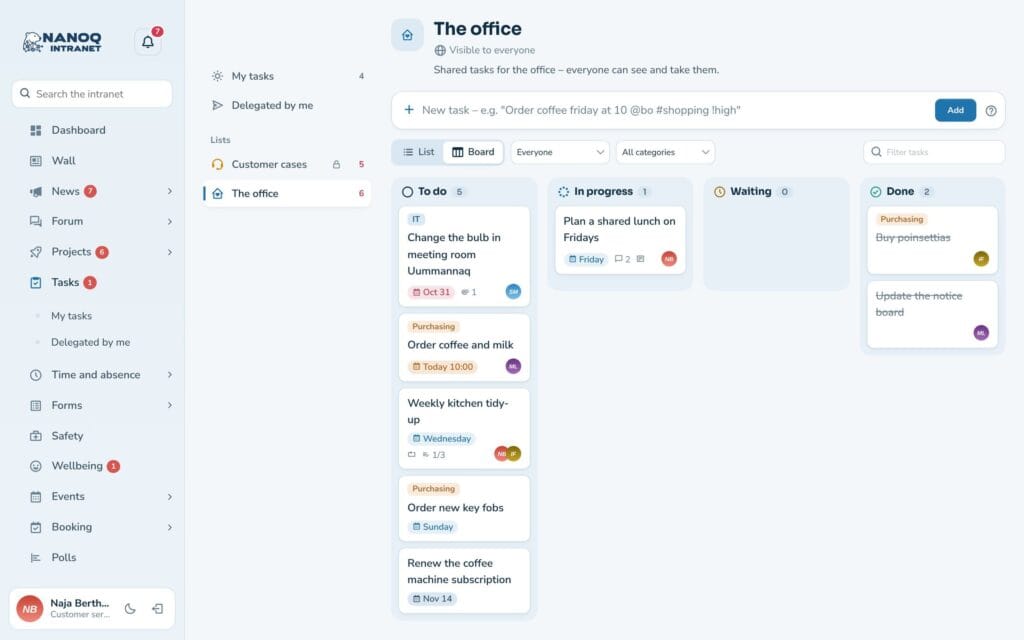
Lists and board
A list can be for everyone, for groups, for chosen people or private. Open a list to see it as a list or a board. On the board you drag tasks between the columns. Filter by person, category or text.
Files and your own order
Attach files and photos to a task in the task panel – for example a quote or a photo of the damage. Everyone who can see the task can open the files.
A shared list is normally sorted automatically. Choose By hand under Order of the tasks in the list’s settings, and drag the tasks into the order you work in. Subtasks can also be moved by dragging. My tasks and Delegated by me are still sorted automatically.
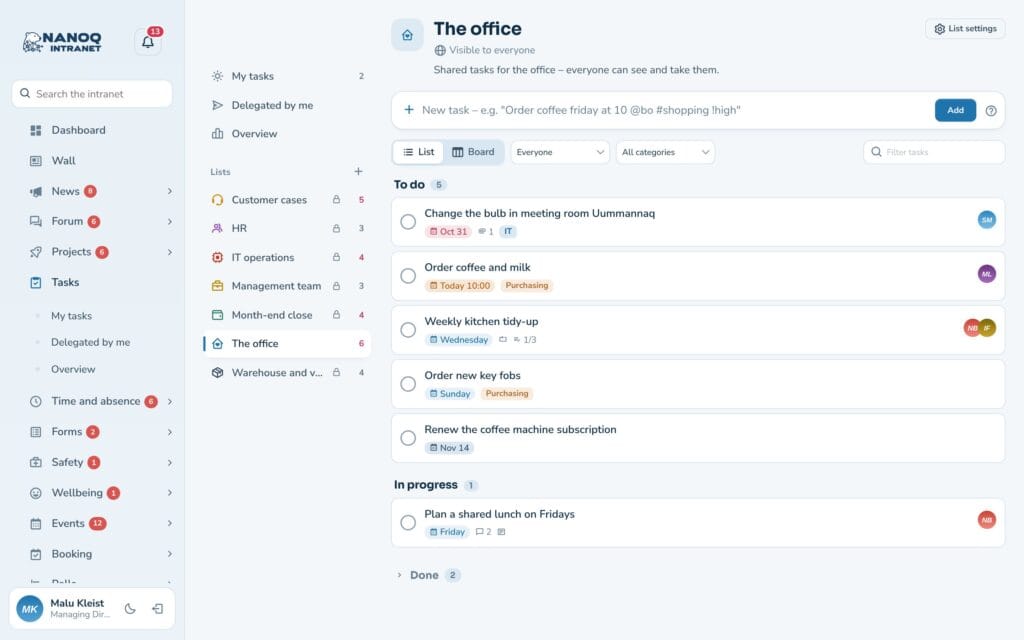
Delegated by me shows tasks you have given to others or follow.
For the manager
Overview shows for your lists: open, overdue and unassigned tasks, what has been done in the last 30 days, and how many tasks each person has.
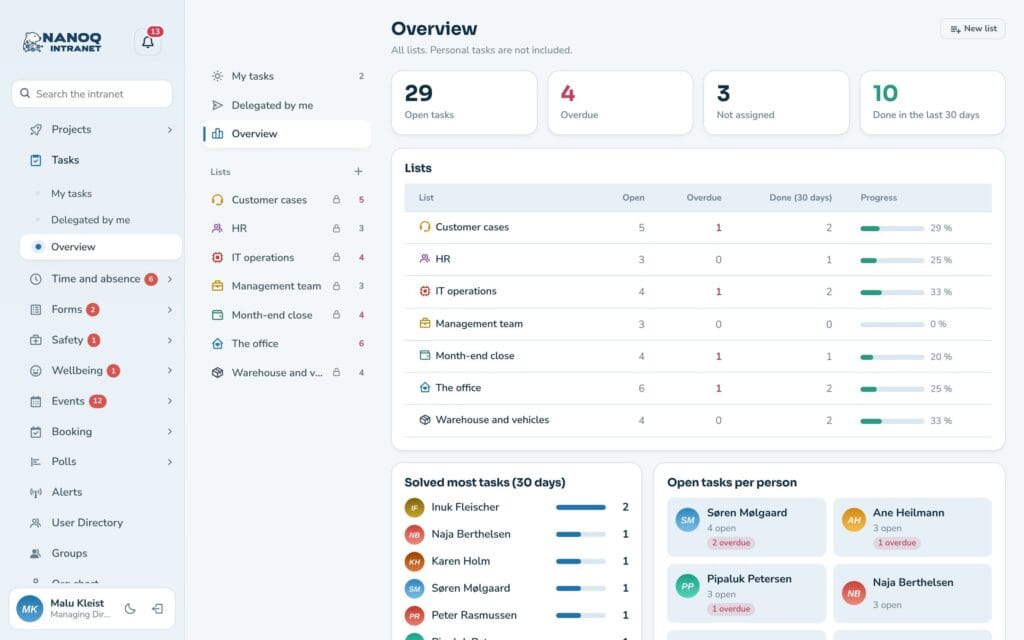
Group leaders can create lists for their own groups.
Notifications
You are notified under the bell when you get a task, when a task you created or follow is done or commented on – and with one daily reminder about overdue tasks and today’s tasks. Under Settings → Notifications each person chooses whether it should also arrive as a pop-up, push or email. The daily reminder is always sent straight away.
For administrators
Under Nanoq → Tasks: turn the module on/off, roles without access, and roles that may not create lists (default: subscriber and contributor). In WordPress under Nanoq Tasks you can see all tasks and lists and give the categories colours.
Good to know
- Personal tasks are only seen by the creator, assignees and followers – not even by administrators in the app.
- When a repeating task is done, the next one is created automatically.
- If a list is deleted, its tasks are deleted too.