Guides › Foundation
Mobile app
The intranet on your phone with the Nanoq app: connect your phone, get push notifications, use the essentials offline and share photos and files straight from the phone.
What the app does
The Nanoq app brings your intranet to your phone. It shows the intranet with five tabs at the bottom – Home, Messages, Notifications, Search and Menu – gives you push notifications, keeps the essentials for offline use and lets you share photos and files straight from the phone.
The app requires your workplace to use Nanoq Intranet with the Mobile app module turned on. It runs on iPhone and iPad (iOS 16 or later) and Android 8 or later.
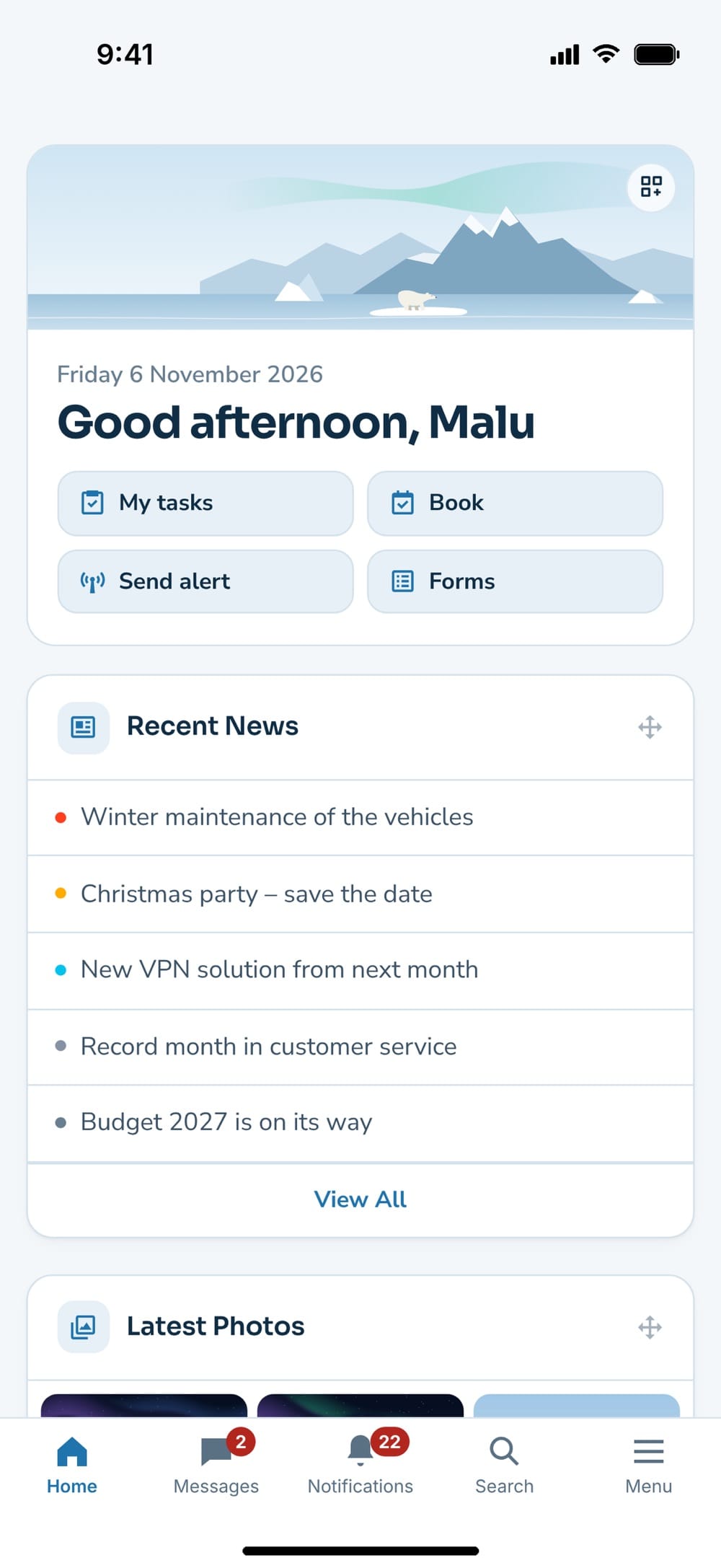
The home screen in the app with the tabs at the bottom
Get the app
The app is free. Search for »Nanoq Intranet« on the App Store or Google Play, or use the buttons:

Connect your phone
The first time you open the app, you see Connect to your intranet. There are two ways:
- With a QR code: Open the intranet on your computer, go to Settings → the Mobile app card → Connect your phone. Tap Scan QR code in the app and point the camera at the code. The code works for 5 minutes and only once.
- With the address: Enter the intranet’s address under Or enter the intranet’s address, tap Connect and log in as usual – two-factor login included.
If you use several Nanoq intranets, add them under Connections → Add connection.
Tabs and push
The tabs show the number of unread messages and notifications, and the number also appears on the app icon. Menu opens the intranet’s side menu with every module you have access to.
Push notifications arrive for what you have chosen under Settings → Notifications on the intranet. Tapping a push opens exactly what it is about – the conversation or the task, for example. Emergency alerts always get through and stay at the top of the home screen until you acknowledge them.
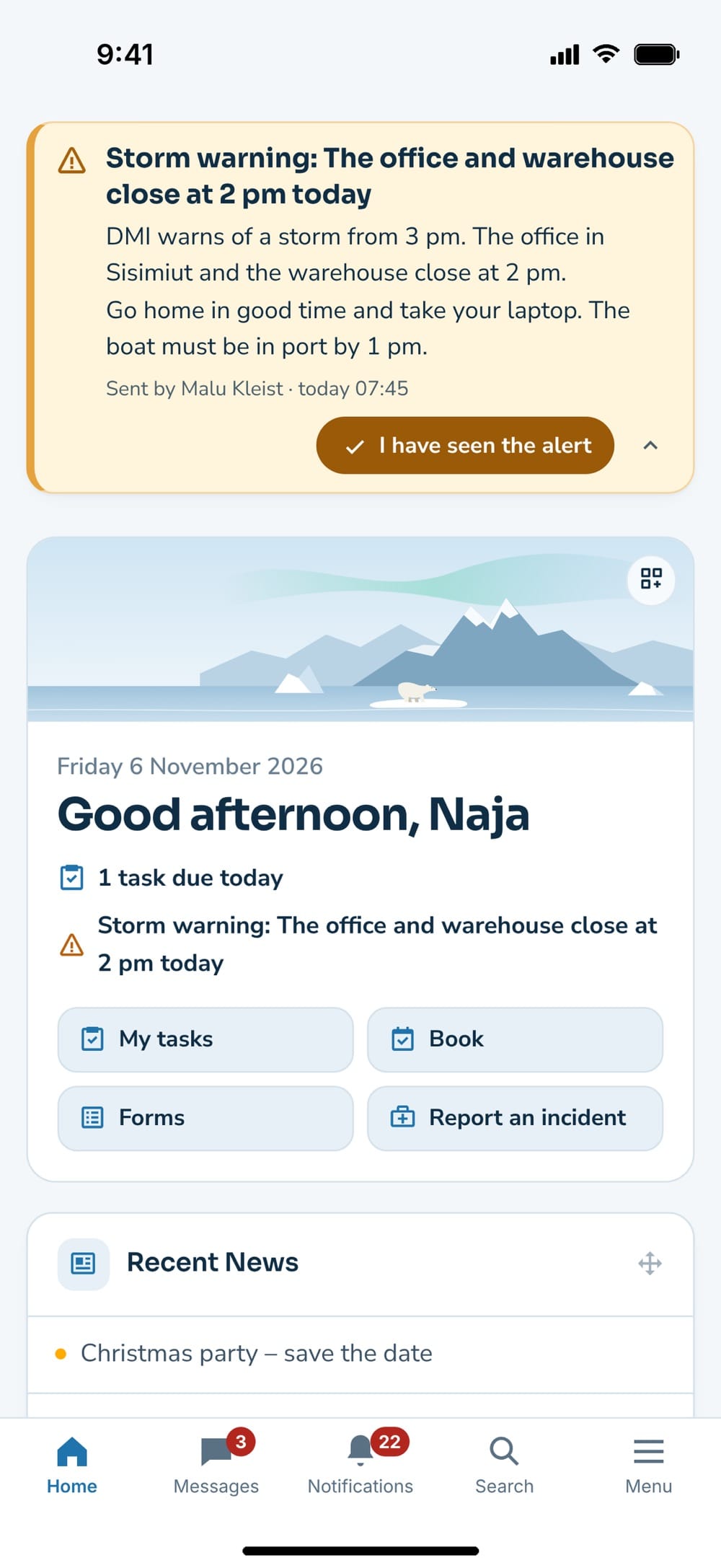
An emergency alert at the top of the home screen in the app
Offline
The app fetches the essentials in the background so you can use them without coverage: emergency alerts, notifications, news, the knowledge base, contacts, my tasks, events, shifts, absence and time, Read and understood and the org chart – whatever your workplace has chosen. When offline, a bar at the top shows Offline – shown from and the time of the latest update, and Search still searches the knowledge base.
In the File library you can save a file for offline use, so it opens without a connection too. The files are encrypted on the phone.
Offline, you can also clock in and out, acknowledge an emergency alert and report an incident with photos. It waits under Waiting for a connection and is sent automatically when you are back online. If the intranet cannot save it (if the month is locked, for example), it appears under Was not saved on the intranet, and you get a notification with the reason.
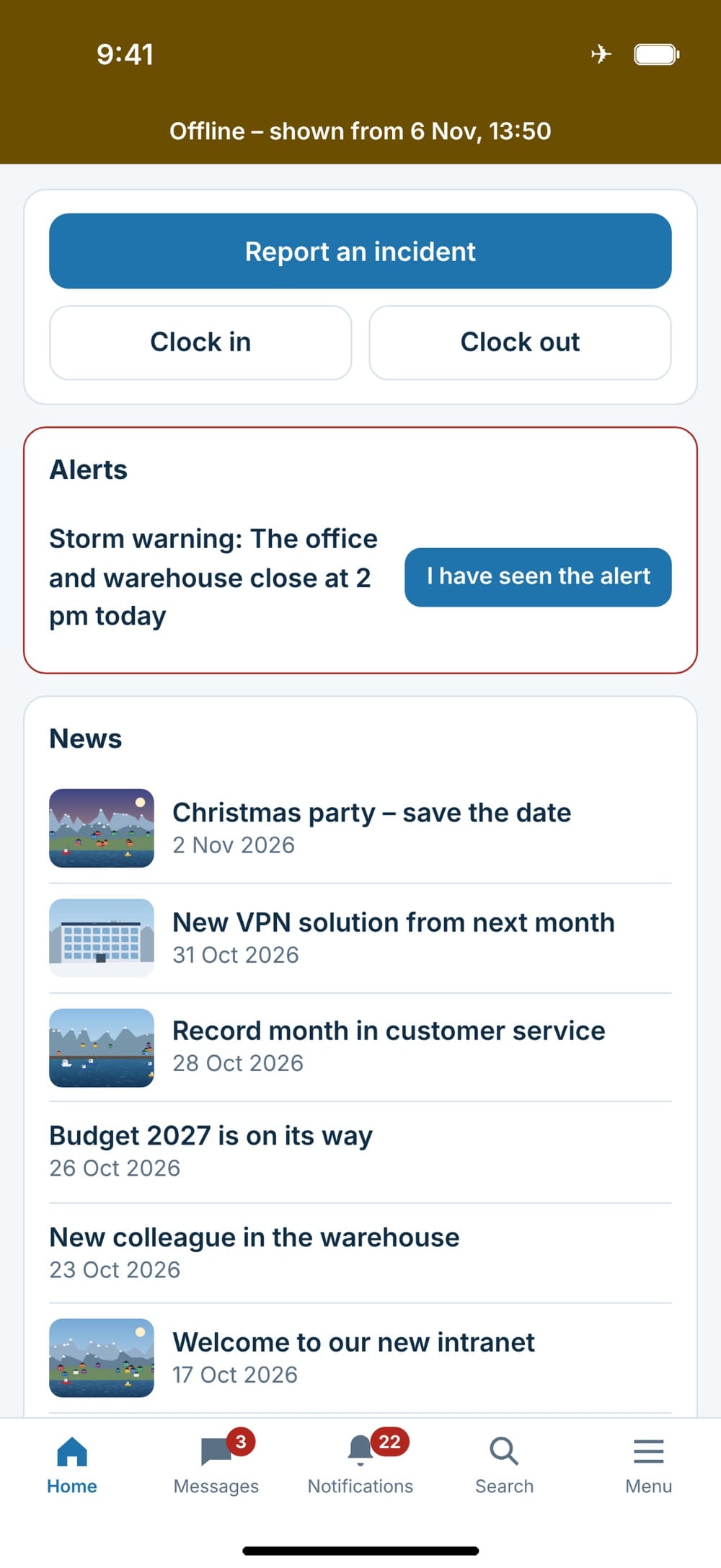
The app without a connection
Share from your phone
Choose photos or a file in Photos or another app, tap Share and choose Nanoq. The app asks Where should it go?: A message, The wall, Photos or The file library. The intranet opens with the files ready – nothing is sent until you tap send or save yourself. You can share up to 10 files at a time.
When you upload on the intranet in the app, you can also take the photo with the camera right away.
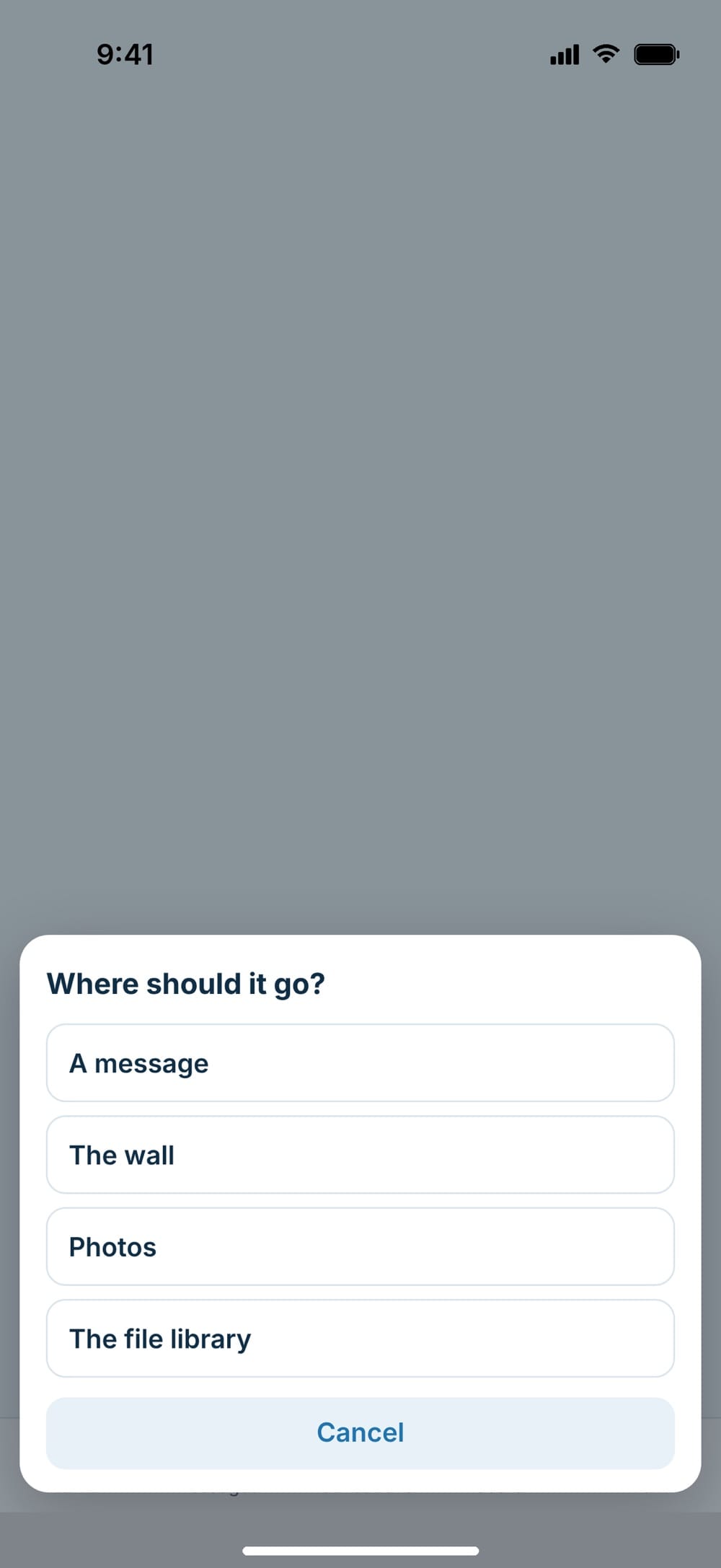
»Where should it go?« when sharing photos
Open in the app
If you open a link from an email in the phone’s browser and you have the app, the intranet shows a bar with an Open in the app button. Close the bar with the cross, and it stays hidden for 30 days.
App settings and lock
Tap Menu → App settings (just above Log out):
- Phone name – shown on the intranet under Settings → Mobile app, so you can tell your phones apart.
- Download files for offline use on mobile data too – otherwise files are only downloaded on Wi-Fi. Texts are always downloaded.
- Lock with Face ID, fingerprint or passcode – the app locks when it has been in the background for a while. If your workplace requires the lock, it cannot be turned off.
If your phone goes missing
Go to Settings → Mobile app on the intranet and remove the phone. The connection ends straight away, so the app can no longer fetch anything from the intranet. The phone is also logged out when you change your password, and the administrator can remove it from your WordPress profile.
For administrators
The module is off until you turn it on under Nanoq → Settings → the Mobile app tab. The intranet must run on https. In the tab you choose, among other things:
- whether employees may connect with the address (otherwise only with a QR code),
- whether the app must be locked, and after how many minutes in the background,
- roles that may not use the app,
- when unused phones are forgotten (180 days by default),
- what is kept for offline use, whether messages are included (off by default), how many days without contact the content stays on the phone (30 by default) and how much space it may take (200 MB by default).
At the bottom of the tab you see the latest call to the push service – use it if push notifications do not arrive. Push requires a valid licence. Connections, logins and removed phones appear in the activity log under Login.
Good to know
- Push goes through Arctic IT’s push service without names or text. The app fetches the text from your intranet itself – and the content of messages and whistleblower cases is never shown in a push.
- The app uses the language you have chosen on the intranet: Danish, Greenlandic or English.
- Without the app, the intranet can still be added to the home screen – see Notifications, push and app.
- Read the app privacy policy.