Guides › Courses and certificates
Courses and certificates
How to register your certificates and sign up for courses – and how HR keeps track of requirements, expiry, approvals and attendance.
What the module does
Courses and certificates keeps track of first aid, forklift certificates, firefighting and other certificates with an expiry date. Employees register their own certificates, HR approves, and Nanoq reminds both the employee and the manager before anything expires. HR can also publish courses that employees sign up for in the app.
My certificates
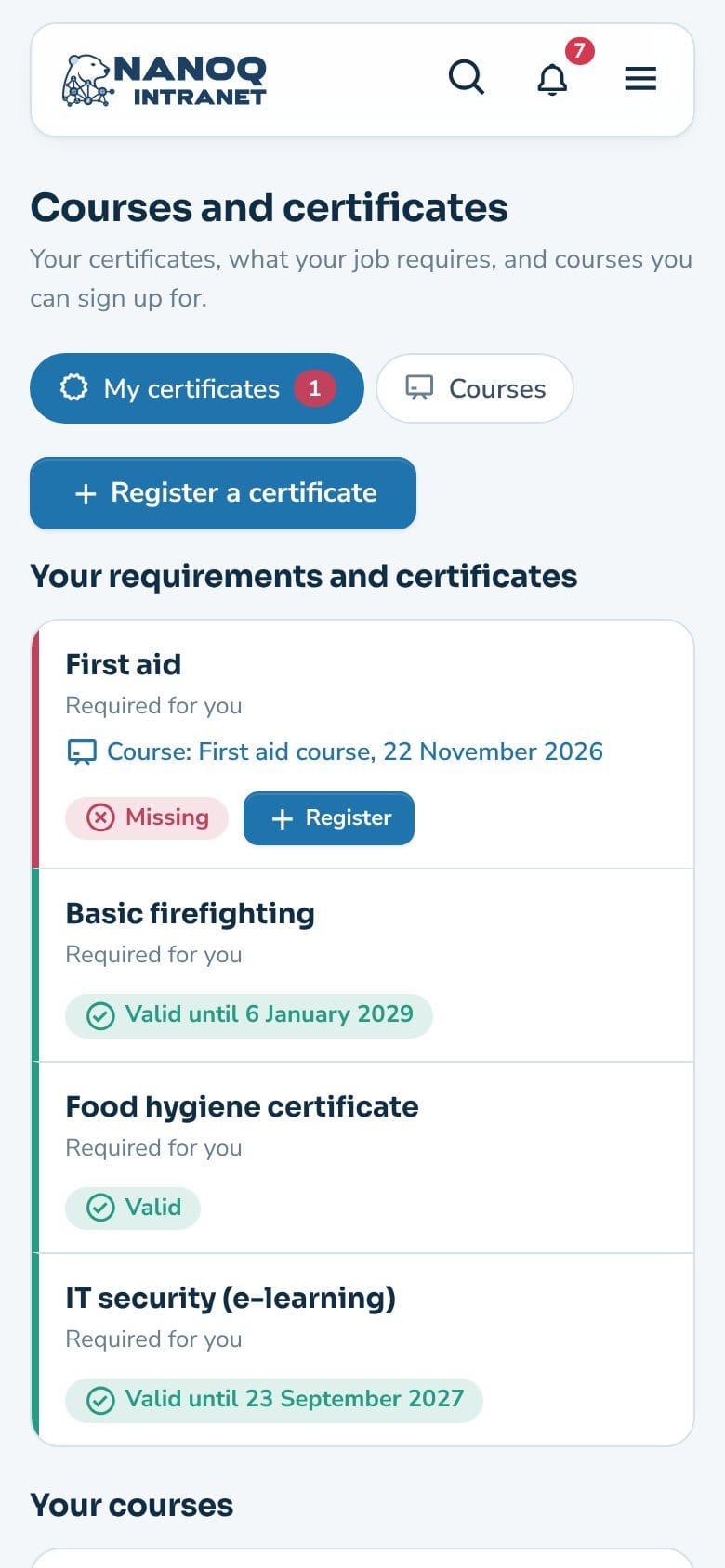
Choose Courses and certificates → My certificates. Under Your requirements and certificates are the certificates that are “Required for you”, with status:
- Valid – and when it expires.
- Expires in … days – within 60 days.
- Expired or Missing.
- Awaiting approval – HR hasn’t seen it yet.
If you are missing a certificate, the upcoming courses that give it are suggested. Below are Your courses and Registered certificates.
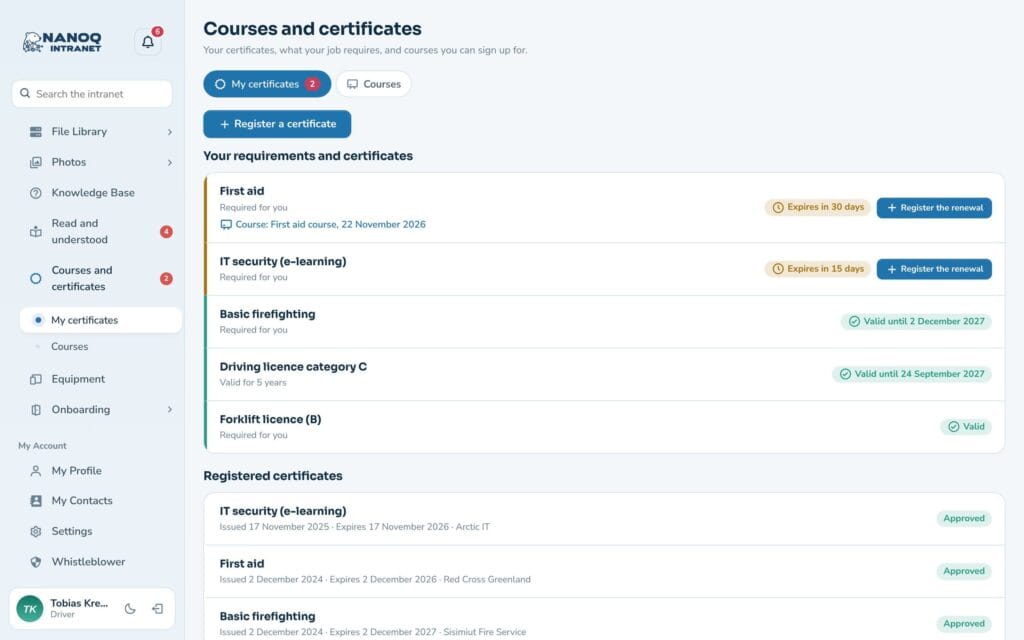
Register a certificate
- Click Register a certificate (or Register / Register the renewal next to a requirement).
- Choose the Certificate and fill in Issued on. Expires on is filled in from the validity – change it if the certificate says something else.
- Optionally fill in Issued by (optional), for example the Red Cross, and a comment.
- Attach the certificate as a PDF or photo (max. 10 MB) – this may be required.
- Click Send for approval.
HR checks the certificate before it counts, and you are notified when it is approved. Only you, HR and your managers can see the file, and photos lose their location and camera data.
Courses
Under Courses are the upcoming courses with date, location and free places. Click a course to see more, and click Sign up. If the course is full, it says Join the waiting list – you are notified if you get a place. Cancel my signup gives the place to the first person on the waiting list.
If Courses in the calendar is turned on in the settings, the courses are also shown in the calendar under Events and on the dashboard. Each employee sees the courses they can sign up for or have signed up for.
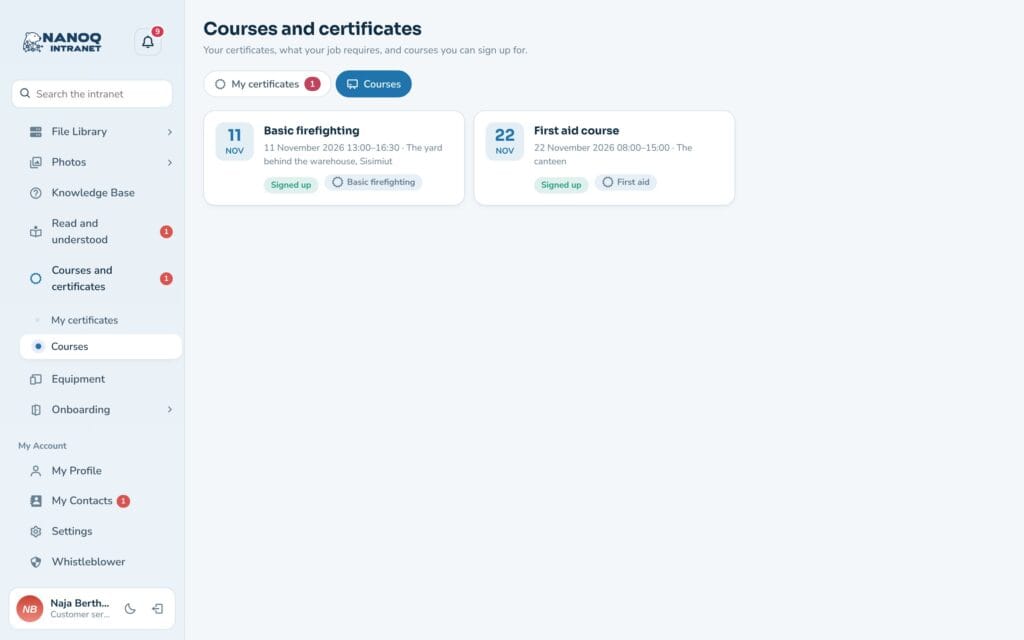
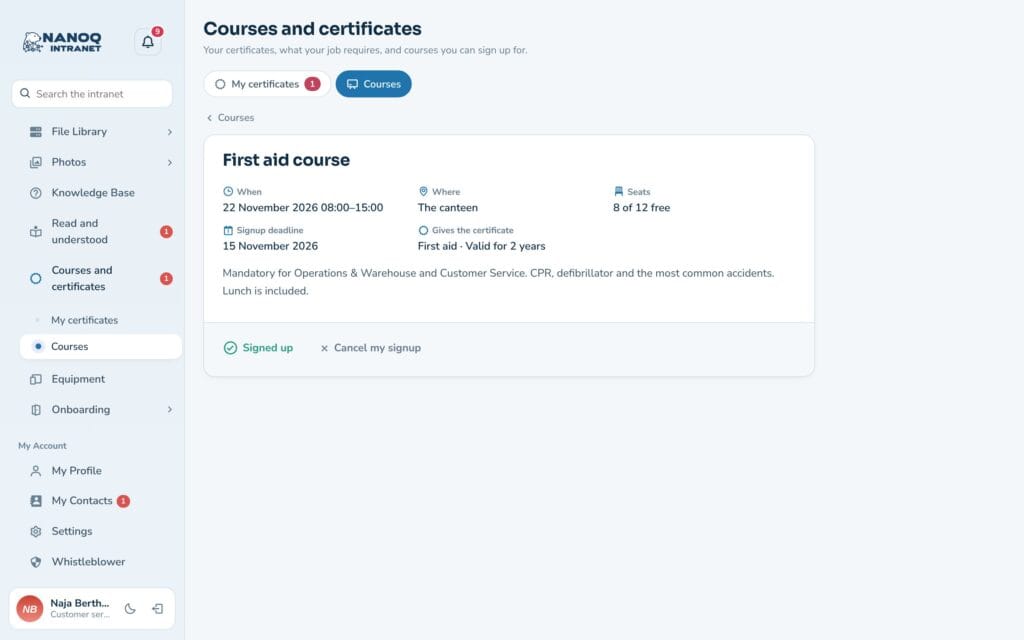
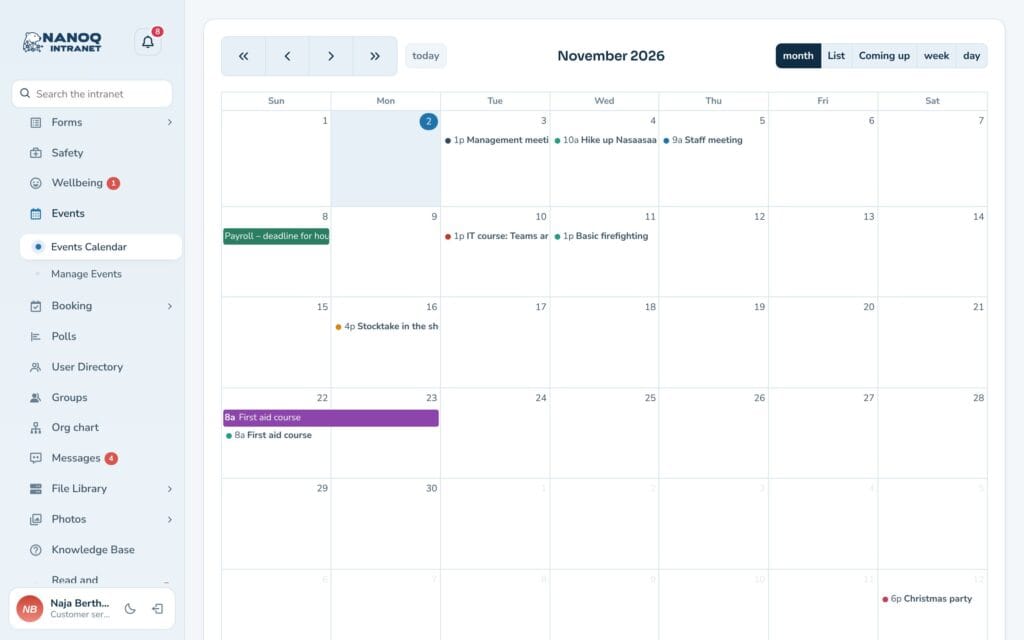
On the phone
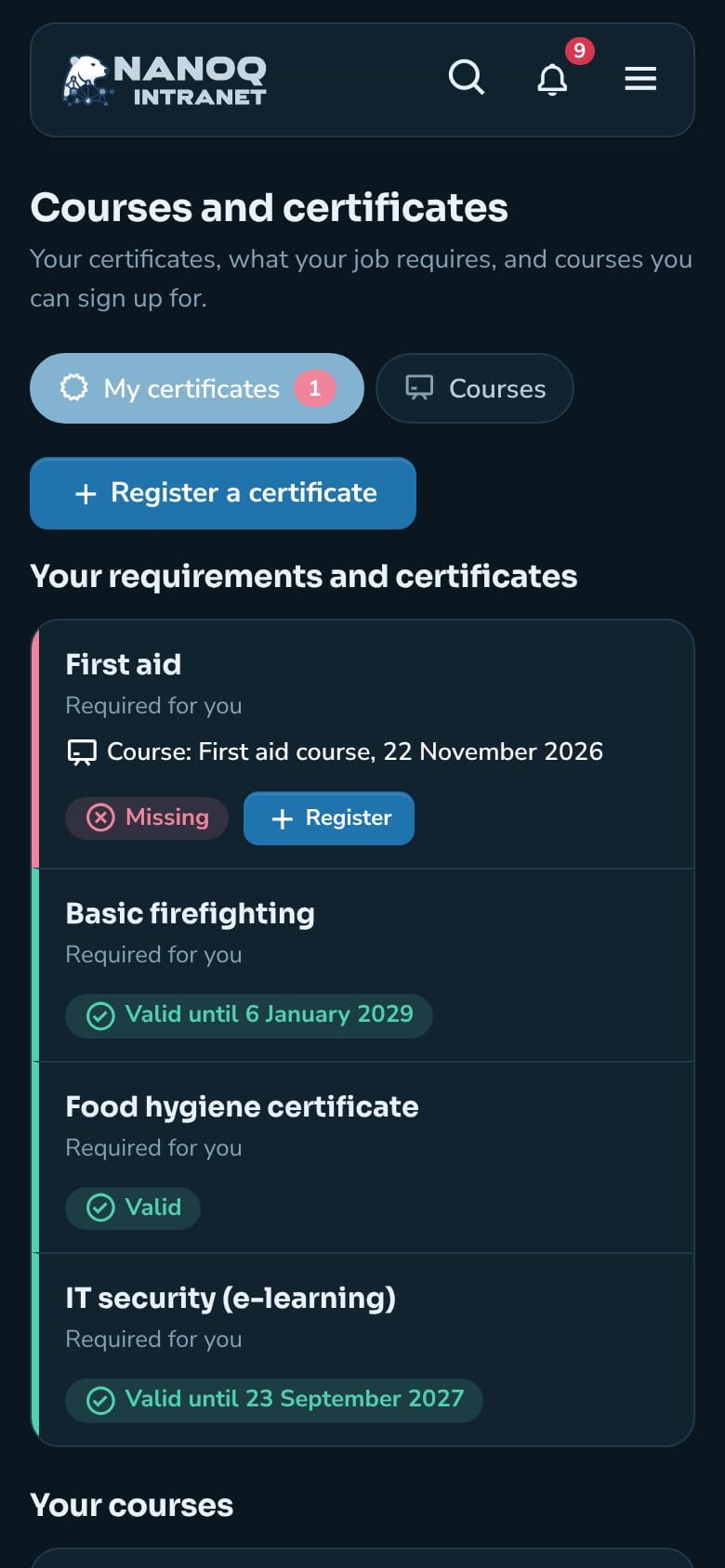
My certificates and the courses work on the phone too – also in dark mode. Reminders arrive under the bell and as email and push if you have chosen that.
Overview for HR
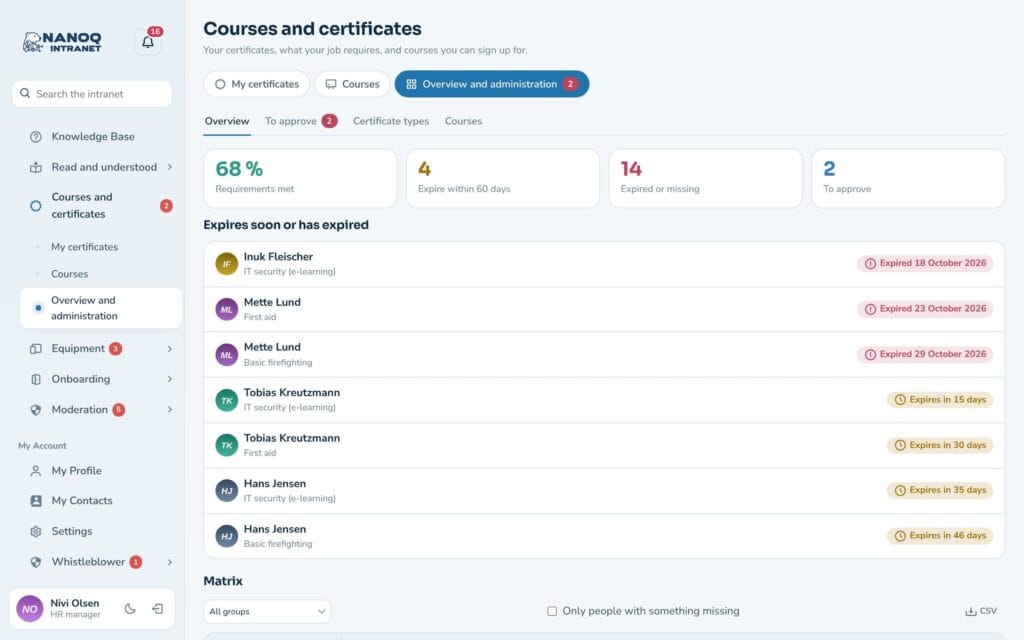
Under Overview and administration → Overview HR sees:
- Requirements met as a percentage, Expire within 60 days, Expired or missing and To approve.
- The Expires soon or has expired list.
- Matrix: people × required certificates. Filter by group, choose Only people with something missing, and download as CSV.
The leaders of a department see their own team under My team.
Approve certificates
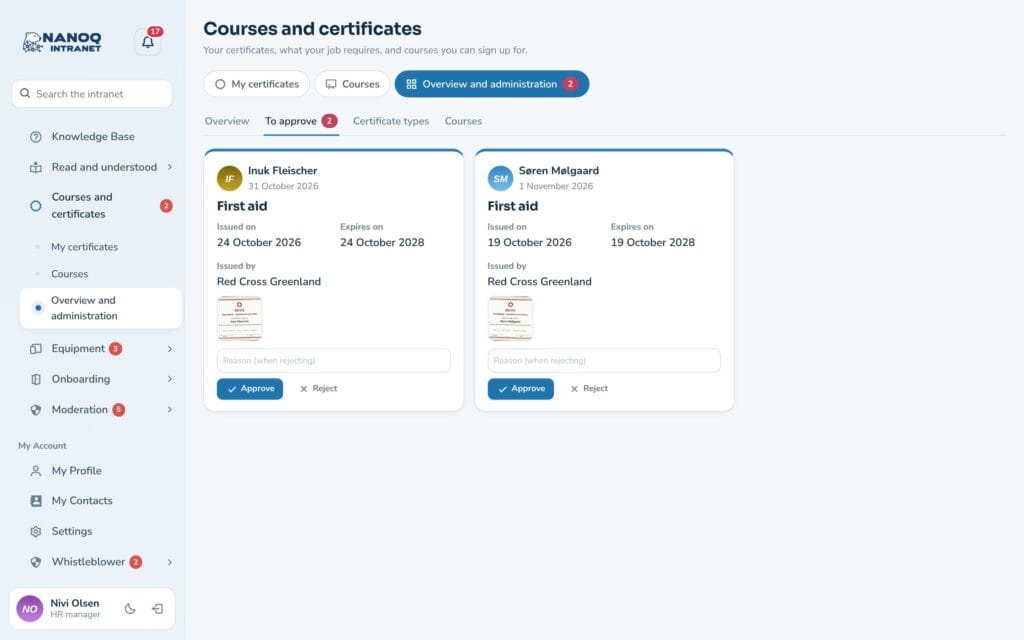
Under To approve are the certificates employees have registered. Look at the file and the dates, and click Approve – or write a Reason (when rejecting) and click Decline. The employee is notified and can correct a rejected certificate and send it again. HR can also register a certificate for others – then it is approved straight away.
With the setting Department leaders approve their team’s certificates, the leaders of the employee’s department can approve too. They are notified and get the tab To approve under My team. A leader can’t approve their own.
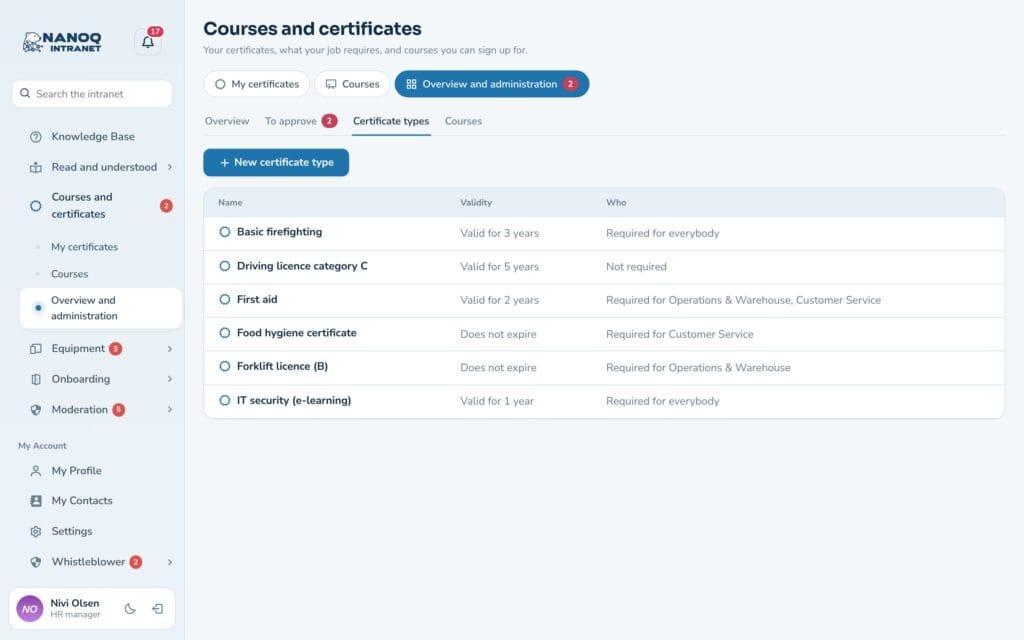
Certificate types
- Choose Certificate types → New certificate type.
- Write the Name and optionally a description, and choose Valid for (months) (0 = doesn’t expire).
- Choose whether employees must attach the certificate.
- Choose Who must have it: None (optional), Everyone, Only these groups or Only these roles.
A type that is in use can’t be deleted – it is archived, and the registered certificates are kept.
Courses and attendance
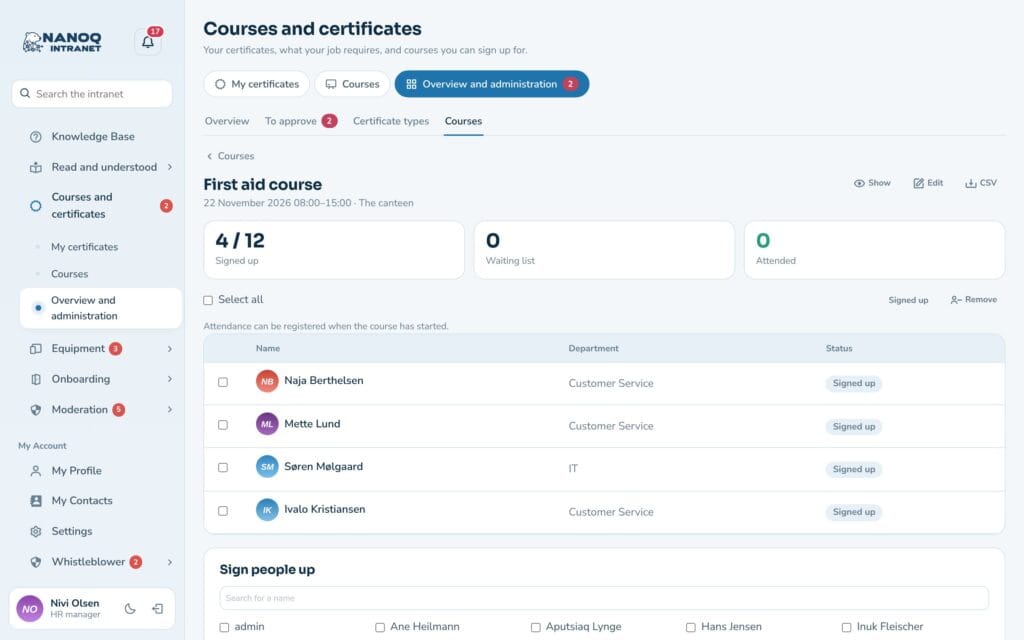
- Choose Courses → New course: title, first and last day, time, location, places (0 = no limit), sign-up deadline, who can sign up, and which certificate the course gives.
- Click Publish the course – with Tell everybody now if everyone should get a notification.
- Under Participants you can sign people up, and once the course has started, register Attended or Absent.
Attended = the certificate is registered automatically with the right expiry date. Cancel the course notifies those who signed up.
Training budget
A course can have a Price per participant and a Fixed price (for example the teacher and the room). Under Overview and administration → Budget, HR writes the year’s budget and sees what has been spent on courses held, what is booked on coming courses and what is left – with a list of the year’s courses and the split per department.
A course costs the fixed price + the price for everybody signed up (also those who were absent). The waiting list doesn’t count, and a cancelled course costs nothing. The prices are only shown to HR.

Reminders
- 60 and 30 days before a certificate expires, on the day and 14 days after – to the employee and the leaders of the person’s groups.
- On Mondays HR gets an overview of what expires within 60 days or has expired.
- If a renewal is awaiting approval, no reminder is sent.
For administrators
Under Nanoq → Courses and certificates in wp-admin you turn the module on and choose which roles are HR for the certificates, whether department leaders follow their members, and which roles are not included. The module is off until you turn it on. The shortcode [nanoq_training show="certificates"] or show="courses" shows certificates or courses on an ordinary page.
Good to know
- The best approved certificate counts, so a renewal or a course automatically replaces the old one.
- When an employee is anonymised (GDPR), approved certificates are kept as documentation without a name – files and comments are deleted.
- During onboarding the new employee can see which certificates are required.