Guides › For administrators
Shortcodes – build your own pages
Show news, events, employees, files and much more on ordinary WordPress pages – for example your own dashboard built in Elementor.
What is a shortcode?
A shortcode is a short code in square brackets that WordPress replaces with content when the page is shown. With Nanoq’s shortcodes you can bring content from the intranet onto ordinary pages – for example a front page for the intranet, a department page or a completely custom dashboard.
[nanoq_news limit="3"]shows the three newest news posts.
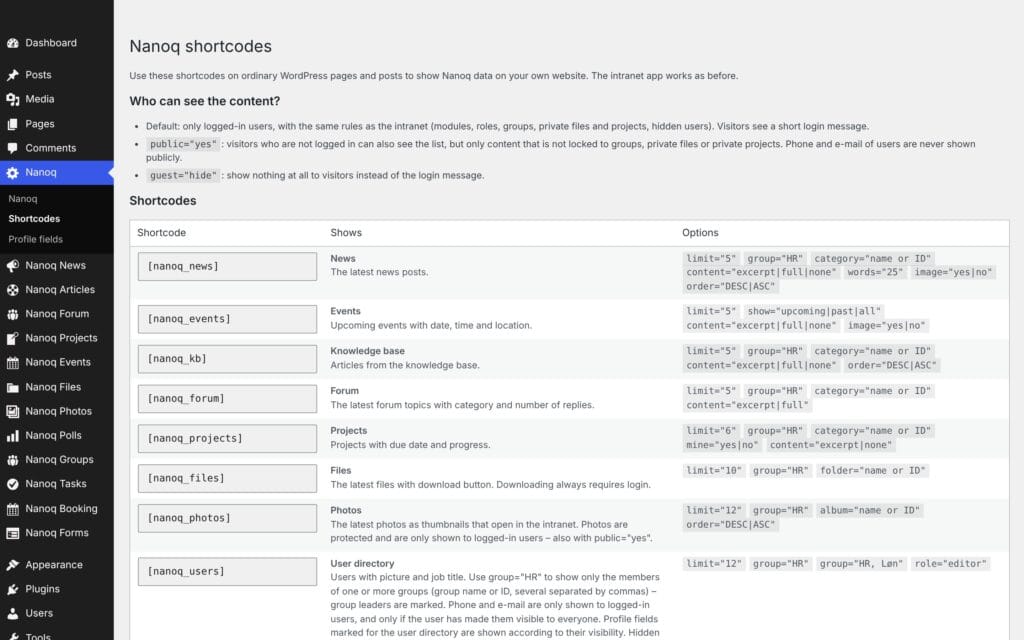
The shortcodes inherit your theme’s font and colours, so they fit in on the page. An overview is also available in WordPress under Nanoq → Shortcodes.
Before you start
- Lock The Site under Nanoq → General must be turned off. Otherwise all visitors are sent on to the app, and pages with shortcodes can’t be seen.
- The module the shortcode shows must be turned on. If it is turned off, administrators see a message, and everyone else sees nothing.
Insert a shortcode
In Elementor: Drag the Shortcode widget onto the page and write the shortcode in the field.
In the block editor: Add the Shortcode block and write the shortcode.
You can use as many shortcodes on the same page as you like.
Who sees what?
By default the shortcodes only show content to employees who are logged in – with exactly the same rules as in the app: the module’s role restrictions, group locks, private files and projects, hidden users.
Guests instead see Log in to see the content with a link to the intranet’s login. With guest="hide" guests see nothing.
With public="yes" guests can see content that is not locked to a group:
- Never group content, private files or private projects.
- Employees are only shown with name, job title and picture – and profile fields the person has made public.
- Files can be seen, but only downloaded after logging in.
- Photos are never shown to guests.
Only use public="yes" if the content may be seen by everyone on the internet.
Shared attributes
Can be used on all shortcodes:
| Attribute | Meaning | Example |
|---|---|---|
| limit | Number of items | limit=”5″ |
| title | Heading above the list | title=”Latest news” |
| more | A “See all on the intranet” link (only for logged-in users) | more=”yes” |
| empty | Text when there is nothing | empty=”No news right now” |
| public | Show content without a group lock to guests | public=”yes” |
| guest | Hide the login message for guests | guest=”hide” |
| class | Your own CSS class | class=”my-box” |
| group | Only content for certain groups (name or ID, several separated by commas) | group=”HR, Payroll” |
News – [nanoq_news]
[nanoq_news limit="4" category="Management" content="excerpt" words="30" image="yes"]category– the category’s name or ID.content–excerpt,full(the whole text) ornone(title only).words– number of words in the excerpt.image– show the image.order– order.group– only news for certain groups.
Events – [nanoq_events]
[nanoq_events show="upcoming" limit="5"]show–upcoming(default),pastorall.contentandimage– as for news.
Knowledge base – [nanoq_kb]
[nanoq_kb category="IT guides" limit="10"]category, content, order and group.
Forum – [nanoq_forum]
[nanoq_forum limit="5"]Shows only the titles by default. category, content and group.
Projects – [nanoq_projects]
[nanoq_projects mine="yes"]category, mine (only my projects), content and group.
Files – [nanoq_files]
[nanoq_files folder="Staff handbook" limit="10"]folder– the folder’s name or ID. Subfolders are included.group– only files in folders locked to certain groups.
Files can always only be downloaded by logged-in users with access.
Photos – [nanoq_photos]
[nanoq_photos album="Christmas party 2026" limit="12"]album, group, limit and order. Only shown to logged-in users.
Employees – [nanoq_users]
[nanoq_users group="Customer Service"]group– only members of certain groups. Leaders get a Leader badge.role– only one WordPress role (e.g.editor).
Phone and email are only shown if the employee has chosen Visible to everyone. Profile fields are shown according to their visibility.
Groups – [nanoq_groups]
[nanoq_groups mine="yes"]mine (only my groups), content and group (only the groups named).
Polls – [nanoq_poll] and [nanoq_polls]
[nanoq_poll id="123"]
[nanoq_poll show="random"]
[nanoq_polls status="open" limit="3"][nanoq_poll]shows one poll that people can vote in directly on the page.show="random"picks a random open poll.[nanoq_polls]shows a list.statusisopen,closedorall.
Guests get a login link. With public="yes" guests can see the result of polls that are open to everyone, when the result is public or the poll is closed.
Booking – [nanoq_booking]
[nanoq_booking]
[nanoq_booking type="Meeting room" days="5" title="Free meeting rooms"]
[nanoq_booking resource="Company car – Toyota Hilux, Boat Aqqaluk"]- Shows a table with the resources and the next days: free times, Booked or Closed. The resource name links to the resource in the app, and at the bottom there is a link to book.
type– only one resource type (name or ID).resource– specific resources (name or ID, several separated by commas).days– number of days (1–31, default 7).title– heading.- Requires the Booking module to be turned on (Nanoq 1.21 or newer).
Only for logged-in users: guests see “Log in to see the content.” – with guest="hide" nothing is shown. The access rules for each resource also apply here. See Booking.
Org chart – [nanoq_orgchart]
[nanoq_orgchart]
[nanoq_orgchart view="departments" title="Our departments"]
[nanoq_orgchart user="ane" depth="2"]- Shows the org chart on an ordinary page. People link to their profile in the app.
view–people(default) ordepartments.user– show only one person and those below them (username or ID).depth– how many levels are expanded (0–10, default 1).title– heading.- Requires the Org chart module to be turned on (Nanoq 1.22 or newer).
Only for logged-in users: guests see “Log in to see the content.” – with guest="hide" nothing is shown. See Org chart.
Incidents – [nanoq_incident]
[nanoq_incident]
[nanoq_incident title="Safety in the warehouse" button="no"]
[nanoq_incident public="yes" button="no"]- Shows the days since the last work accident and a button for Report an incident in the app – for example on a page about health and safety or on a screen in the canteen.
counter–yes/no: show the counter (default yes).button–yes/no: show the button (default yes).title– heading.class– your own CSS class.public="yes"– also show the counter to guests who are not logged in. Otherwise guests see “Log in to see the content.” – and withguest="hide"nothing is shown.- Requires the Incident reporting module to be turned on (Nanoq 1.24 or newer). The reports themselves are never shown.
See Incident reporting.
Wellbeing – [nanoq_survey]
[nanoq_survey]
[nanoq_survey title="How are you doing?" results="no"]- Shows the wellbeing surveys the user can answer, with links to the app – and the overall score of the latest survey the user may see.
results–yes/no: show the latest score (default yes).title– heading.class– your own CSS class.- Only for logged-in users – answers and results are never shown publicly. Guests see “Log in to see the content.” – and with
guest="hide"nothing is shown. - Requires the Wellbeing surveys module to be turned on (Nanoq 1.30 or newer).
See Wellbeing surveys.
Read and understood – [nanoq_ack]
[nanoq_ack]
[nanoq_ack limit="3" title="To read"]- Shows what the user still needs to read and confirm, with the deadline and links to the app.
limit– number (default 5).title– heading.empty– text when there is nothing.class– your own CSS class.- Only for logged-in users. Guests see “Log in to see the content.” – and with
guest="hide"nothing is shown. - Requires the Read and understood module to be turned on (Nanoq 1.32 or newer).
See Read and understood.
Courses and certificates – [nanoq_training]
[nanoq_training]
[nanoq_training show="courses" title="Upcoming courses"]show="certificates"(default) shows the user’s required certificates with status.show="courses"shows the upcoming courses the user can sign up for.limit– number (default 5).title– heading.empty– text when there is nothing.class– your own CSS class.- Only for logged-in users. Guests see “Log in to see the content.” – and with
guest="hide"nothing is shown. - Requires the Courses and certificates module to be turned on (Nanoq 1.33 or newer).
Equipment – [nanoq_equipment]
[nanoq_equipment]
[nanoq_equipment show="reports" title="My reports"]show="mine"(default) shows the equipment the user has.show="reports"shows the user’s own fault reports and requests with status.limit– number (default 5).title– heading.empty– text when there is nothing.class– your own CSS class.- Only for logged-in users. Guests see “Log in to see the content.” – and with
guest="hide"nothing is shown. - Requires the Equipment and inventory module to be turned on (Nanoq 1.34 or newer).
Onboarding – [nanoq_onboarding]
[nanoq_onboarding]
[nanoq_onboarding title="My onboarding tasks"]- Shows the user’s tasks in onboarding and offboarding processes with the name of the person and the deadline.
limit– number (default 5).title– heading.empty– text when there is nothing.class– your own CSS class.- Only for logged-in users. Guests see “Log in to see the content.” – and with
guest="hide"nothing is shown. - Requires the Onboarding and offboarding module to be turned on (Nanoq 1.35 or newer).
Forms – [nanoq_forms]
[nanoq_forms]
[nanoq_forms limit="5" approvals="no" title="Forms"]- Shows the forms the user can fill in, with links to the app – and “N forms are waiting for you” if the user has something to approve.
limit– number (default 10).approvals–yes/no: show the line about waiting forms (default yes).title,empty(text when there are none),class.- Only for logged-in users – with
guest="hide"nothing is shown to guests. Requires the Forms and approvals module (Nanoq 1.23 or newer).
See Forms and approvals.
Wall – [nanoq_wall]
[nanoq_wall]
[nanoq_wall limit="5" group="Customer Service" words="25"]
[nanoq_wall public="yes" image="yes"]- The newest posts from the wall with photo, likes and comments. Employees see what they may see in the app.
limit– number of posts.group– only posts in a group (name or ID).words– number of words per post (default 25).image–yes/no.public="yes"– guests only see posts marked Public – also on the website (requires Public posts to be turned on under Wall).- Requires the Wall module (Nanoq 1.29 or newer).
See Wall.
Figures – [nanoq_stats]
[nanoq_stats]
[nanoq_stats show="members,events" public="yes"]- Figures that show life on the intranet: members, groups, posts in the last 30 days and upcoming events. Only figures – no names.
show– which figures and in which order (members,groups,posts,events).public="yes"– also show the figures to guests.
Become a member – [nanoq_join]
[nanoq_join]
[nanoq_join text="Become part of the community" button="Join now"]- For guests: a button to the sign-up (or Apply for membership) and Log in. For members: a button that opens the intranet. Follows the settings under Membership.
text– the text above the button.button– the text on the button.
Whistleblower – [nanoq_whistleblower]
[nanoq_whistleblower]Shows the Report and Follow your case buttons, so the scheme can be reached from the public website. See Whistleblower scheme.
Example: your own dashboard
Build a page in Elementor with two or three columns, and put a Shortcode widget in each box:
Column 1:  [nanoq_news limit="3" title="Latest news" more="yes"]
           [nanoq_poll show="random"]
Column 2:  [nanoq_events limit="5" title="What's on" more="yes"]
           [nanoq_files folder="Templates" limit="5" title="Templates"]
Column 3:  [nanoq_users group="Management" title="Management"]
           [nanoq_kb limit="5" title="Questions and answers"]
Choose the page as the front page under Settings → Reading, and set Redirect After Login under Nanoq → General to the front page. Then employees land on your own dashboard after logging in.
Optionally make one page per department with group="…" on all shortcodes – then each page only shows the department’s own content.
Good to know
- Groups (names and number of members) are visible to everyone with
public="yes"– groups have no visibility setting of their own. - Projects are public with
public="yes"unless Private Projects is turned on. - The shortcodes don’t use the Arctic design, but your theme.