Guides › Security and compliance
Incident reporting
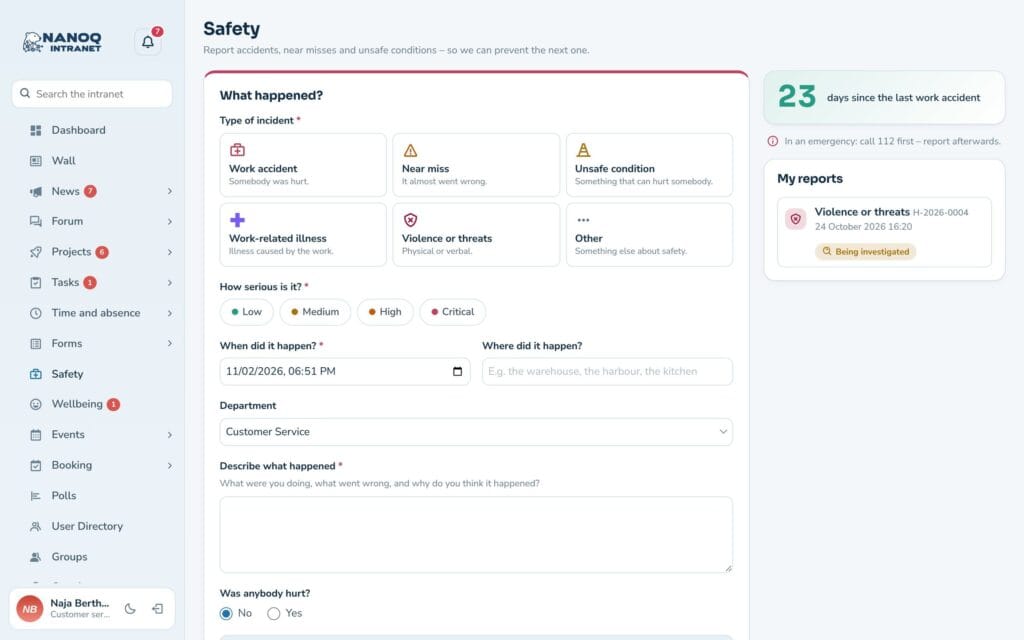
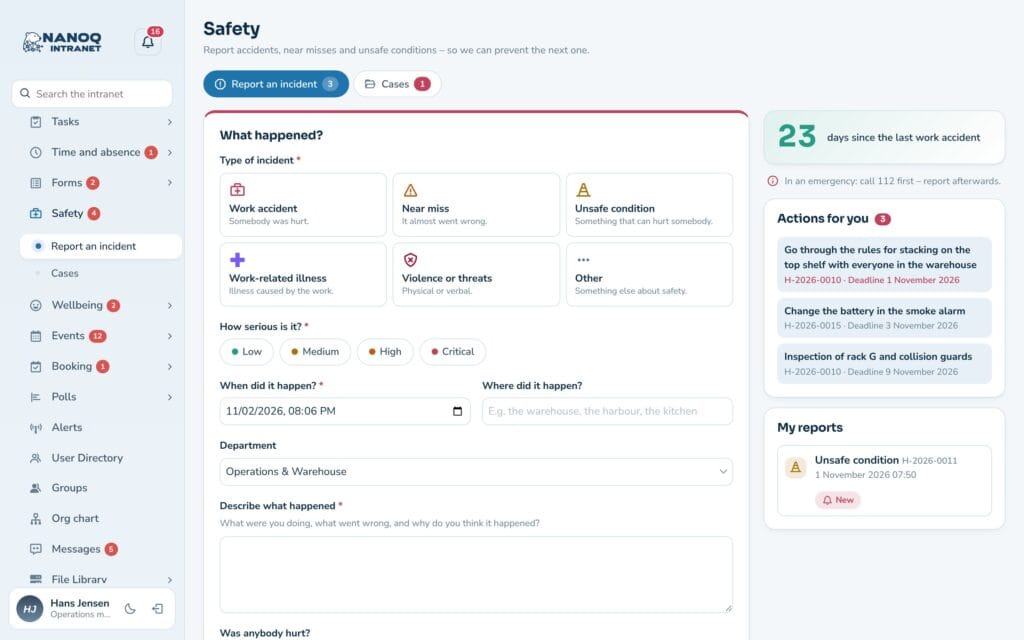
Report work accidents, near misses and unsafe conditions – so you can prevent the next one. Cases get a case handler, actions with deadlines and a history that can be documented.
What the module does
Incident reporting is called Safety in the intranet’s menu. Here all employees can report:
- Work accident – someone was hurt.
- Near miss – it nearly went wrong.
- Unsafe condition – something that could hurt someone.
- Work-related illness – illness caused by the work.
- Violence or threats – physical or verbal.
- Other – something else about safety.
The case handlers – for example the health and safety representative and the responsible manager – are notified, handle the case and start actions. Department managers can follow their own department’s cases. Each case gets a case number such as H-2026-0001.
The module is off until an administrator turns it on. Under Safety are Report an incident and – for case handlers and managers – Cases.
Report an incident
In an emergency: call the emergency number first – report afterwards.
- Click Safety in the menu (or Report an incident in the welcome banner).
- Choose the Type of incident and How serious is it? – Low, Medium, High or Critical.
- Fill in When did it happen? and Where did it happen? (suggestions appear as you type). The department is filled in beforehand.
- Under Describe what happened you write what you were doing, what went wrong, and why you think it happened.
- Answer Was anybody hurt? – if you answer yes, you describe the injury.
- Under More information (optional) you can write what was done straight away and who the witnesses were, and attach up to 6 photos and files of up to 10 MB. Location data is removed from the photos.
- Click Send the report.
At the top right is the number of days since the last work accident.
On the phone
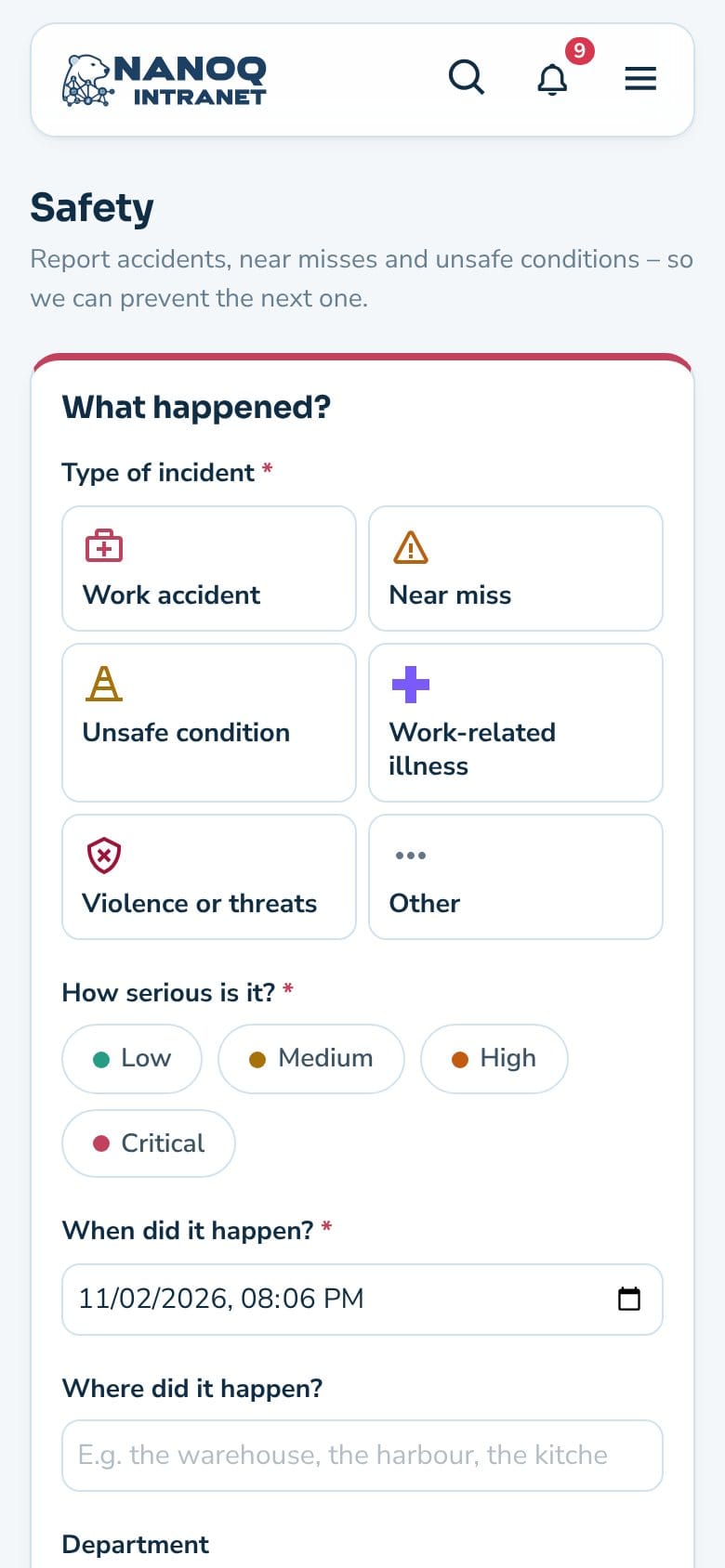
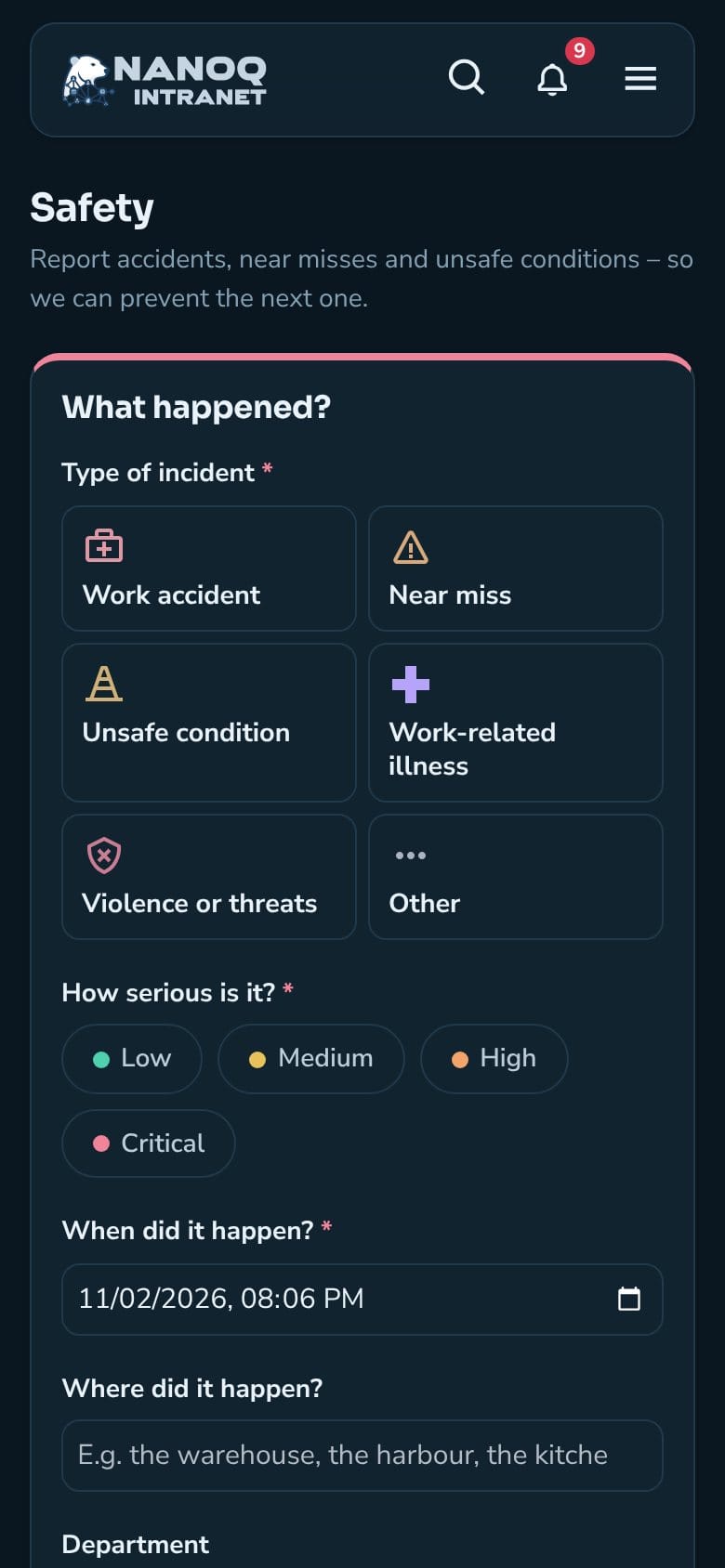
The form works on the phone too, in light and dark mode – so the incident can be reported while it is fresh, for example with a photo straight from the camera.
Report anonymously
If the administrator has turned it on, you can tick Report anonymously. Then your name isn’t stored, and it isn’t in the activity log. On the other hand, you can’t follow the case or get answers. Serious matters – for example about management – belong in the whistleblower scheme.
Follow your case
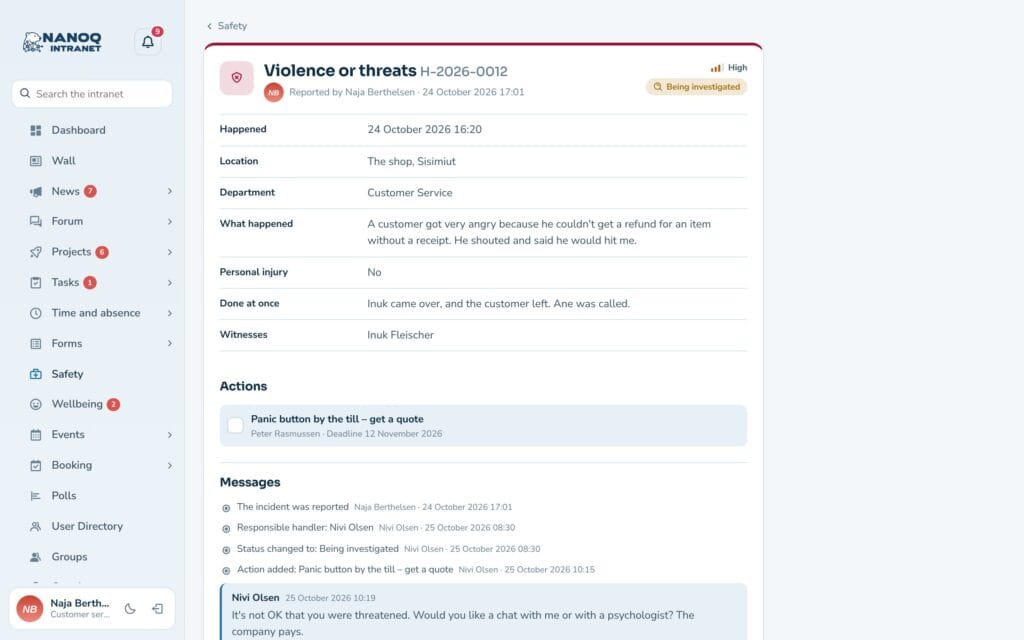
Under My reports are your reports with status: New, Being investigated, Actions under way or Closed. Click a case to see the details, the actions and the history. Under Messages you can write to those handling the case and read their replies. You never see the internal notes.
Actions for you
If you are responsible for an action – for example “Inspection of shelf G” – it is shown under Actions for you with the case number and deadline, and you are notified under the bell. Open the case and tick the action when it is done. You can only mark your own actions. If the deadline has passed, you get a reminder the day after and then every week.
Cases and statistics
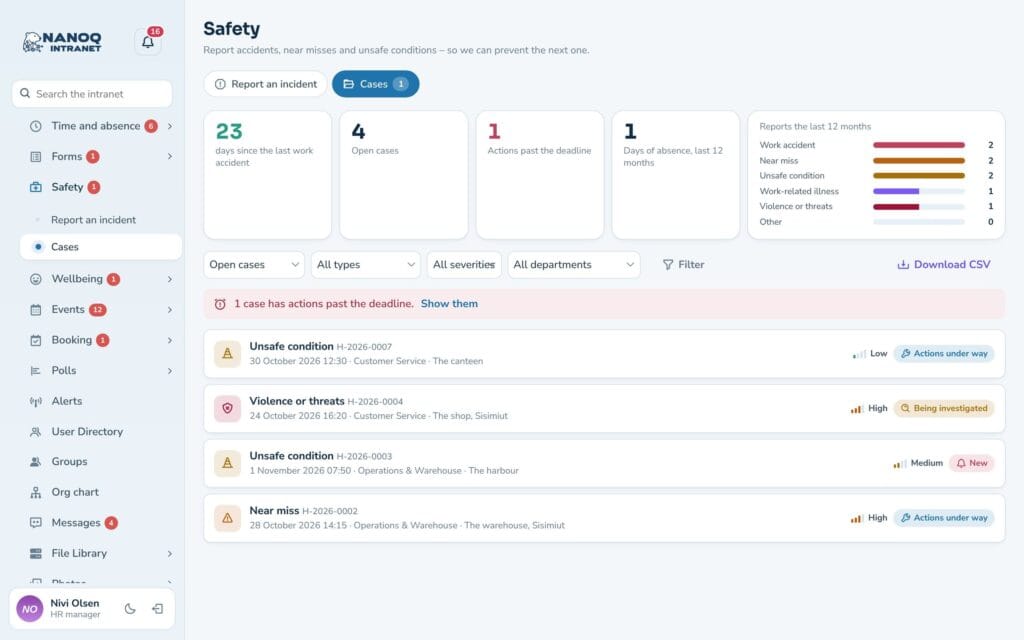
Case handlers and managers see the Cases tab. At the top are the statistics: days since the last work accident, Open cases, Actions past the deadline, Days of absence, last 12 months and Reports the last 12 months by type.
The list can be filtered by status, type, severity and department. Download CSV gives the cases as a file for Excel.
Handle a case
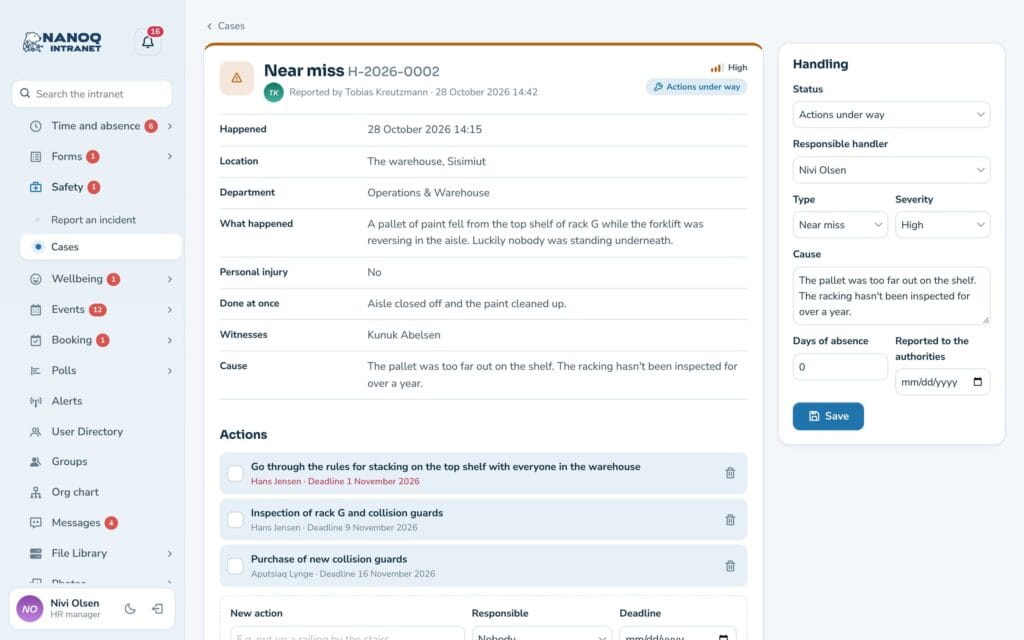
Open the case from the list. Under Handling on the right you change:
- Status – New, Being investigated, Actions under way or Closed. When the first action is added, the status changes to Actions under way by itself.
- Responsible case handler, Type and Severity.
- Reason – why did it happen, and what is the root cause?
- Days of absence and Reported to the authorities (date). Remember: work accidents with absence must be reported to the authorities.
Click Save. Under Actions you write a New action, choose who it is Assigned to and a Deadline, and click Add the action. Deadlines that have passed are shown in red.
Under Notes and messages you choose Internal note (only case handlers and managers can see it) or Message to the reporter and click Send. No messages can be sent for anonymous reports. Everything – status, actions, notes and messages – is shown in the history with name and time.
For department managers
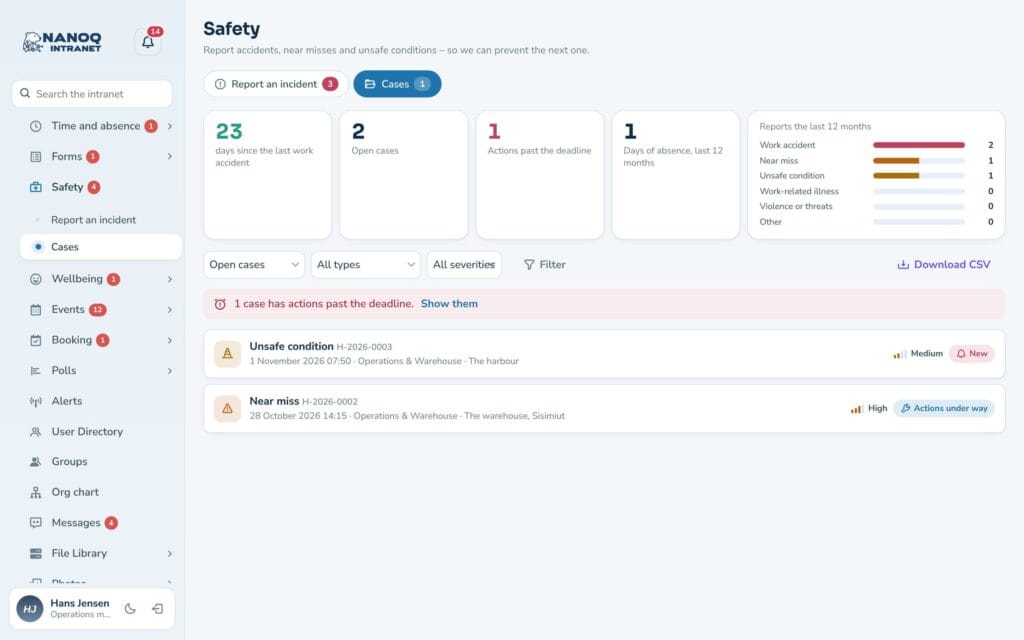
If you are the leader of a Nanoq group, you see your department’s cases under Cases – with statistics for the department. You can write internal notes, add actions and fill in the reason, but it is the case handlers who decide the status, type, severity and case handler. You are notified when there is a new case from your department. Cases from sub-departments are also seen by the leader of the department above them.
On the dashboard
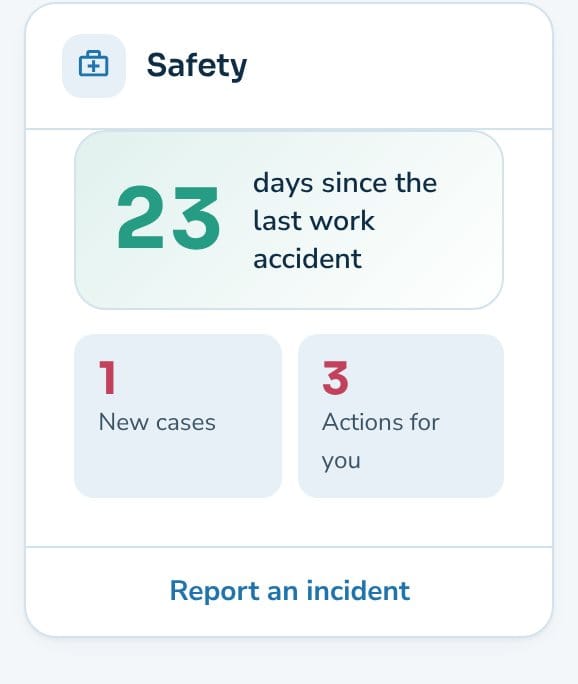
The Safety widget shows the days since the last work accident, New cases (for case handlers and managers) and Actions for you – with a button for Report an incident. The welcome banner has the same shortcut. If you have customised your dashboard before, you add the widget under Customize.
For administrators
Under Nanoq → Safety:
| Setting | What it does |
|---|---|
| Incident reporting | Turns the module on and off (default: off) |
| Case handlers | For example the health and safety representative and the responsible manager. They see all cases and are notified of new reports. Administrators can always handle cases; if none are chosen, the administrators are notified |
| Department leaders see their department | Leaders of a Nanoq group that is a department see and follow the department’s cases, write notes and add actions (default: on) |
| Anonymous reports | The employee may report without a name – and then can’t follow the case (default: on) |
| Locations | Suggestions for “Where did it happen?” – one per line, e.g. The warehouse, The harbour, The kitchen |
| Roles without access | Users with these roles cannot report incidents |
- The notifications only show the case number – never the description – and can be turned on and off in the user’s settings.
- Reports, status changes and actions are written to the activity log under “Safety”.
- With the shortcode
[nanoq_incident]the days since the last work accident and a button to report can be shown on an ordinary WordPress page – see Shortcodes.
Good to know
- Reports are deliberately not included in the intranet’s search, because they can contain sensitive information.
- The files are stored in a protected folder and can only be downloaded by those who may see the case.
- When an employee is anonymised (GDPR), the reports are kept as health and safety documentation, but the name disappears. The person is removed as case handler and from open actions.
- The time of an incident can’t be in the future.