Guides › Foundation
Notifications, push and app
The bell collects everything that happens. Pop-up, push notifications on the phone and email – each employee chooses. The intranet can also be installed as an app.
What the module does
Notifications tell employees when something happens that concerns them – a message, a task, a comment or a new news post.
- The bell at the top of the menu shows everything with a number for unread.
- A pop-up in the corner when something new arrives while you are on the intranet.
- Push notifications on phone and computer when the intranet is closed.
- Email as before.
- Each employee chooses what should arrive how.
- The intranet can be installed as an app on the phone and the computer.
The bell
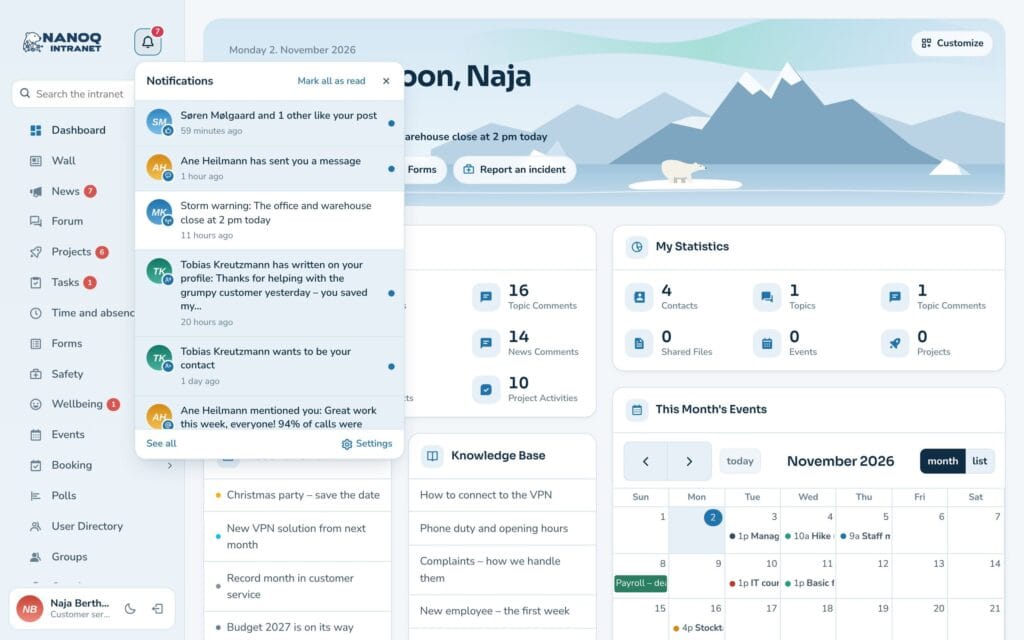
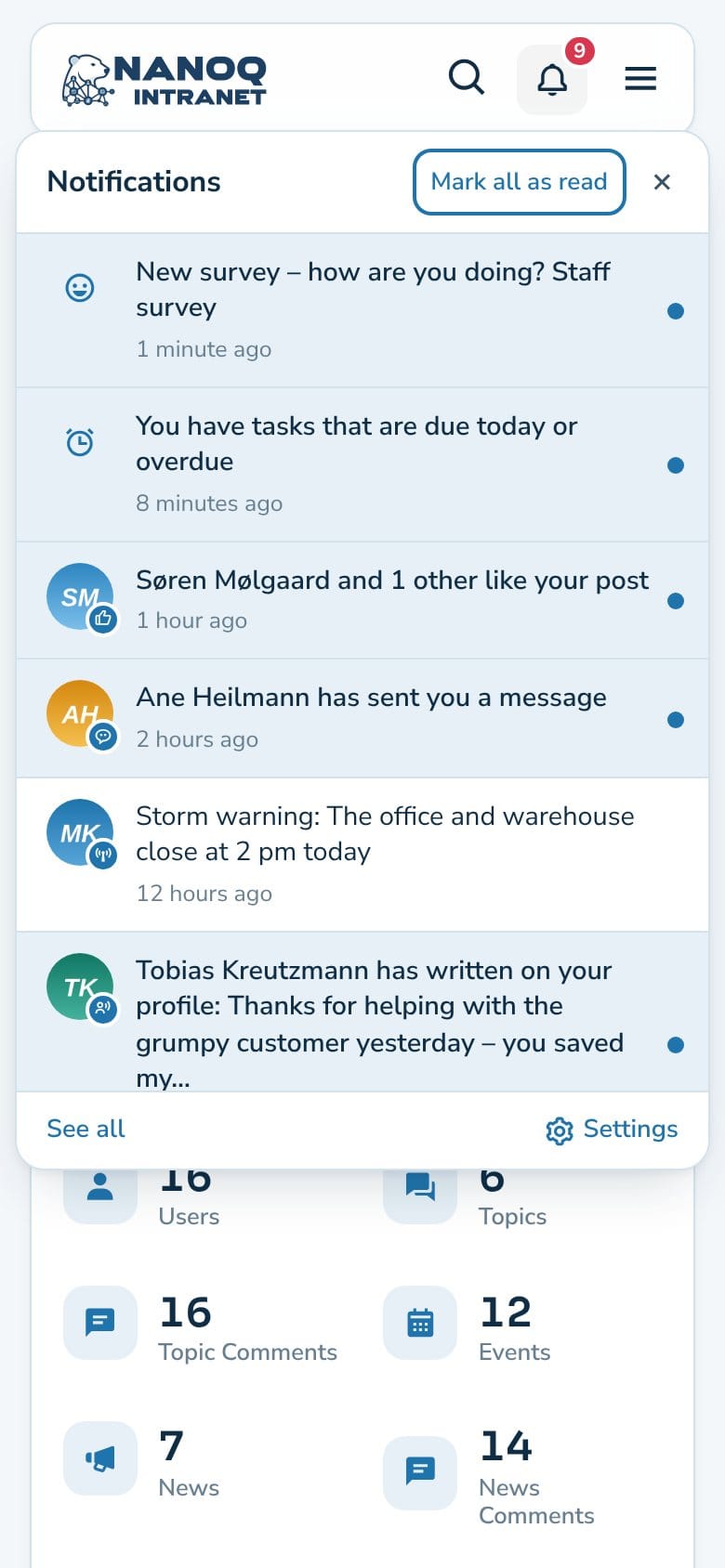
Click the bell next to the logo – on the phone, in the top bar. The panel shows the 15 latest with name, picture and time. Unread ones have a blue dot.
- Click a notification to open what it is about. It is marked as read.
- Mark all as read removes all the dots at once.
- See all opens a page with all notifications from the last 90 days.
- Settings takes you straight to your choices.
Several messages from the same colleague are collected in one line, for example “Ane Lynge has sent you 3 messages”.
Pop-up
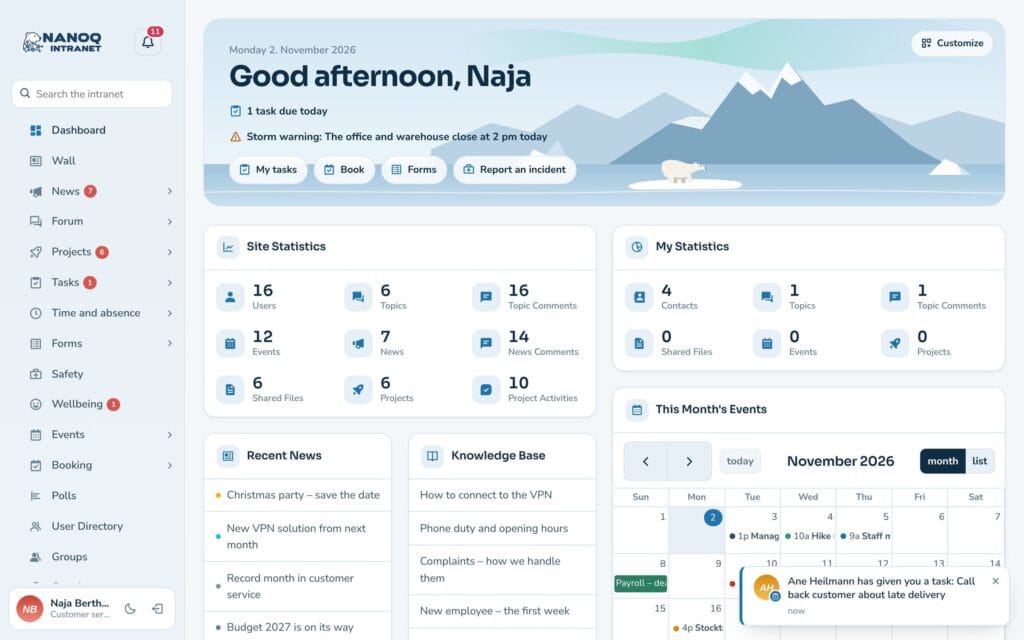
If you are on the intranet when something new arrives, a small box pops up at the bottom right. It disappears by itself after 8 seconds, or you can close it with the cross. At most three are shown at a time.
Choose for yourself
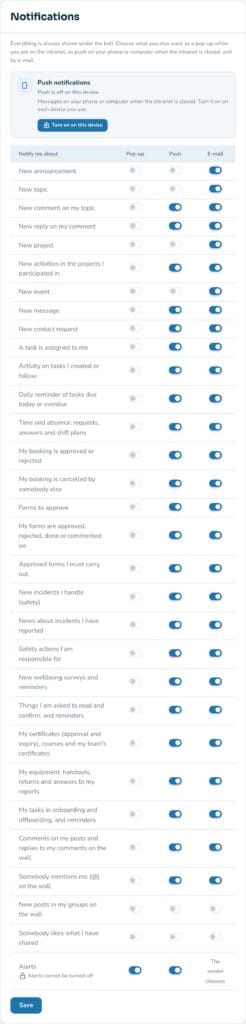
Go to Settings and the Notifications card. There is a row for each type and a column for each channel: Pop-up, Push and Email.
The types include, for example, new announcement, new topic, comments and replies, projects, events, messages, contact requests, tasks, the daily task reminder and time and absence. Everything is always shown under the bell, whatever you choose. Remember to click Save.
Push notifications on phone and computer
Push must be turned on on each device you use:
- Open the intranet on the device and go to Settings → Notifications.
- Click Turn on on this device. The browser asks whether the intranet may send notifications – say yes.
- Click Send a test to check that it works.
By default, push is turned on for what concerns you personally: messages, replies, tasks, contacts and time and absence. News and events for everyone don’t arrive as push unless you choose that.
No push is sent while you are on the intranet – it arrives as a pop-up instead. If you log out, push is turned off on that device.
iPhone and iPad: Push only works once the intranet has been added to the home screen. Open the intranet in Safari, tap Share → Add to Home Screen, and open it from there. It requires iOS 16.4 or newer.
Install as an app
The intranet can live as an app with its own icon:
- Android, Chrome and Edge: The browser offers “Install”, or use the Install as an app button under Settings.
- iPhone and iPad: Share → Add to Home Screen.
The icon is the site’s Site Icon (WordPress → Customize → Site Identity). If there is none, the Nanoq polar bear is used.
For administrators
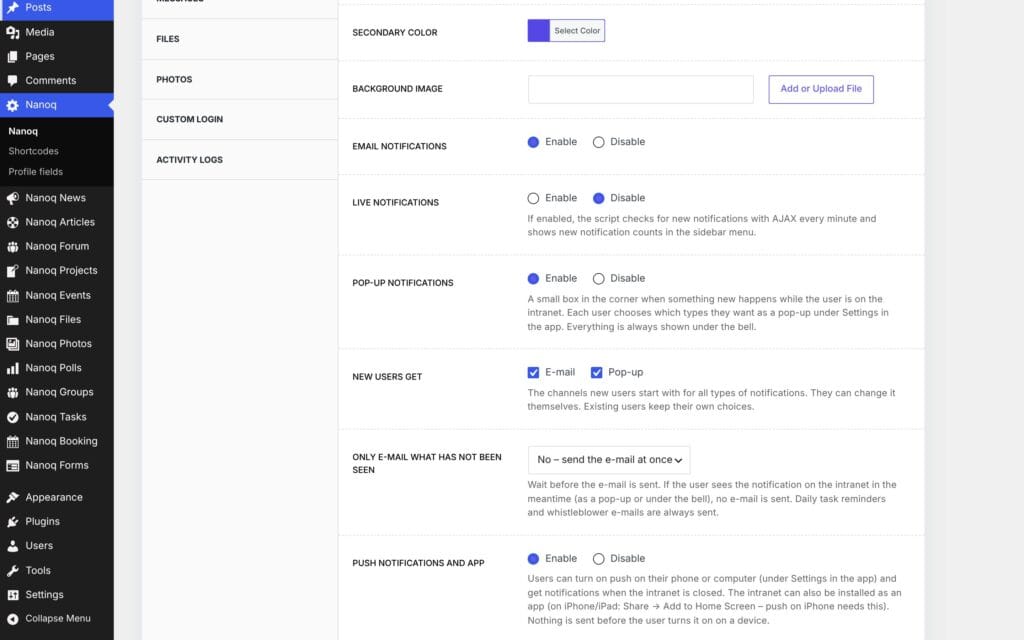
Under Nanoq → General:
| Setting | What it does |
|---|---|
| Email Notifications | Turns all emails on and off |
| Pop-up notifications | Turns pop-ups on and off for the whole intranet |
| New users get | The channels new employees start with (default: email) |
| Only e-mail what has not been seen | Wait 10, 15 or 30 minutes or an hour – if the employee has seen the notification in the meantime, no email is sent |
| Push notifications and app | Turns push and installing as an app on and off |
| Text in push notifications | Who and what – or only “You have a new notification on the intranet” |
Existing employees keep exactly the emails they had chosen before the update. Nobody suddenly gets more emails.
Good to know
- Push requires https. If the site doesn’t run on https, a warning is shown in the settings.
- The content of messages, comments and whistleblower cases is never sent in push.
- Push notifications are written in the recipient’s own language – including Greenlandic.
- An email about a new news post or event is sent to each recipient separately, so nobody can see the others’ addresses.
- The bell asks the server every 45 seconds, and only while the tab is open.