Guides › Foundation
Dashboard
The personal front page with greeting, shortcuts and the widgets each employee chooses.
What the module does
The dashboard is the first thing you see after logging in. It gathers the most important things from all modules.
- A welcome banner with a greeting by time of day, the date and shortcuts.
- Widgets from the modules: news, events, tasks, time clock, shifts, who is away, polls, photos, contacts, statistics and more.
- Each employee chooses and moves their own widgets.
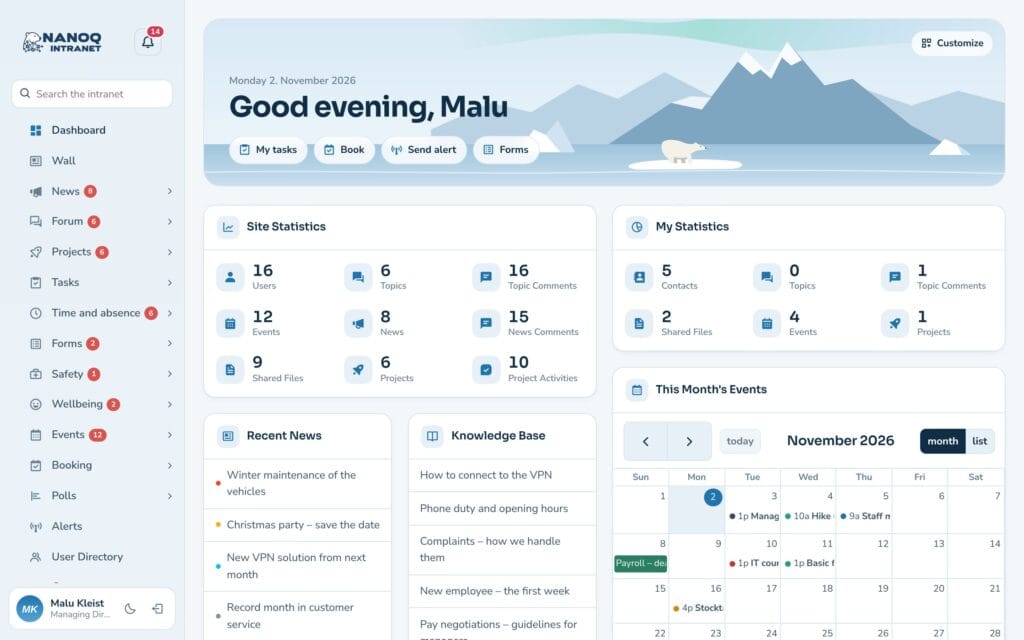
The welcome banner
The banner says good morning, good afternoon or good evening according to the clock on your device and shows today’s date. The shortcuts lead to the modules you use most, and a line shows, for example, today’s tasks.
Customise your dashboard
- Click Customize in the banner.
- Turn on the widgets you want to see, and turn off those you don’t use.
- Drag widgets into place with the move icon in the corner.
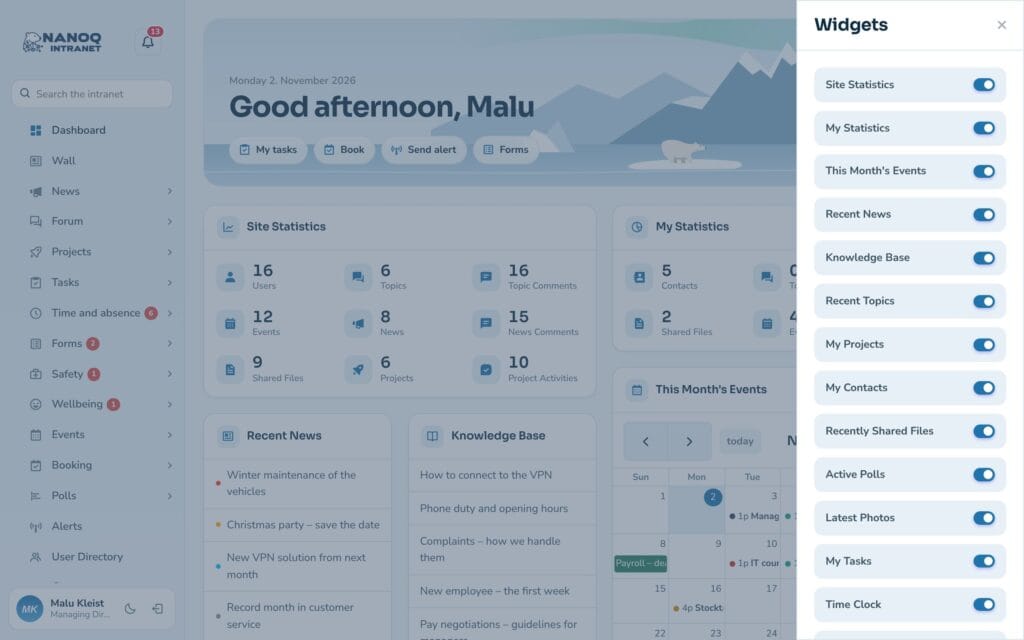
Your choices are saved on your user and follow you from computer to phone. If you have customised your dashboard and new widgets arrive, the dashboard shows them with Add them or Not now (from version 1.55).
The bell
The bell next to the logo shows what has happened since you last looked – with a number for unread notifications. See Notifications, push and app.
Light and dark mode
Switch between light and dark mode with the button next to your name at the bottom of the menu.
For administrators
Under Nanoq → General:
- Default Dashboard Widgets – the widgets new employees start with.
- The welcome banner on/off, and optionally your own image instead of the illustration.
- Live notifications – counters in the menu that update without reloading the page.
Want a completely different dashboard?
With shortcodes you can build your own front page on an ordinary WordPress page – for example with Elementor – and show news, events, employees and polls exactly where you want them.