Guides › Time and HR
Time tracking
Time clock, hours, overtime and time bank – on the computer and the phone.
What the module does
Time tracking keeps track of working hours – without spreadsheets.
- A time clock for clocking in and out, also from the dashboard.
- Registering hours with from–to or a number of hours, optionally linked to a project.
- Overtime with a factor, time off in lieu and payout.
- Norm time and a time bank that calculate themselves.
- Managers can see and correct for their team and download CSV for payroll.
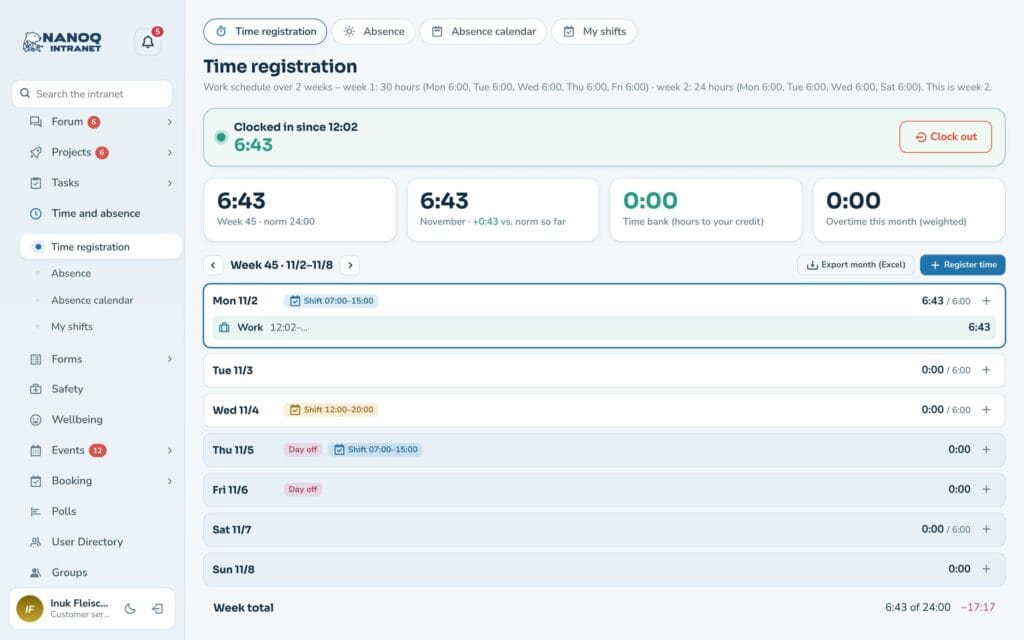
Clock in and out
Click Clock in when you arrive and Clock out when you leave – on the Time registration page or with the Time Clock widget on the dashboard.
If you forget to clock out, the system does it automatically after a fixed number of hours. The entry is marked Automatic clock-out, so you can correct it.
Register time
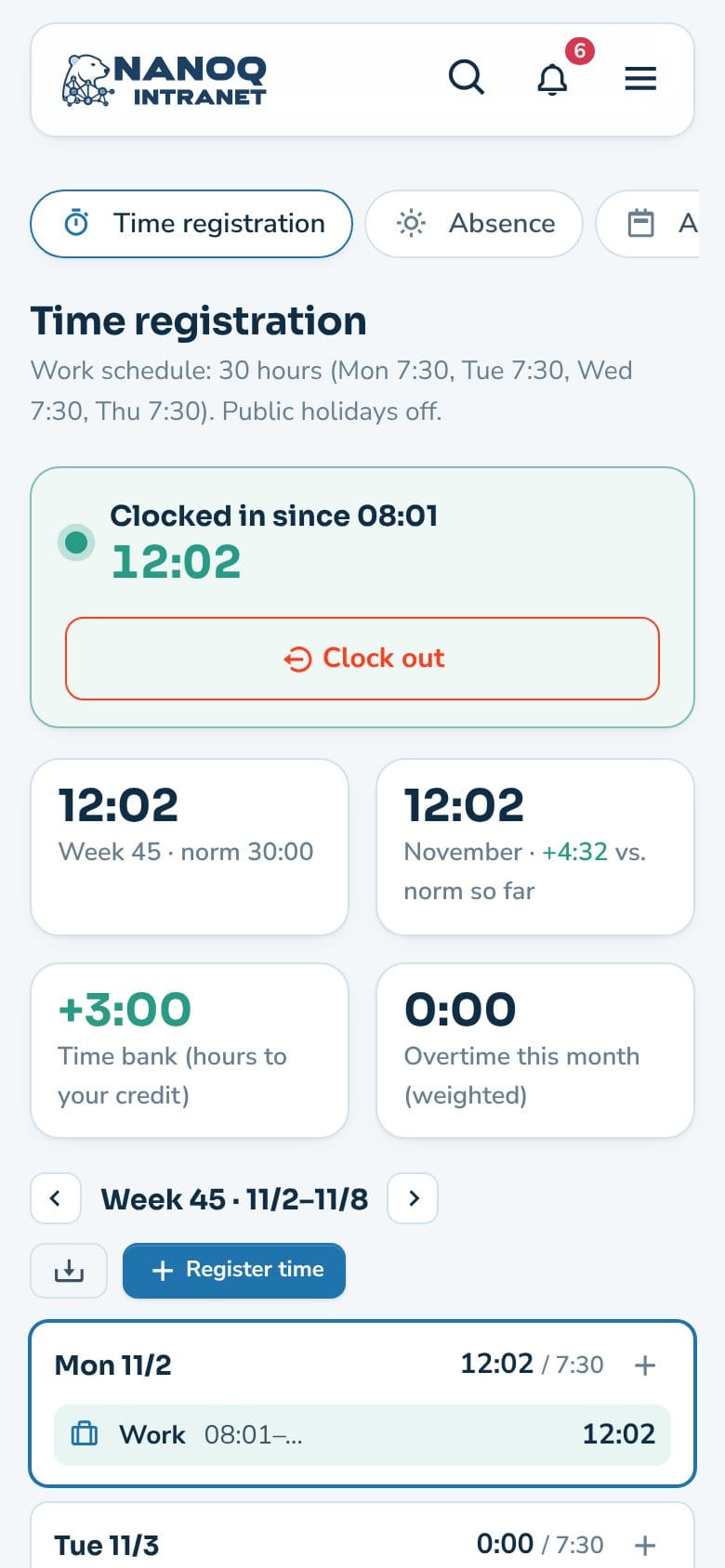
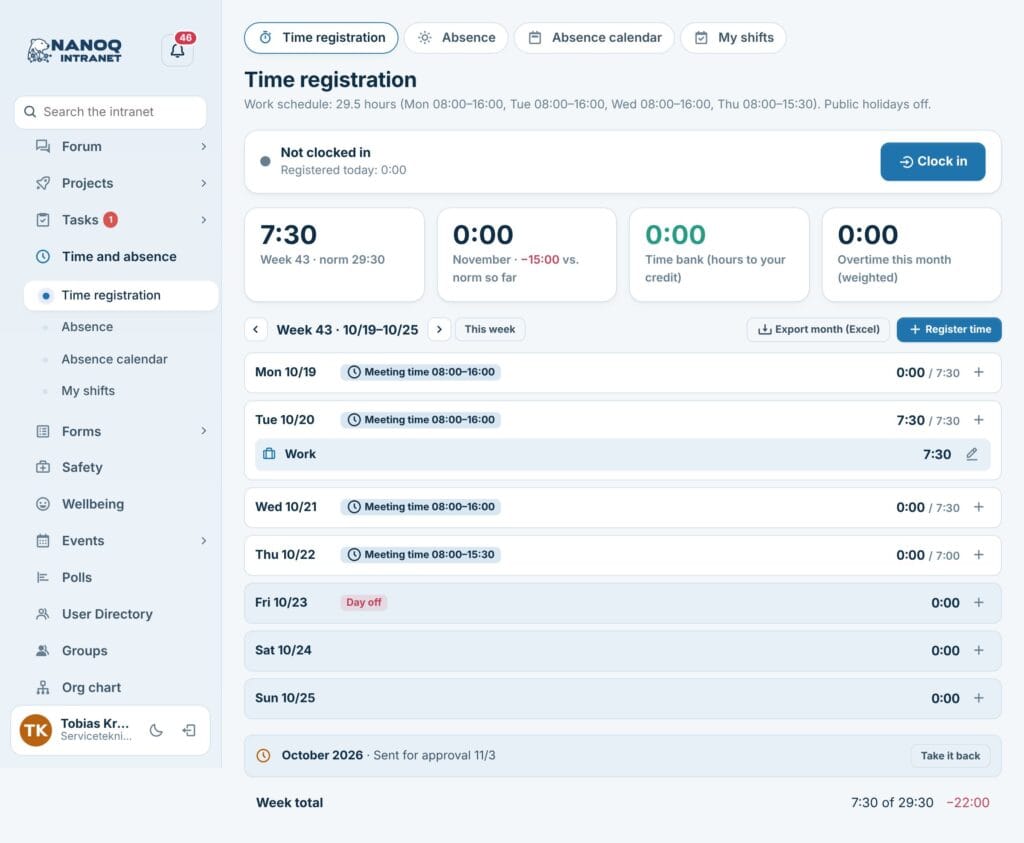
- Go to Time and absence → Time registration. The week is shown with your entries and shifts.
- Add an entry: date, from–to (or number of hours), type and optionally a project and a note.
- Save.
The types are work, overtime (multiplied by a factor, e.g. 1.5), time off in lieu and payout. Two entries with times may not overlap. An entry may run past midnight.
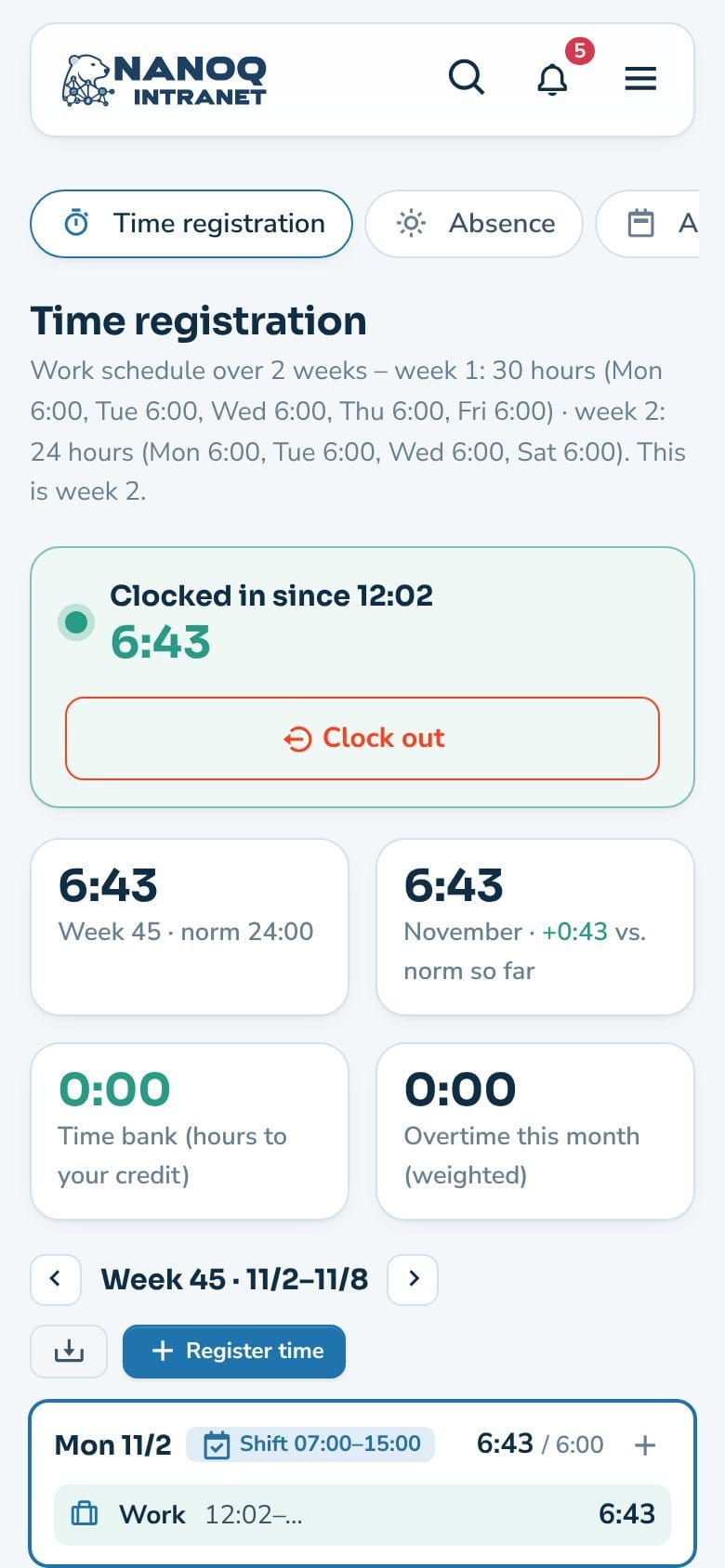
Norm time and time bank
- Norm time = your hours per week spread over Monday–Friday, minus public holidays and approved absence.
- Time bank = overtime × factor − time off in lieu − paid out.
Both are shown on the page, so you can always see whether you are ahead or behind.
Work schedule: part-time and alternating weeks
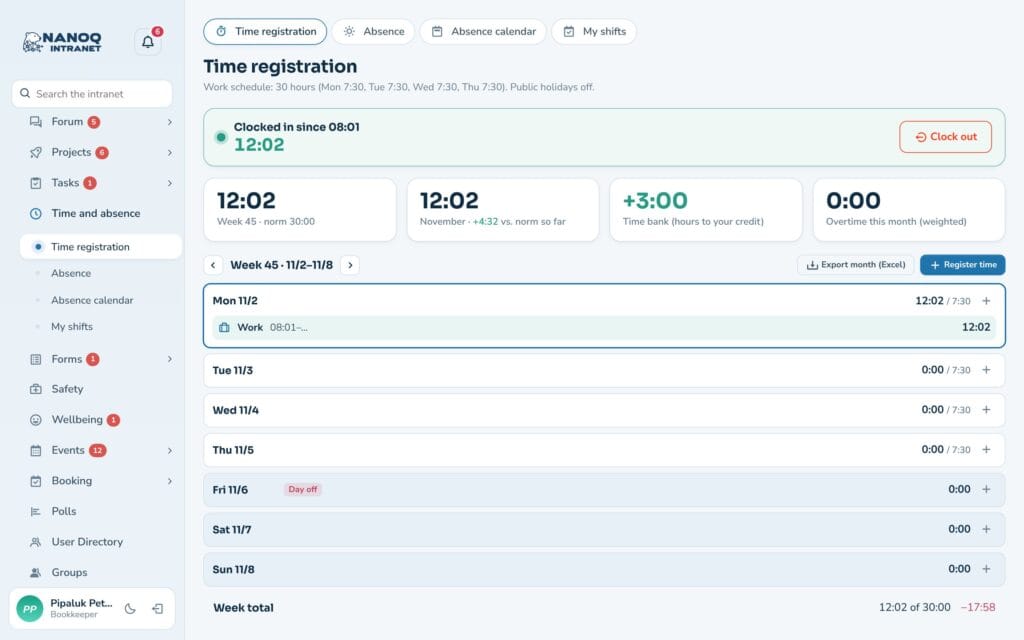
By default the norm time is spread over Monday–Friday. If an employee works part-time, a four-day week or alternating weeks, they get their own work schedule.
- Go to Time and absence → Team and approvals → Absence and click the cog next to the name.
- Write the hours for each weekday. If the weeks alternate, choose 2–4 weeks and fill in each week.
- Choose the date from which the schedule applies.
The week then shows the employee’s own norm time, and days without hours are shown as Day off. Absence also counts according to the schedule. A day can also be written as a meeting time, for example 8-16 or 7:30-15:30. The week then shows Meeting time 8:00–16:00, and an unpaid break (the setting Unpaid break with meeting times) is subtracted from days of six hours or more. Vacation days can be converted for part-time – see Absence and leave.
For the manager
The leaders of a department see the department’s members (see Groups and access). HR managers and administrators see everyone.
- Choose an employee at the top of Time registration to see and correct their week.
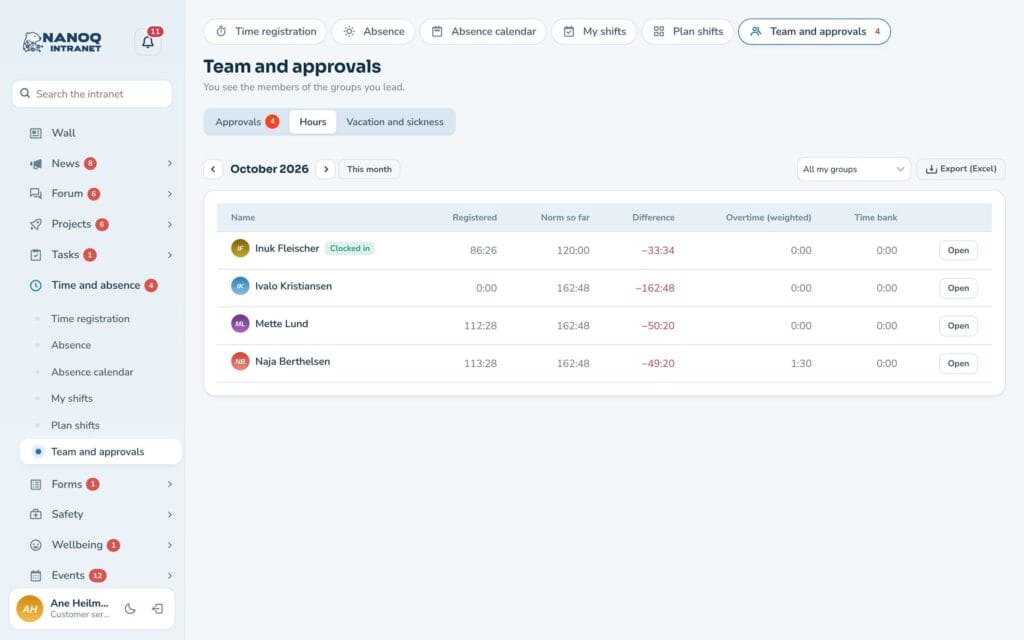
- Under Team and approvals → Hours you see, month by month: registered, norm, difference, overtime, time bank, and who is clocked in. Download CSV for payroll.
Approval of hours
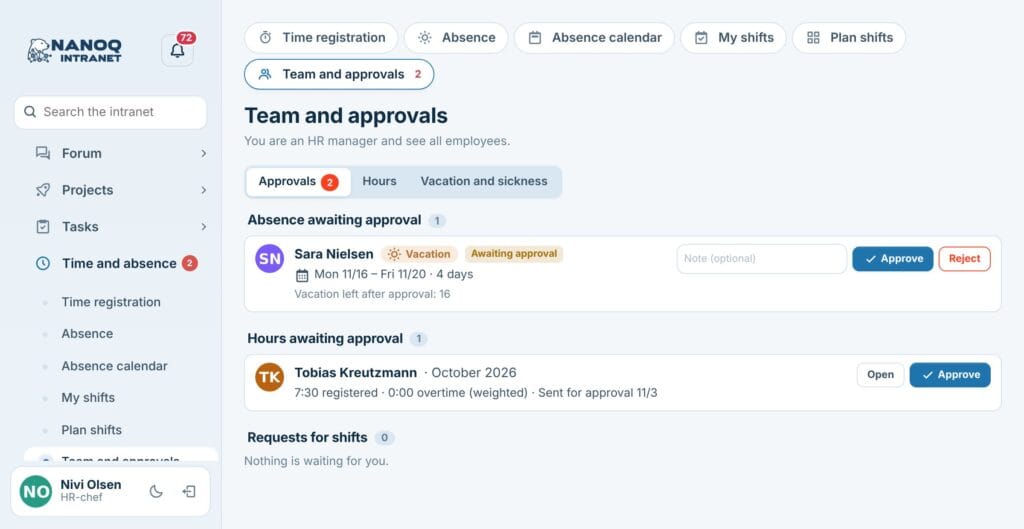
With the setting Approval of hours, employees send each month’s hours for approval, and a manager approves them.
- The employee clicks Send for approval in the bar under the week when the month is finished (and can Take it back until it is approved).
- The manager is notified and approves under Team and approvals → Approvals (Hours awaiting approval) – or in the employee’s week with Approve the month.
- An approved month is locked. A manager can reopen it so the employee can correct it.
The Hours table and the export show whether the month is approved. A manager can’t approve their own hours.
For administrators
Under Nanoq → Time and absence:
- Turn time tracking and the time clock on/off.
- Roles without access.
- Hours per week (default 37) – can be changed per employee on the user profile in WordPress or by HR managers in the app.
- Lock after a number of days, so old entries can’t be changed.
- Max. hours before automatic clock-out (default 12).
- Public holidays: Greenland, Denmark or none – plus your own days off.
An employee becomes an HR manager with a tick on the user profile in WordPress.
Good to know
- Each employee can have their own work schedule with hours per weekday – for example part-time, a four-day week or alternating weeks. Without a work schedule, the norm time is spread over Monday–Friday.
- With the setting Shifts count as registered time, a published shift that has ended counts as work on a day without registered time. It is shown dashed in the week, and the employee can click Correct it.
- With the setting Approval of hours, employees send each month’s hours for approval – see Approval of hours.