Guides › Collaboration
Org chart
See who reports to whom, and how the departments fit together. The chart draws itself from your departments and their leaders – you only correct the exceptions.
What the module does
The org chart shows your organisation in two ways:
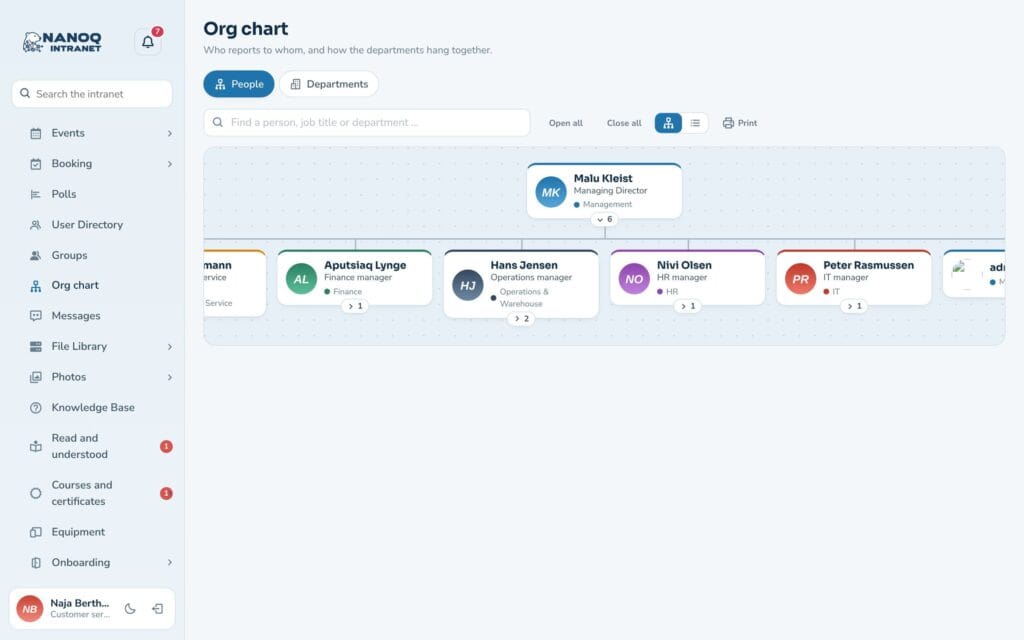
- People – who reports to whom, from the managing director down.
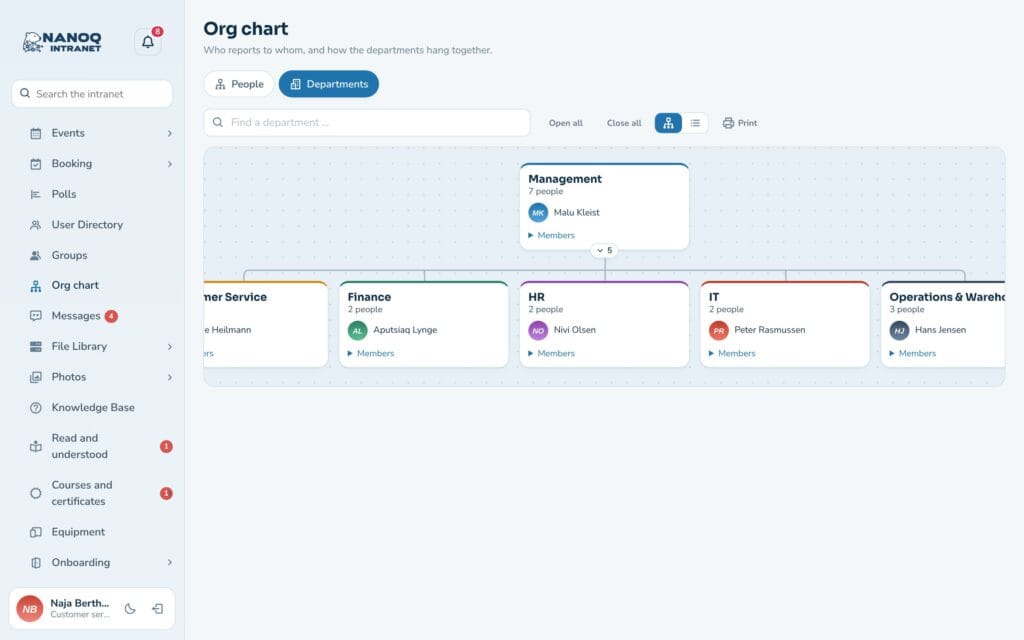
- Departments – how the departments sit under each other, with leader and members.
The manager is found automatically: an employee’s manager is the leader of the employee’s department, and a department leader’s manager is the leader of the department above. That’s why there is a chart from day one. If it doesn’t fit a particular person, you correct it under Change managers.
The module is off until an administrator turns it on. Click Org chart in the menu to open it.
View the chart
The People tab opens with the top levels expanded. Under each card is the number of people who report to the person – click the number to expand or collapse the branch.
- Open all and Close all expand or collapse the whole chart at once.
- If the chart is wider than the screen, you can drag it or scroll sideways.
- Switch between Chart and List with the two buttons on the right.
- Search in the Find a person, job title or department … field – the chart shows the people who match.
- Print gives a printout of what you see.
- Click a person to open the profile.
People who have neither a manager nor anyone reporting to them are listed under Not placed at the bottom – so you can see who is missing a department.
Departments
The Departments tab shows the departments as a tree. Each card shows the number of people and the leader, and under Members you can see who is in the department. The departments are your Nanoq groups – see Groups and access.
Focus on one person
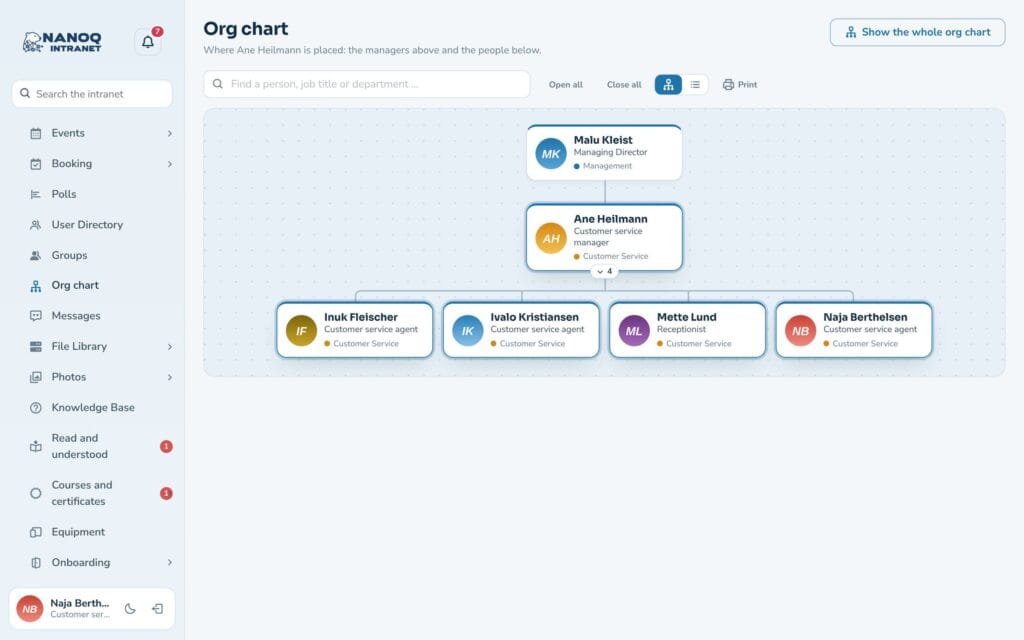
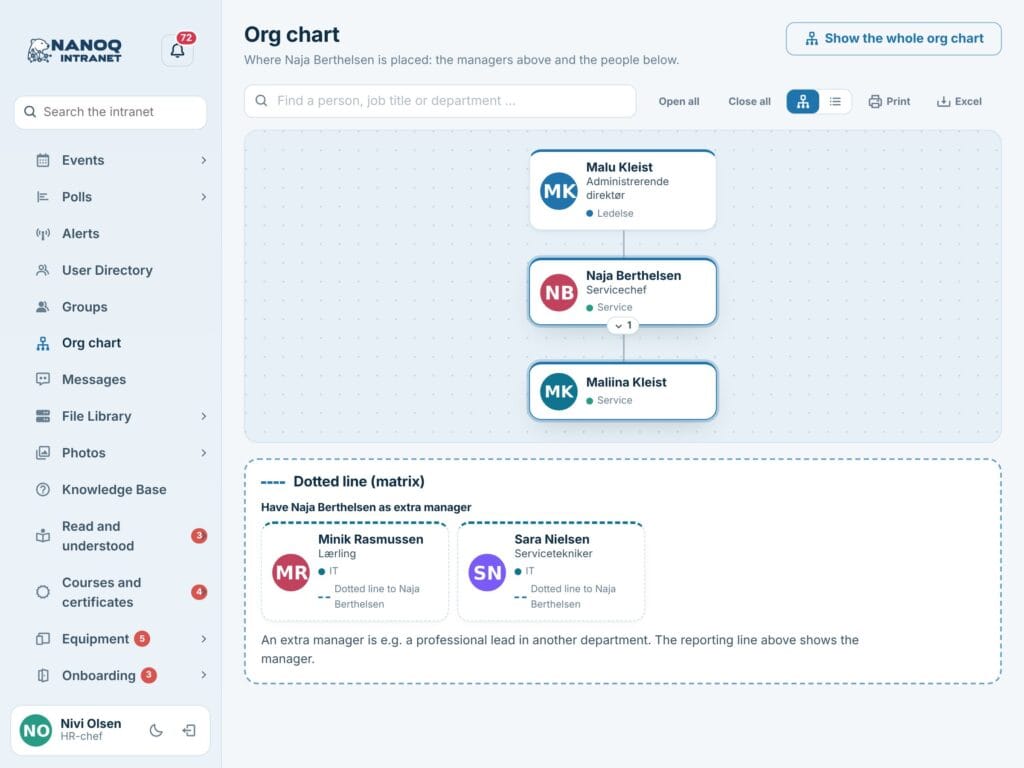
Hold the mouse over a person’s card and click the chart symbol in the corner (on the phone the symbol is always on the card) – or click Show in the org chart on the profile. Then you only see the person’s path up to the top and the employees who report to the person. Show the whole org chart takes you back to the full chart.
On the phone
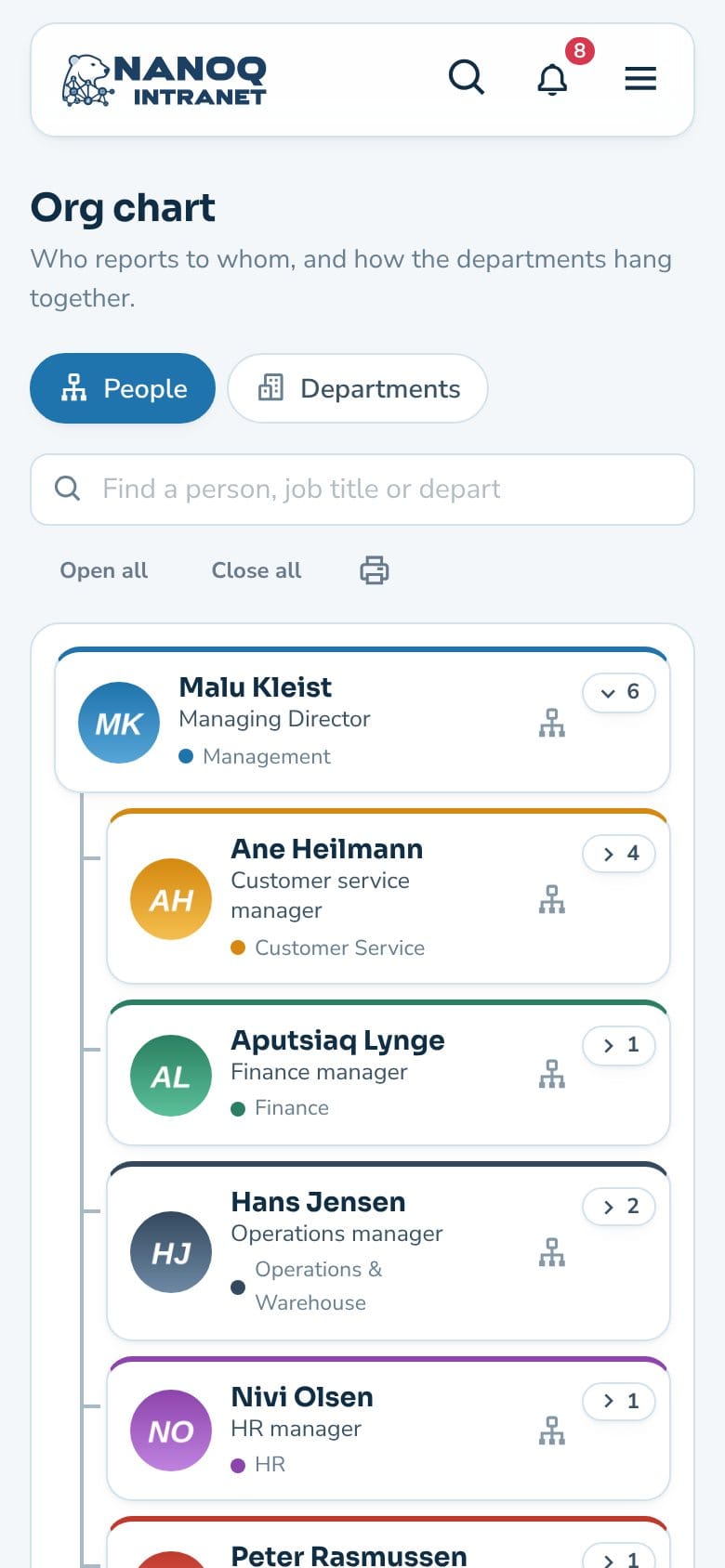
On the phone the chart is always shown as a list, where each person is indented under their manager. Branches are expanded and collapsed in the same way, and search works here too.
The profile and My team
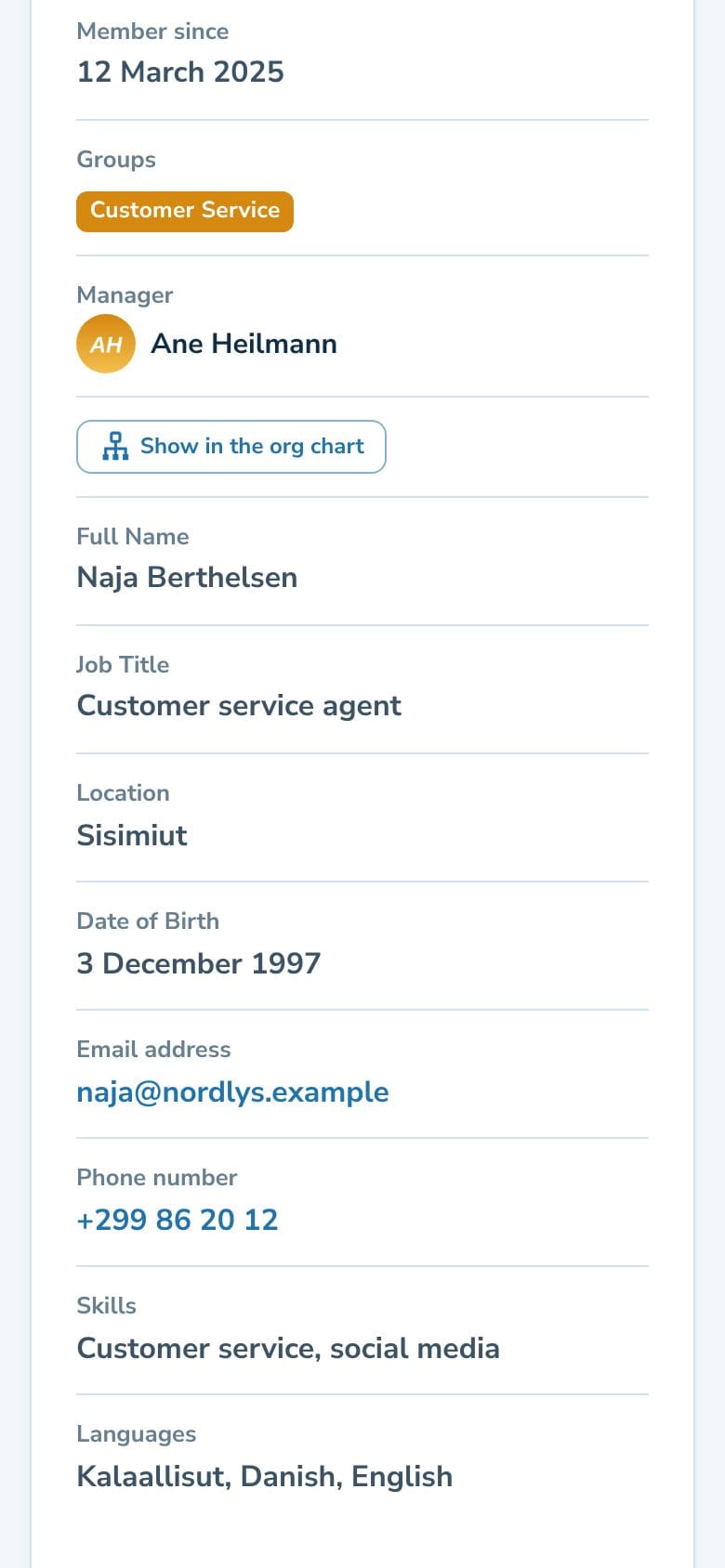
The profile shows Manager and Direct reports with a link to Show in the org chart.
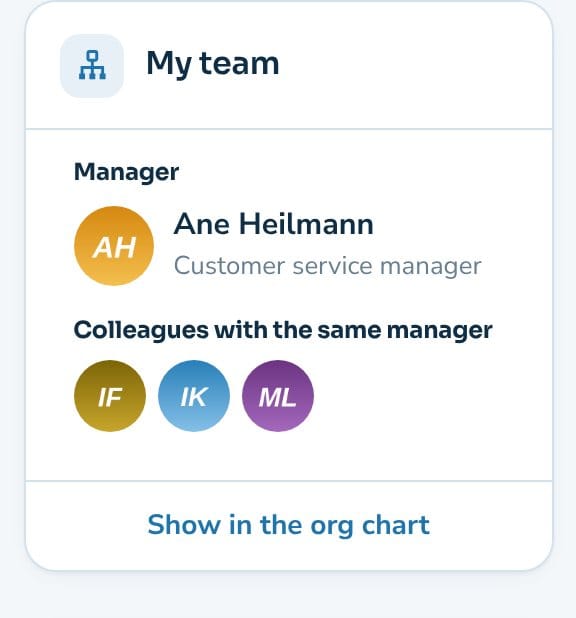
The My team widget on the dashboard shows your manager, the colleagues with the same manager and those who report to you. The welcome banner also has a shortcut to the org chart. If you have customised your dashboard before, you add the widget under Customize.
Change managers
Administrators, HR managers and the roles chosen in the settings see the tabs Change managers and Change departments.
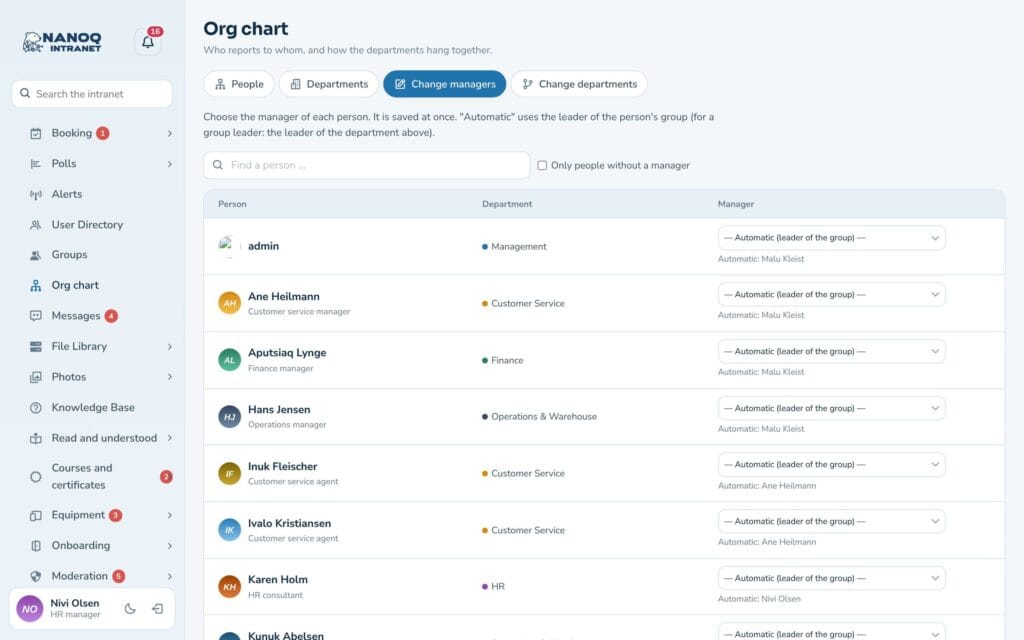
- Open Change managers.
- Find the person – use the search field or Only people without a manager.
- Choose a manager in the list. It is saved straight away.
If you choose — Automatic (leader of the group) —, the leader of the person’s department is used again; below the list it says who that is. Nanoq rejects a choice that would create a loop – for example two people becoming each other’s manager.
Extra manager (dotted line)
In a matrix organisation a person can have an extra manager – for example a professional lead in another department. Choose them in the column Extra manager (dotted line) under Change managers. It is saved at once.
The extra manager is shown on the person’s card (“Dotted line to …”) and profile, and in the focus view the box Dotted line (matrix) shows the person’s extra manager and those who have the person as their extra manager. The reporting line in the chart still follows the manager.
Change departments
Under Change departments you choose for each department which department it is Part of. For example, put all departments under Leadership so the managing director is at the top. A department can’t be placed under itself or under one of its own sub-departments.
Groups that aren’t departments – such as project groups – can be kept out of the chart: untick Department in the org chart on the group in wp-admin.
For administrators
Under Nanoq → Org chart:
| Setting | What it does |
|---|---|
| Org chart | Turns the module on and off (default: off) |
| Use the group leaders | Without a manager, the leader of the person’s group is used (for a group leader: the leader of the department above). So there is a chart from day one |
| Shown first | Whether the chart opens with People or Departments |
| Roles without access | Users with these roles cannot see the org chart |
| Who may change the org chart | Roles that, in addition to administrators and HR managers, may change managers and departments |
- In wp-admin the user profile has the Manager field, and groups have the Org chart box with Part of and Department in the org chart.
- Those who may change the chart can download it as an Excel file (CSV).
- With the shortcode
[nanoq_orgchart]the chart can be shown on an ordinary WordPress page (only for logged-in users) – see Shortcodes.
Good to know
- Forms use the org chart when an approval step is The sender’s manager.
- When an employee is anonymised or deleted (GDPR), their direct reports move up to the employee’s own manager, and dotted lines to and from the person are removed.
- The chart can only be seen by employees who are logged in.