Guides › Collaboration
Groups and access
Departments and teams with leaders and members – and the rules for who sees what.
What the module does
Groups are the foundation of access in Nanoq. A group is typically a department, a team, a committee or a management group.
Groups are used to:
- lock categories, folders and albums so only the members see the content,
- target news,
- give projects and task lists participants,
- appoint leaders who approve holidays and plan shifts,
- talk together in group messages.
For employees
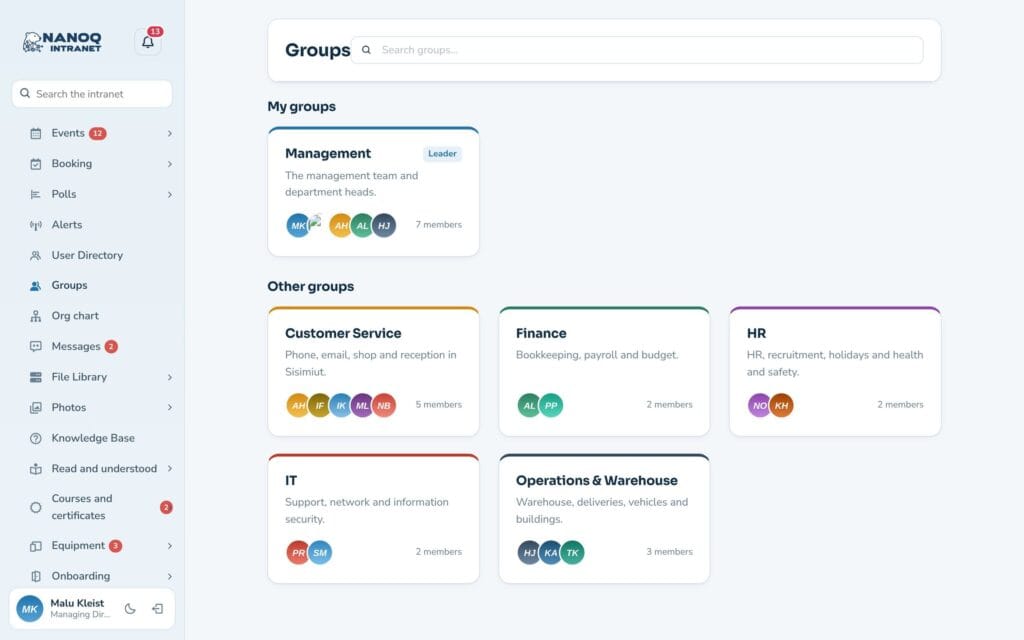
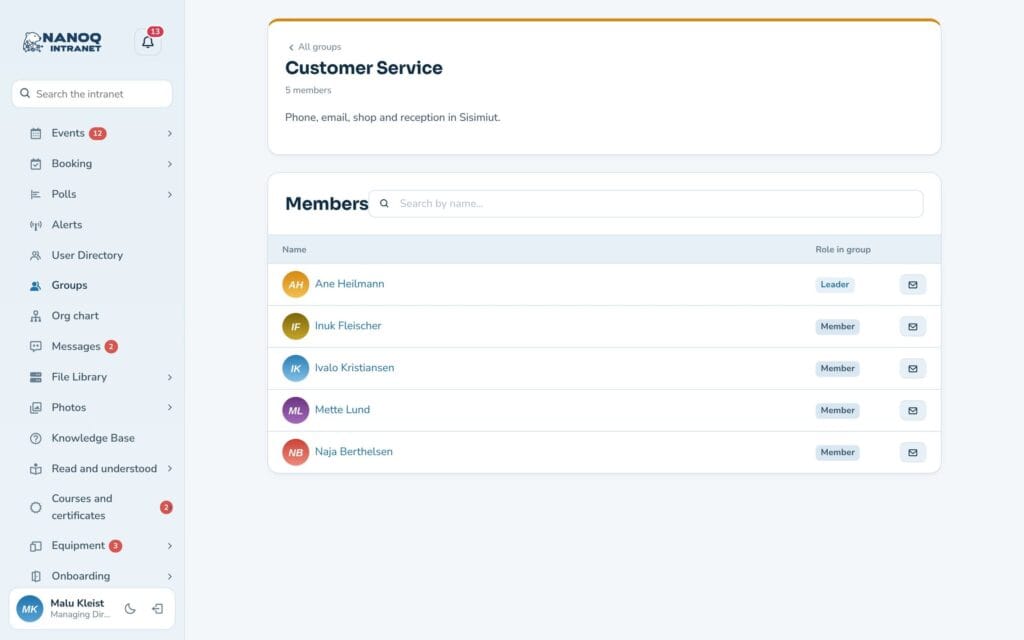
Click Groups in the menu to see the groups and the ones you are a member of. Open a group to see the description, leaders, members and the group’s messages.
If you try to open something that is locked to a group you are not a member of, the No access page is shown. It also shows which groups you are a member of.
Leaders
The group’s leaders can create task lists for the group and plan shifts for it (see Shift planning). Only administrators can appoint leaders.
Departments (from version 1.56): a group is a department by default. The leaders of a department
- approve holidays and absence for the members (see Absence and leave),
- see the members’ hours, courses and certificates, equipment, onboarding, Read and understood, incidents and wellbeing, and approve their forms when the form goes to the manager.
Only administrators can add and remove members of a department. If the group is, say, a project group or a club, untick Department (Department in the org chart when the org chart is on) on the group in WordPress. Then the group’s leaders can add and remove members on the intranet themselves (the person who is added is told under the bell), but they have no rights over the members’ time, absence and the other modules.
Create a group
- Go to Nanoq Groups → Add new group in WordPress.
- Write a name and description, and choose a colour.
- Add members and mark the leaders.
- Publish.
Lock content to groups
| Content | Where you lock it |
|---|---|
| News – whole category | Nanoq News → Categories & access |
| News – one post | The Visible for groups box on the post |
| Knowledge base | The Access (groups) field on the category |
| Forum | The Access (groups) field on the category |
| File library | The Access (groups) field on the folder – also applies to subfolders |
| Photos | The album – also applies to sub-albums |
| Projects | The group field on the project |
| Task lists | The list’s access: groups |
| Polls | The groups on the poll |
Leave the field empty and the content is for everyone. If something is locked to several groups, it is enough to be a member of one of them.
Good to know
- Administrators see all content that is locked to groups.
- Groups are shown on an ordinary page with
[nanoq_groups]. Names and the number of members are visible to everyone if the shortcode haspublic="yes".