Guides › Knowledge and files
File library
Documents in folders with versions, check-out, private files and access by department.
What the module does
The file library is the shared drive: templates, policies, minutes, price lists and everything else that needs to be in one place.
- Folders and subfolders that can be locked to groups.
- Private files that only certain people can see.
- Versions: upload a new edition, and the old one is kept. Restore it if something goes wrong.
- Check-out, so two people don’t edit the same document at the same time.
- The text inside the documents can be searched.
- The files are stored in a protected folder and can only be downloaded by those with access.
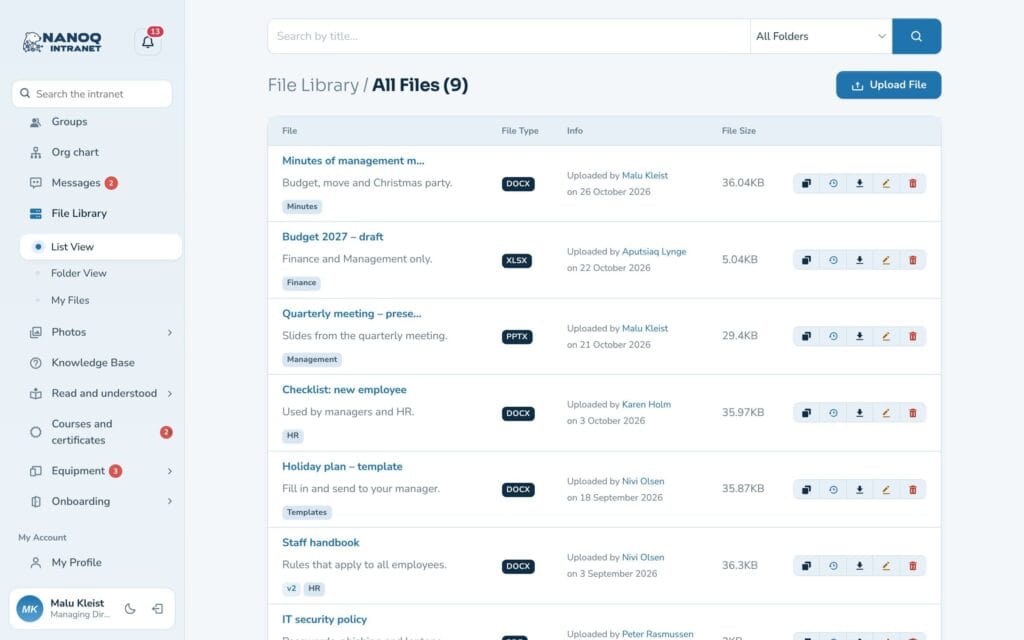
Find a file
Click File Library in the menu. You can choose:
- List View – all files with the newest at the top.
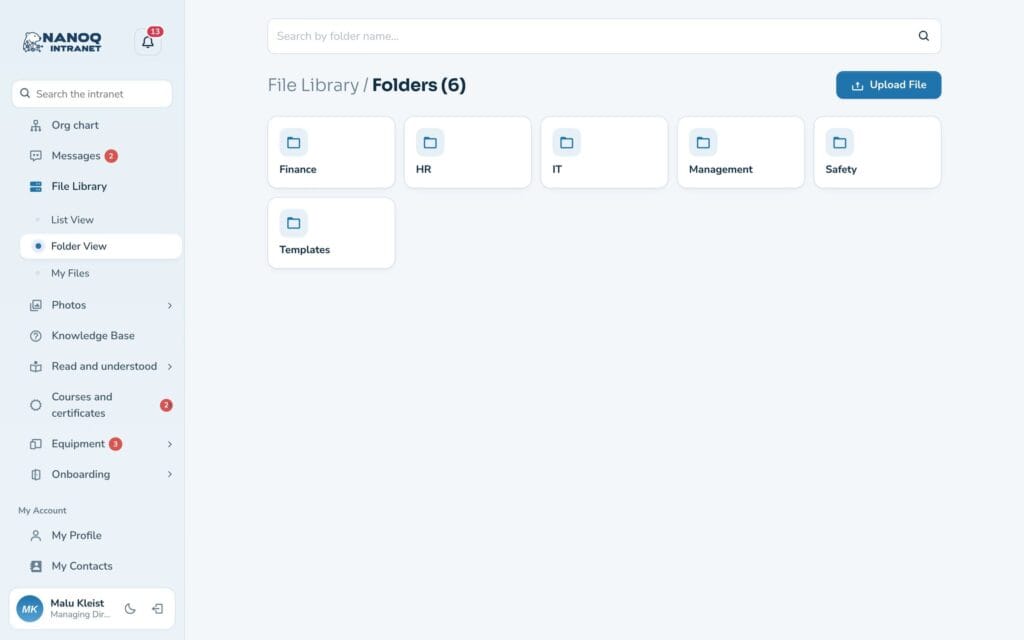
- Folder View – browse the folders.
- My Files – files you have uploaded yourself.
Click a file to download it. If you can’t remember where it is, search – search also finds words inside Word, Excel, PowerPoint and PDF files.
Upload a file
- Click the upload button.
- Choose the file, give it a title and optionally a description.
- Choose a folder.
- Choose whether the file should be for everyone with access to the folder or private for chosen people.
- Upload.
Versions and check-out
Open the file with Edit file and click Versions and check-out. Here you can:
- Check out the file while you work on it. Others can still download it, but not edit it or upload a new version.
- Upload a new version with a comment about what has changed – and check it back in at the same time.
- See the history and download an older version.
- Restore an older version. It becomes a new version, so nothing is lost.
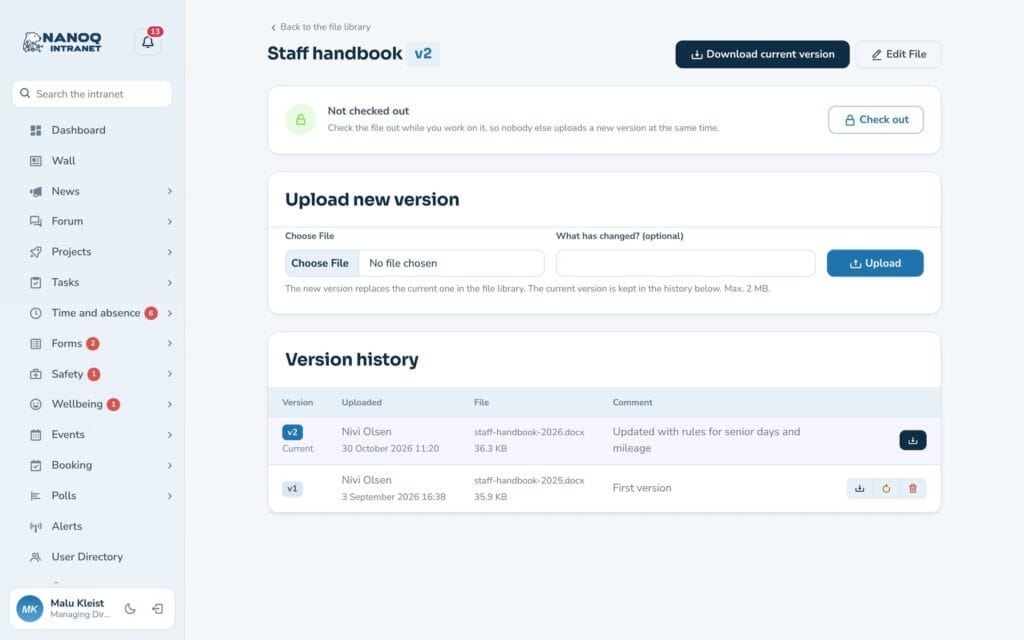
New version, restore and check-out can be used by the file’s author, editors and administrators. Editors and administrators can also release a file that someone else has forgotten to check in.
Folders and access
Folders are created in WordPress under Nanoq Files → Folders. In the Access (groups) field a folder can be locked to one or more groups. The lock also applies to all subfolders and the files in them.
For administrators
Under Nanoq → Files:
- Turn the module on/off.
- Restrict Access: roles that may not see the file library.
- File Upload: roles that may not upload.
- Number of files per page.
Under Nanoq Files:
- File protection: move older files into the protected folder and see the rule for Nginx servers.
- Search index: status of which files have been read for search, and the Read all files now button.
Reading the files’ text can be turned off under Nanoq → General.
Good to know
- Each version is a full copy of the file. Delete old versions if space gets tight.
- Old .doc and .xls files are not read – save them as .docx and .xlsx.
- Files can be shown on an ordinary page with
[nanoq_files]– but only logged-in users can download them. See Shortcodes.