Guides › Communication
Messages
Private conversations between colleagues and conversations in groups – with attached files and images.
What the module does
Messages is the intranet’s chat. It’s for short questions and arrangements that don’t belong in an email.
- Private conversations between two people.
- Group messages for all members of a group.
- Attach files from your computer or phone, or share documents from the file library and photos from albums.
- Messages that disappear: delete new messages automatically after a time, or send a message that can only be seen once.
- New messages are shown with a counter in the menu and can be sent by email.
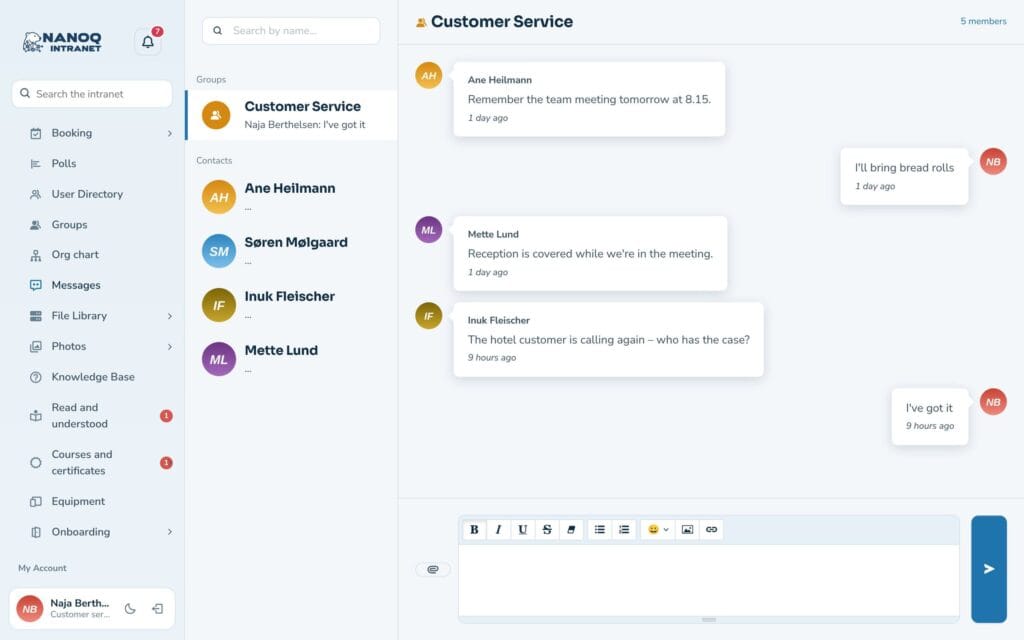
Send a message
- Click Messages in the menu.
- Choose a colleague in the list on the left. Your contacts are at the top.
- Write the message and press Enter or the send button.
You can also start a conversation from a colleague’s profile.
Who may write to you
Under Settings → Profile Details you choose Who can send me private messages: Everyone or Only my contacts. If you have chosen only contacts, others can still reply to a message you have sent them, and administrators can always write to you. Group messages are controlled by who is in the group.
If a message can’t be sent, the app shows why, and the text stays put so you don’t lose it.
Group messages
Each group has its own conversation. Open the group under Groups and write in the group’s messages. All members can read and reply.
Messages that disappear
When the administrator has turned on Messages that disappear (it is off by default), you can choose that messages delete themselves – as in Telegram and Signal. No conversation or message does it until someone chooses it.
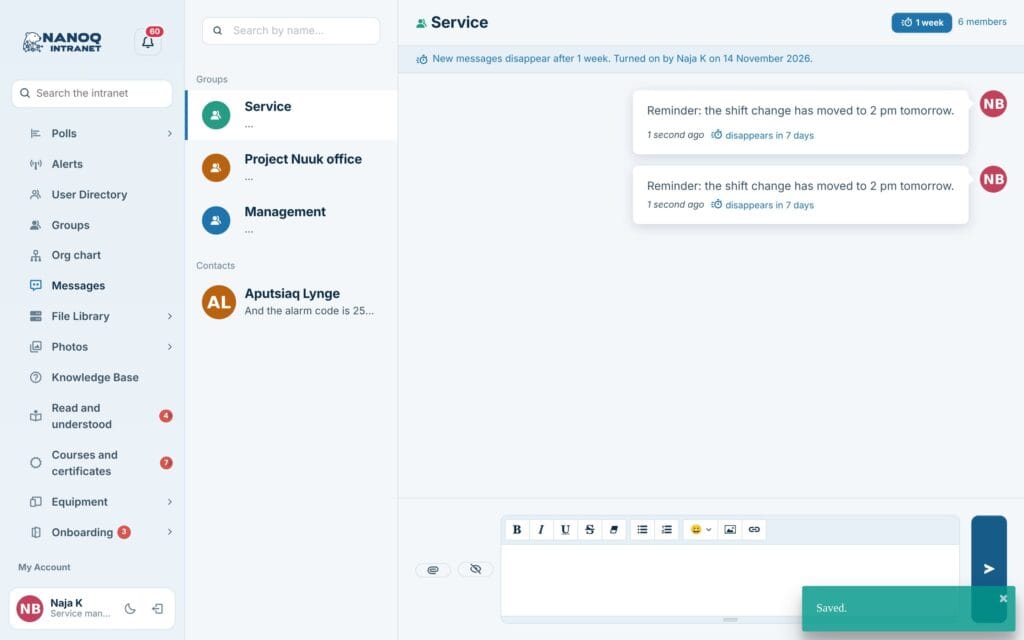
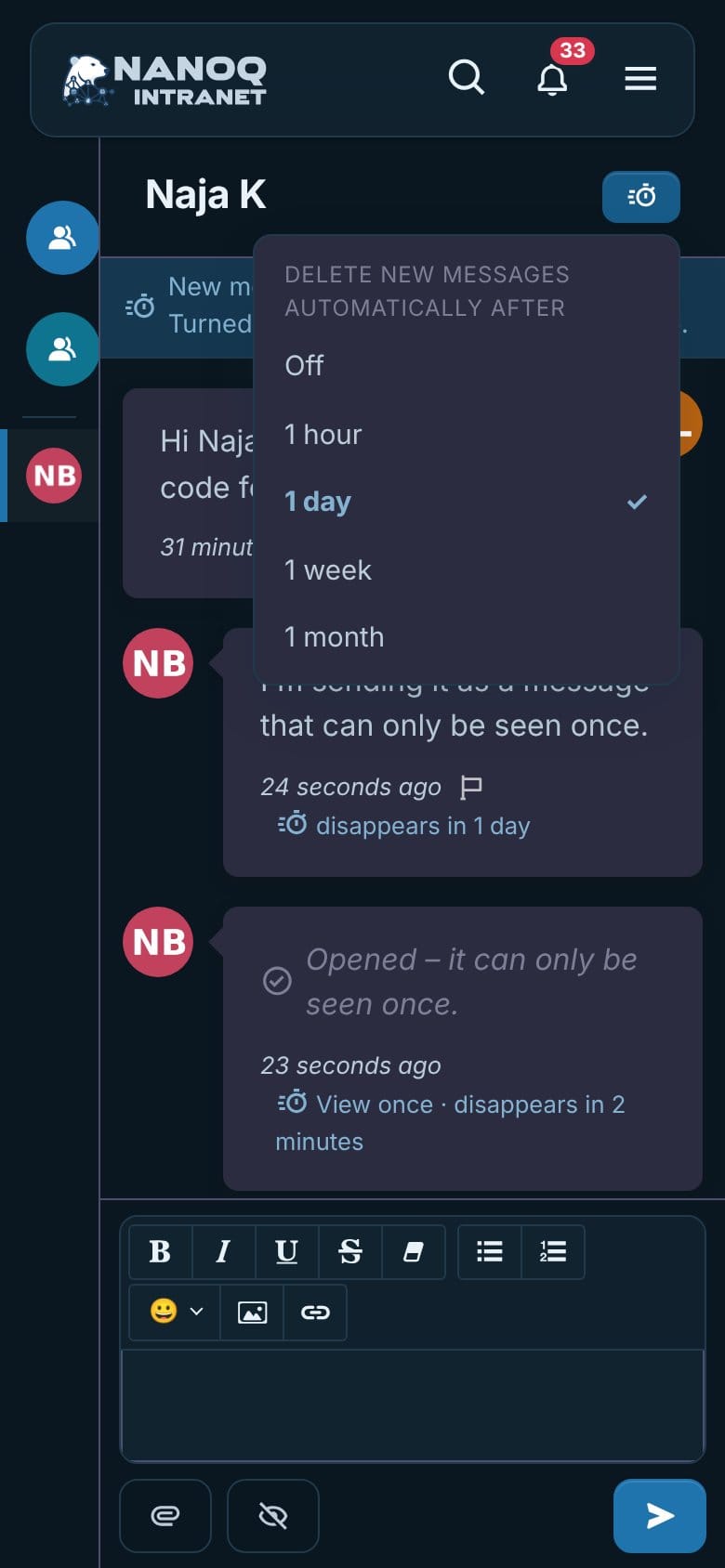
Delete messages automatically in a conversation
Click the stopwatch at the top of the conversation, and under Delete new messages automatically after choose Off, 1 hour, 1 day, 1 week or 1 month (the times the administrator allows). In a private conversation both of you can choose; in a group it is the group’s leaders. The line New messages disappear after … Turned on by … on … shows everyone in the conversation who turned it on. It applies to the messages sent after that.
A single message that disappears
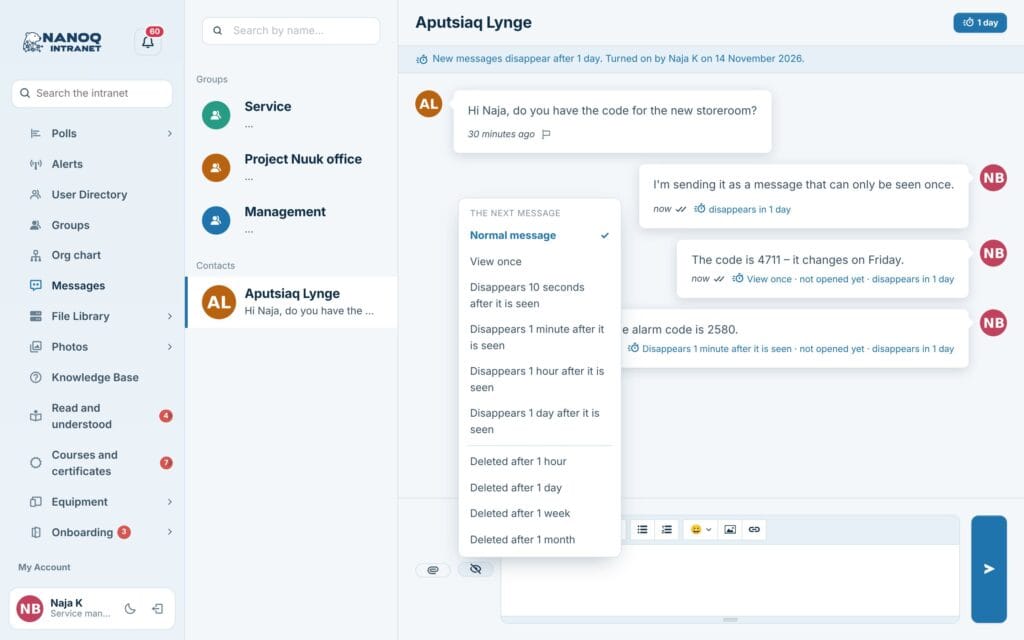
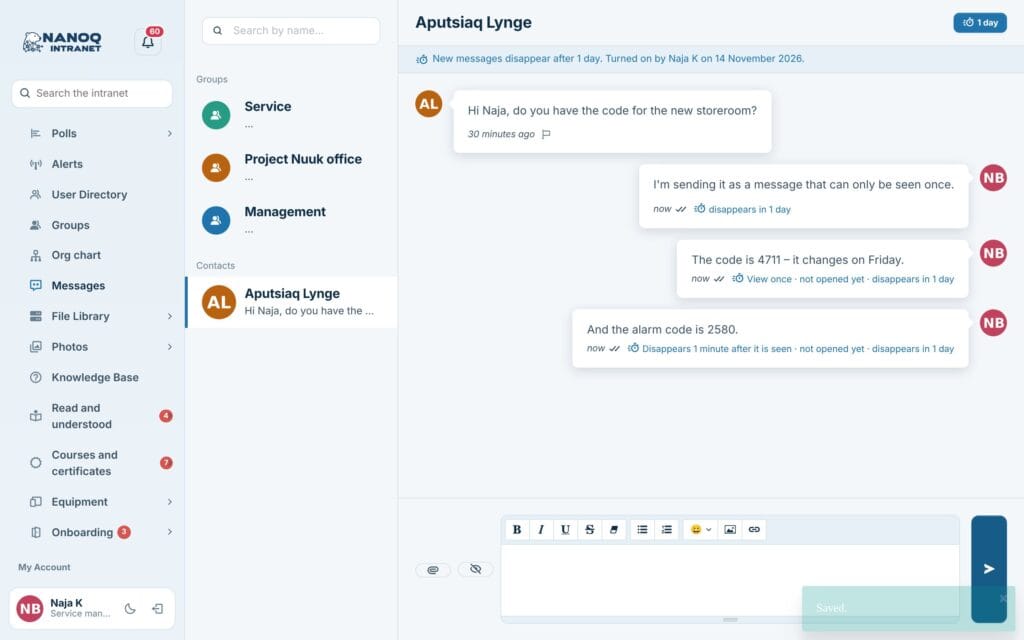
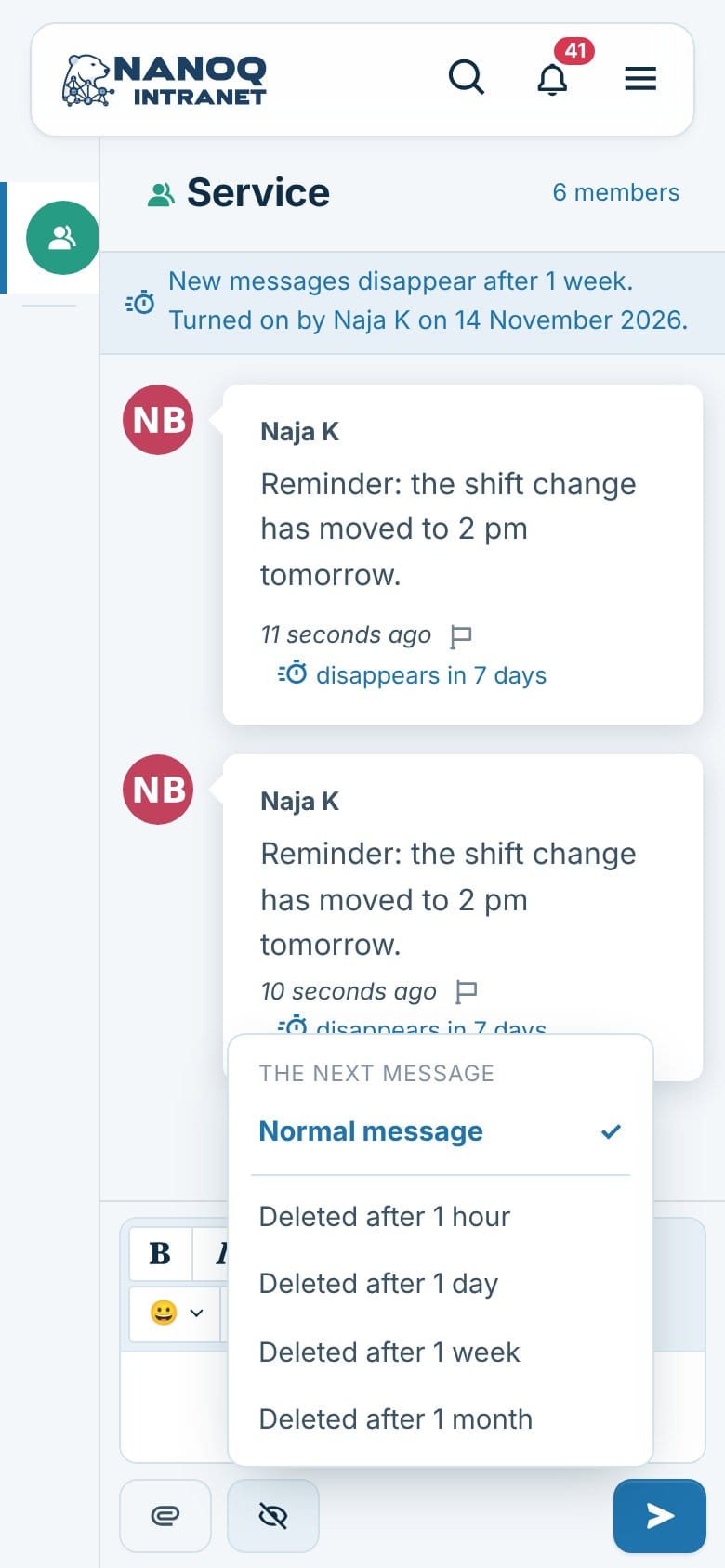
Click the button with the crossed-out eye next to the text field. Under The next message you choose:
- Deleted after 1 hour / 1 day / 1 week / 1 month – the message is deleted when the time is up, whether it has been read or not. In private messages and groups.
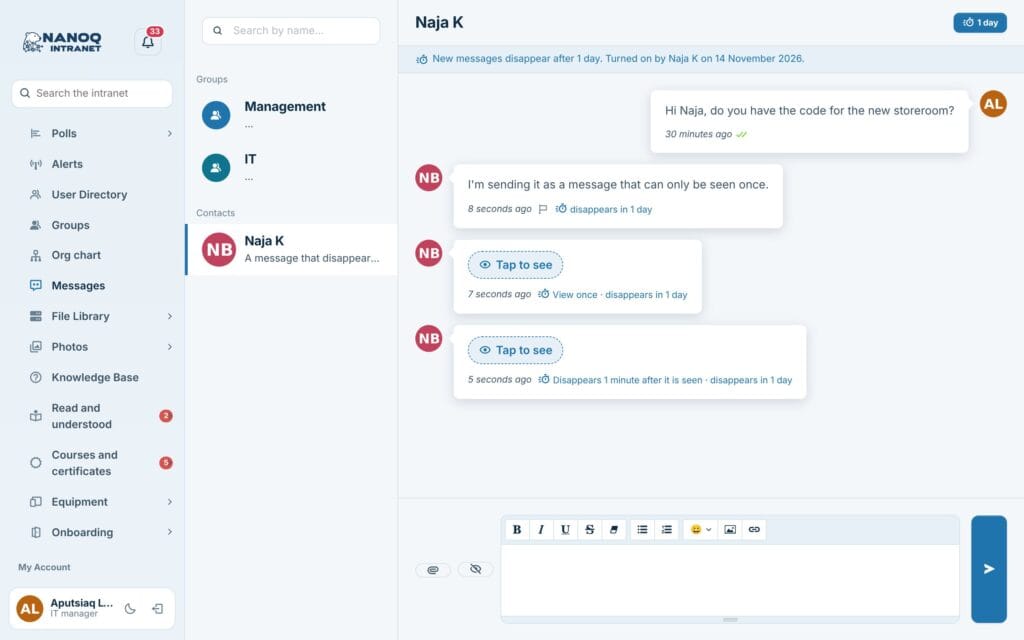
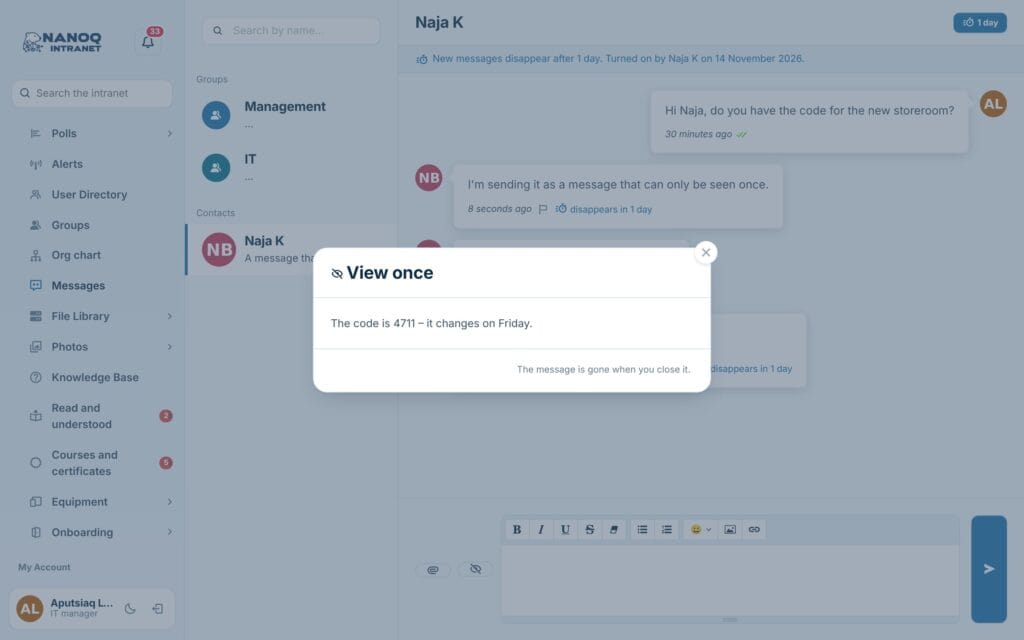
- View once – the recipient taps Tap to see, and the message is gone when it is closed. Private messages only.
- 10 seconds / 1 minute / 1 hour / 1 day after it is seen – the countdown starts when the recipient has opened the message. Private messages only.
The choice only applies to the next message – afterwards it says Normal message again. If the conversation also has a time, the shortest one applies. Each message shows when it disappears, and the sender can see whether it has been opened or is not opened yet.
Messages that disappear are not saved offline in the app, are not included when an employee downloads their data, and the activity log does not show the text. A reported message is kept until a moderator has looked at it. Screenshots and copying cannot be prevented – so think before you send something confidential.
Attach files and images
Click the paperclip next to the text field:
- Upload from your device – a file from your computer or phone.
- From the file library – a document that is already on the intranet.
- From Photos – a photo from an album.
You can also drag files straight into the conversation. There can be up to 10 attachments in one message, and a message may consist of attachments only.
The picture button in the toolbar works too: choose Choose a picture on your computer or phone (on a phone you can take a photo or pick one from your photos), or paste or drag a picture into the text field. In a message the picture becomes an attachment, so only the people in the conversation can see it, and it disappears together with the message. The same goes for the picture button in news, the forum and projects.
When you share a document from the file library, a link is sent – not a copy. The recipient must have access to the document. If your colleague doesn’t have access, you are told before anything is sent.
Notifications
New messages are shown with a counter next to Messages in the menu and under the bell. Several messages from the same colleague are collected in one notification. Under Settings → Notifications you choose whether new messages should also arrive as a pop-up, push on your phone or email. See Notifications, push and app.
For administrators
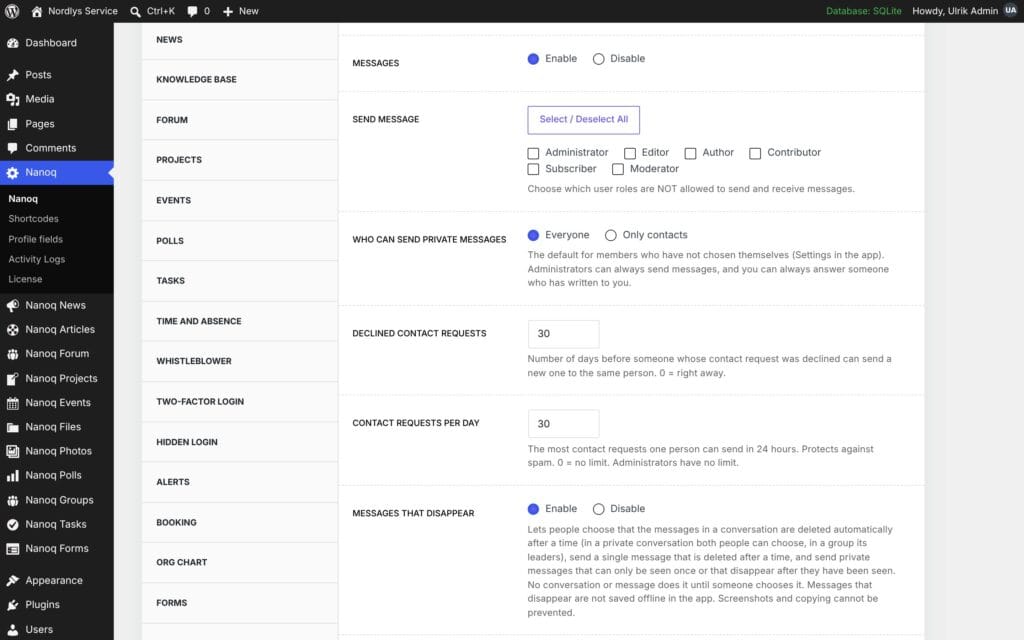
Under Nanoq → Messages:
- Turn the module on/off.
- Send message: roles that may not send messages.
- Delete Old Messages: messages older than a number of days are deleted automatically.
- Who can send private messages: the default for employees who haven’t chosen themselves (Everyone or Only contacts).
- Declined contact requests: number of days before someone who was declined can send a new request to the same person (default 30, 0 = straight away).
- Contact requests per day: at most this many requests per person (default 30, 0 = no limit).
- Messages that disappear: Enable to let people use the stopwatch and the button next to the text field (off by default).
- Times for automatic deletion: the times people can choose between for a conversation or a single message (1 hour, 1 day, 1 week, 1 month).
- View once and disappear after viewing: private messages only.
Uploaded attachments are stored in the protected folder and can only be downloaded by the participants in the conversation.
Good to know
- Hidden users are not shown in the list of recipients.
- Attachments that were never sent are cleaned up automatically once a day.
- A message whose time is up is never shown again and is deleted with its attachments within a few minutes.
- If the conversation’s time is changed, it only applies to new messages.
- Delete Old Messages only applies to private messages, not group messages.