Guides › Communication
Forum
Ask questions, share ideas and find answers from colleagues in topics sorted into categories.
What the module does
The forum is the place for discussions that need to be found again: questions for IT, ideas for improvements, experience from customers.
- Topics with replies, sorted into categories.
- Categories can be locked to a department.
- Replies can be found in the shared search.
For employees
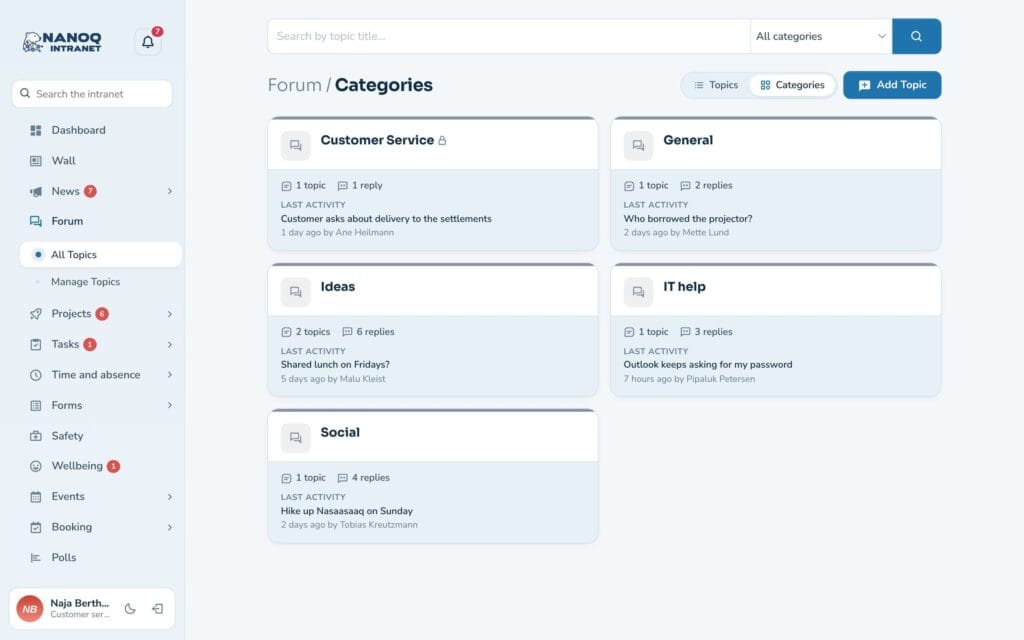
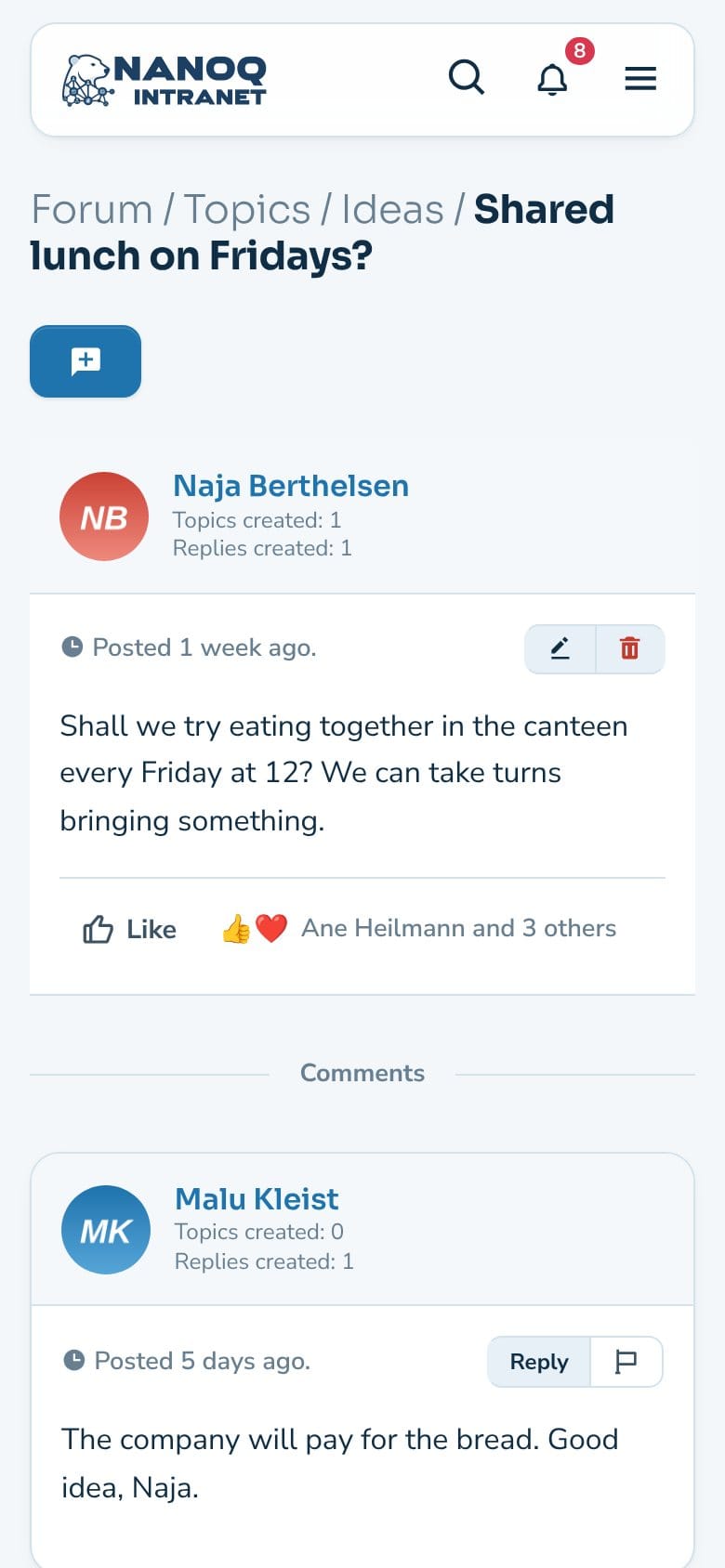
Read and reply: Click Forum → All Topics. Open a topic and click Add Comment – or Reply on a comment to answer it directly. Older replies are expanded with Show Replies.
Likes: If the Likes module is turned on, you can give the topic a “like” or a reaction (such as a heart) below the text. Click the names to see who liked it.
Create a topic: Click Add Topic (or go to Forum → Manage Topics). Give it a clear title, describe the question or idea, and choose a category.
Edit or delete: You can edit or delete your own topics with the buttons on the topic or under Manage Topics.
You are notified under the bell – and by email or push if you have chosen that under Settings → Notifications – when someone replies to your topic or your comment.
Topics or categories
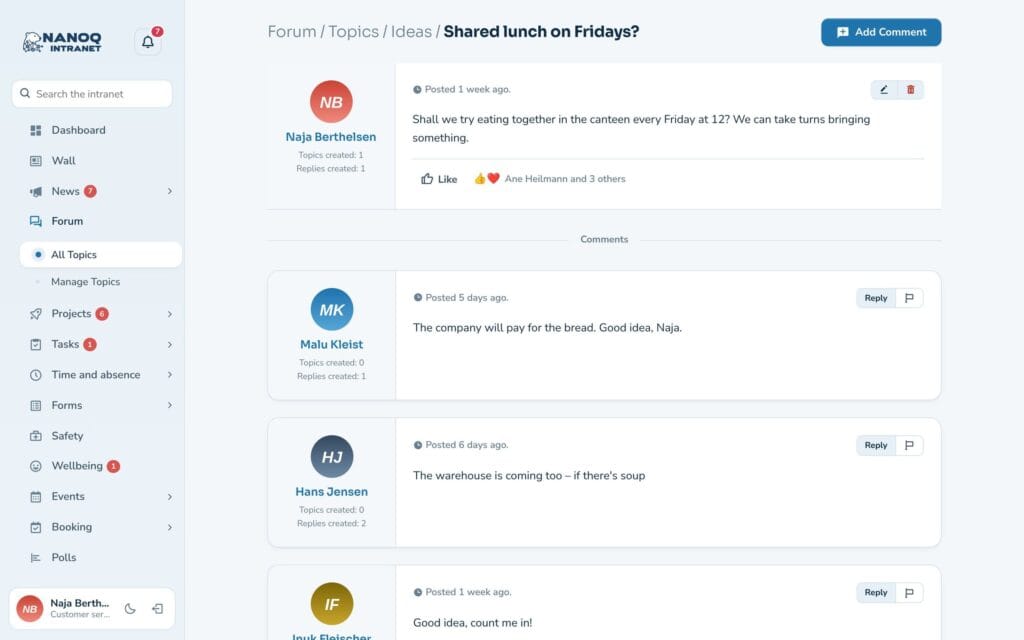
At the top of the forum you choose the view with the Topics and Categories buttons. Your choice is remembered.
- Topics shows all topics in one list with the number of replies and latest activity.
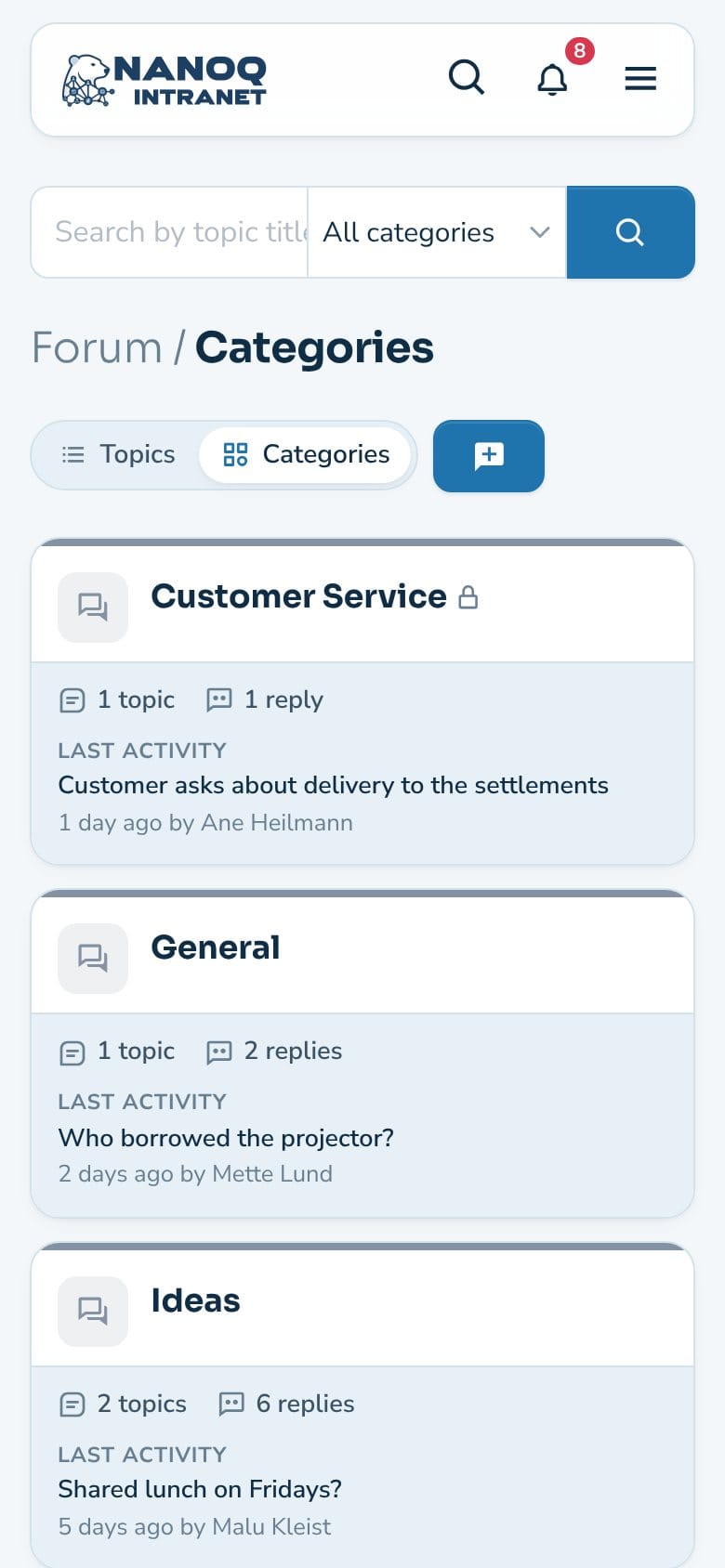
- Categories shows one card per category in the category’s colour with description, number of topics and replies and the latest activity. Subcategories are shown as small links on the card. Categories that are closed to a group have a lock.
- Click a card to see the category’s topics. If you search from the category overview, the result is shown as a list.
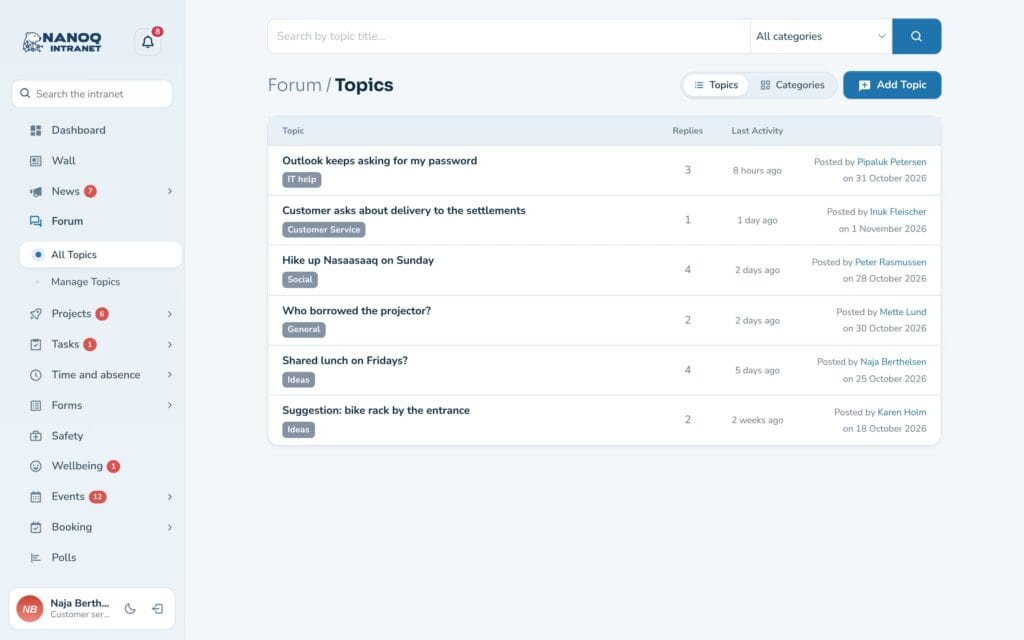
Write the title the way you would search for it. “The printer on the 2nd floor won’t print” is easier to find than “Help!”.
Closed categories
A category can be locked to one or more groups. Then only the members see the category and its topics. This is used, for example, for a management group or a committee.
If you try to open a locked topic, the No access page is shown with an overview of the groups you are a member of.
For administrators
Under Nanoq → Forum:
- Turn the module on/off.
- Restrict Access: roles that may not see the forum.
- Add Topic: roles that may not create topics.
- Number of topics per page.
- Default Forum View: Topics or Categories – what employees see until they choose for themselves.
Categories and their access (the Access (groups) field) are managed under Nanoq Forum in WordPress. Give each category a colour and a short description – they are shown on the category overview.
Good to know
- The forum can be shown on an ordinary page with
[nanoq_forum]. See Shortcodes. - If an employee needs a quick answer from one person, Messages is better.